Add a certificate
Give learners a PDF certificate once they meet the conditions you set.
A certificate in Linqur is an activity in the course. It produces a PDF with a design that you choose from your templates. You don’t make that design in Linqur: you send your design to Linqur Support, and support sets it up as a template on your platform. Per course you then choose which template the certificate uses.
Before you start
- Linqur support has set up your design as a template.
- The course has the activity that should unlock the certificate, with a completion condition. See how to set up course and activity completion.
Step by step
1. Click Certificate in a section
Click Courses in the menu and then Manage content for the course. In the section where the certificate belongs, click Certificate.
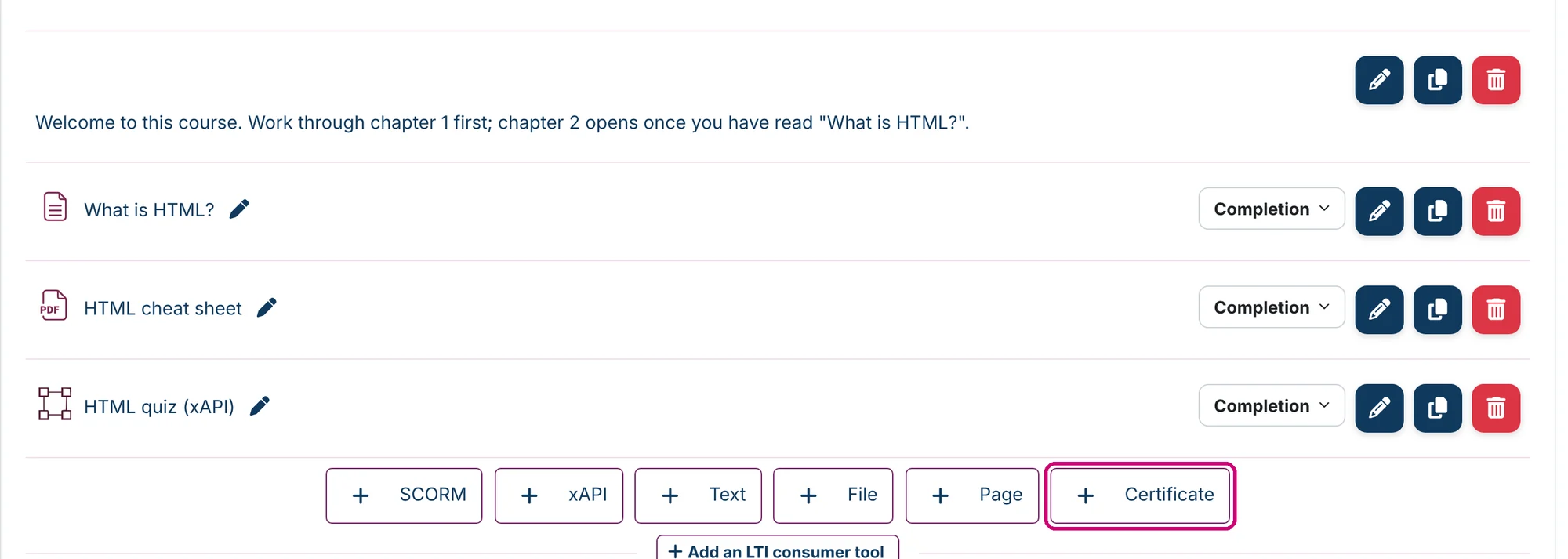
2. Enter a name
Enter a Name, for example “Certificate of completion”. Learners see this name in the course.

3. Check the options
Under Options:
| Option | What it does |
|---|---|
| Delivery options (1) | Send the file inline to the browser opens the PDF in the browser. Send to the browser and force a file download downloads it. |
| Use custom file name pattern | Gives the PDF your own file name, built from placeholders such as {FIRST_NAME}, {LAST_NAME}, {COURSE_FULL_NAME} and {ISSUE_DATE}. |
| Allow anyone to verify a certificate (2) | With Yes, anyone with the verification link can check a certificate, also without logging in. |
| Required minutes in course (3) | The minimum number of minutes a learner must have been logged in to the course before they can get the certificate. The default is 0. |
| Set protection (4) | The actions learners can’t do with the PDF: Print, Modify, Copy. |
| Force language (5) | A fixed language for the certificate. Do not force sets no fixed language. |
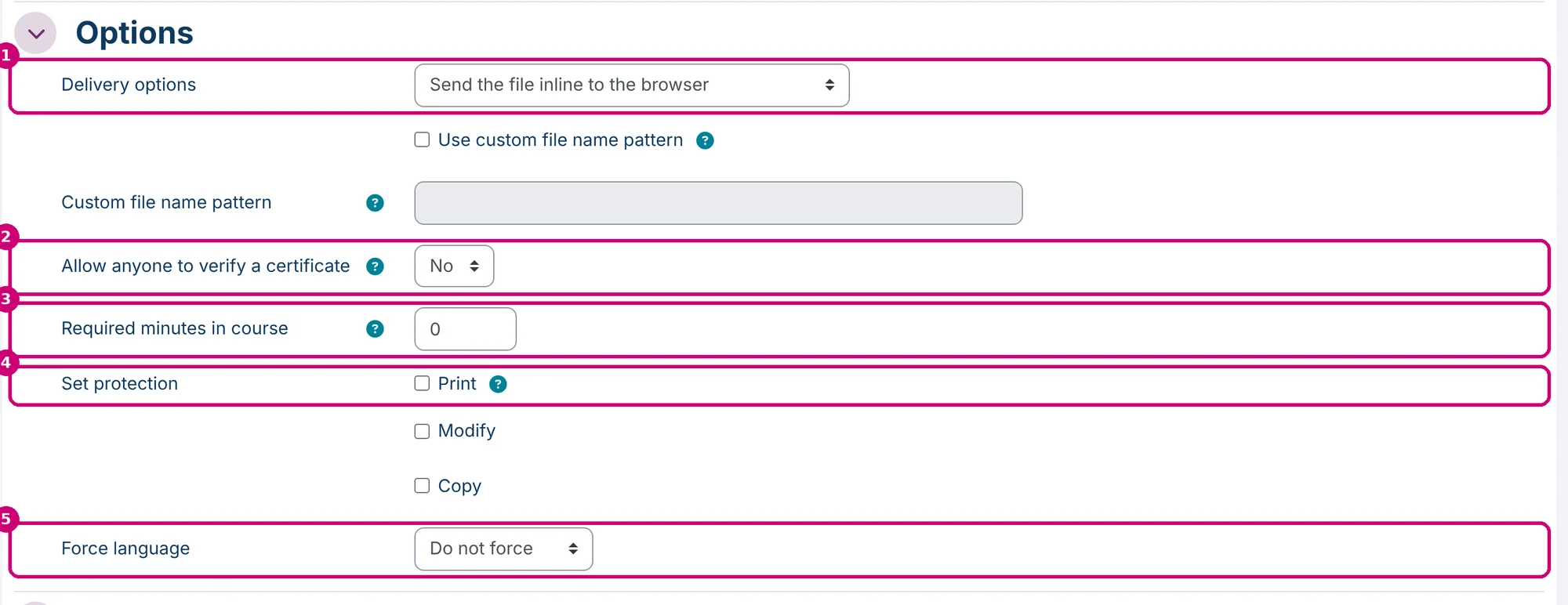
Under Common module settings there is a second Force language field. That one sets the language of the activity in the course, not of the certificate.
4. Add the condition that unlocks the certificate
Open Restrict access, click Add restriction… and choose Activity completion. Choose the activity and must be marked complete. In this example the learner first has to complete “What is HTML?”.
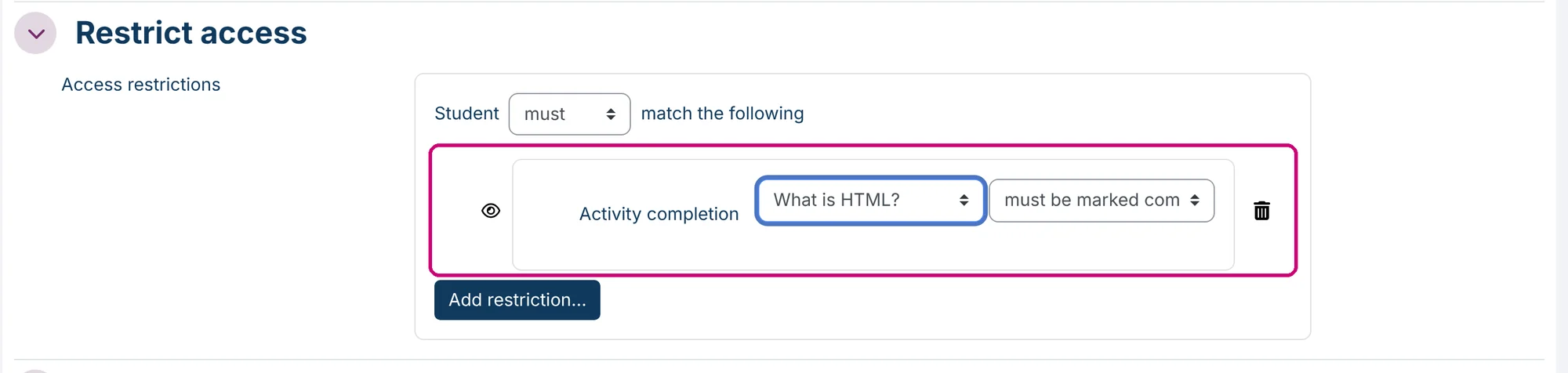
All the options for conditions are in restrict access to sections and activities.
5. Save
Click Save and return to course.
6. Choose the template
Click the name of the certificate in the course. On the certificate page, click Load template.

At the bottom of the next page, under Load template, choose your template (1) and click Load (2). Linqur asks for confirmation: loading a template removes the pages and elements that the certificate already had. Click Continue.

The fields above Load template belong to the design. Linqur support takes care of those, so you can leave them as they are.
7. Check the course
The condition is shown under the certificate on the course page.

Next step
- More about conditions: restrict access to sections and activities.
- The other types of content: getting started with course content.