Docebo via LTI Legacy (1.1/2.0)
Add a Linqur LTI 1.1 (Legacy) tool to a course in Docebo as LTI training material, with the Launch URL and the Secret from Linqur.
Docebo imports the SCORM package as training material of the type LTI, so the content keeps running from Linqur. You create a course in Docebo, import the LTI tool with the Launch URL and the Secret, and publish the course. If the e-learning records a score, you see it in Docebo and in Linqur. The screenshots show the English interface of Docebo.
Before you start
You need an LTI 1.1 (Legacy) tool in Linqur for the SCORM package, with its Launch URL and Secret. See publish a SCORM package as an LTI tool and share the launch details of an LTI tool.
Step by step
1. Create a course in Docebo
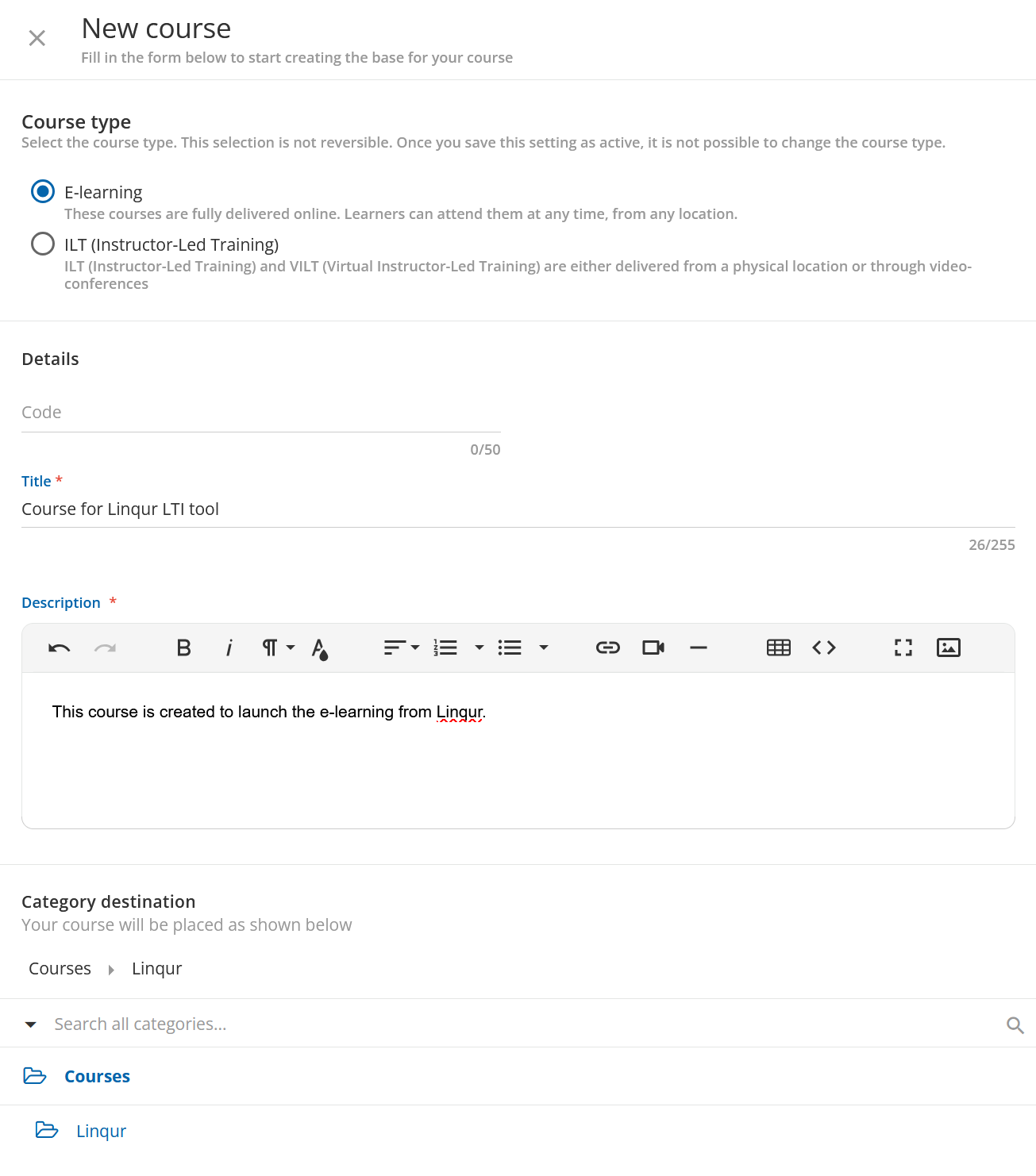
Log in as Superadmin and go to Admin menu > Course management. Click the plus button at the top right and choose New course. Choose the course type E-learning, enter a Title and a Description, and pick a category if you want. Click Create and edit at the bottom right.
2. Import the LTI tool
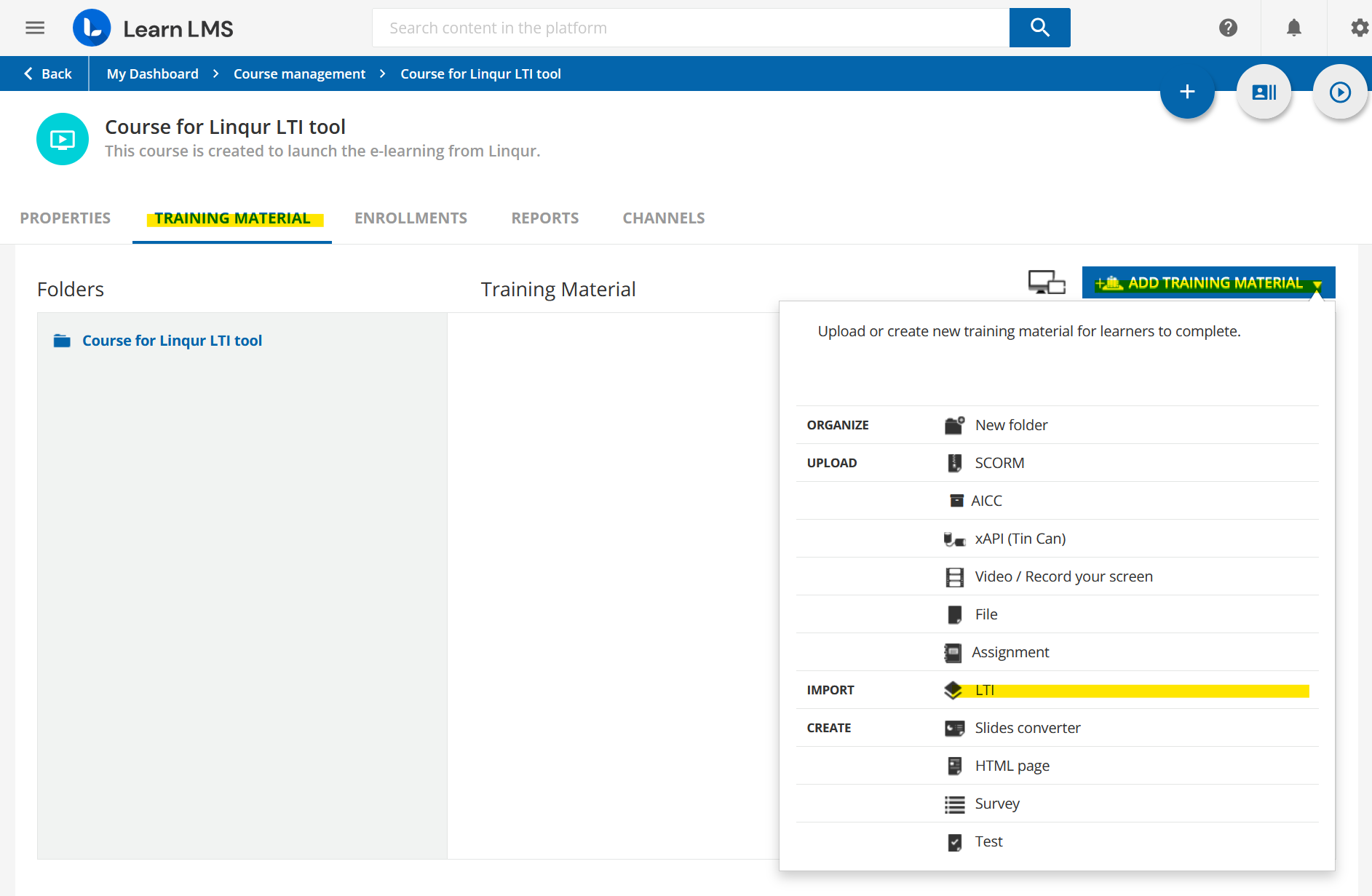
Open the Training material tab of the course. Click Add training material and choose LTI under Import.
3. Enter the launch details
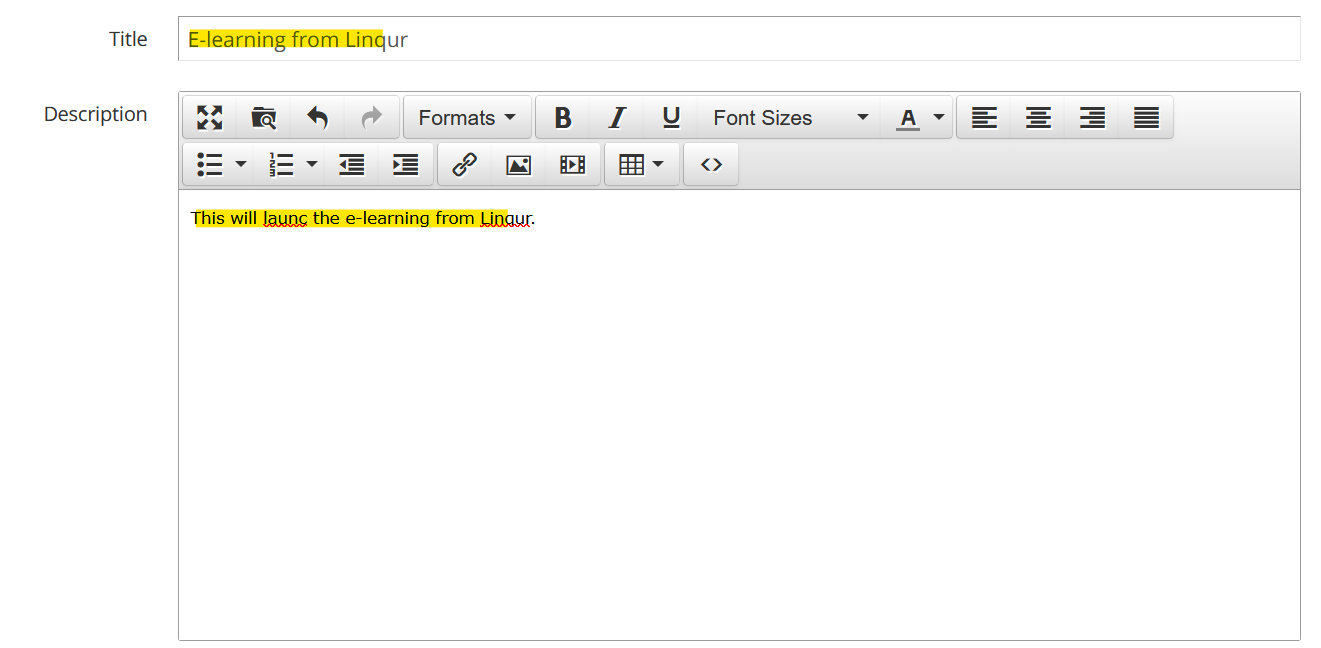
Enter a Title and a Description for the training material.
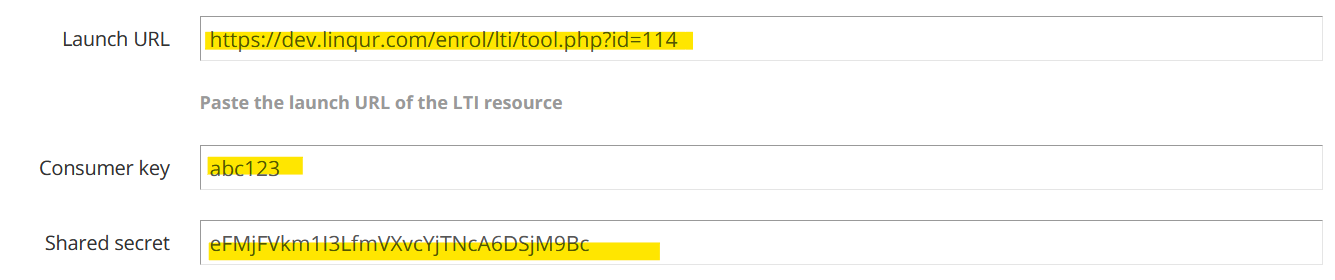
Below that, fill in:
| Field | What to enter |
|---|---|
| Launch URL | The Launch URL from Linqur. |
| Consumer key | Any value, for example abc123. |
| Shared secret | The Secret from Linqur. |
4. Set privacy, completion and view mode
These settings are optional:
- Privacy: tick Share launcher’s name with the tool and Share launcher’s email with the tool if Linqur may receive the name and e-mail address of the learner. Linqur then shows them under Registered users.
- Completion: if the e-learning in Linqur reports completion, choose After receiving feedback from the external tool and set a minimum score to pass.
- View mode: how the e-learning opens. We recommend New window; the other options work too.
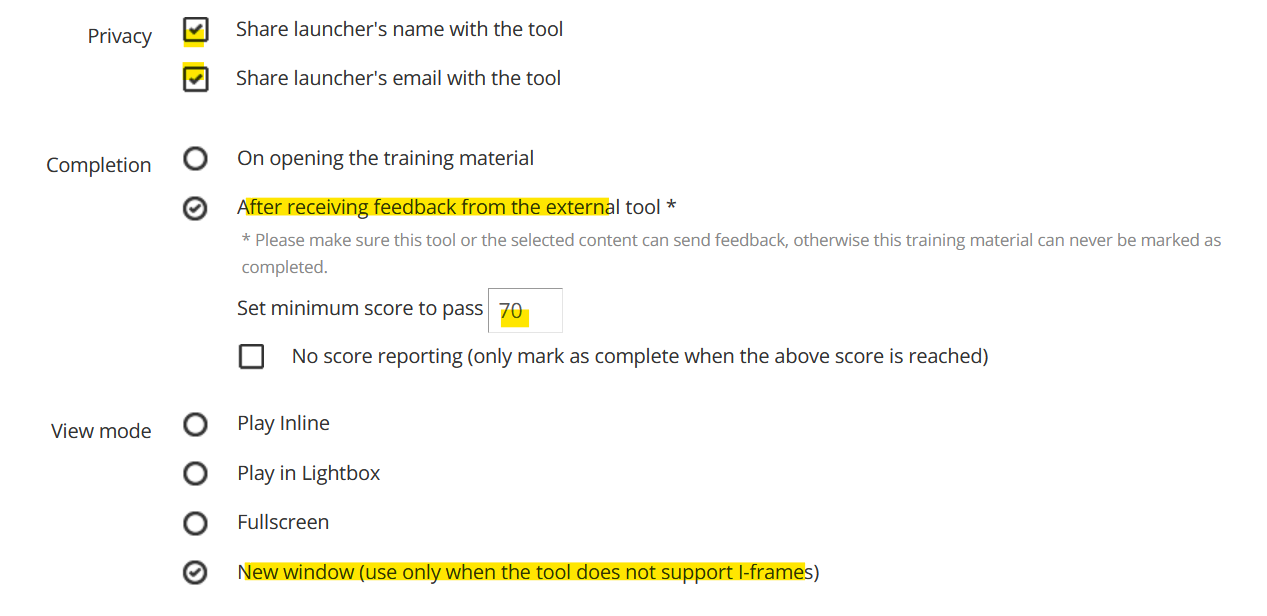
Click Save changes at the bottom right.
5. Publish the course
Open the Properties tab. At the bottom of the page, set the status to Published and click Save changes.
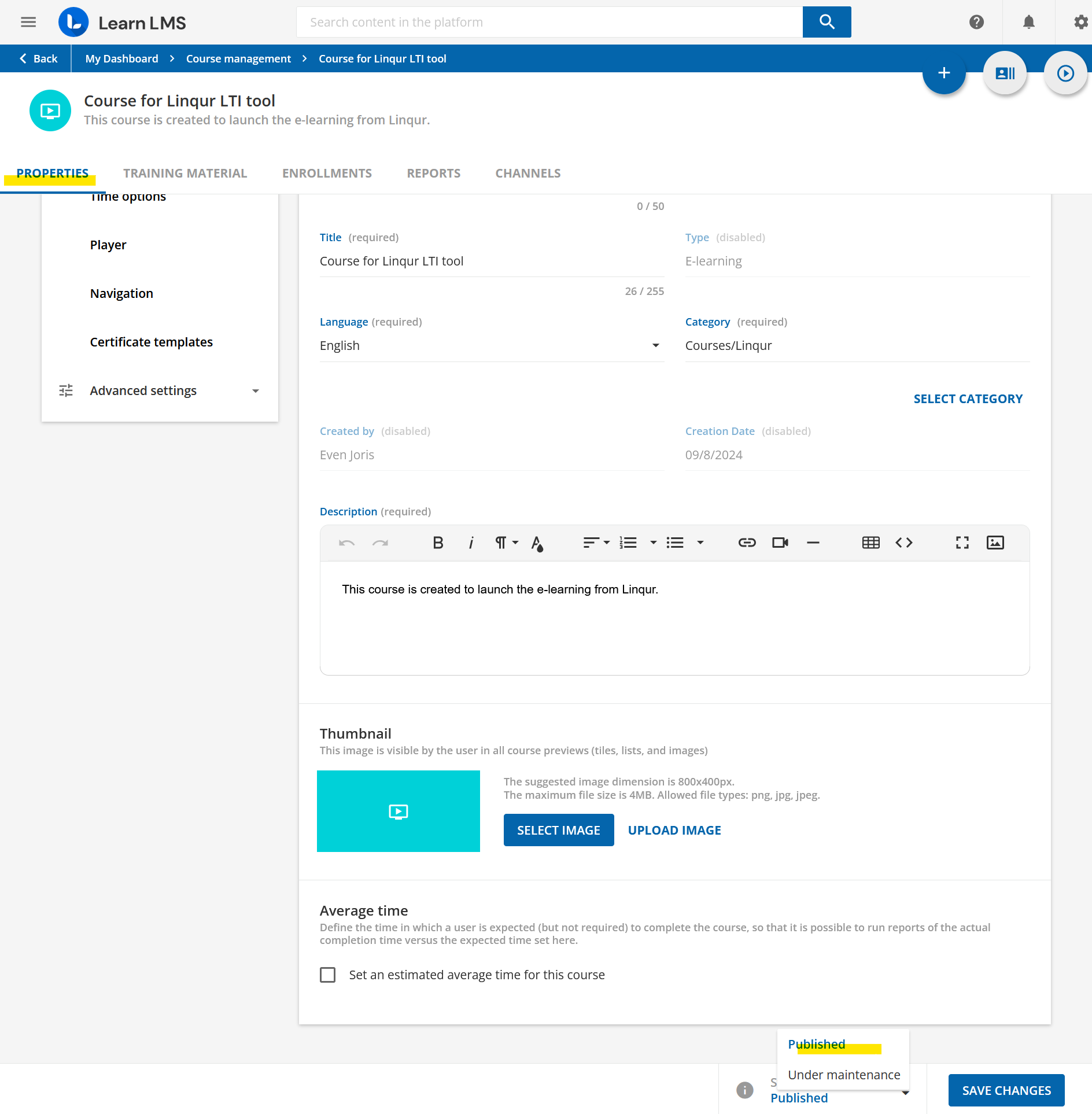
6. Test as a learner
Log in as a learner who is enrolled in the course. Open the course and click Start learning now, or click the LTI training material. The e-learning from Linqur opens, in the view mode you chose.
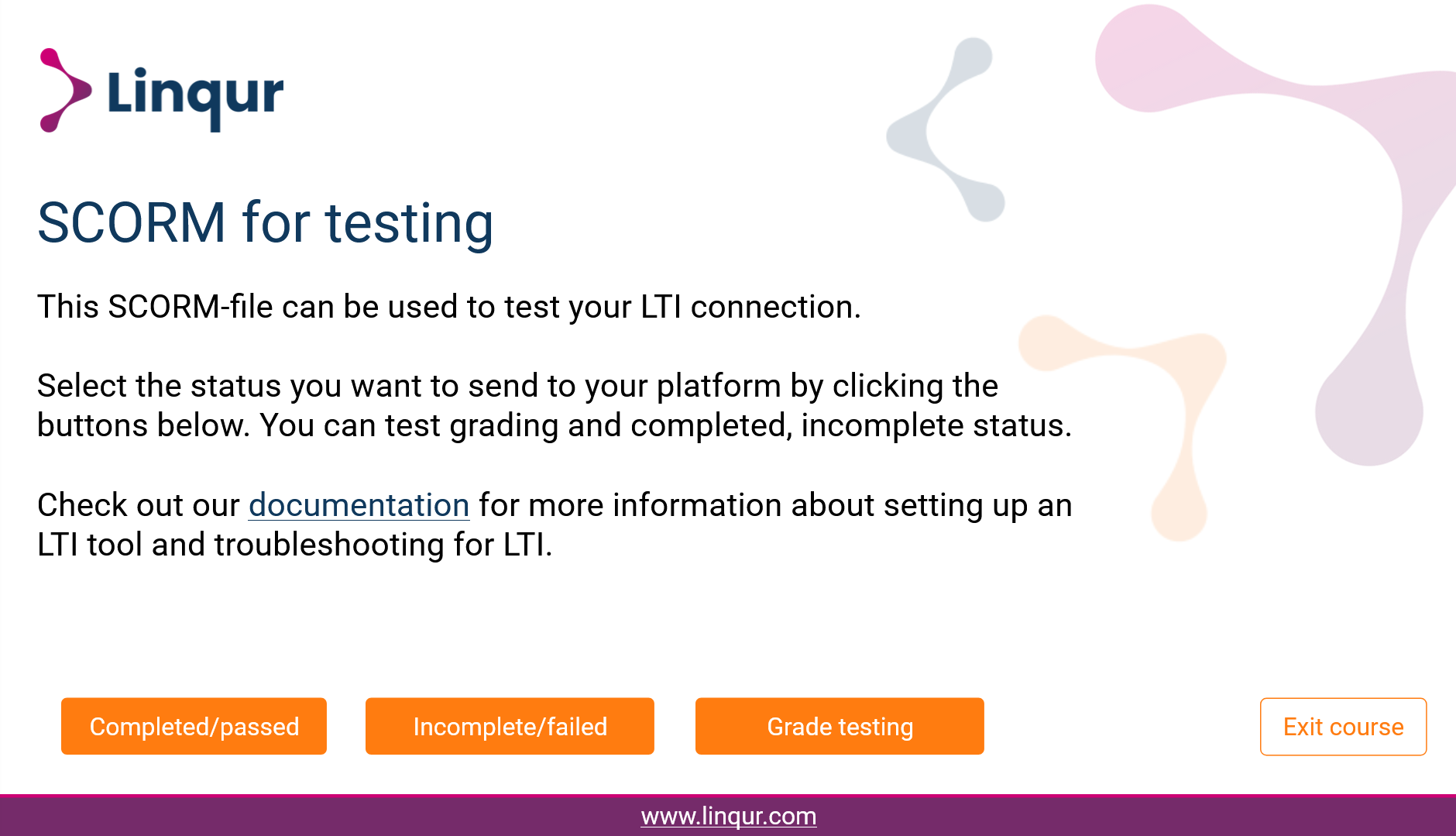
7. Check the grade
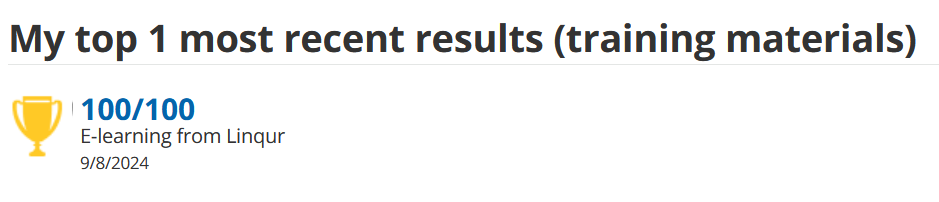
If the e-learning in Linqur has completion, finish it as the learner. The package shows the result.

In Docebo the course is now completed.
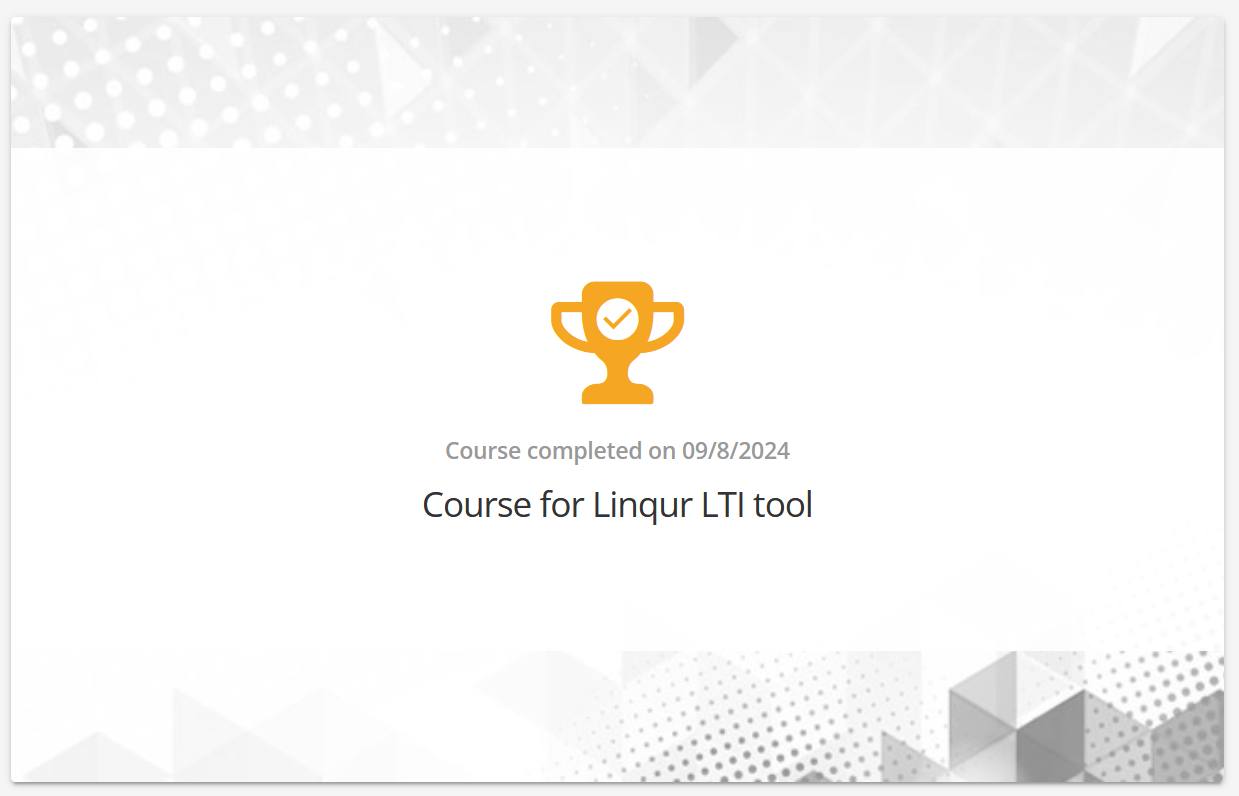
The learner sees the score under My activities.
In Linqur, the Registered users tab of the tool shows the learner with the grade. See share the launch details of an LTI tool.

Next step
- If the launch fails, check the list of LTI errors and their solutions or look the error up with the Debug assistant.
- Test the Launch URL and Secret without Docebo: test a Legacy LTI connection with Saltire.