Add a SCORM package from the file repository
Pick a package from the file repository when you add a SCORM package to a course.
When you add a SCORM package, the package file comes from your computer or from the file repository. From the repository you choose whether the activity links to the file or gets a copy of it.
| Choice | What the activity gets | When to choose it |
|---|---|---|
| Repository, then Link to the file | A link to the file in the repository. The file details show the original under Original. | The same package is used in several courses and you want to manage it in one place. |
| Repository, then Make a copy of the file | A copy of the package. | The activity needs its own copy of the package. |
| Upload a file | The package from your computer. | You use the package in this activity only. |
Before you start
- The package is in the file repository. See manage files in the file repository.
- You know how to add a SCORM package to a course. See how to add a SCORM package.
Step by step
1. Open the form and enter a name
Open the form for a new SCORM package in the course, as described in how to add a SCORM package, and fill in Name.

2. Open the file picker
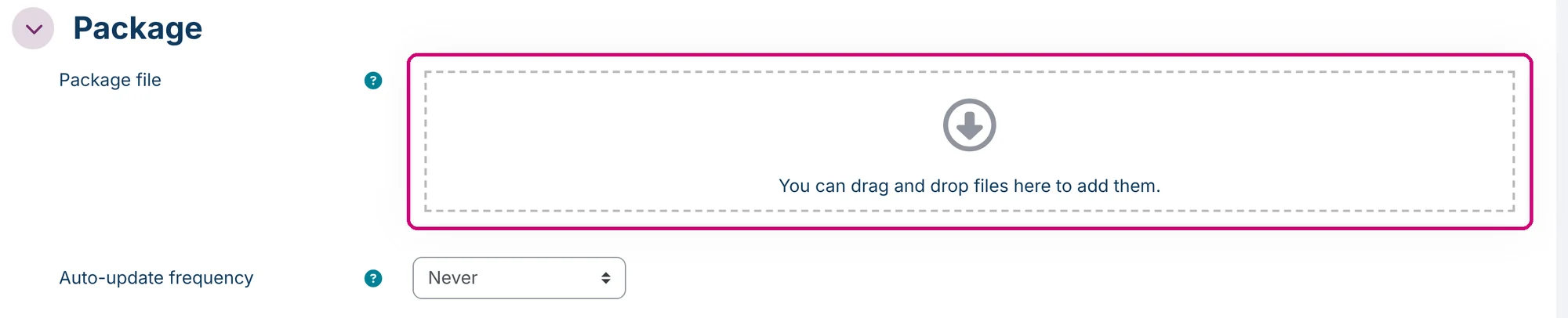
Under Package, the Package file box says “You can drag and drop files here to add them.” Click the arrow in that box.
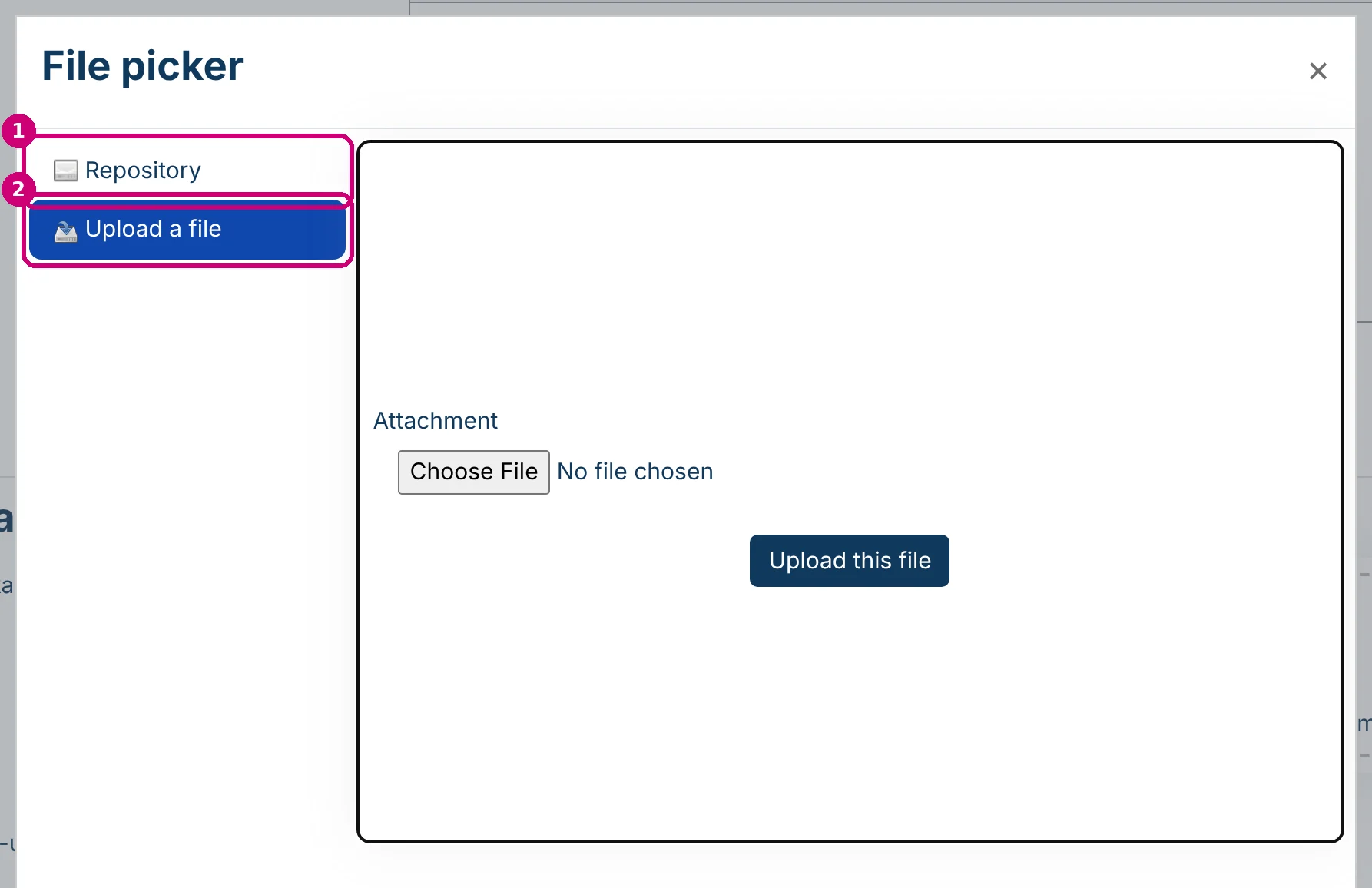
3. Choose Repository
The file picker has two sources: Repository (1) is the file repository, Upload a file (2) is for a package from your computer. Click Repository.
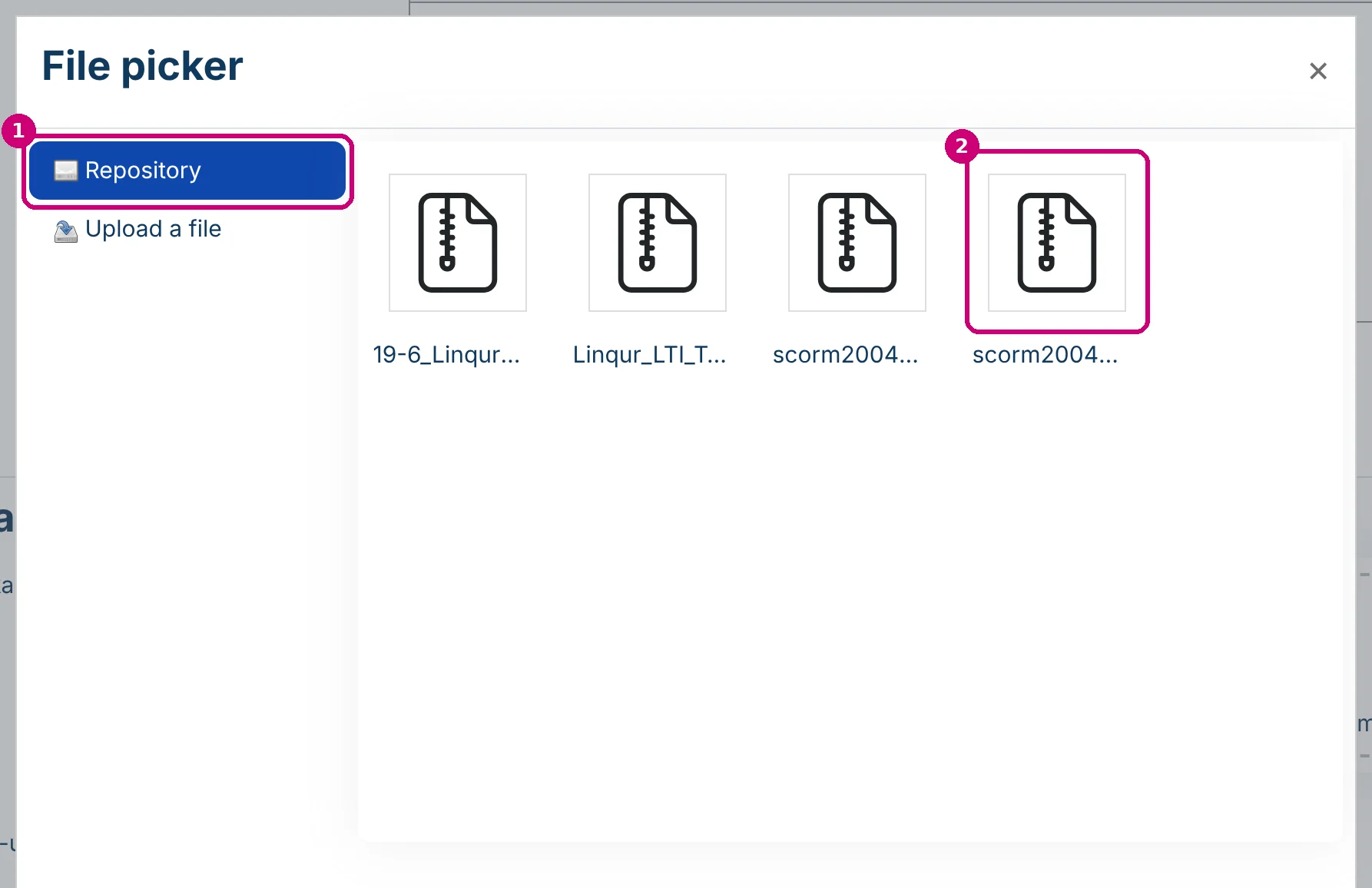
4. Choose the file
The repository shows its files by filename (2). Click the package you want.
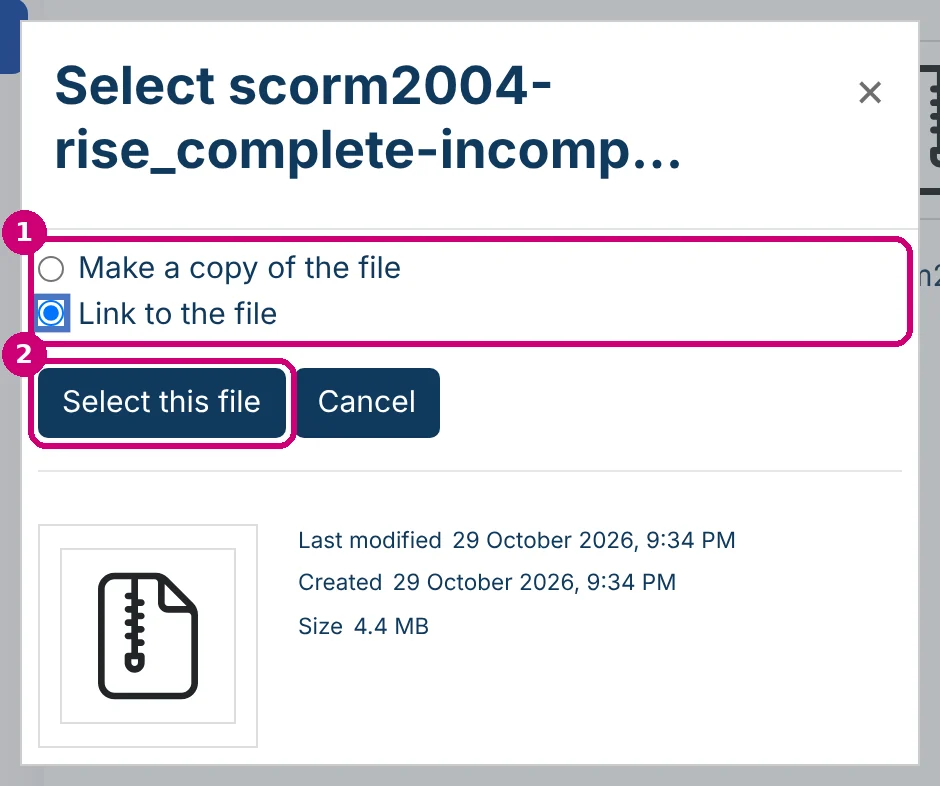
5. Link to the file or make a copy
Choose Link to the file or Make a copy of the file (1). Make a copy of the file is selected by default. Click Select this file (2).
6. Check the package and Auto-update frequency
The package is now under Package file (1). A linked file has a small arrow on its icon. Below it you find Auto-update frequency (2), with the options Never, Every day and Every time it’s used. The default is Never.
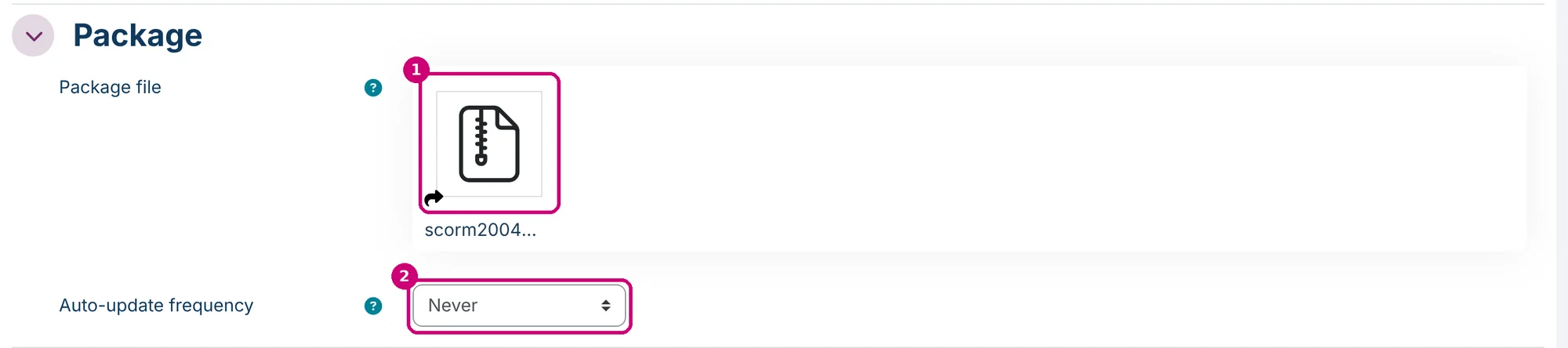
The help icon next to the field says: “This allows the external package to be automatically downloaded and updated”.

7. Save
Click Save and return to course. The activity is now in the course.

Check which file an activity uses
Open the settings of the activity, see how to edit the SCORM settings, and click the file under Package file. For a linked file, Original (1) shows the source and the filename, for example “Repository: /scorm2004-rise_complete-incomplete.zip”. Last modified (2) shows when the file in the repository last changed. After you upload a new version, it shows the time of that upload.
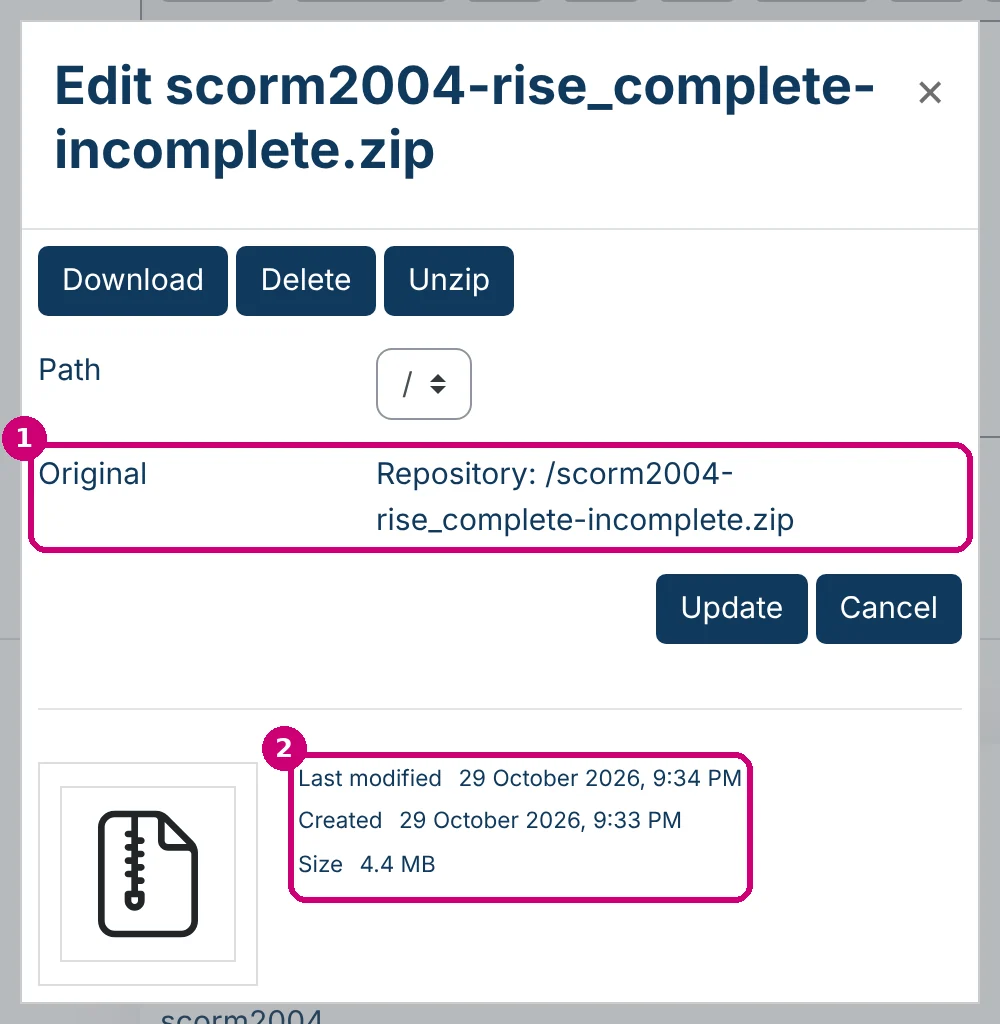
Close the window with ×.
Update the package later
If the activity links to the repository, upload a new version there, as described in upload a new version. Try the new version in a test course first.
If the activity has a copy or a package from your computer, replace the file in the activity. See how to update a SCORM package.
Next step
- Make the package available in your client’s LMS: publish a SCORM package as an LTI tool.
- Upload, edit or delete files in the repository: manage files in the file repository.