Add a text block
Put a short text directly on the course page, between the activities.
A Text is a short text that is shown on the course page itself, inside a section. Use it for a welcome, an instruction or a heading within a section. For a longer text that learners open separately, use a page; for a document, use a file.
Step by step
1. Click Text in a section
Click Courses in the menu and then Manage content for the course. In the section where the text belongs, click Text.

2. Fill in the form
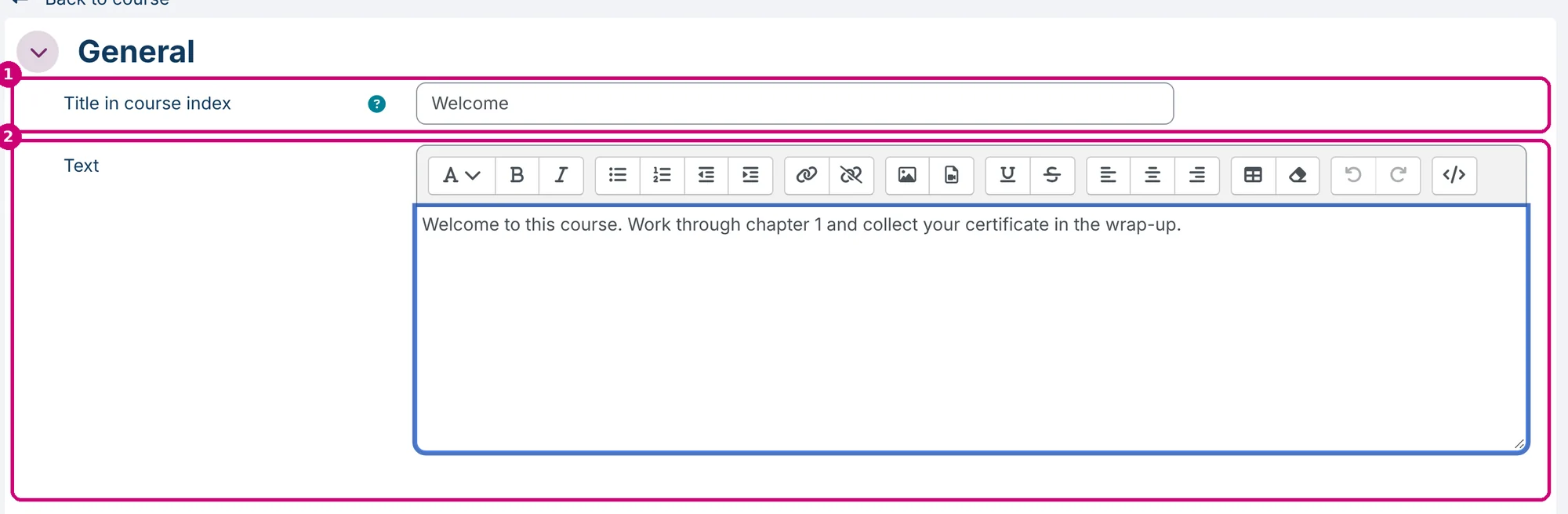
Title in course index (1) is optional. The title only appears in the course index, not on the course page. If you leave it empty, Linqur uses the first words of the text. Type the text under Text (2).
3. Save
Click Save and return to course. Back to course at the top of the form leaves the form without saving.

4. Check the course
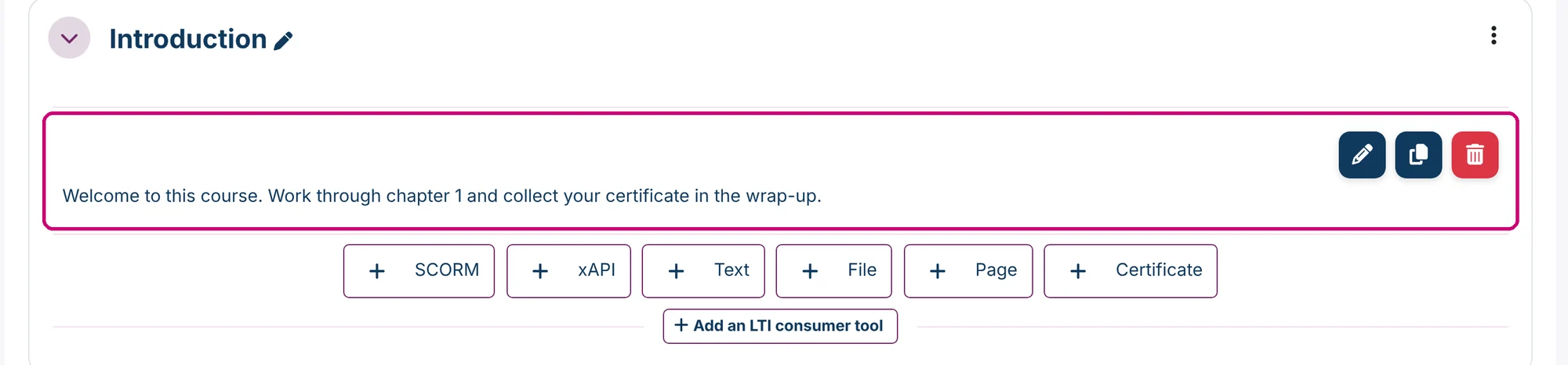
The text now sits in the section, on the course page itself. In edit mode it has the same three buttons as every activity: edit, duplicate, delete.
What a text block does not have
A Text has no completion conditions and never counts towards course completion. It also doesn’t send a grade to the gradebook. Restrict access is in the form, so you can show the text only under a condition; see restrict access to sections and activities.
Next step
- A separate page with formatted content: add a page.
- A document that learners open or download: add a file.
- The other types of content: getting started with course content.