Add an xAPI activity
Add xAPI content to a course. The results go to a learning record store (LRS).
An xAPI activity opens learning content that sends its results as statements to an LRS. The content runs from its own launch URL, or from a zip package with a tincan.xml file that you upload to Linqur. Which LRS receives the statements is set for the whole platform under xAPI settings, see set the default LRS for xAPI activities.
Step by step
1. Click xAPI in a section
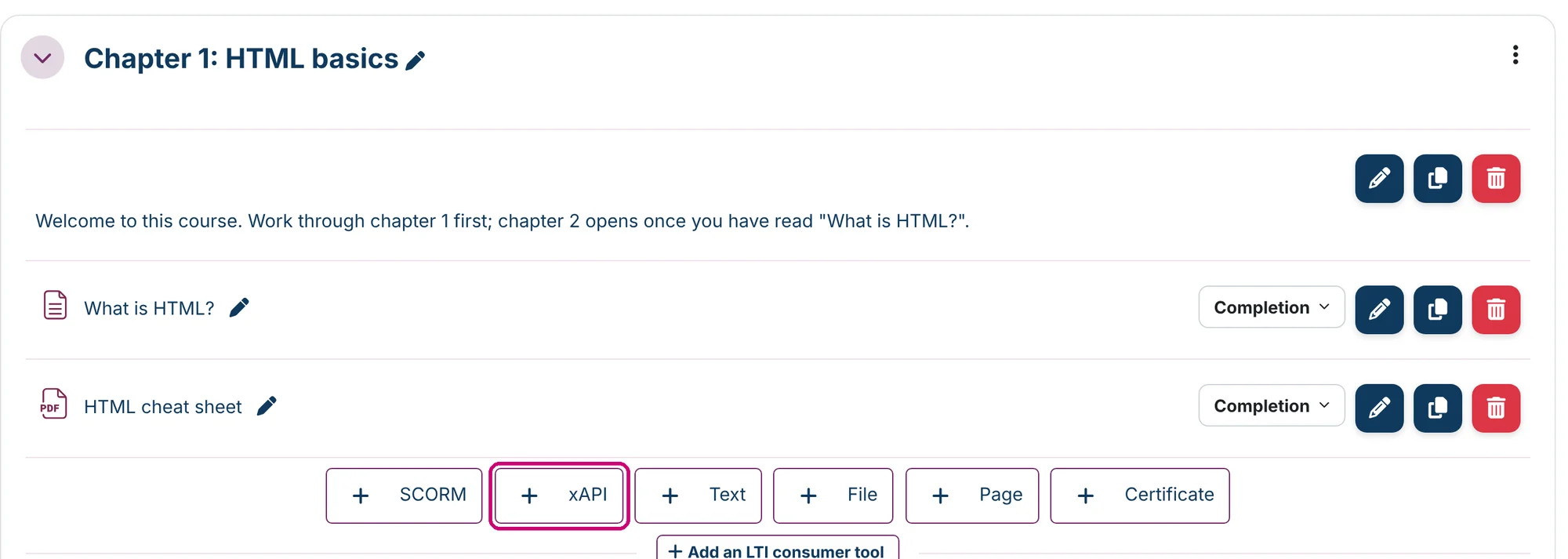
Click Courses in the menu and then Manage content for the course. In the section where the activity belongs, click xAPI.
2. Name the activity and add the content
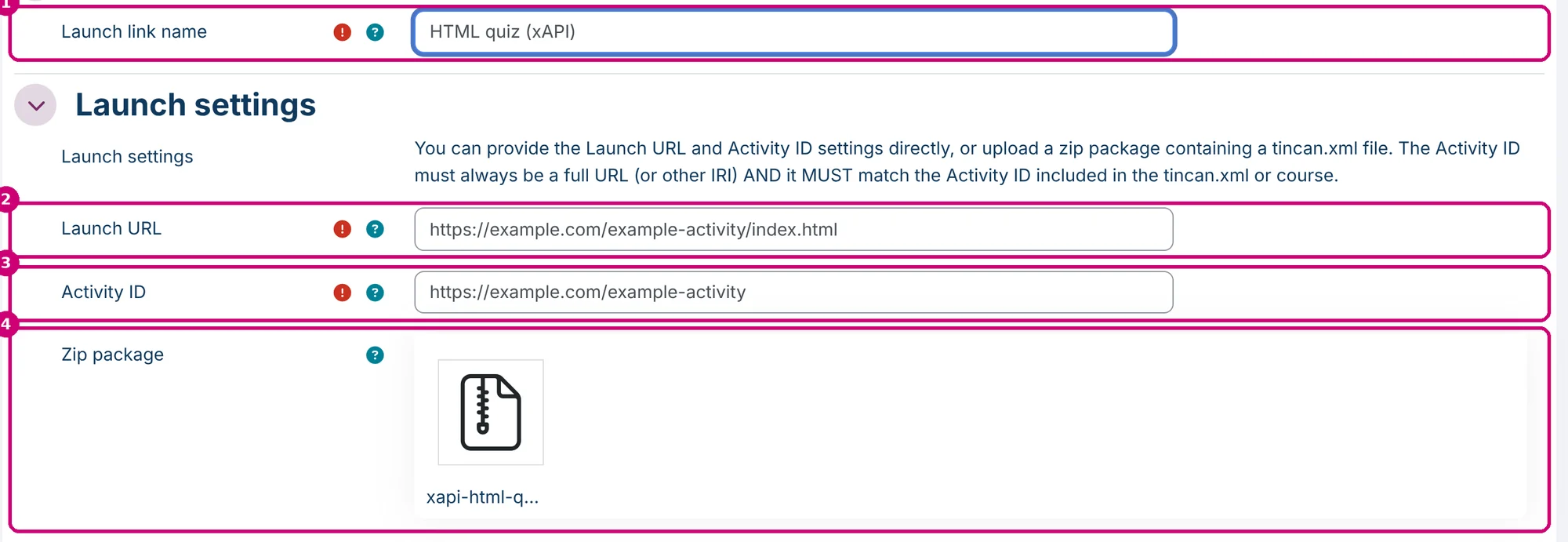
- Launch link name (1): the name learners see in the course.
- Launch URL (2) and Activity ID (3): fill these in when the content runs from its own address.
- Zip package (4): or drag a zip package with a
tincan.xmlfile into this box.
The form sets two rules:
- The Activity ID is a full URL (or another IRI) and must match the Activity ID in
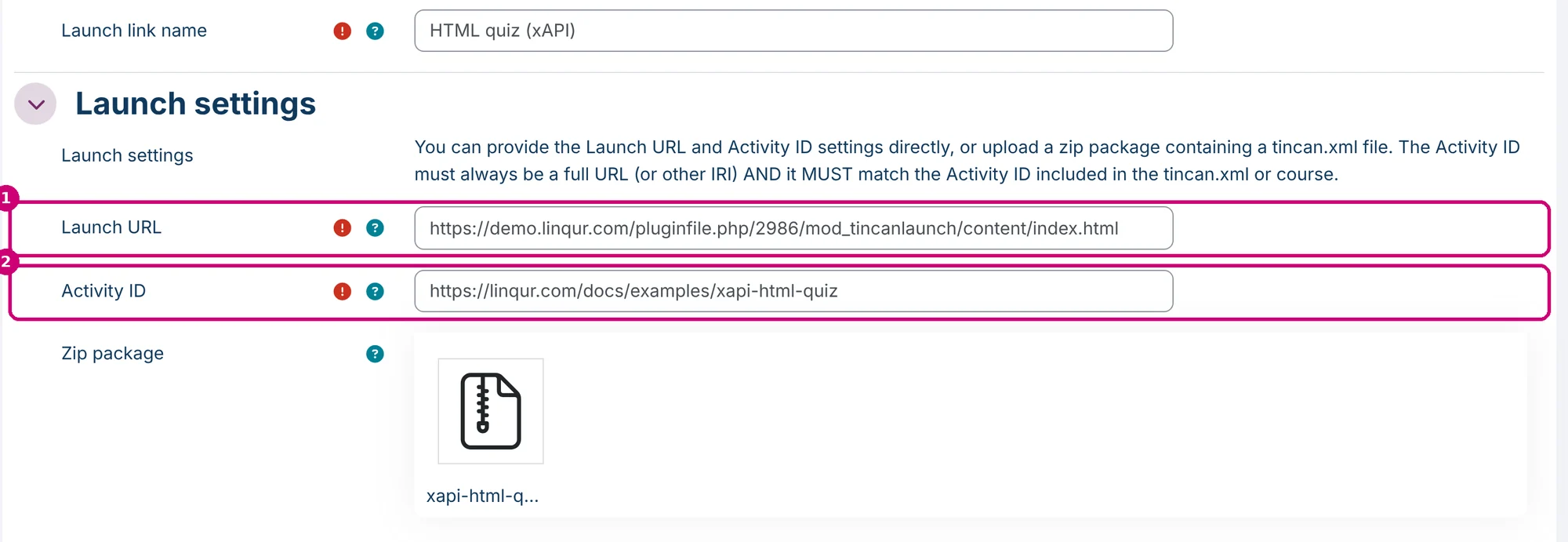
tincan.xml. - With a zip package, Linqur fills in the Launch URL and the Activity ID from
tincan.xmlwhen you save. Until then the fields show example values that start withhttps://example.com/.
You can also pick the zip package from the file repository: click the arrow in the Zip package box and choose Repository. See manage files in the file repository.
3. Use a different LRS for this activity (optional)
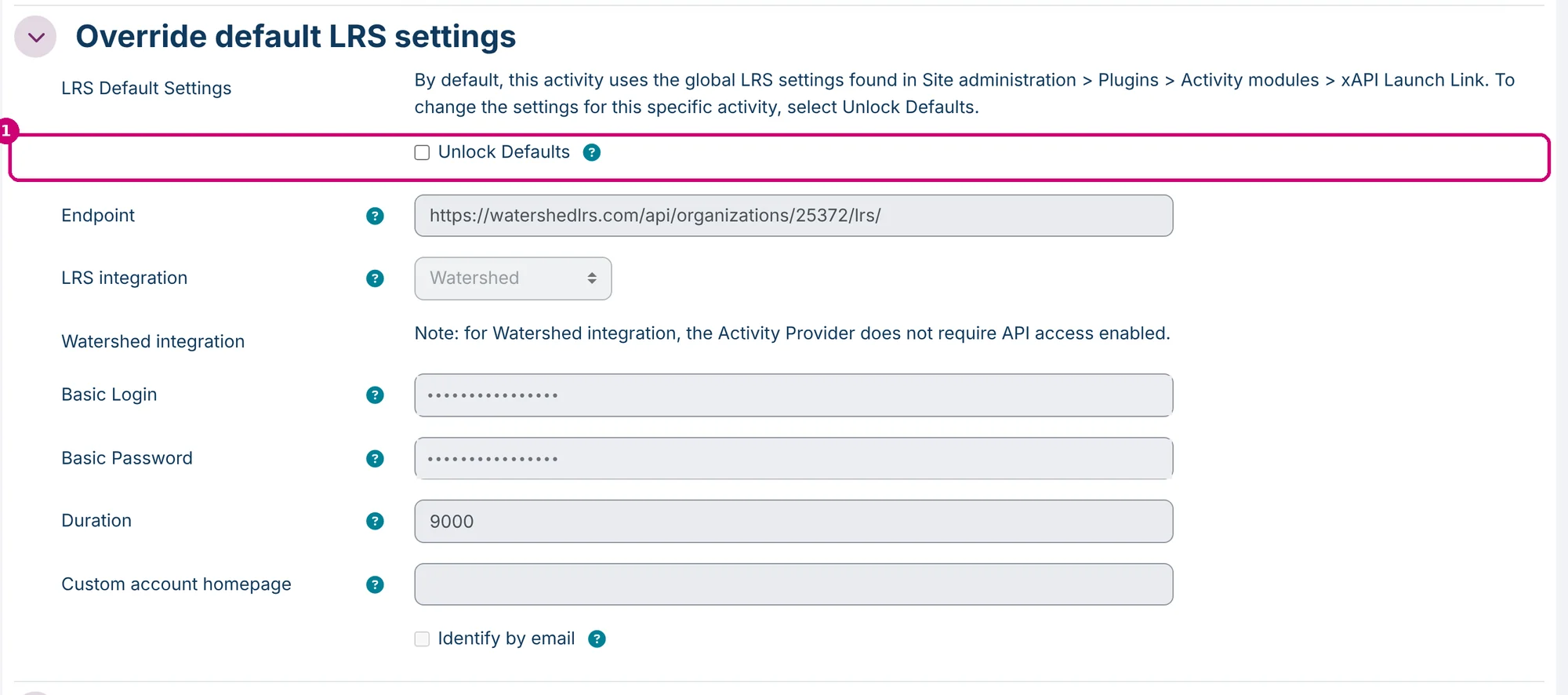
Under Override default LRS settings you see the LRS settings this activity uses. They come from xAPI settings and are locked. Tick Unlock Defaults (1) only when this one activity has to send its statements to a different LRS.
| Field | What it does |
|---|---|
| Endpoint | The address of the LRS. It ends with a forward slash. |
| LRS integration | None, Watershed or Learning Locker 1. With an integration, new login details are created for each launch. |
| Basic Login and Basic Password | The login key and the password (secret) of the LRS. |
| Duration | Used with an LRS integration: how many minutes the login details stay valid. |
| Custom account homepage | When filled in, learners are identified by this homepage together with the ID number in their profile. |
| Identify by email | Learners are identified by their email address. |
The same fields are explained in set the default LRS for xAPI activities.
4. Set the appearance
Under Appearance:
- Enable simplified launch (1): the learner skips the registration screen. The activity starts with the most recent registration, or creates one if there is none. This turns off multiple registrations.
- Allow multiple registrations. (2): the learner can start more than one registration. Without it, only the most recent registration is shown.

5. Set when the activity is complete
Under Completion conditions, choose Add requirements.
| Condition | The activity is complete when |
|---|---|
| View the activity | the learner has opened the activity. |
| Verb (1) | the LRS has a statement from this learner, for this Activity ID, with this verb. The default verb is http://adlnet.gov/expapi/verbs/completed. |
| Expiry (2) | Works together with Verb. Linqur only looks at statements from the last number of days you enter. When the statement is older, the completion is removed again. |
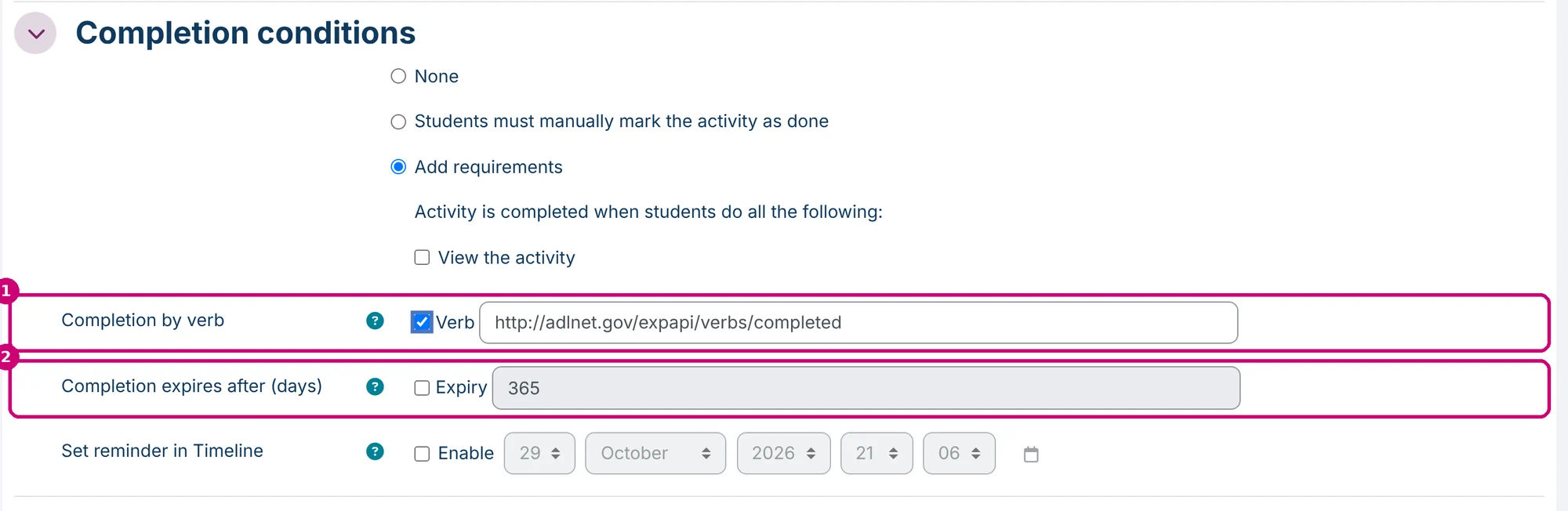
Use the verb that your package sends when the learner finishes. Want other activities to wait for this one? Set a completion condition here and use it in restrict access.
6. Save
Click Save and return to course.

The activity is now in the section.
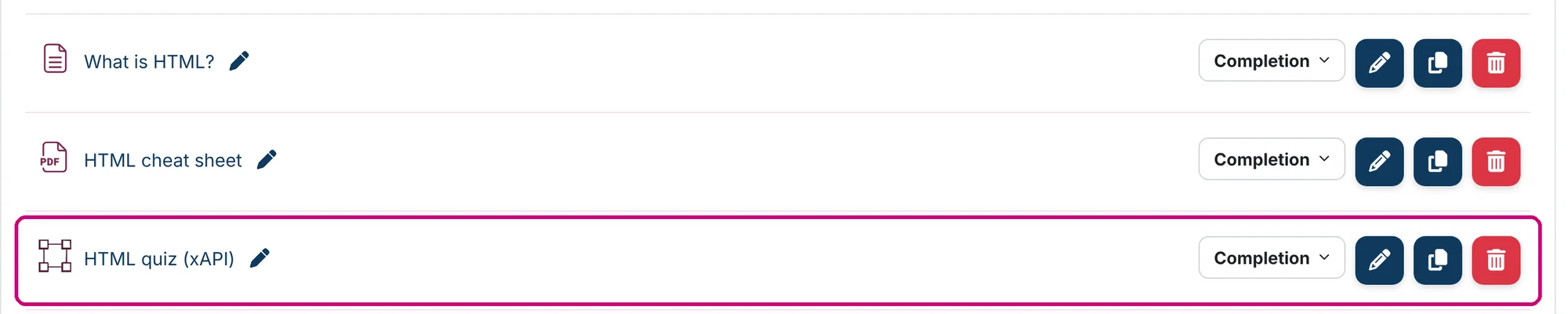
Open the settings of the activity again (the pencil icon) to check the package. The Launch URL (1) now points to the package in Linqur, and the Activity ID (2) comes from tincan.xml.
Next step
- Let a section or the certificate wait until this activity is complete: restrict access to sections and activities.
- Count the activity towards course completion: how to set up course and activity completion.
- The other types of content in a course: getting started with course content.