Add or remove a language in a multilingual course
Add a language to a multilingual SCORM course, remove a language that is still empty, or delete a language that already has a learning object.
A course with the format Multilingual SCORM has one learning object per language. You manage the languages on the page Edit languages and content, which opens when you click Manage content on the course in the course overview. This page covers three actions: adding a language, removing a language that is still empty, and deleting a language that already has a learning object. What the columns mean, what learners see and common problems are in manage languages in a multilingual course.
Add a language
1. Click Add language
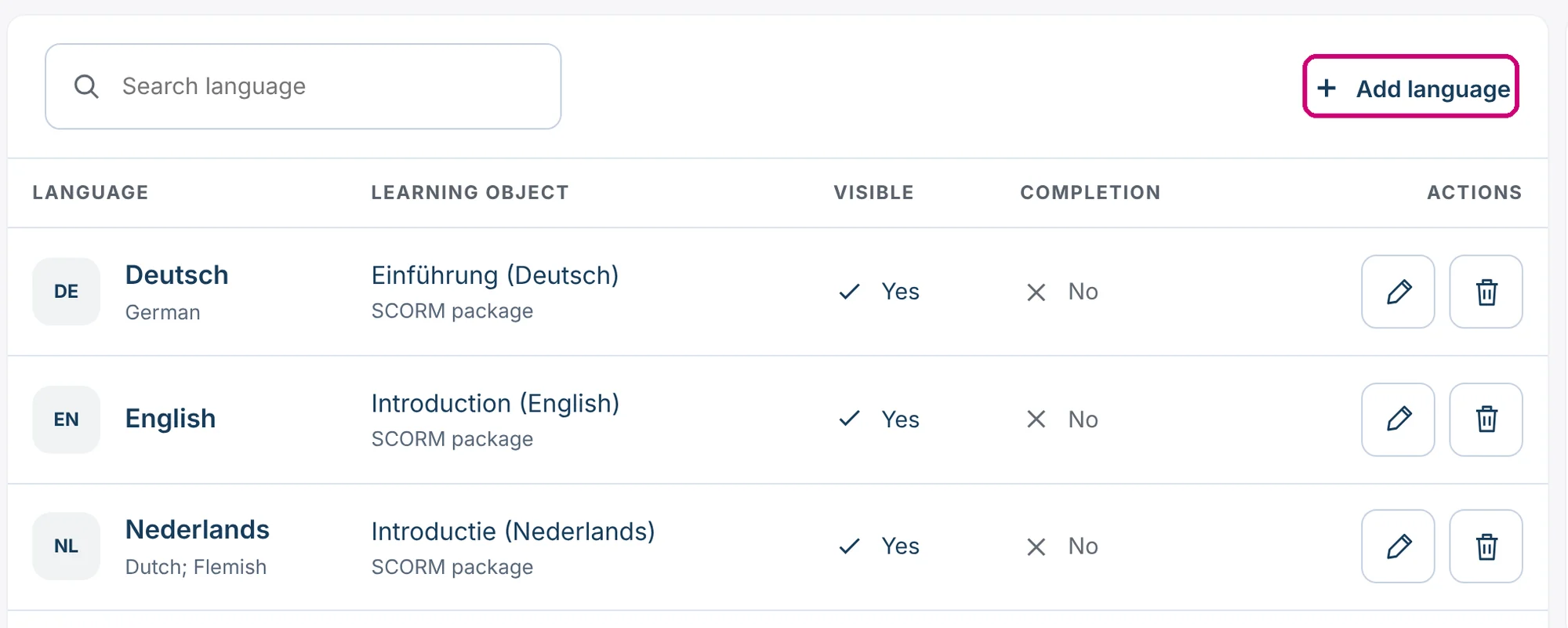
Above the table, click Add language.
2. Tick the language and add it
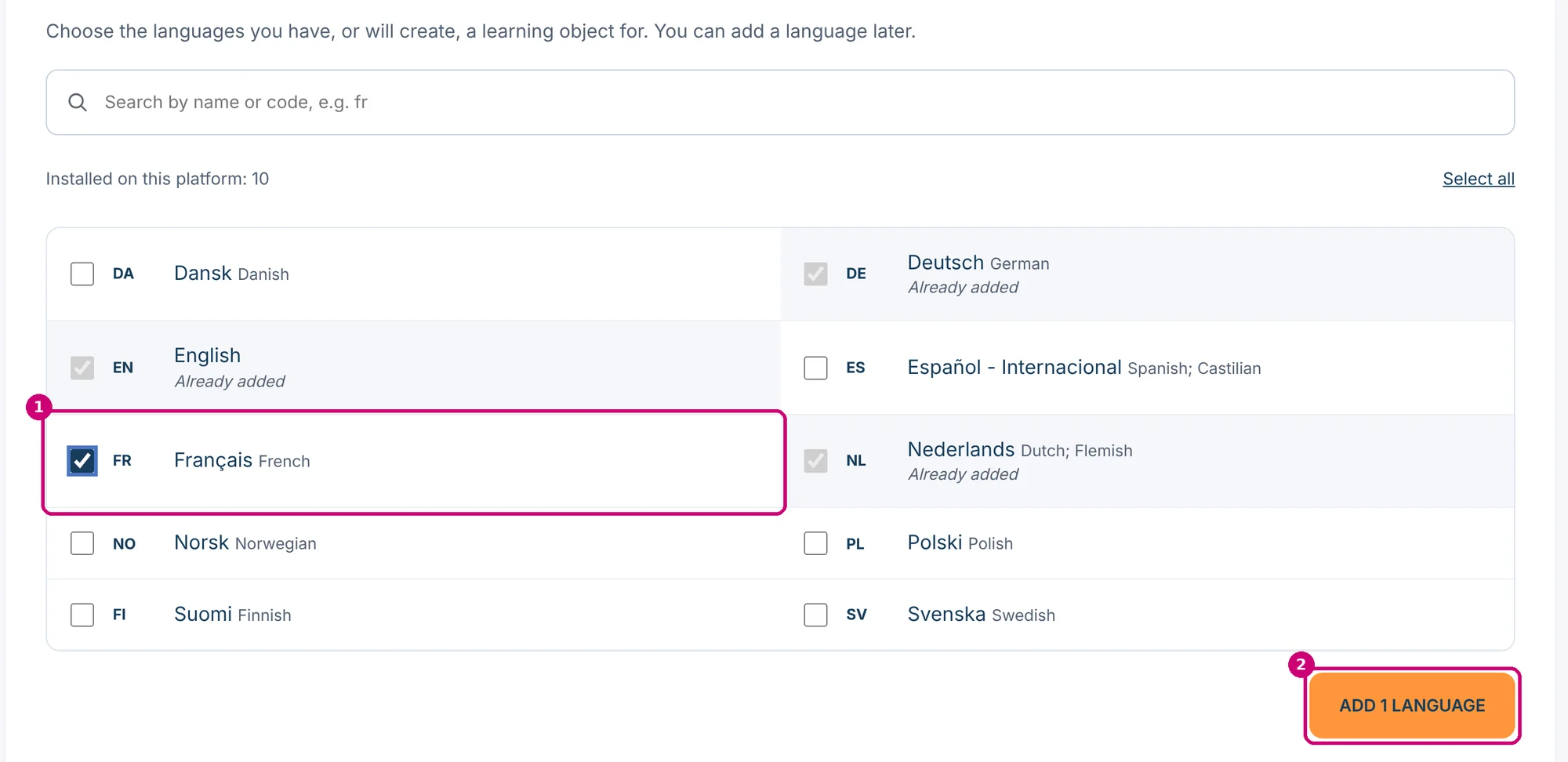
The chooser lists the languages installed on your platform. You can search by name or code. Languages that are already in the course are greyed out with Already added. Tick the new language (1) and click Add 1 language (2). The text of the button follows your selection.
3. Add a learning object to the new row
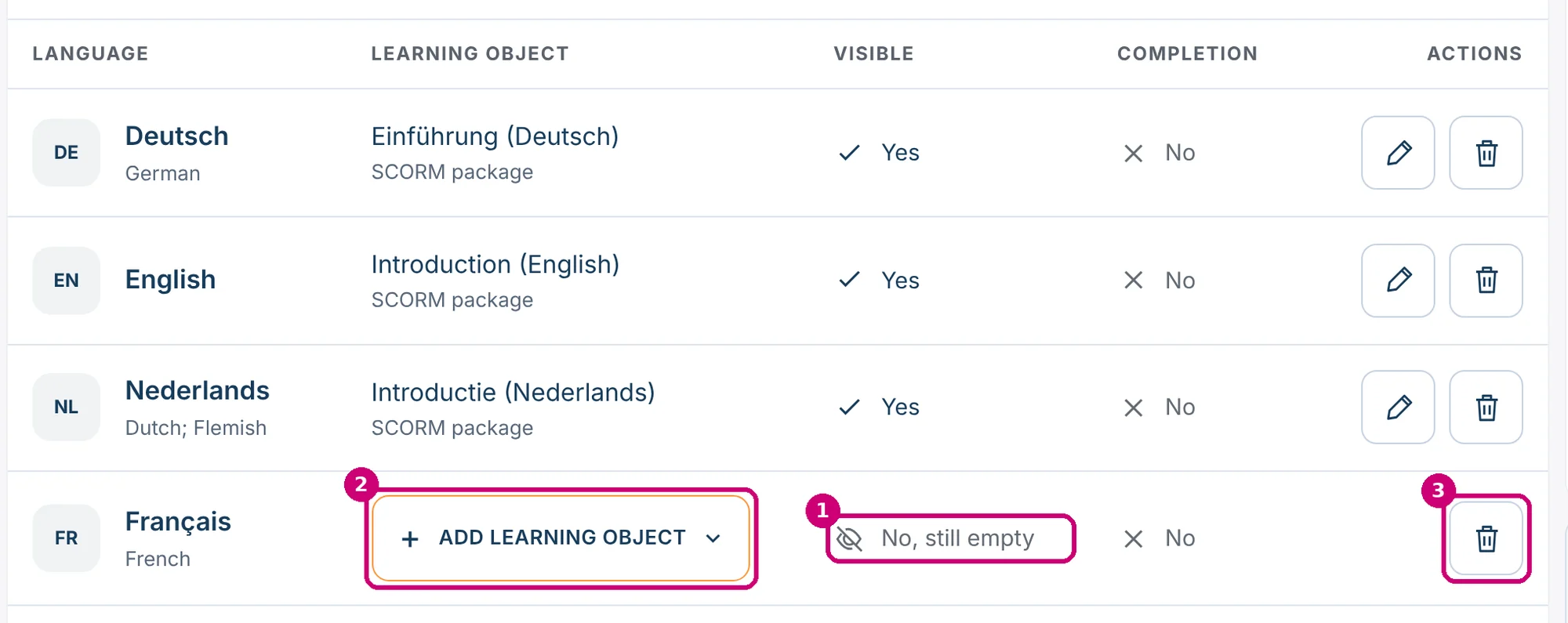
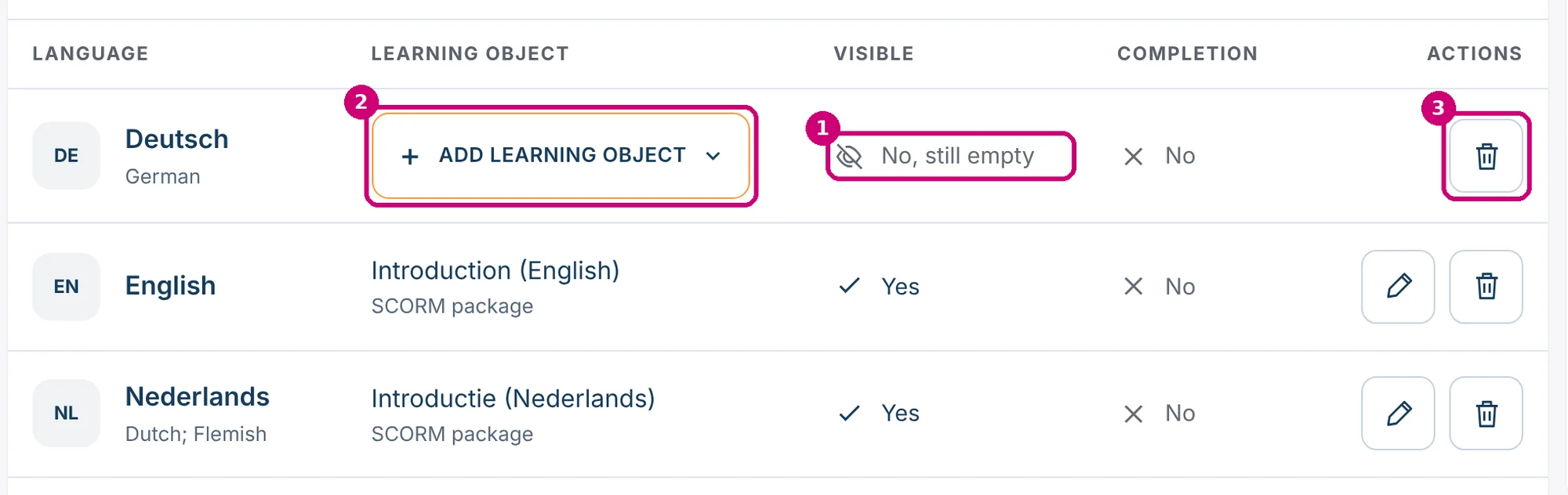
Linqur confirms with The selected languages have been added to the course. The new language has an empty row. Visible says No, still empty (1): learners are not offered this language yet. Click Add learning object (2) and choose a type. How to add a SCORM package is in create a multilingual SCORM course, step 6. The button on the right (3) removes the empty language again.
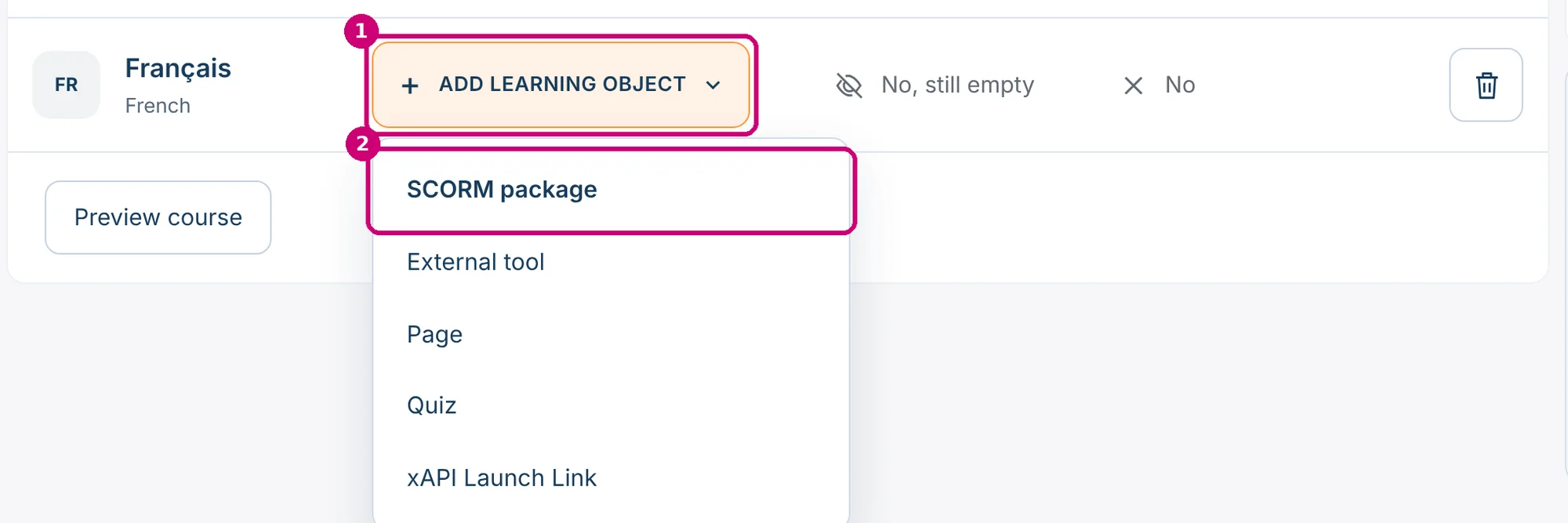
The menu (1) offers SCORM package (2), External tool, Page, Quiz and xAPI Launch Link.
Remove an empty language
A language can only be removed this way while its row is empty. Under Actions, click Remove empty language.
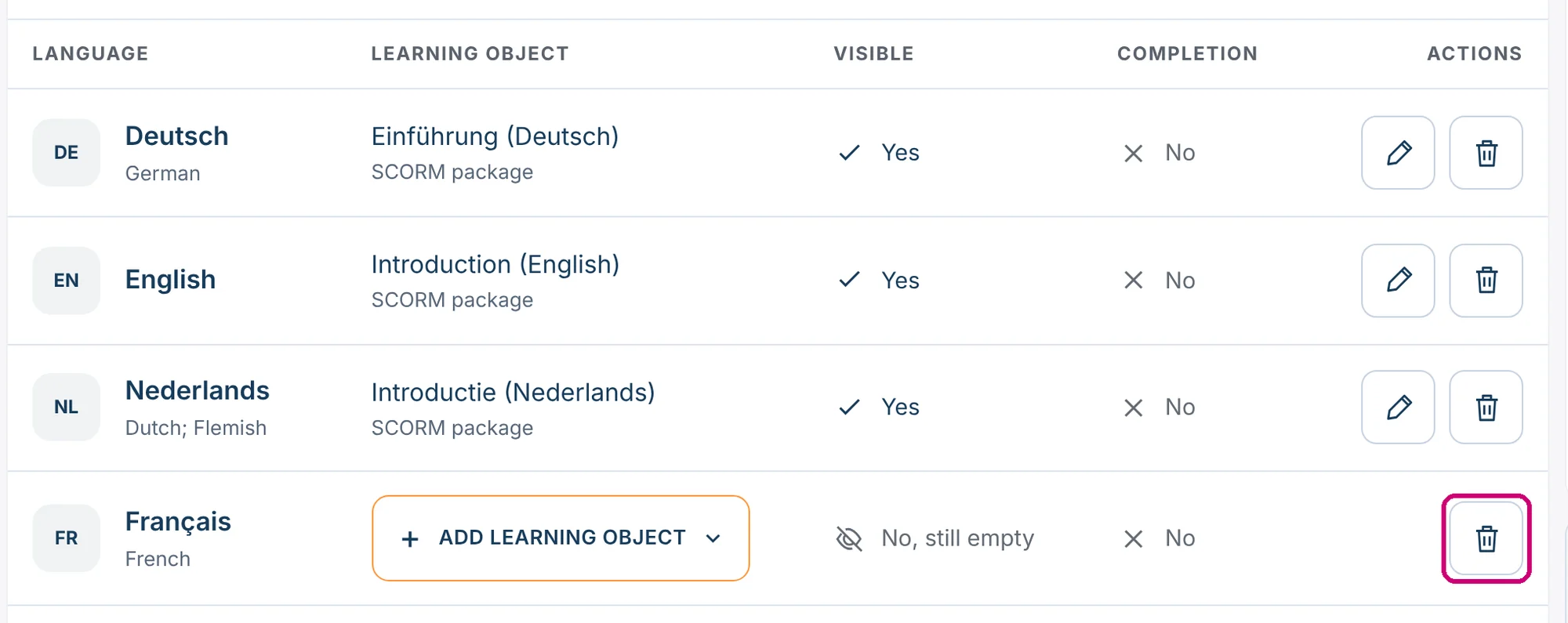
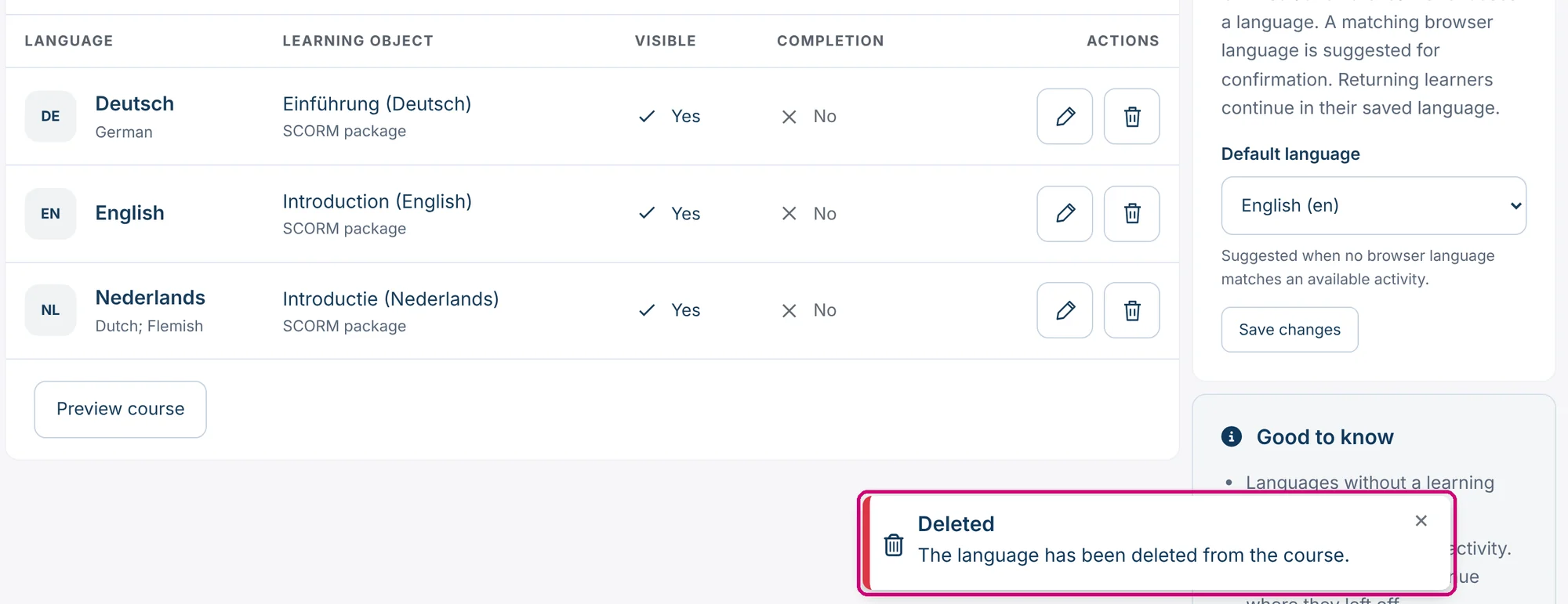
The row disappears right away. There is no confirmation step. Linqur reports The language has been deleted from the course.
Delete a language that has a learning object
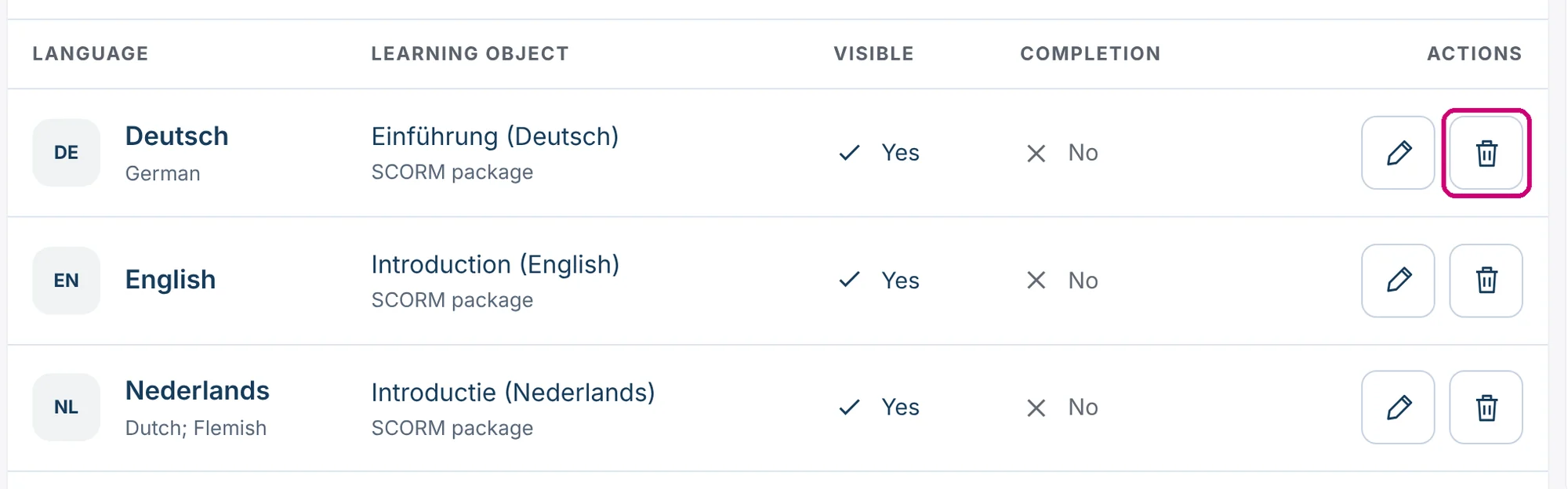
A row with a learning object has no remove button. You delete the learning object; the language then stays in the table as an empty row.
1. Click the trash icon
In the row of the language, click the trash icon under Actions.
2. Confirm
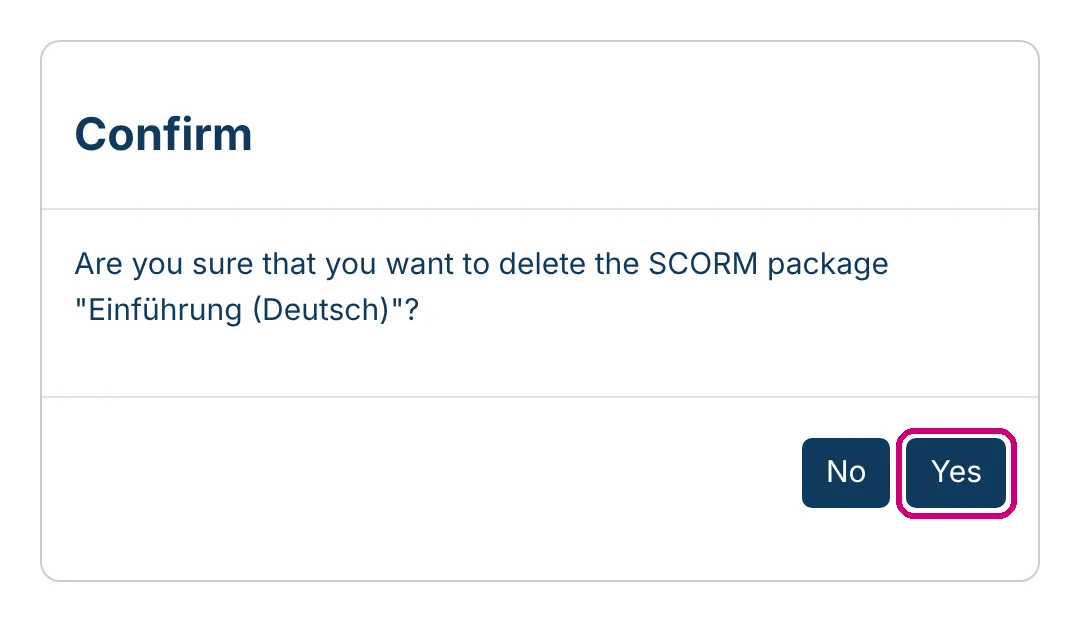
Linqur asks whether you are sure you want to delete the SCORM package, with its name. Click Yes. No takes you back without deleting anything.
3. Check the table
You are back in the table. The language is still listed, now as an empty row: the learning object is gone and Visible says No, still empty. Learners are no longer offered this language. The warning above the table now only names the remaining packages.
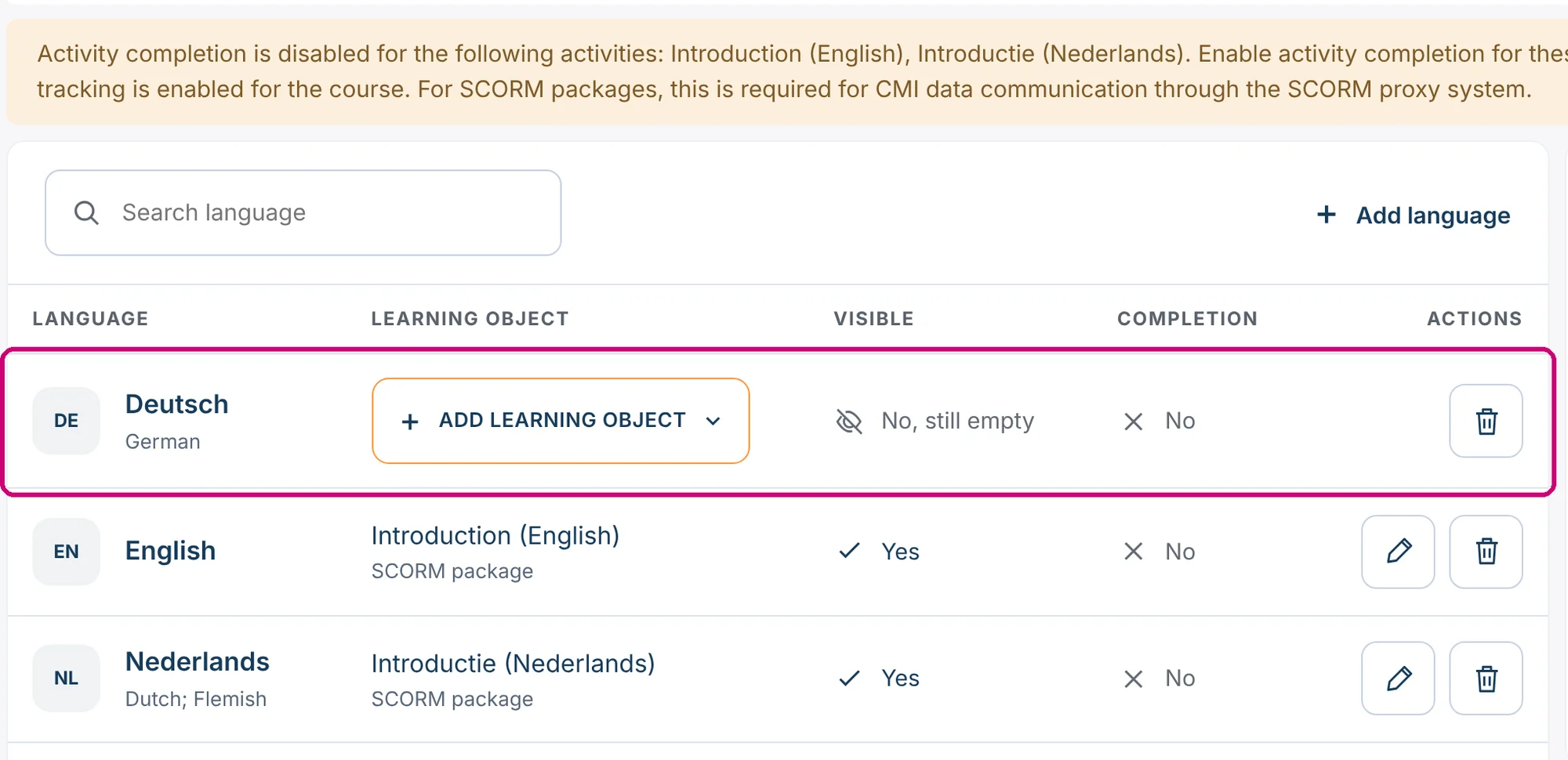
The empty row works like a newly added language: Visible says No, still empty (1). Add a new learning object with Add learning object (2), or remove the language with Remove empty language (3).
Next step
- The columns Visible and Completion, what learners see and common problems: manage languages in a multilingual course.
- A new version of a package: update a SCORM package in a multilingual course.
- Completion says No: how to set up course and activity completion.