Contact support through the chat
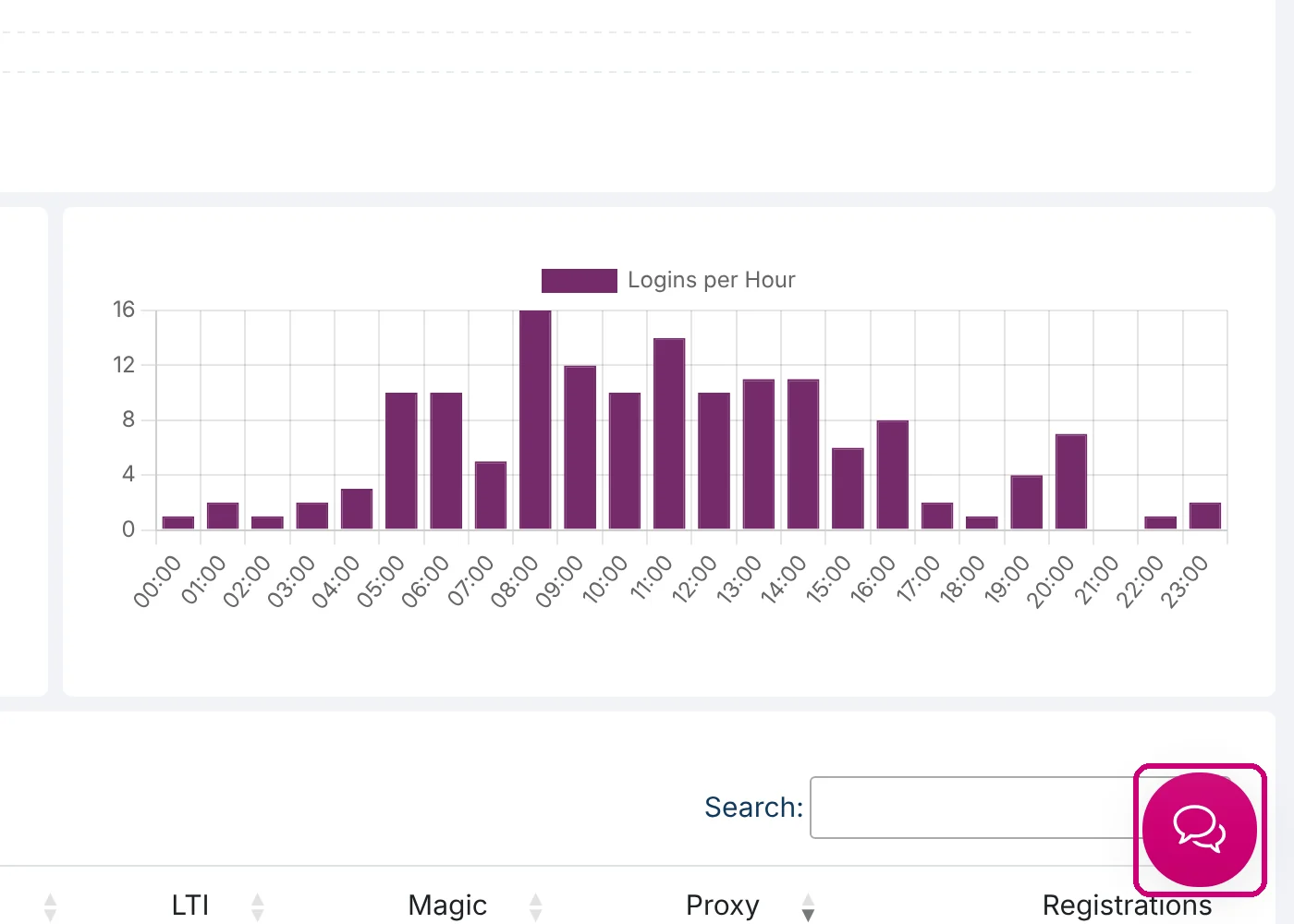
Click the chat button at the bottom right of any page in your platform, type your question and send it. The reply appears in the same chat.
Where the chat is
After you log in as an administrator, every page of your platform shows a round chat button at the bottom right. The chat goes straight to the Linqur support team, the same people who answer support@linqur.com. It is meant for administrators of the platform; learners with a question about a course contact the organisation that gave them access.
Step by step
1. Open the chat
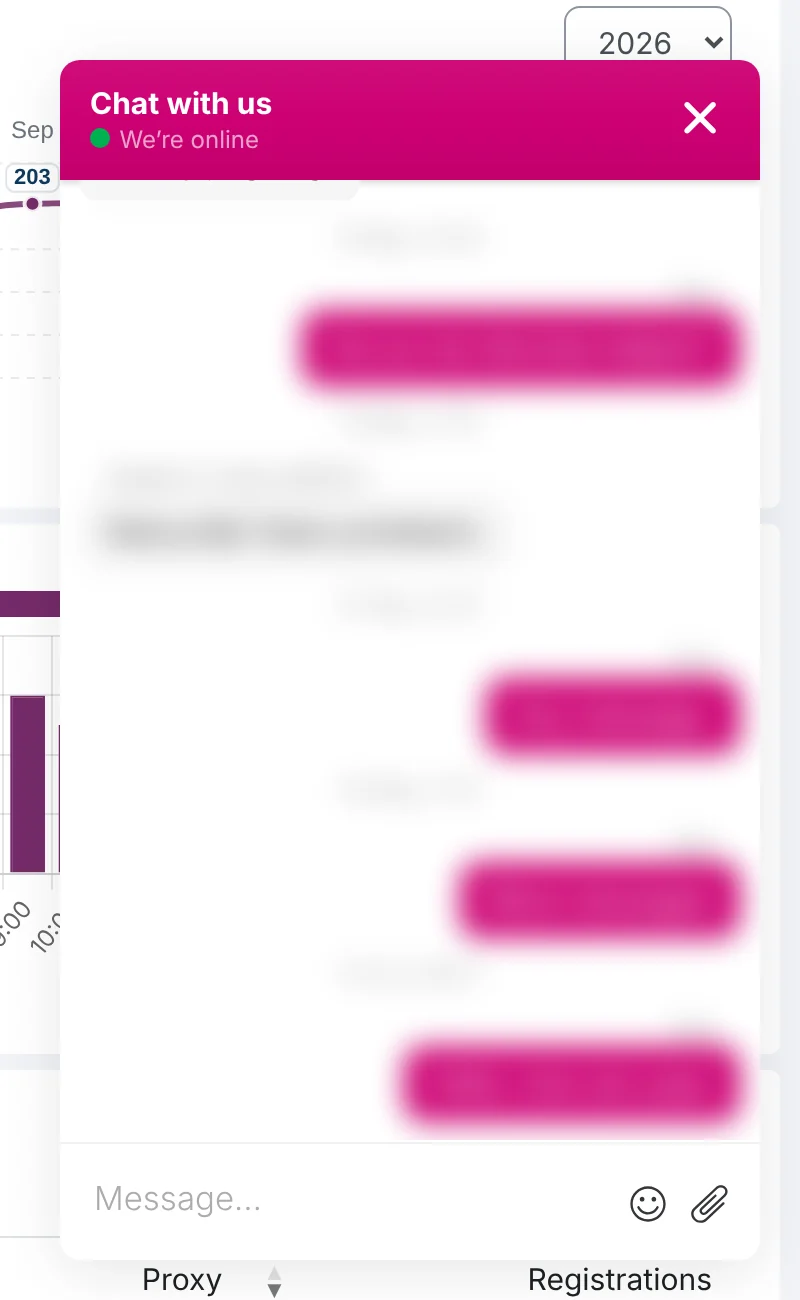
Click the chat button. A panel opens with Chat with us at the top. The green dot with We’re online means someone is at the desk. Outside working hours you can still leave your message; we pick it up the next working day.
2. Type your question
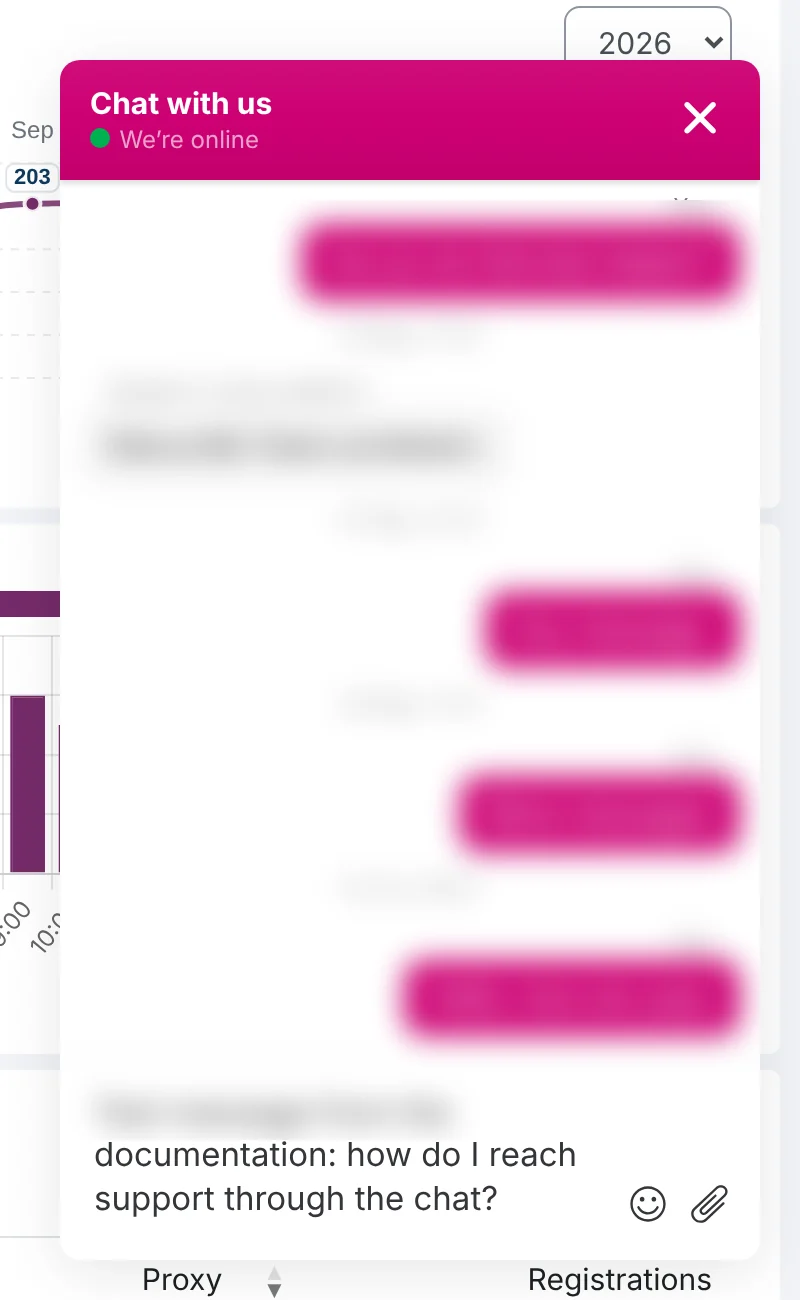
Type your message in the field at the bottom. One message with the whole question works better than several short ones. See below for what to include.
3. Send it
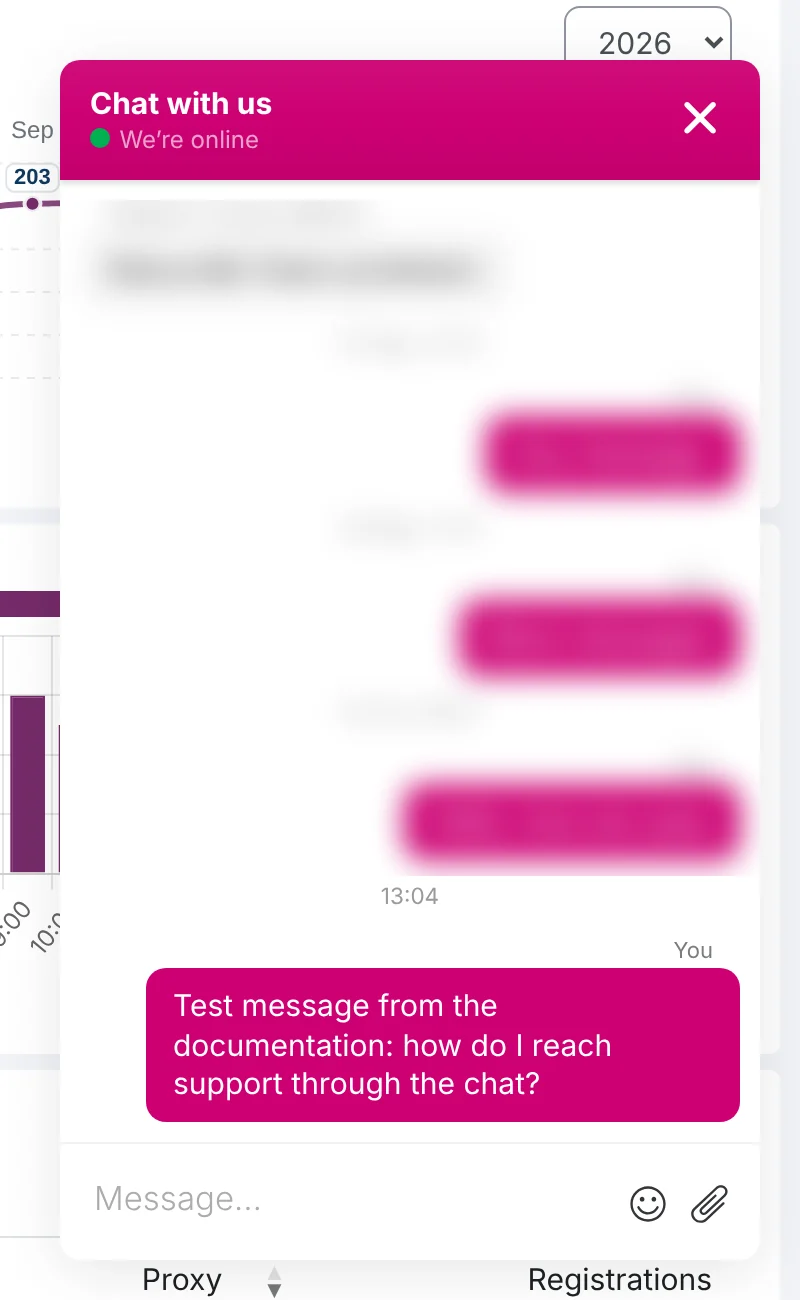
Press Enter. Your message appears in the panel with the time. You can close the panel and keep working; the conversation stays there when you open it again, also after you log in on another day.
4. Read the reply
The reply appears in the chat; open the panel again to read it. Can we not reach you in the chat, for example because you have logged out, then we reply by e-mail to the address of your account. Support works on working days.
What to include
The clearer the first message, the faster the answer. Mention:
- what you were doing and on which page (the address helps);
- the name of the course, the LTI tool, the SCORM wrapper or the user it concerns;
- the error message as it appears on screen, or the signature code of an LTI error;
- for problems at your client: the LMS they use, the browser, and a screenshot from the affected user.
You can paste a screenshot or attach a file with the paperclip icon in the message field.