Create a multilingual SCORM course
One course with a SCORM package per language. Learners choose their language once and keep it.
Multilingual SCORM is a course format in Linqur. Instead of a course per language, you make one course and add one learning object per language, for example a SCORM package in English, Dutch and German. On first launch, the learner chooses a language. Linqur suggests the language of the browser. After that, the learner always gets that version. You share the course like any other course: one LTI tool, one sign-up URL or one SCORM wrapper works for all languages, and all learners are in the same course.
Before you start
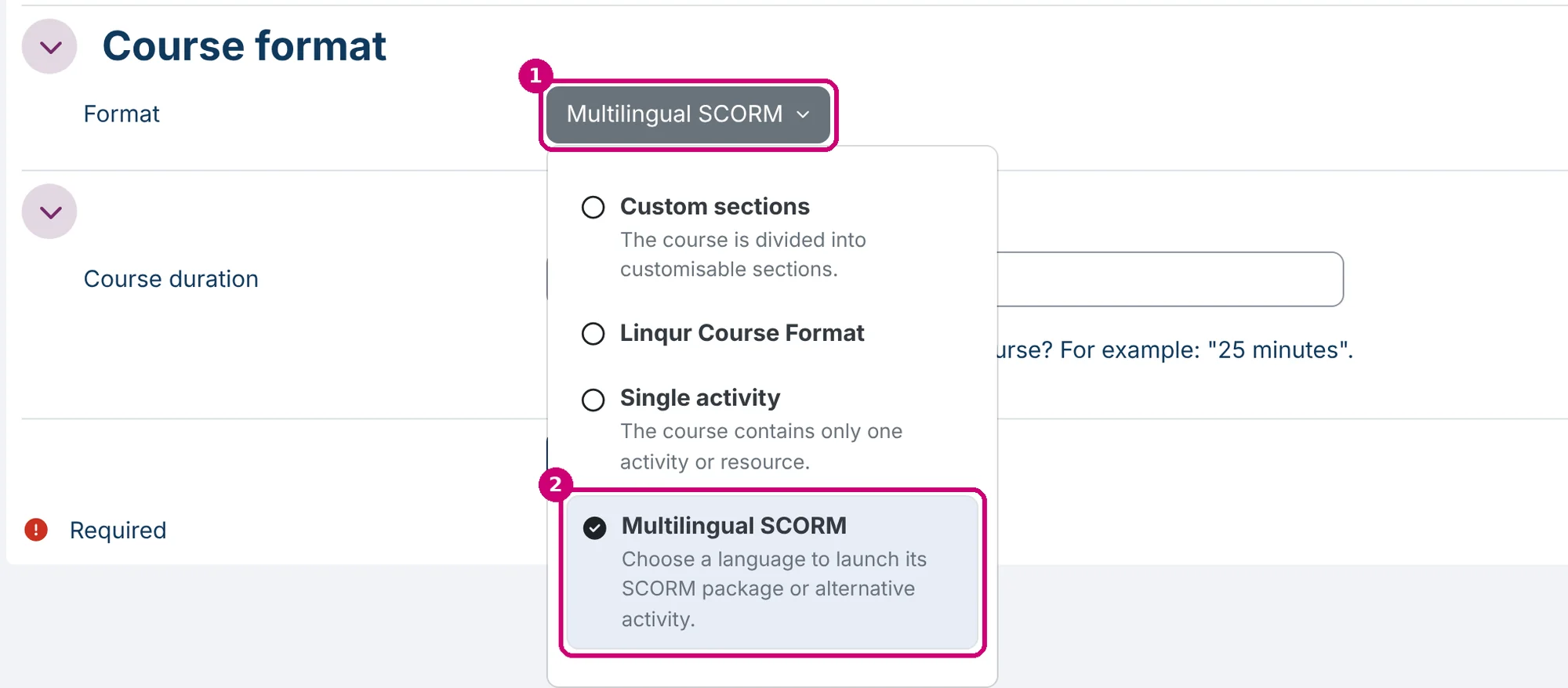
This is one of three course formats: for a course with sections choose a Standard course, for one package behind a sign-up URL a Single activity course.
- You have the content per language, for example one SCORM package per language. The packages are added to the course one by one.
- The languages you need are installed on your platform. The language chooser only lists installed languages. Is a language missing? Contact Linqur Support.
Step by step
1. Open the Add course form
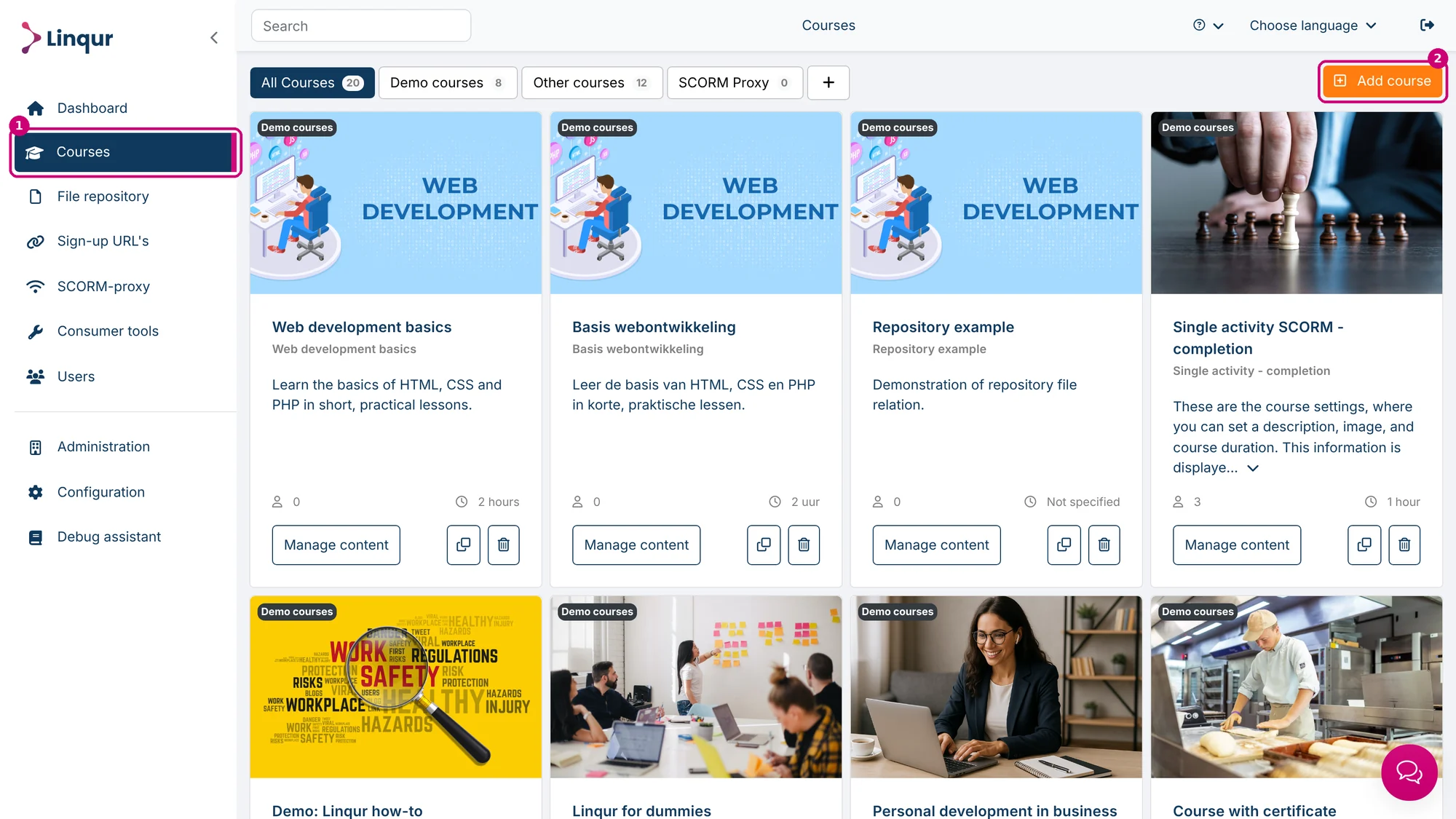
In the menu on the left, click Courses (1), then click Add course in the top right (2).
2. Fill in the course details
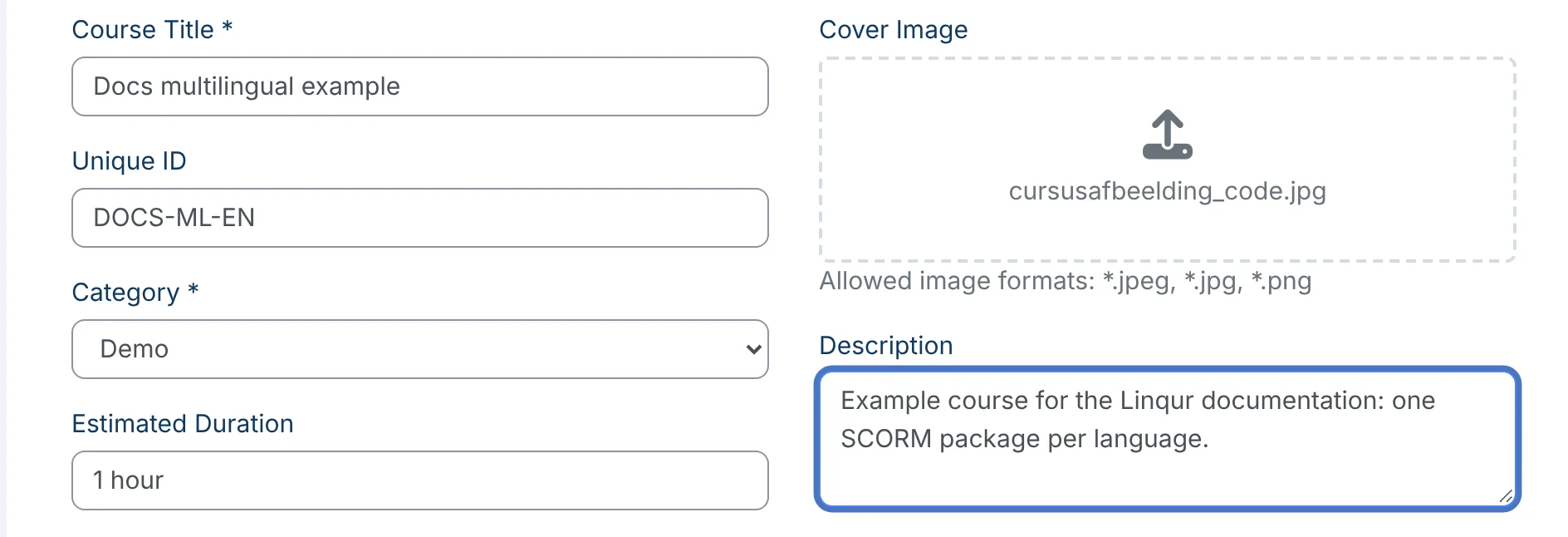
Fill in the course title and the category. The other fields work the same as for any course; see add a new course.
3. Choose Multilingual SCORM and save
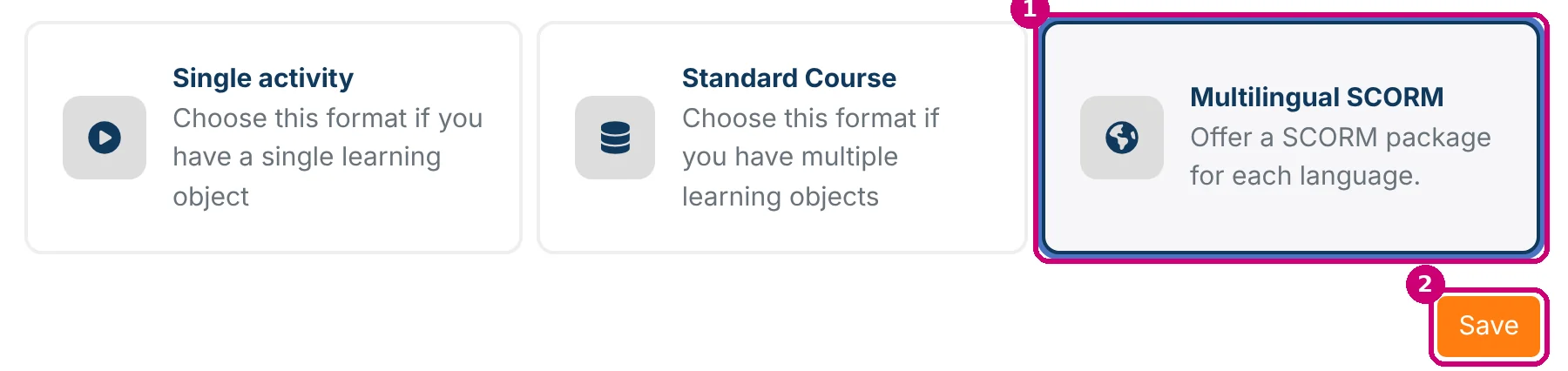
Below the fields, click the card Multilingual SCORM (1) and then Save (2).
4. Choose the languages
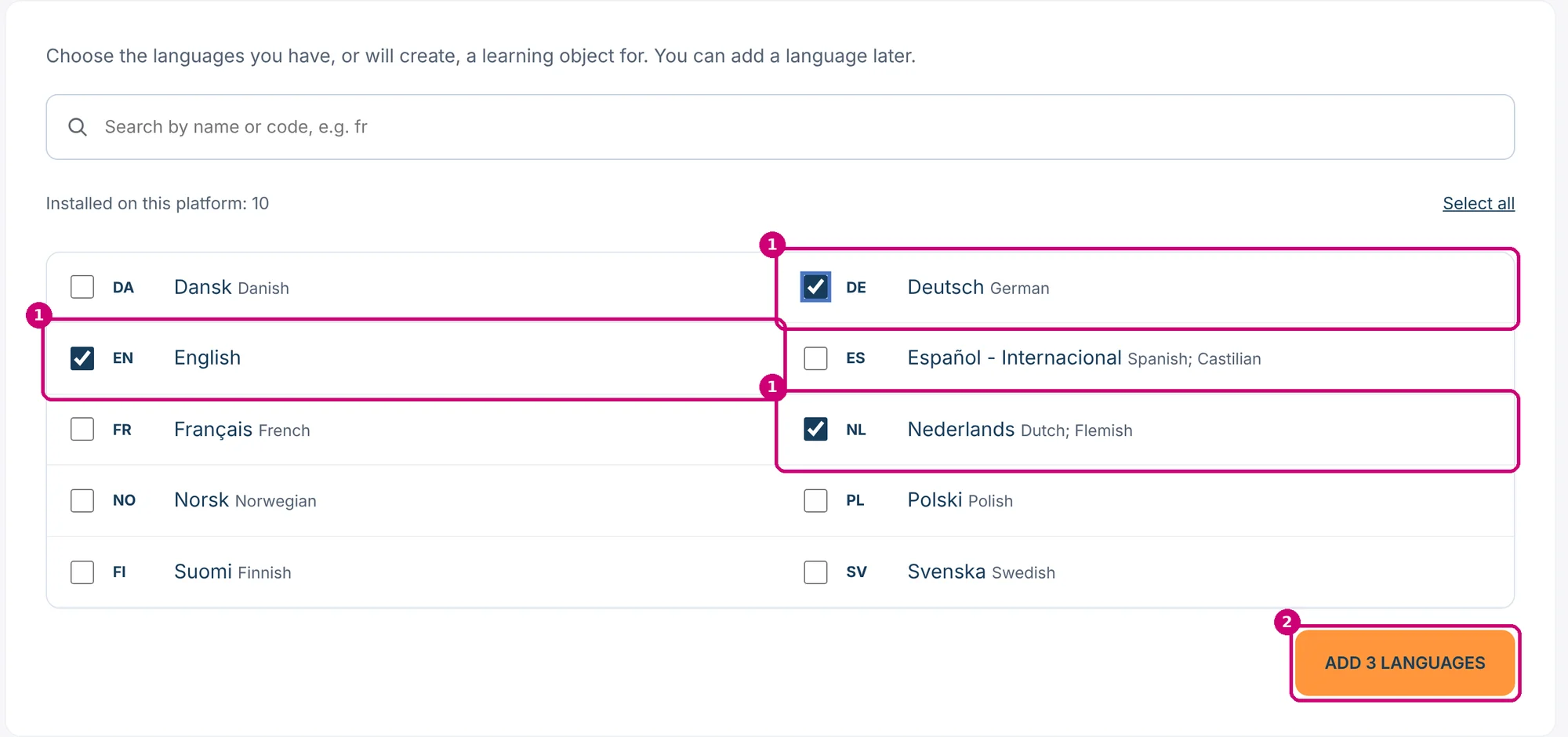
After saving, Linqur asks which languages you want in the course. Tick the languages you have a learning object for, or will make one for (1). The list shows the languages installed on your platform; you can search by name or code. Then click the button at the bottom right (2). Its text follows your selection, for example Add 3 languages. You can add a language later.
5. Check the table
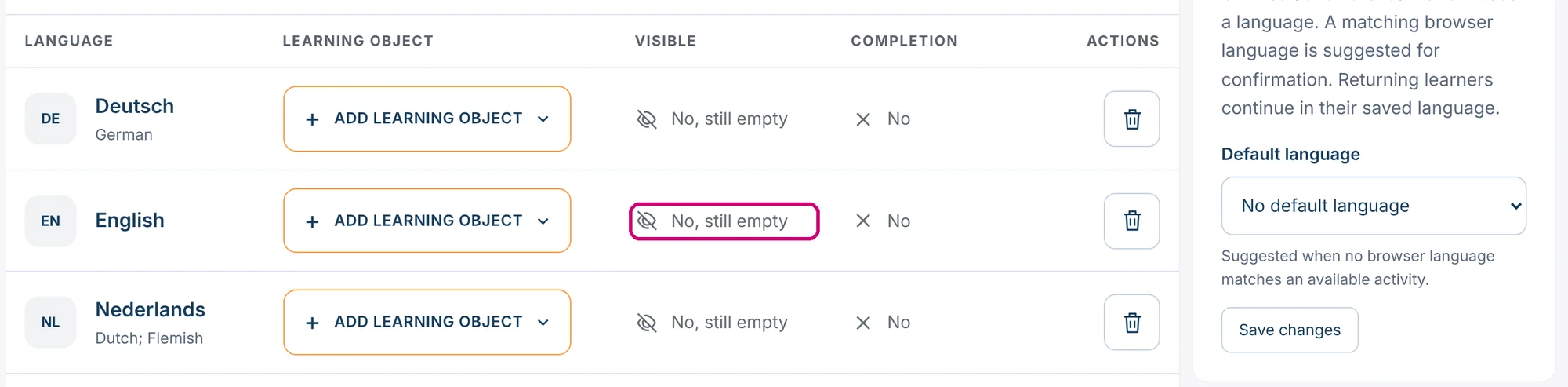
You land on Edit languages and content. Every language has its own row. Until a language has a learning object, Visible says No, still empty and learners are not offered that language.
6. Add a learning object to a language
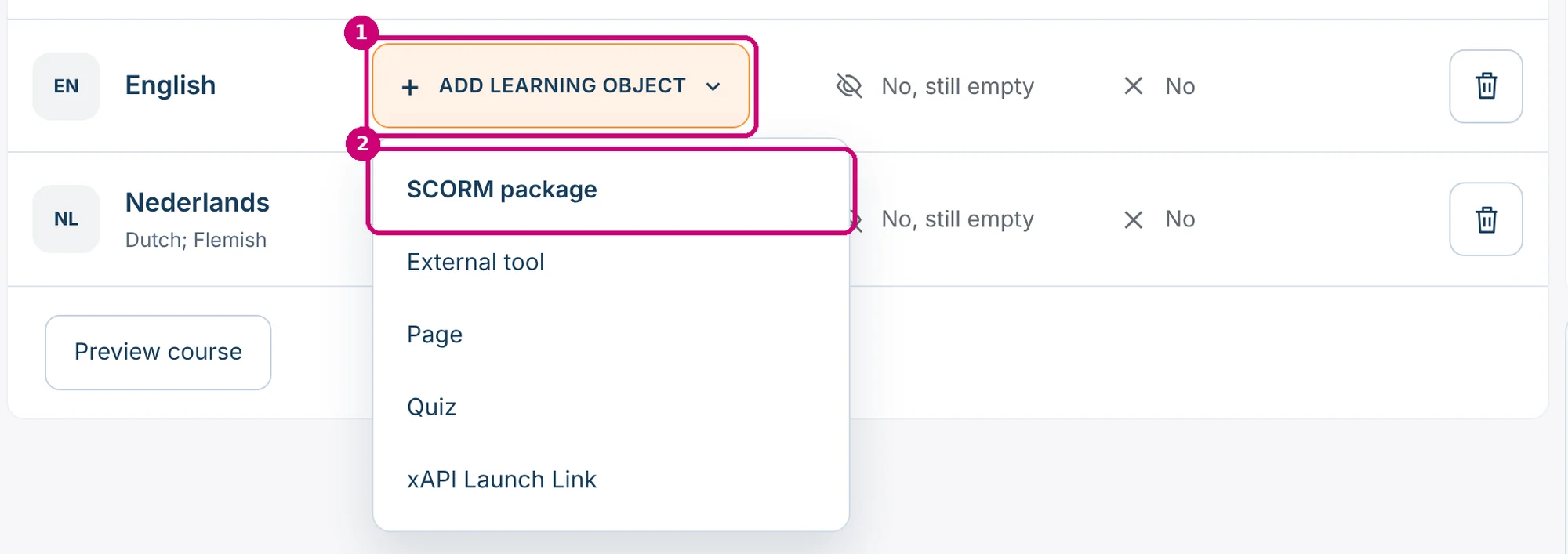
In the row of a language, click Add learning object (1) and choose SCORM package (2). The menu also offers External tool, Page, Quiz and xAPI Launch Link. One learning object per language.
7. Name the package and upload the file
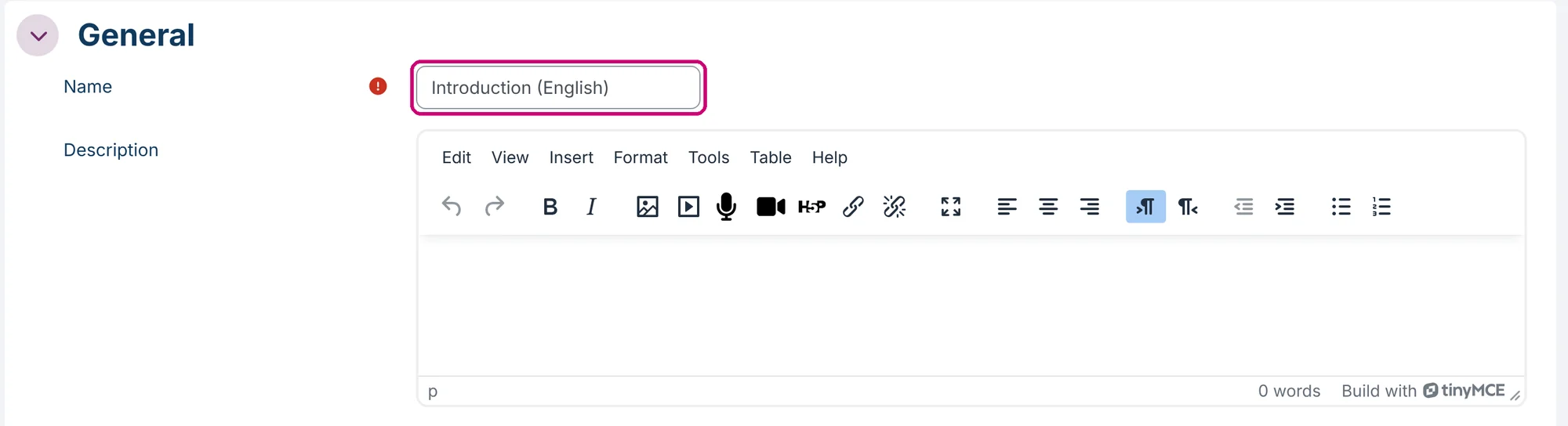
The SCORM form opens. Under General, enter a Name. This is the name you see in the table.
Under Package, drag the zip file onto the Package file box, or click the arrow in the box to open the file picker.

In the file picker, Upload a file (1) is selected. Choose the zip file under Attachment (2) and click Upload this file (3).
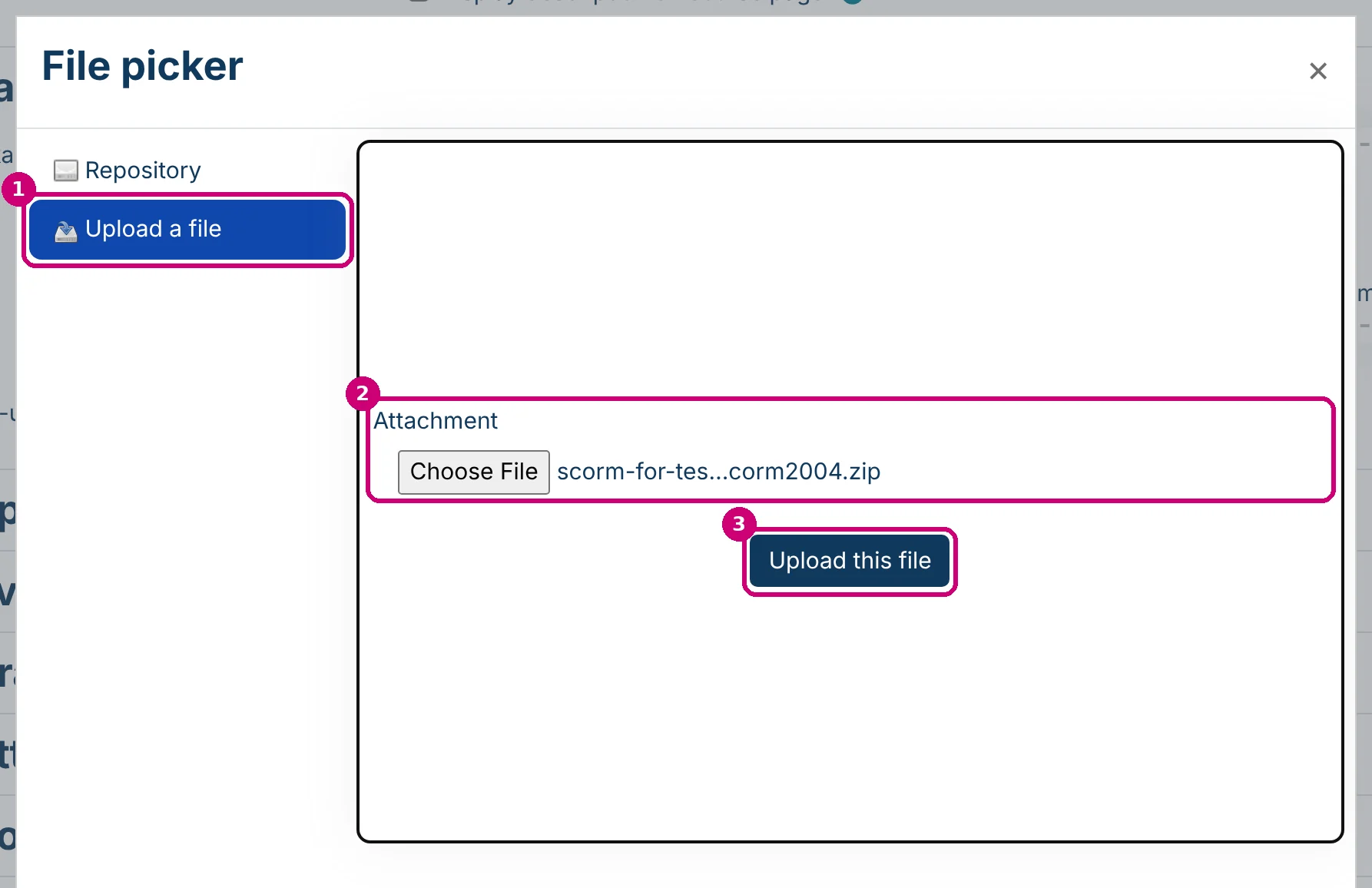
The file is now in the box.

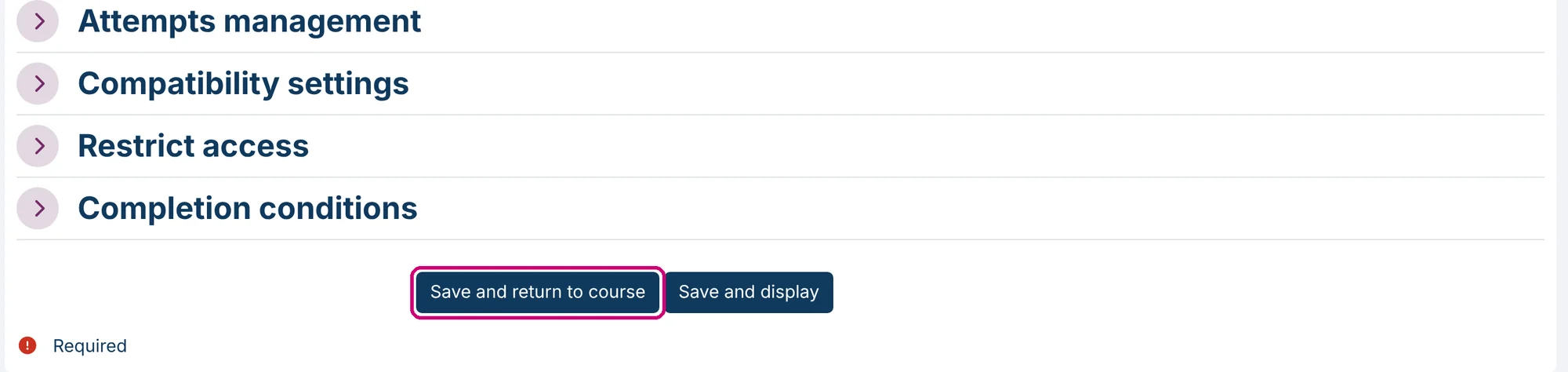
Click Save and return to course. All other settings of the form are explained in edit the SCORM settings.
8. Repeat for the other languages
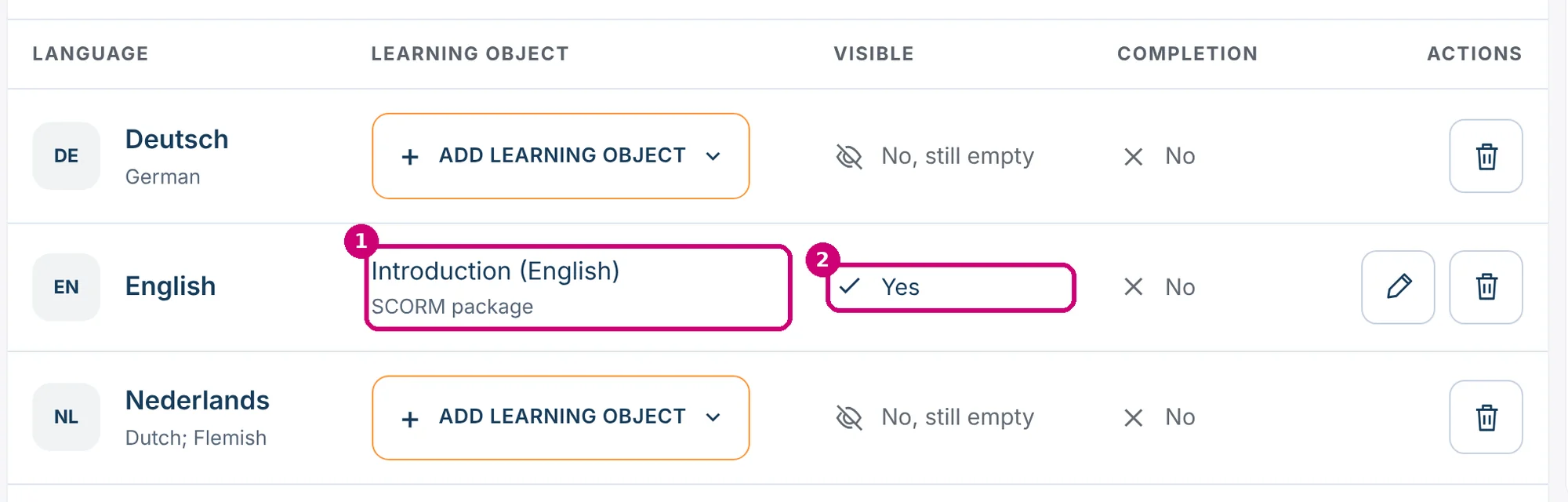
You are back in the table. The row now shows the name and type of the learning object (1), and Visible says Yes (2).
Repeat steps 6 and 7 for every language. When each row has a learning object, the table looks like this.
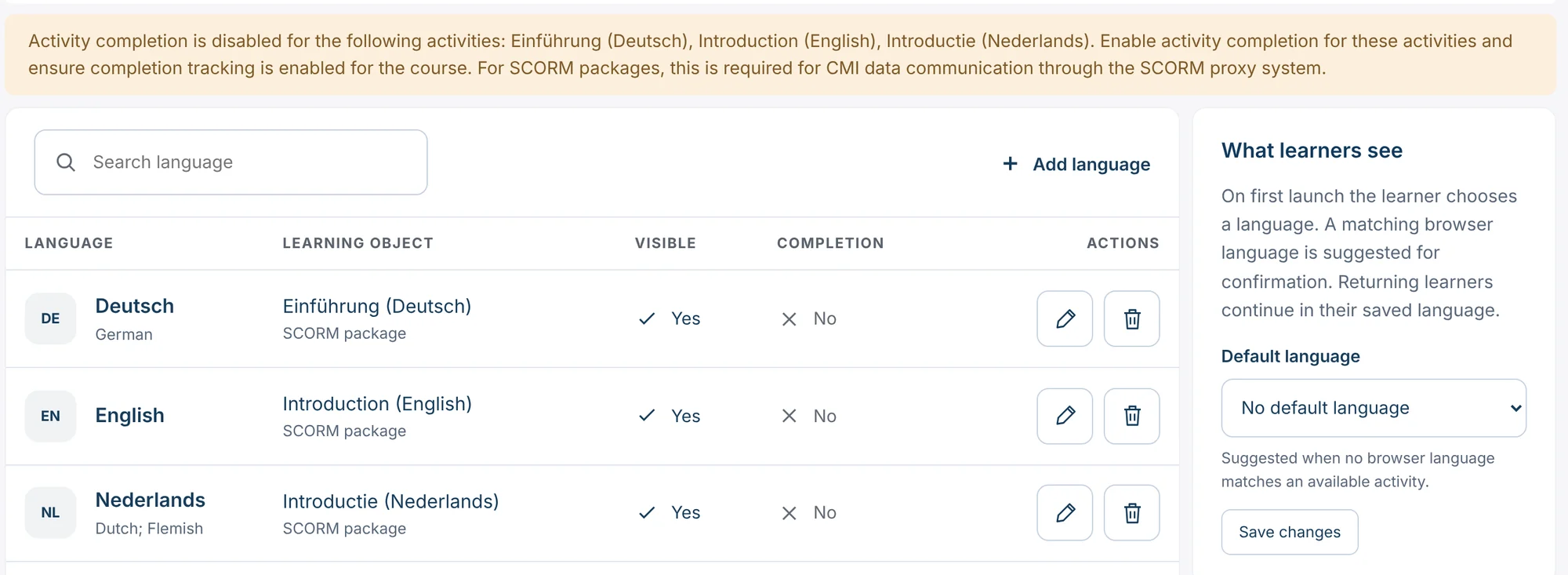
The yellow bar warns that activity completion is off for the packages, and Completion says No. Do you share the course through SCORM Proxy? Then the packages need activity completion, as the warning says. Open each package with the pencil in its row, set a condition under Completion conditions and save. See how to set up course and activity completion.
9. Set the default language
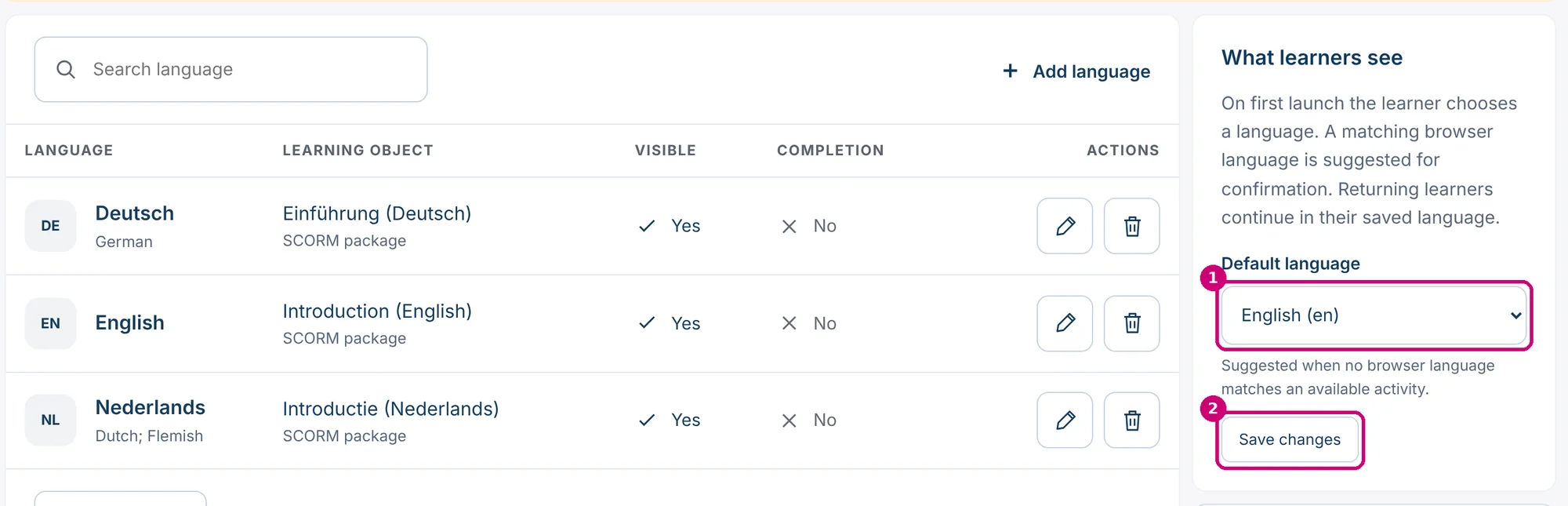
In the card What learners see, choose a Default language (1) and click Save changes (2). Linqur suggests this language when no browser language matches an available learning object.
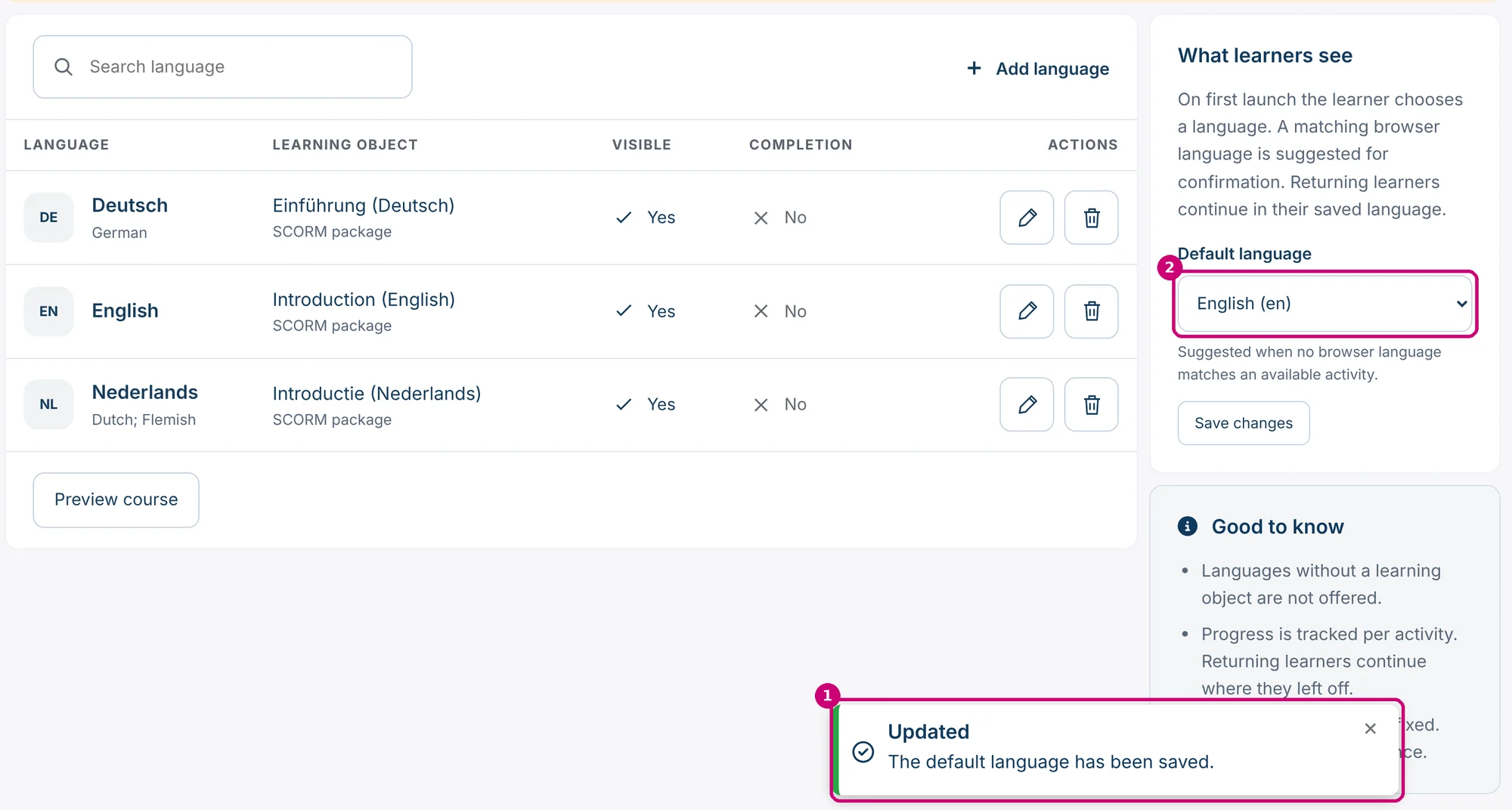
Linqur confirms with The default language has been saved (1), and the list shows your choice (2).
10. Check with Preview course
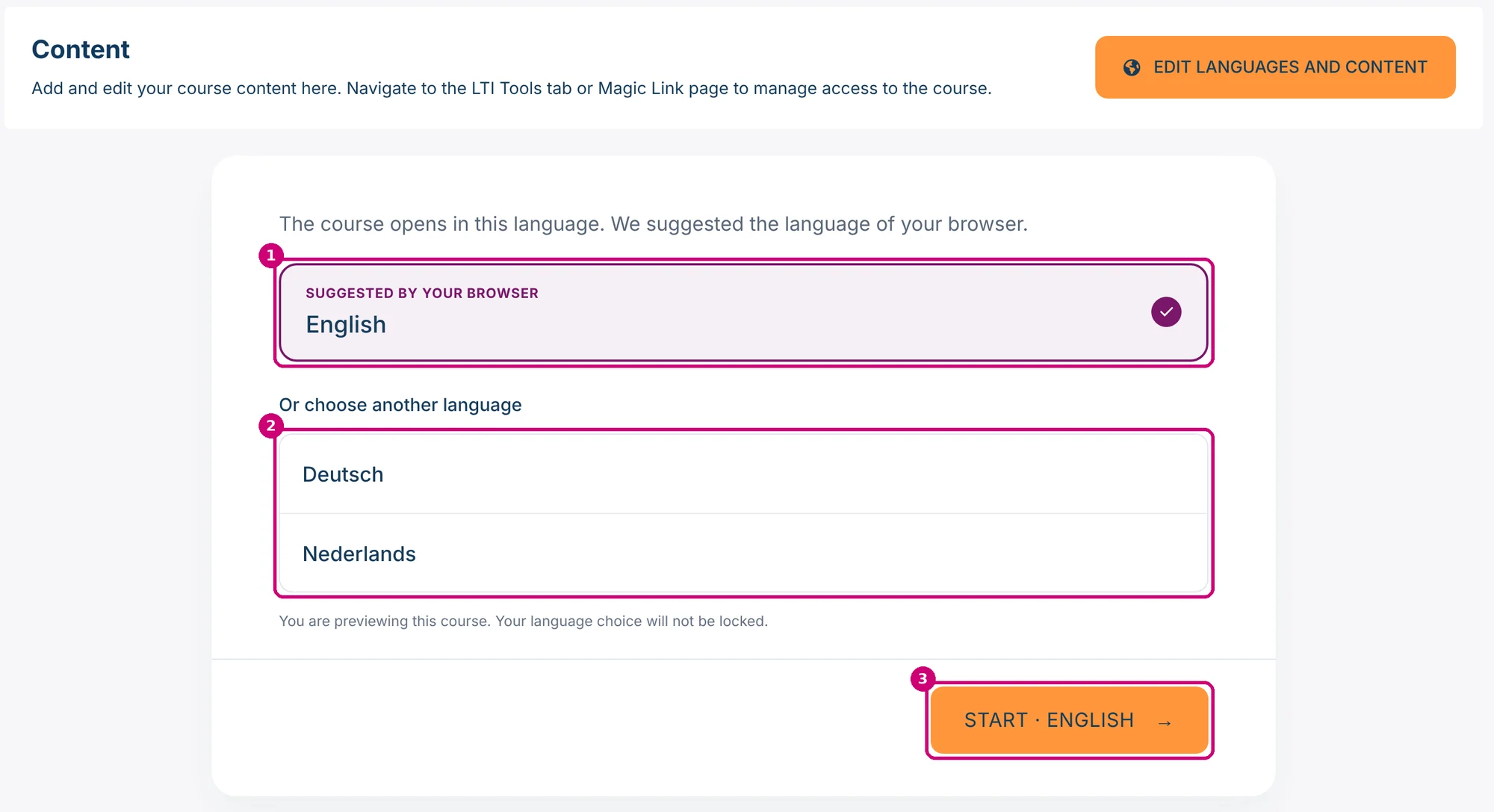
Click Preview course under the table. You see the chooser as a learner sees it on first launch: the language suggested by the browser (1), the other languages (2) and the Start button (3). In the preview your choice is not locked. Edit languages and content at the top right takes you back to the table.
Share the course
Share the course like any other course: publish it as an LTI tool, create a sign-up URL or create a SCORM wrapper. One tool, URL or wrapper serves every language in the course. In the course overview, the Type column shows Multilingual for this course.

Next step
- What the columns mean, what learners see and common problems: manage languages in a multilingual course.
- Add a language later, or remove one: add or remove a language in a multilingual course.
- A new version of the package of one language: update a SCORM package in a multilingual course.