Create and download a SCORM wrapper
Create a SCORM wrapper for one client and download it in the SCORM version their LMS supports.
A SCORM wrapper is a small SCORM package for one client. The course stays in Linqur, and the wrapper loads it from there. You create one wrapper per client. What SCORM wrappers are and when to use them instead of an LTI tool is explained in getting started with SCORM wrappers.
Before you start
You need a course with a SCORM package. See add a new course and add a SCORM package.
Step by step
1. Open SCORM Wrappers
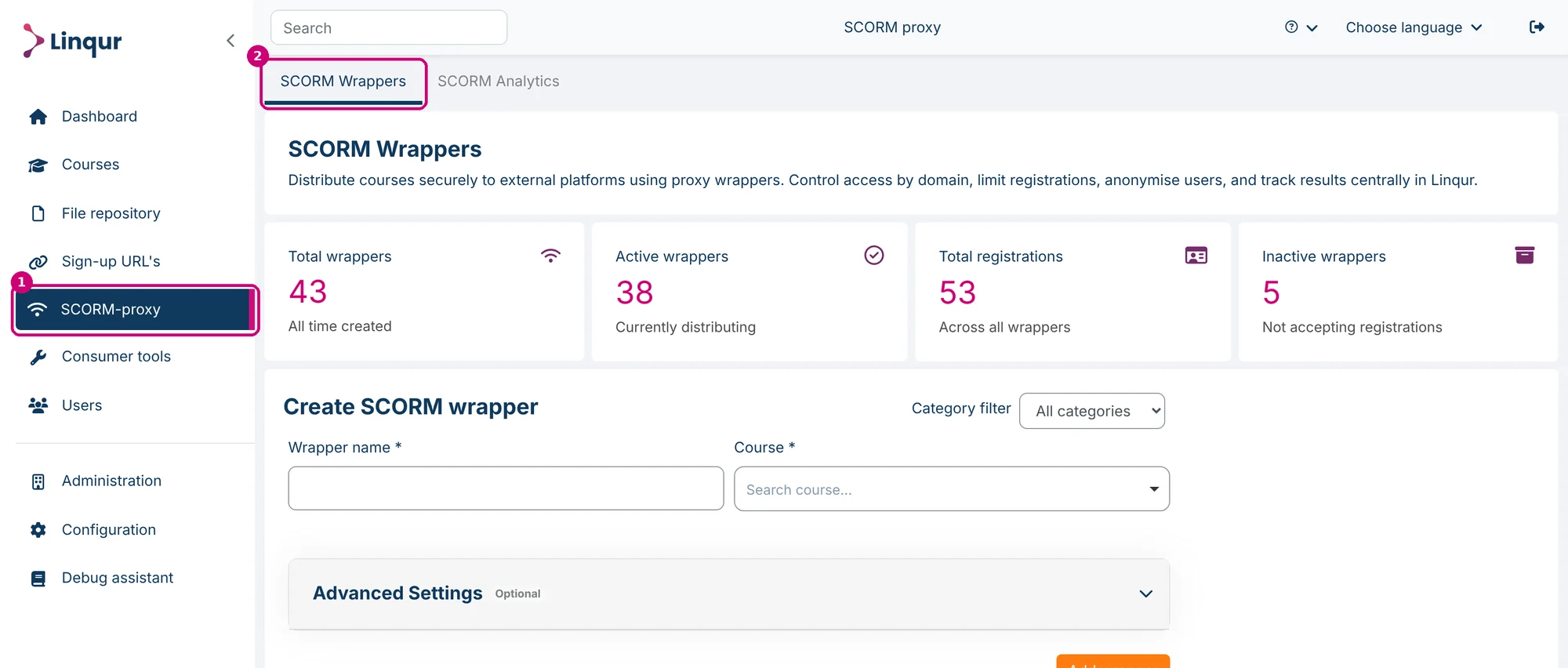
Click SCORM-proxy in the menu (1). The page opens on the SCORM Wrappers tab (2).
2. Enter a name and choose the course
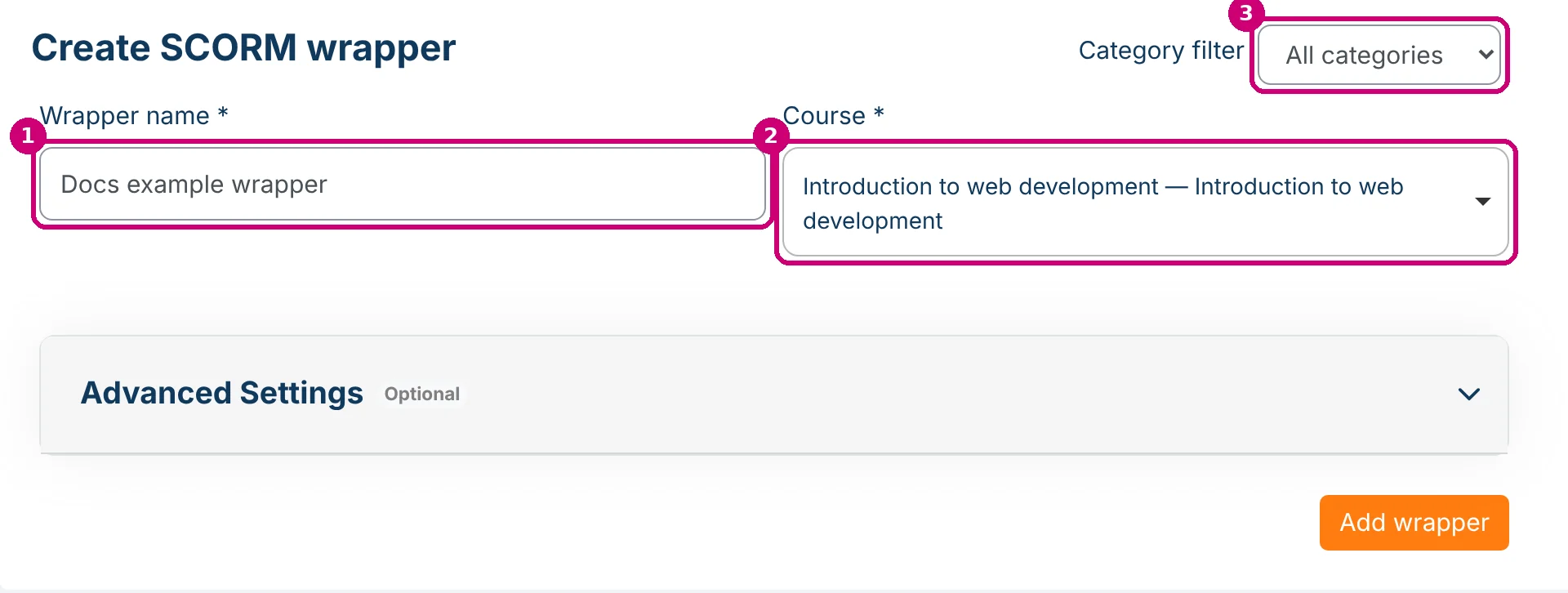
Under Create SCORM wrapper:
- Wrapper name (1): use something you recognise, for example the name of the client.
- Course (2): click the field, type part of the course name and choose the course.
- Category filter (3): optional. Choose a category to make the course list shorter.
3. Choose the activity
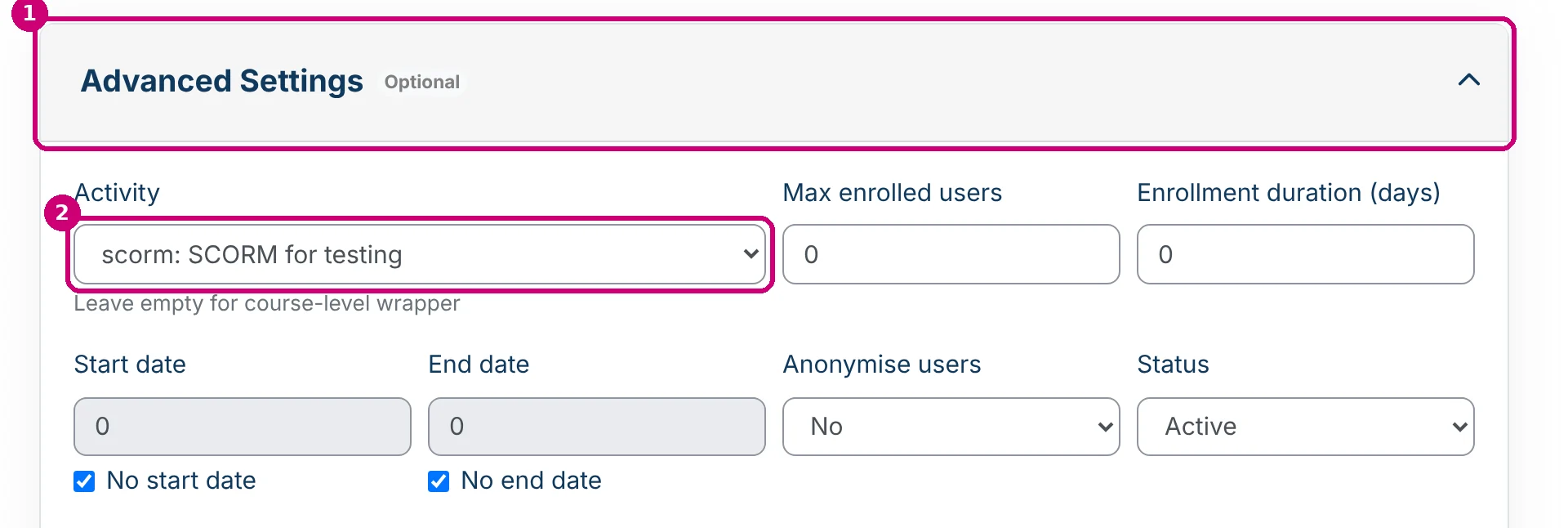
Click Advanced Settings (1). The first field is Activity (2). It lists Entire course and the activities of the course you chose. The text below the field says “Leave empty for course-level wrapper”.
- To share one SCORM package, choose that package.
- To share the whole course, leave it on Entire course.
You can’t change the activity or the course of a wrapper later. If you need another one, create a new wrapper.
4. Fill in the other settings (optional)
All other fields under Advanced Settings are optional. This is what you see on screen when you open the block:
| Field | On screen |
|---|---|
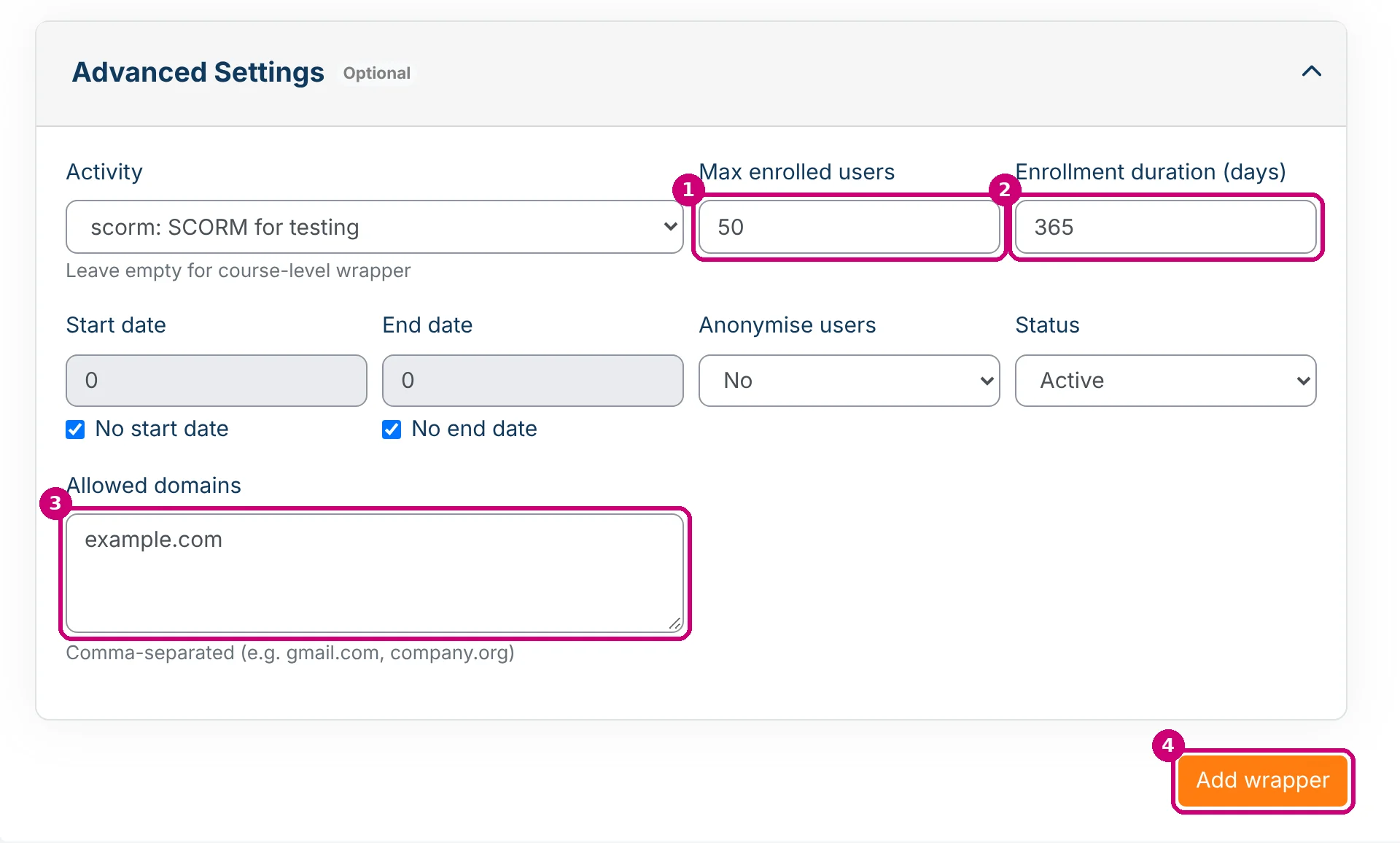
| Max enrolled users (1) | A number, 0 by default |
| Enrollment duration (days) (2) | A number, 0 by default |
| Start date and End date | A date, with No start date and No end date ticked by default |
| Anonymise users | No or Yes, No by default. With Yes, SCORM Analytics shows the learner as “Anonymous User”, see View results with SCORM Analytics |
| Status | Active or Inactive, Active by default |
| Allowed domains (3) | Text, with the hint “Comma-separated (e.g. gmail.com, company.org)” |
In this example the wrapper gets Max enrolled users 50, Enrollment duration 365 and the allowed domain example.com.
5. Add the wrapper
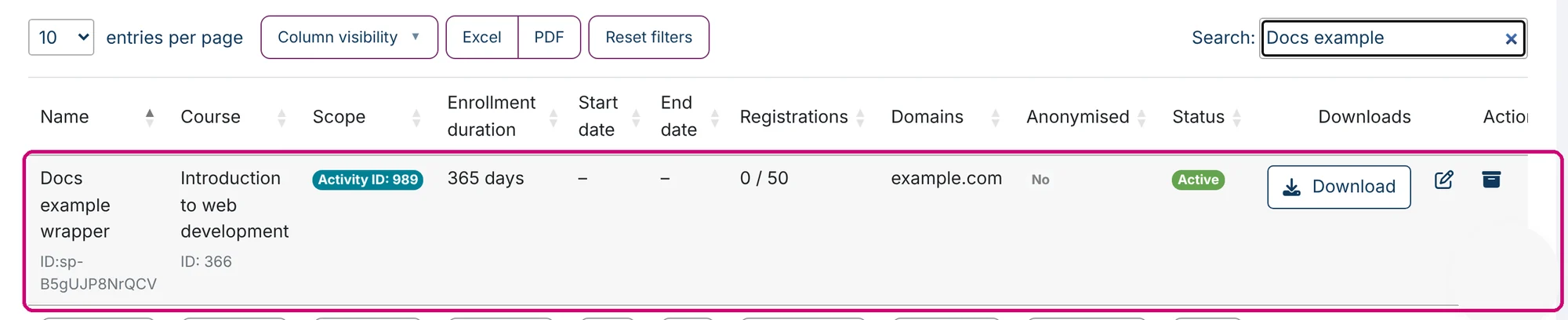
Click Add wrapper (4). Linqur shows the message “SCORM wrapper successfully created”. The wrapper is now in the list below the form. Type its name in the Search field to find it. The list shows the scope (here Activity ID with the number of the package), the registrations and the allowed domains.
6. Download the wrapper
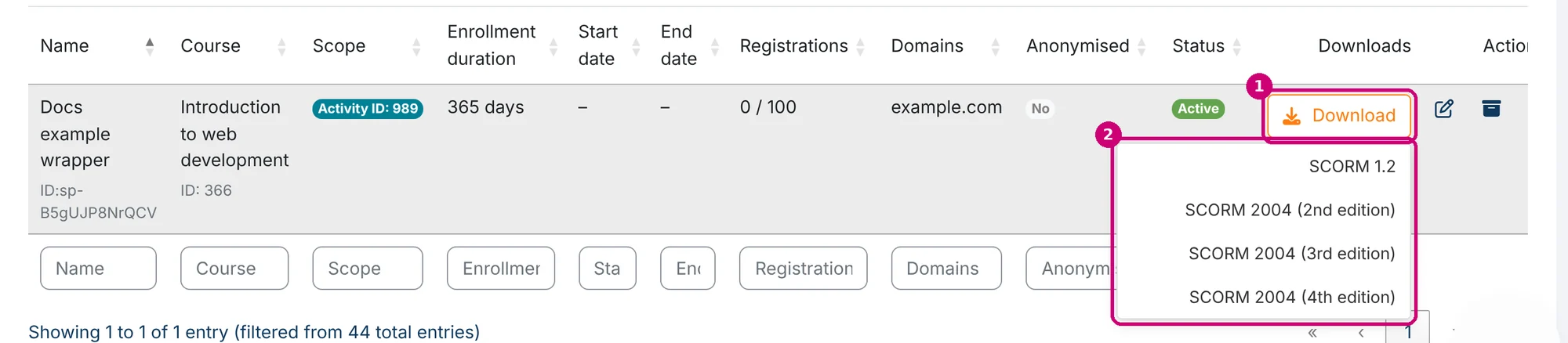
Click Download in the row of the wrapper (1) and choose a version (2):
- SCORM 1.2
- SCORM 2004 (2nd edition)
- SCORM 2004 (3rd edition)
- SCORM 2004 (4th edition)
Ask your client which version their LMS supports. Your browser downloads a zip file.
7. Send the zip file to your client
Send the zip file only to the client it is meant for. Your client adds it to a course in their LMS, the same way as any other SCORM package.
Next step
- Change, deactivate or delete a wrapper: manage SCORM wrappers.
- See the results of the learners: view results with SCORM Analytics.