Enrol users with an Excel file
Enrol a group of learners in one go. They get an email and only need to log in.
With Enrol users, learners don’t have to sign up on a sign-up page themselves. You upload an Excel file, and Linqur creates the accounts, enrols the learners and sends them an email.
You enrol through one or more sign-up URLs, not directly in a course. So the settings of those URLs apply here as well: the date range, the maximum number of registrations and the allowed email domains. Every new enrolment counts as a registration.
Step by step
1. Choose the sign-up URLs
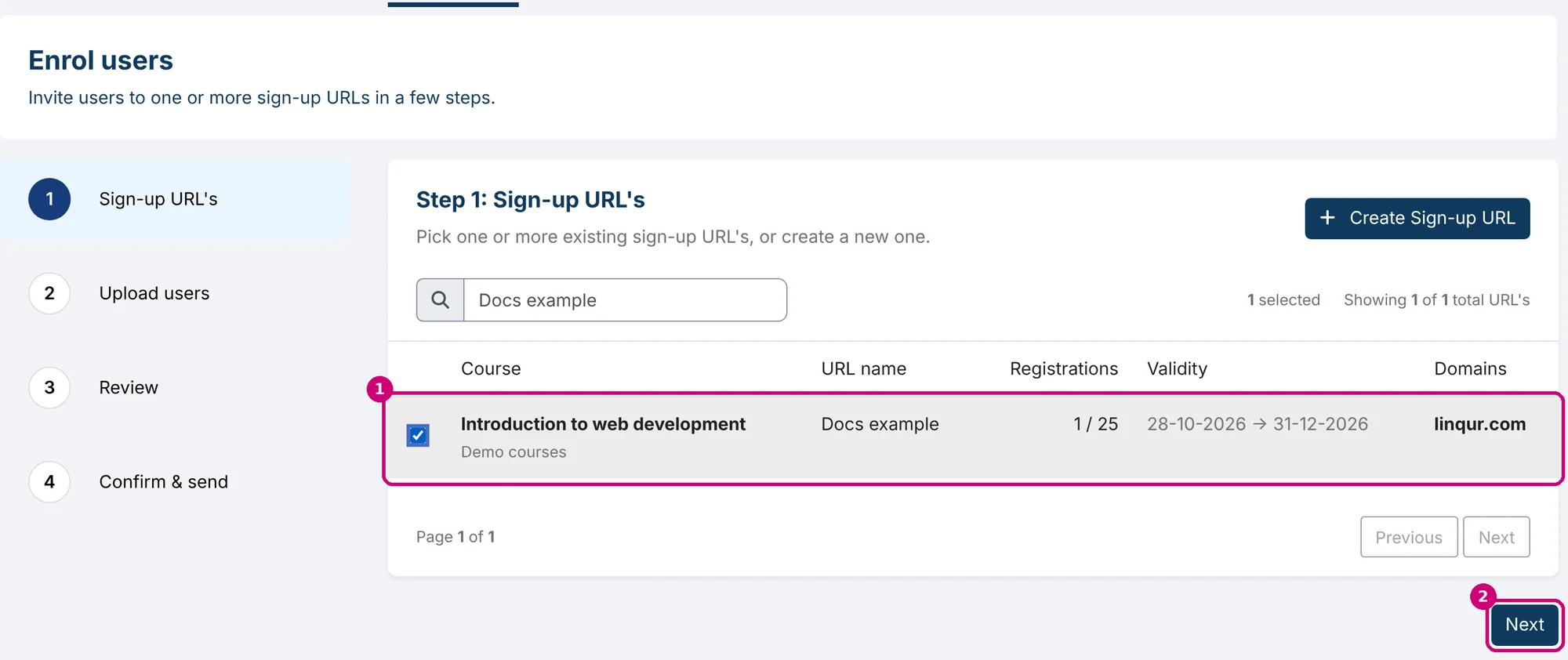
Click Sign-up URL’s in the menu on the left and open the Enrol users tab. In step 1, tick the sign-up URLs you want to enrol learners in (1). The search field helps you find them. If there’s no suitable URL yet, click Create Sign-up URL. Then click Next (2).
2. Download the template and fill it in
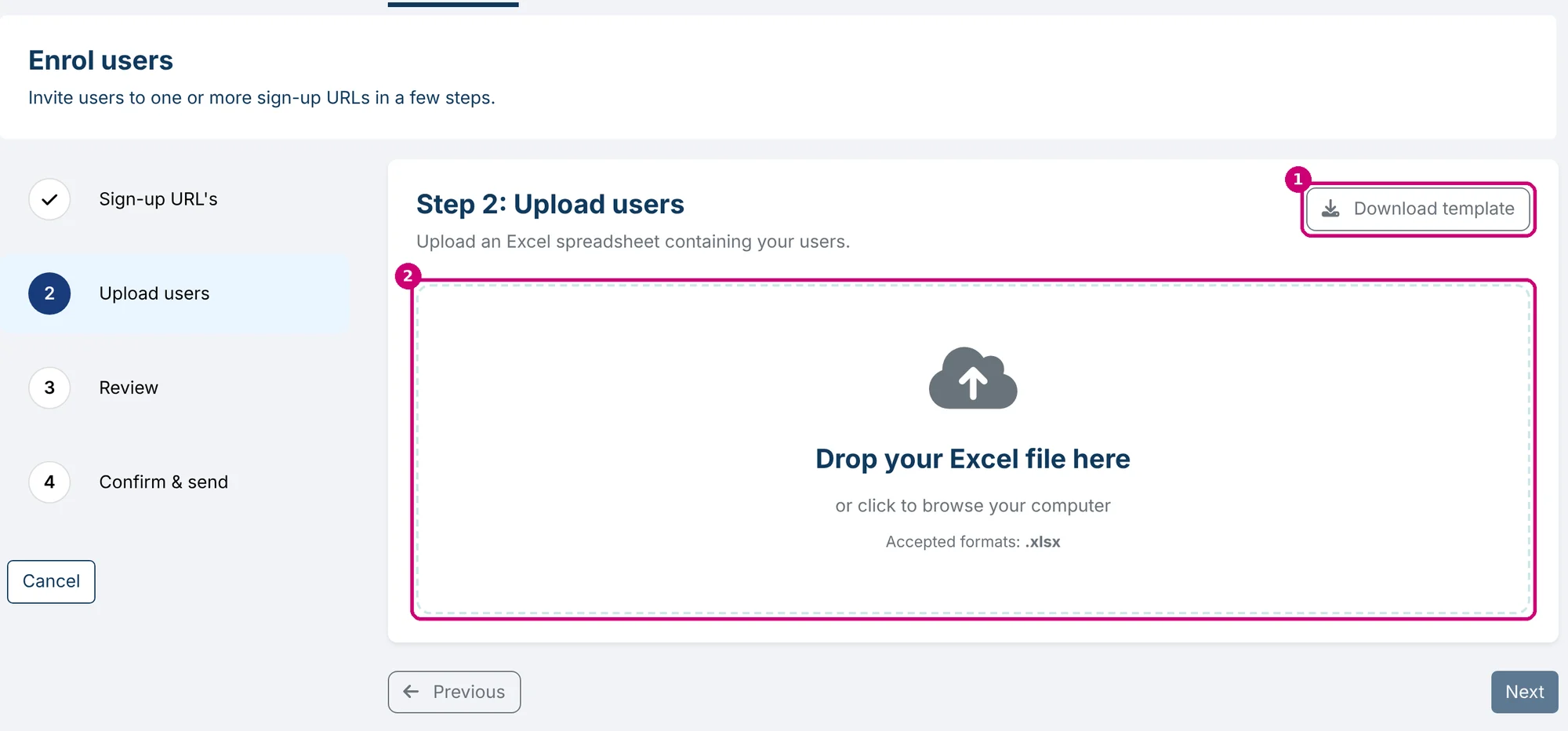
Click Download template (1) and fill in the file, one learner per row:
| Column | What to fill in |
|---|---|
| Email address | The learner’s email address |
| First name | The first name |
| Last name | The last name |
| Language | Optional: nl or en. This sets the language of the email. |
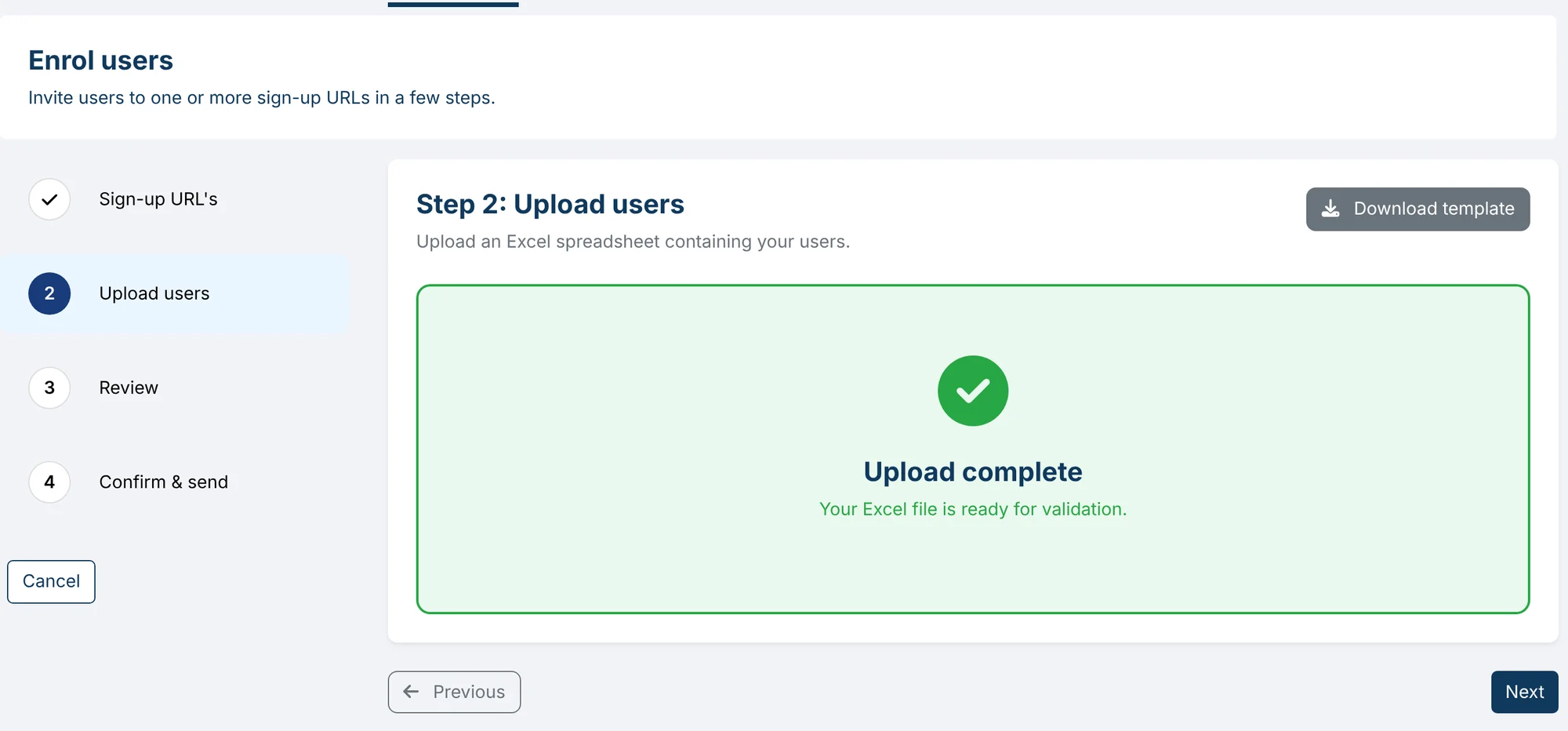
Drag the file onto the upload area (2) or click it to choose the file. Only .xlsx is accepted. When you see Upload complete, click Next.
3. Review the file
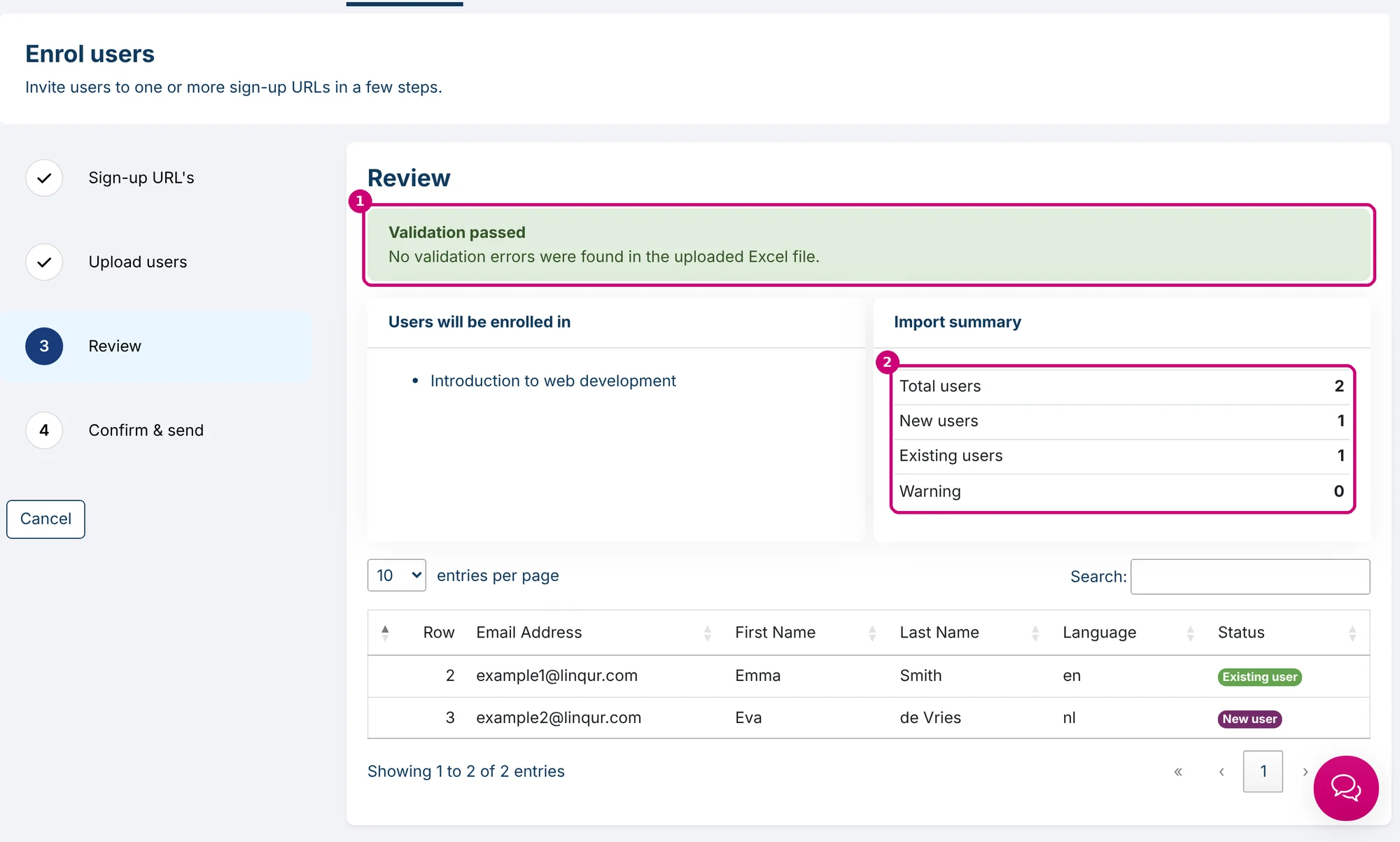
Linqur checks the file. If everything is correct, you see Validation passed (1). If there’s an error, it tells you what’s wrong, so you can fix the file and upload it again.
You also see which courses learners will be enrolled in and an Import summary: total users, new users, existing users and warnings. The table (2) shows for each row whether it’s a New user or an Existing user, who already has an account. Click Next.
4. Confirm and send
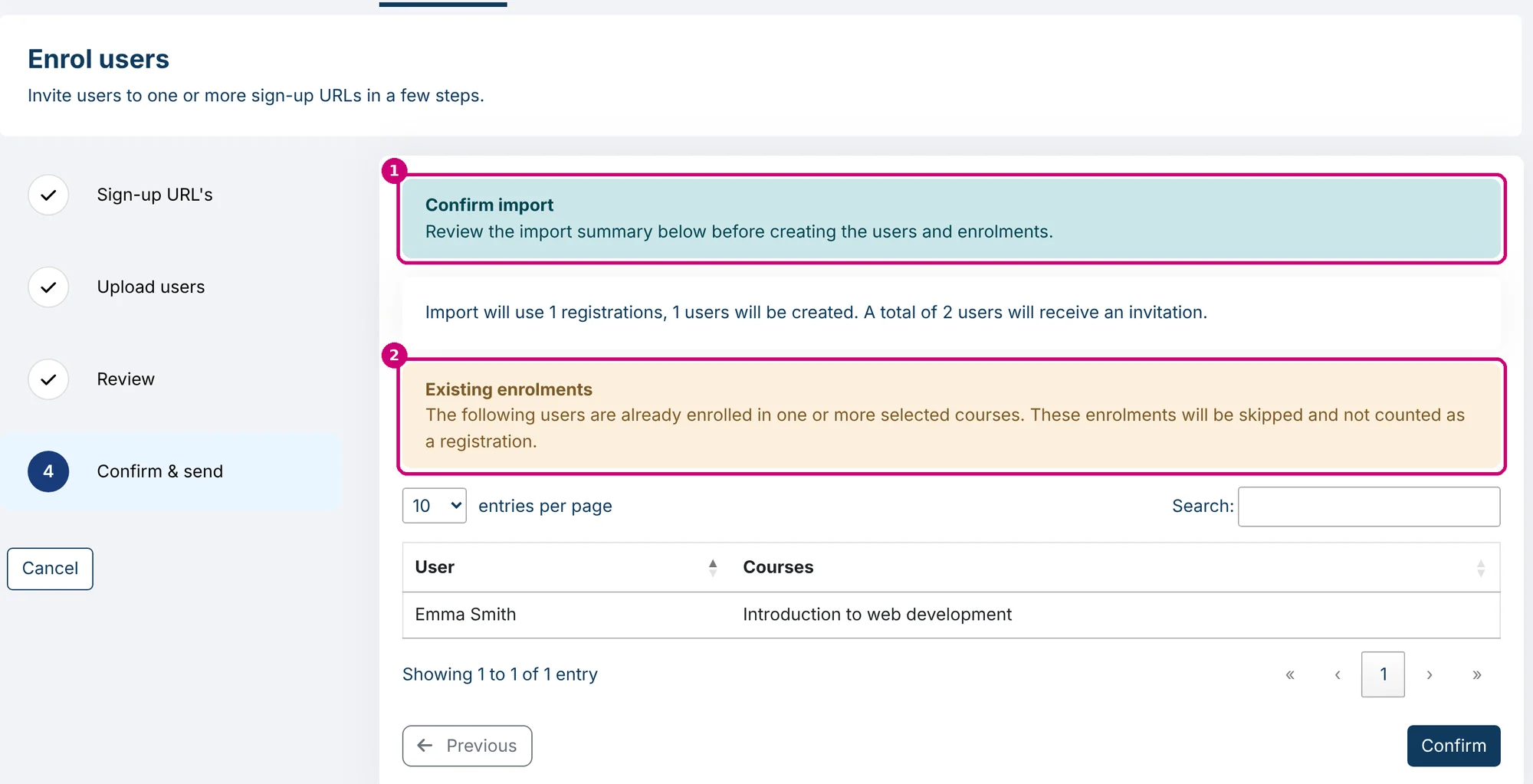
The last step shows how many registrations the import uses, how many accounts will be created and how many invitations will be sent (1). If a learner is already enrolled in one of the courses, they’re listed under Existing enrolments (2). That enrolment is skipped and doesn’t count as a registration.
Click Confirm. You return to the Sign-up URL’s tab with a message showing how many accounts were created, how many enrolments were added and how many emails were sent.
What does the learner receive?
The learner receives the Course enrolment email with a link to your login screen. There they log in with a login link, Google or Microsoft. You can change the text of that email in customise learner emails.