Getting started with course content
Fill a course with sections and activities: SCORM, xAPI, text, pages, files and a certificate.
A course in Linqur consists of sections, and each section holds activities. You add and change them on the Content tab of the course, in edit mode. This page gives the overview and links to a tutorial for each part.
Open the course in edit mode
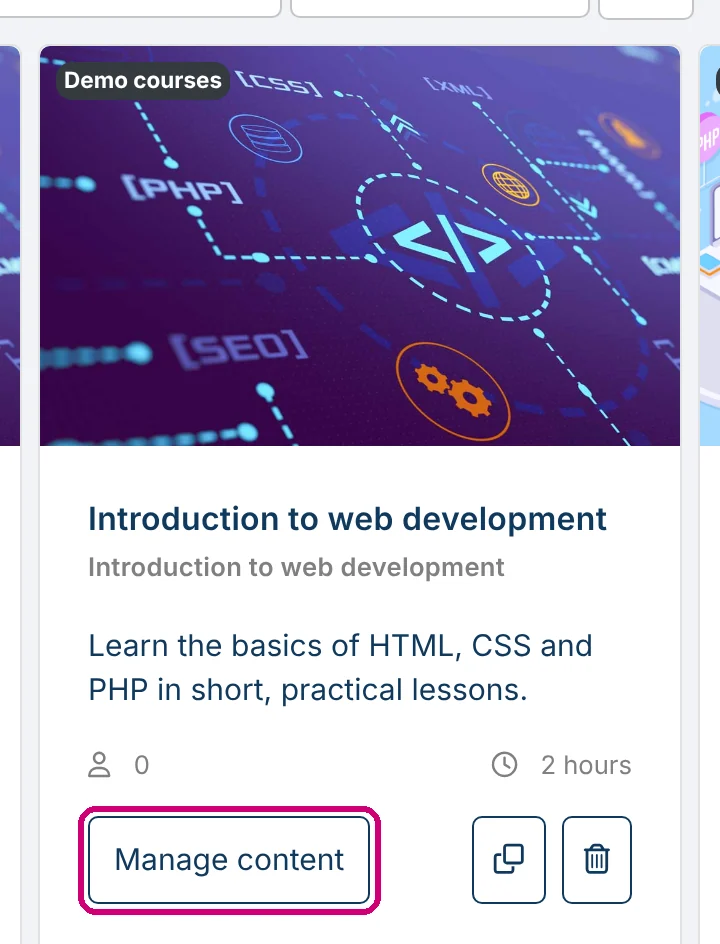
Click Courses in the menu and then Manage content on the course card. The Content tab opens in edit mode.
Sections and the add buttons
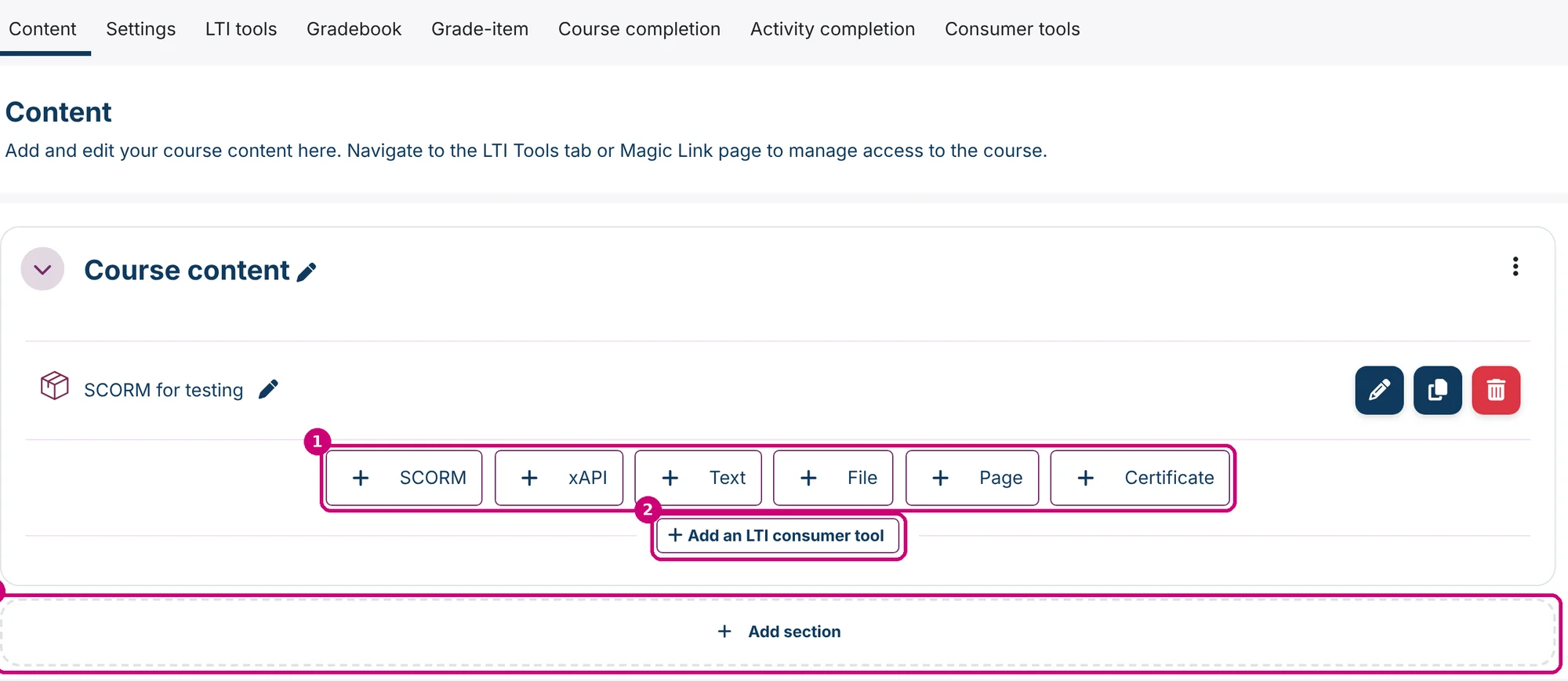
Every section has a row of buttons to add content (1) and below it Add an LTI consumer tool (2). Add section (3) at the bottom of the page adds a new section.
Adding and renaming sections and the section menu are explained in how to manage sections in a course.
The types of content
| Button | What you add | Tutorial |
|---|---|---|
| SCORM | A SCORM package. | How to add a SCORM package |
| xAPI | Content that sends its results to an LRS. This is an optional feature. | Add an xAPI activity |
| Text | A short text directly on the course page. | Add text, pages and files |
| File | A document that learners open or download. | Add text, pages and files |
| Page | A separate page with formatted content. | Add text, pages and files |
| Certificate | A PDF certificate for learners who meet the conditions. | Add a certificate |
Add an LTI consumer tool adds content from an external tool that is available in the course. An example of how that works is in re-share an LTI 1.0/1.1 tool as an LTI Advantage 1.3 tool via Linqur.
What you can do with an activity

- The pencil next to the name (1): change the name directly on the course page.
- Completion (2): shows when the activity counts as complete, with a link Edit conditions. The button appears once the activity has completion conditions.
- The three buttons on the right (3): edit the settings, duplicate, delete.
Three settings that are easy to mix up
| Setting | Where | What it does |
|---|---|---|
| Availability | Under Common module settings in the form of a Page or Certificate. | Show on course page or Hide on course page: shows or hides the activity for all learners. |
| Restrict access | In the form of every activity and in the settings of a section. | Opens content only when a learner meets a condition, such as another activity completed or a date. See restrict access to sections and activities. |
| Completion conditions | In the form of every activity except Text. | Sets when an activity counts as complete. See how to set up course and activity completion. |
A SCORM package has its own Availability block with a start and end date. See how to edit the SCORM settings.
Grades
Of these types, only a SCORM package sends a grade to the gradebook. A course with only xAPI, text, pages or files can use Grade-item instead.
The result
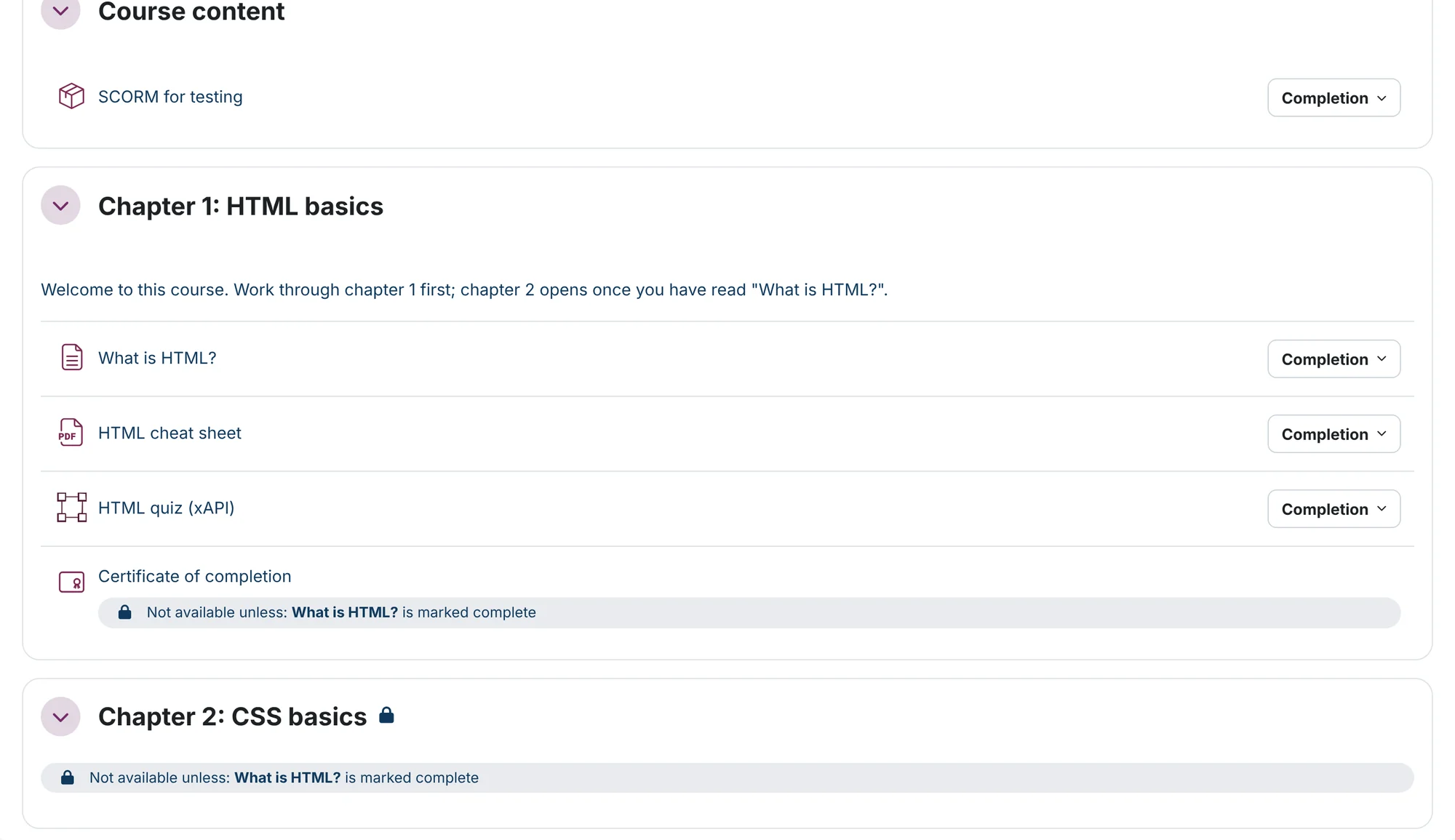
Outside edit mode the course looks like this. A certificate or section with a condition shows a lock and the condition.
Next step
- Give a client’s LMS access to the content: publish a SCORM package as an LTI tool.
- Or let learners sign up themselves: create a sign-up URL.