Log in as an administrator
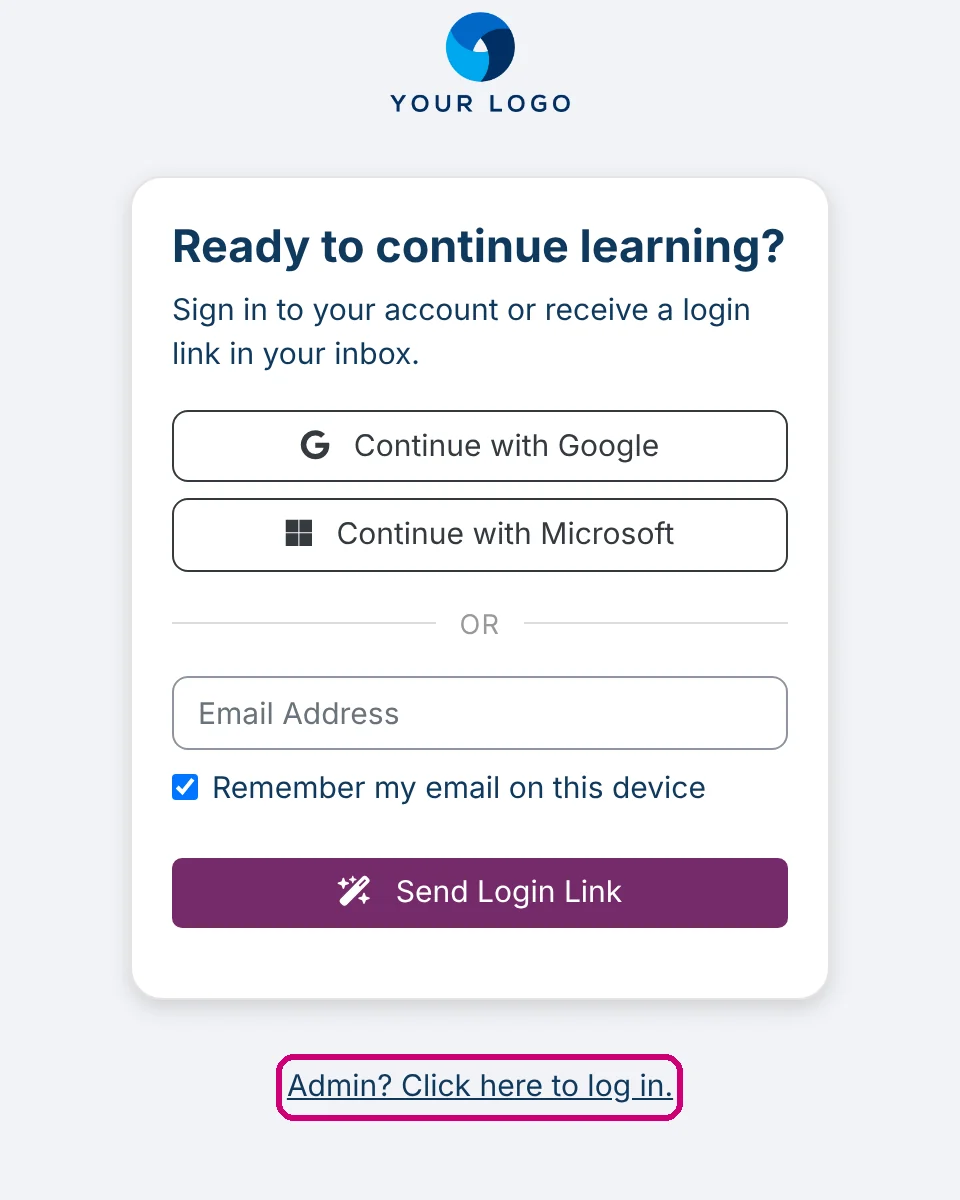
Open the address of your platform, click Admin? Click here to log in. if the learner page opens first, and log in with your username and password.
Two kinds of login
Your Linqur platform has two login pages. Learners who come in through a sign-up URL get a login link by e-mail and never see a password. Administrators, the people who manage courses, tools and users, log in with a username and a password. This article is about that second login.
Step by step
1. Open your platform
Open the address of your platform in the browser, for example https://<yourplatform>.linqur.com. You received the address and your username from Linqur when the platform was set up.
2. Go to the administrator login
Some platforms open the learner page first, with Send Login Link. Click Admin? Click here to log in. below the form. If the page with Username and Password opens right away, go on to step 3.
3. Enter your username and password
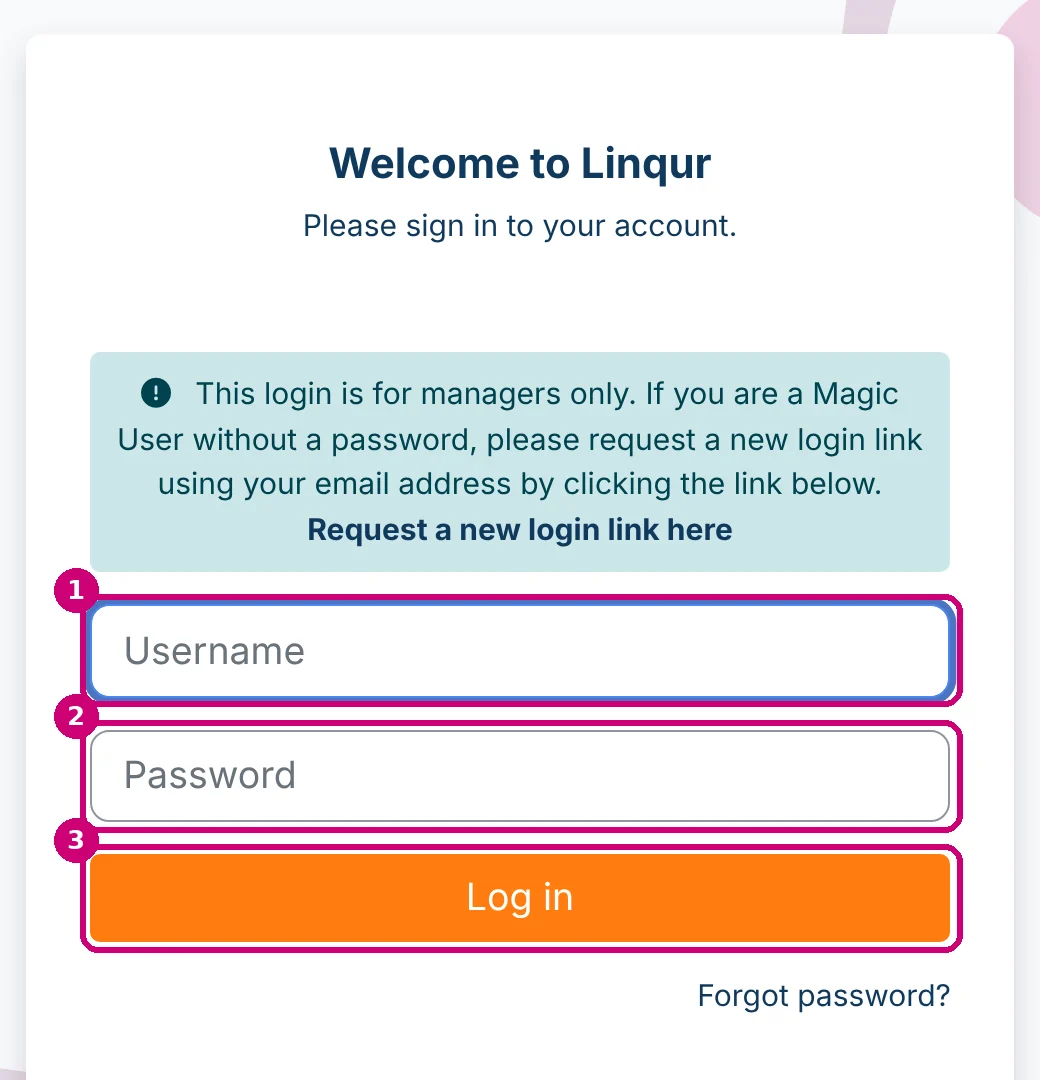
Type your username (1) and your password (2) and click Log in (3). The blue box above the form reminds learners that this page is for administrators only; they request a login link through the link in that box.
4. Confirm with a second factor
If multi-factor authentication is switched on for your account, a second page asks for the code from your authenticator app or for your security key. See Set up multi-factor authentication.
5. You are in
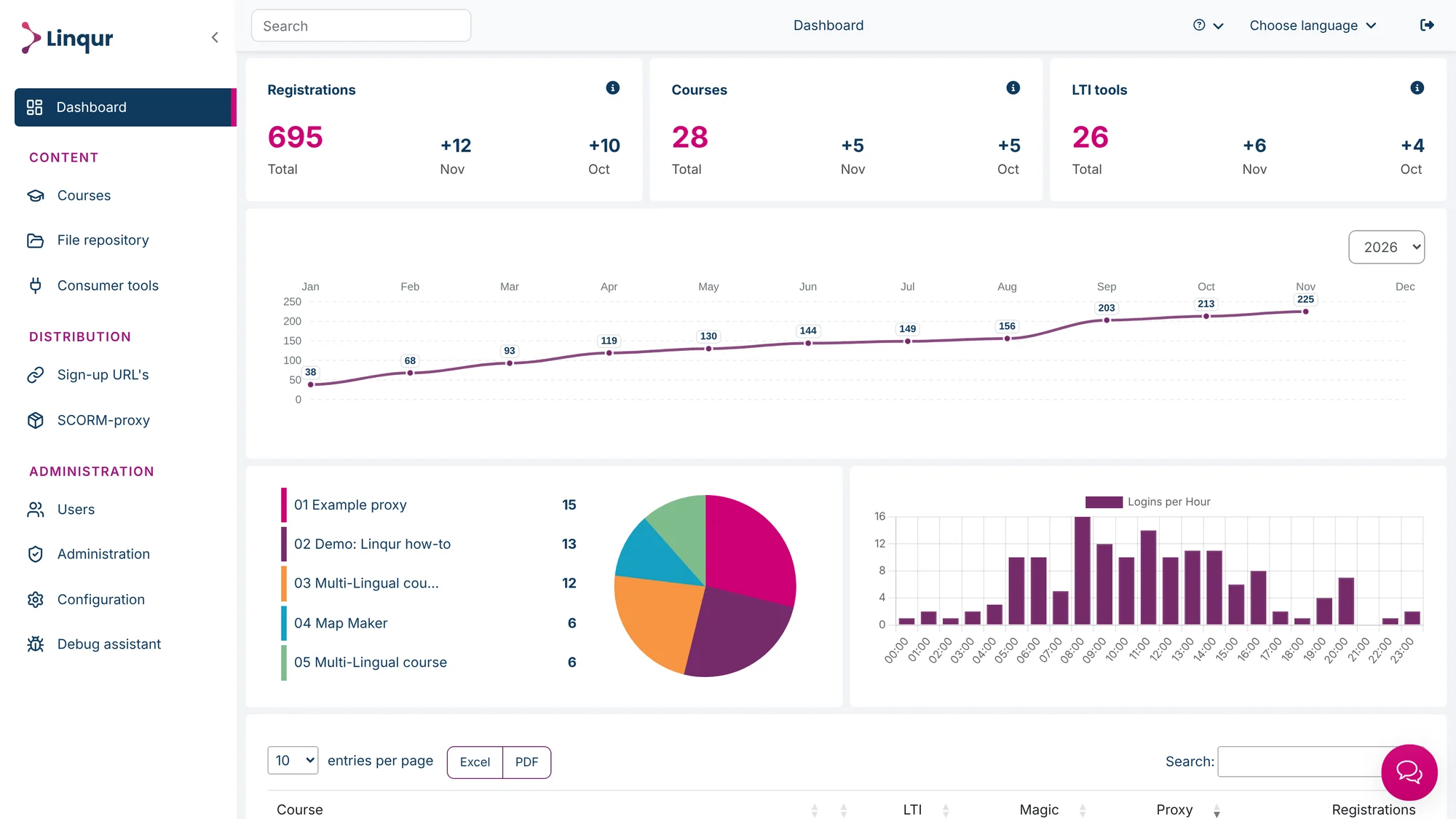
After logging in you land on the dashboard, with the menu on the left and the search bar at the top. At the top right are the help menu, Choose language and the log-out icon.
When logging in fails
- Wrong username or password. Check the username first; it is not always your e-mail address. Forgot the password? Click Forgot password? below the form, see Reset your password.
- You see the learner page and no administrator link. Add
/login/index.phpto the address of your platform; that opens the administrator form directly. - The page keeps coming back after you click Log in. Your browser blocks cookies for the platform, or an extension does. Allow cookies for your platform address and try again.
- Second factor not available. Lost your phone or security key? Contact support; we check who you are and reset the second factor.