Manage languages in a multilingual course
Add, replace or remove languages in a multilingual SCORM course, and read what the table tells you.
A course with the format Multilingual SCORM has the page Edit languages and content instead of the usual Content tab. You open it with Manage content on the course in the course overview. This page covers what you do there once the course exists. Creating the course is in create a multilingual SCORM course.
Add, remove or update
Adding a language, removing a language that is still empty and deleting a language that already has a learning object are in add or remove a language in a multilingual course. A new version of the package of one language: update a SCORM package in a multilingual course. Both start from this page, with Add language above the table and the pencil and the trash icon under Actions in the row of a language.
The columns Visible and Completion
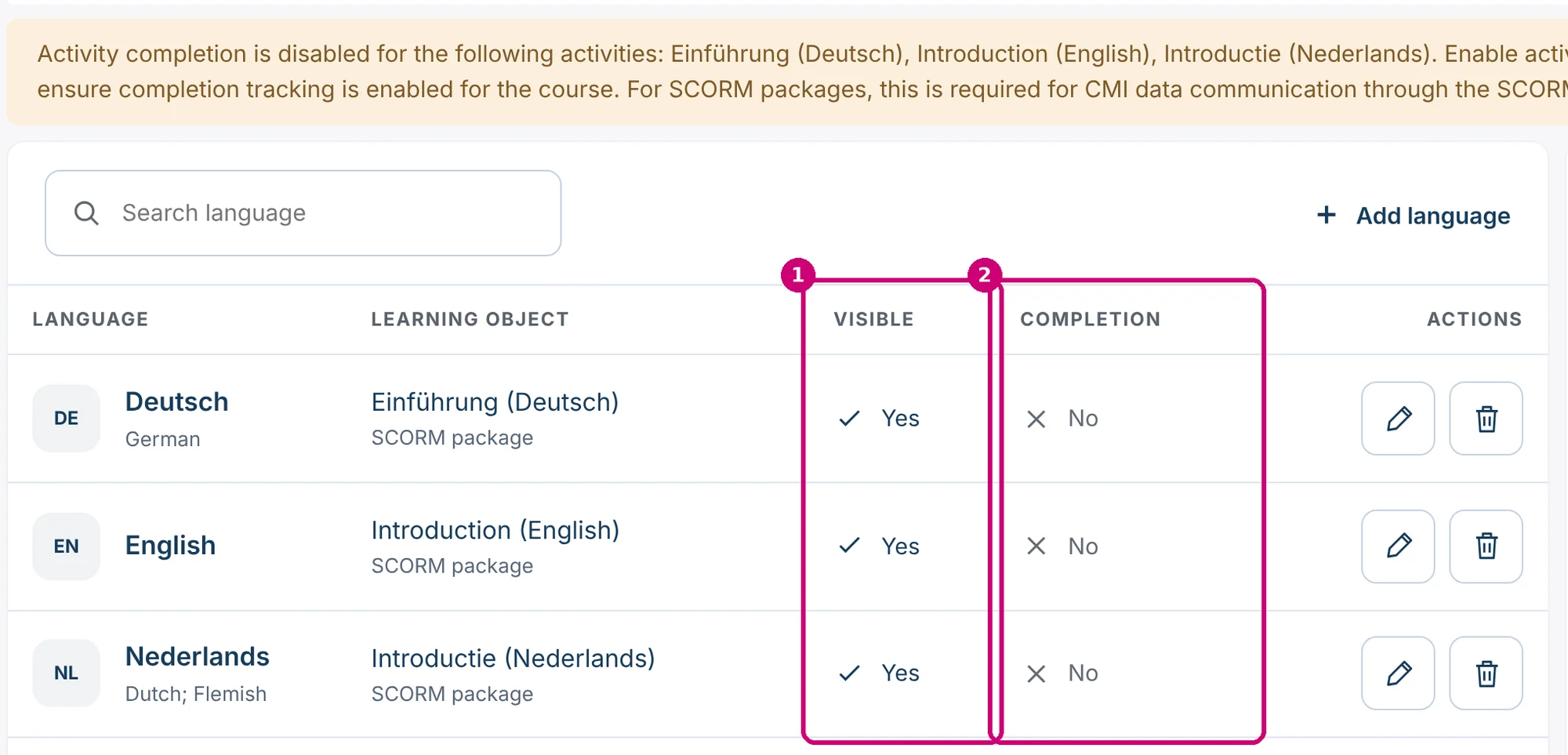
| Column | What it shows |
|---|---|
| Visible (1) | Yes: learners can get this language. No, still empty: the language has no learning object yet and is not offered. Restrict access settings on the learning object can still limit who can open it. |
| Completion (2) | Yes: activity completion is on for the learning object. No: it is off. |
As long as Completion says No for a SCORM package, Linqur shows the yellow warning above the table. The packages then need a completion condition, which SCORM Proxy requires to exchange results. Open the package with the pencil, set a condition under Completion conditions and save. See how to set up course and activity completion.
What learners see
The two cards on the right sum it up.
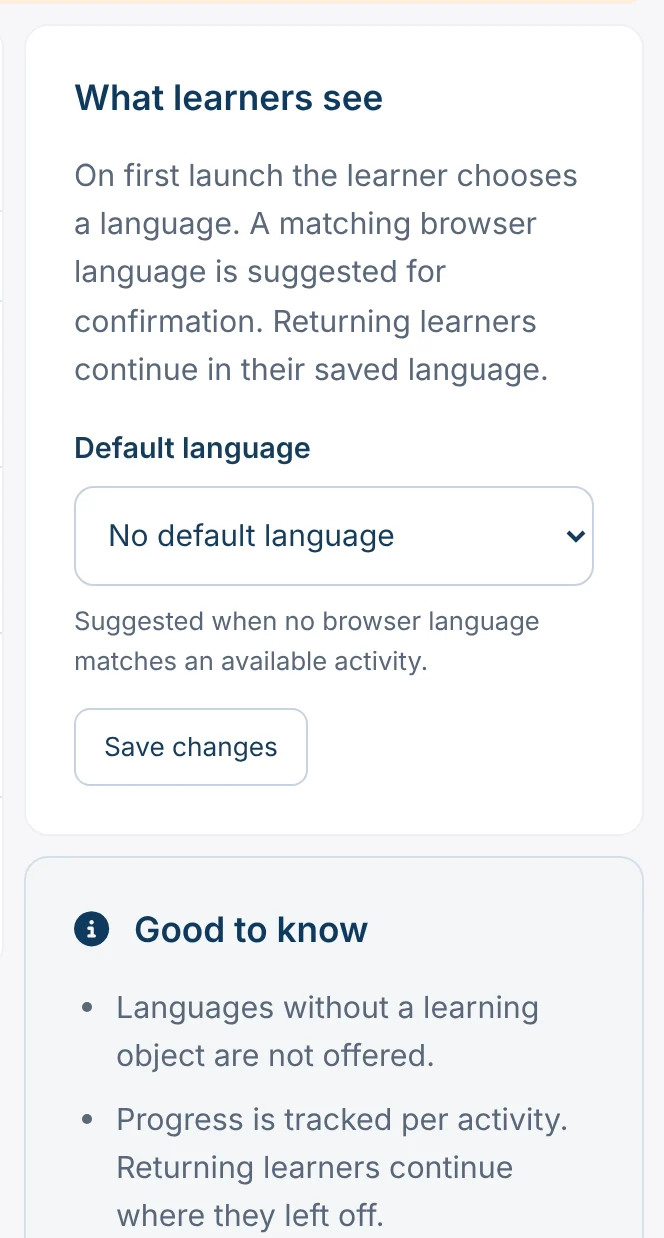
- On first launch, the learner chooses a language. Linqur suggests the language of the browser; the learner confirms it or picks another one from the list.
- The choice is fixed. The learner chooses only once and gets that version on every later launch.
- Progress is tracked per learning object. A returning learner continues where they left off.
- Languages without a learning object are not offered.
- The Default language in the card What learners see is suggested when no browser language matches an available learning object.
Preview course under the table shows the chooser as a learner sees it, without locking a choice. For the preview, see create a multilingual SCORM course.
Problems
| Problem | Cause and solution |
|---|---|
| A language is not in the list when I add a language. | The language chooser only lists the languages installed on your platform (Installed on this platform). Contact Linqur Support to have a language added. |
| Learners are not offered a language. | The language has no learning object: Visible says No, still empty. Add a learning object to the row. |
| A learner wants to switch to another language. | The language choice is fixed once made. Contact Linqur Support. |