Manage SCORM wrappers
Find SCORM wrappers, change them, deactivate them or delete them.
All SCORM wrappers are on the SCORM Wrappers tab under SCORM-proxy, in the list below the block for creating a new wrapper. For each wrapper you see the name (with the wrapper ID, starting with sp-), the course, the scope, the enrollment duration, the start and end date, the registrations, the allowed domains, whether it is anonymised, the status and a Download button. An empty value shows as a dash.
Find and export wrappers
- Custom Search Builder (1): filter on name and course. Pick a value and click Search. Add Condition adds another condition, for example on status.
- Search field (2): searches all columns at once.
- Column visibility, Excel and PDF (3): show or hide columns and export the list.
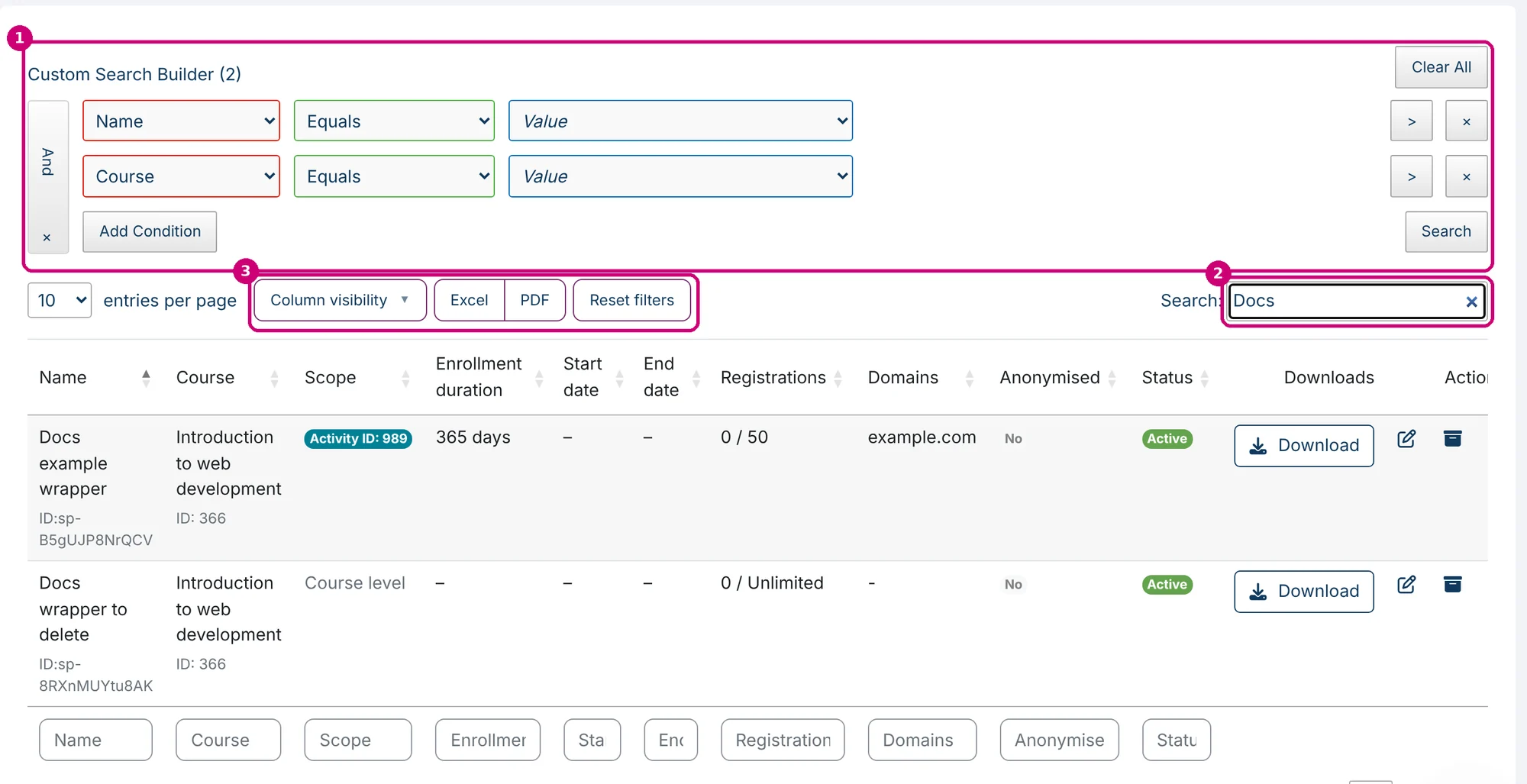
The Actions column has three icons: edit (1, pencil), deactivate (2, archive box) and delete (3, bin). On a smaller screen you may have to scroll the list to the right to see them.

Edit a wrapper
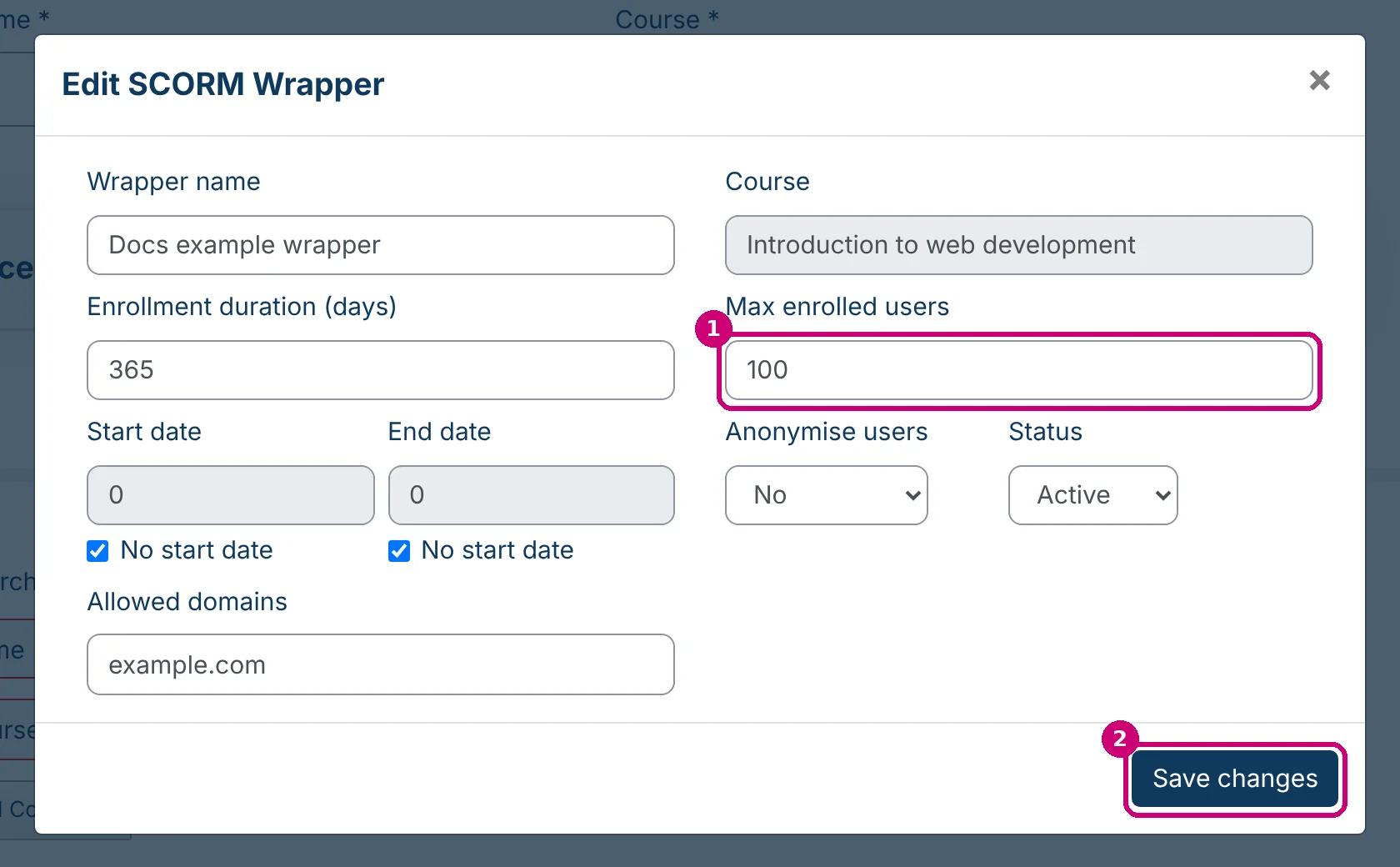
Click the pencil. The window Edit SCORM Wrapper opens. You can change the wrapper name, the enrollment duration, the start and end date, the allowed domains, Max enrolled users (1), Anonymise users and the status. Then click Save changes (2).
The course is greyed out, and the activity is not in the window. To share another course or activity, create a new wrapper.
Under End date, the tick box is also labelled No start date. That box belongs to the end date.
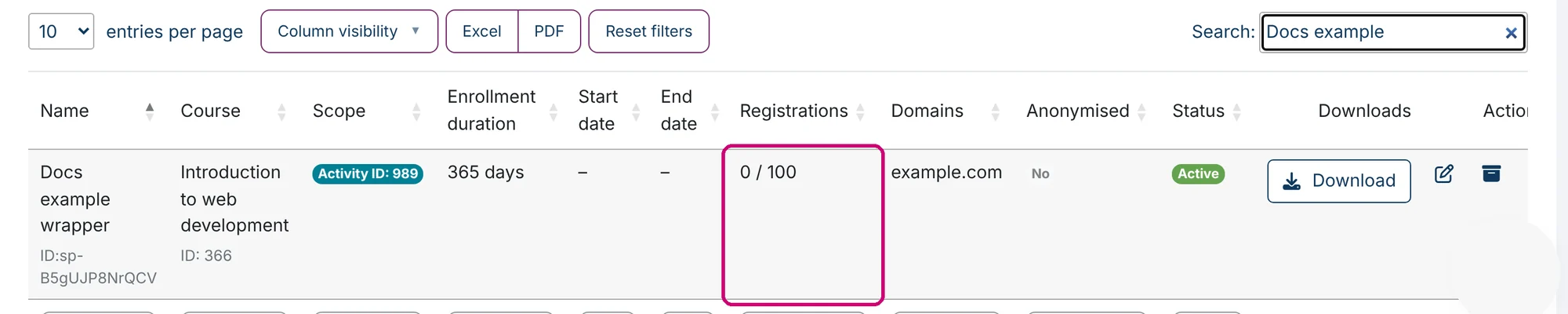
The list shows the new value right away. The Registrations column shows the number of registrations and the maximum, for example “0 / 100”, or “0 / Unlimited” when Max enrolled users is 0.
Deactivate and activate
Click the archive box in the Actions column. There is no confirmation question. Linqur shows “SCORM wrapper deactivated”, the status changes to Inactive (1) and the tile Inactive wrappers (“Not accepting registrations”) goes up by one. In place of the archive box you now see two arrows (2). Click them to activate the wrapper again.

Delete a wrapper
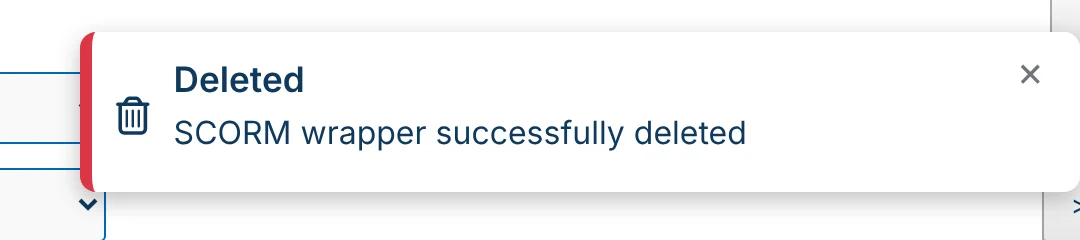
Click the bin in the Actions column. Your browser asks “Delete this SCORM wrapper? This cannot be undone.” Click OK to delete it. Linqur shows “SCORM wrapper successfully deleted” and the wrapper is gone from the list.
| Deactivate | Delete | |
|---|---|---|
| Confirmation | None | “Delete this SCORM wrapper? This cannot be undone.” |
| In the list | Stays, with the status Inactive | Gone |
| Tiles | Inactive wrappers goes up by one | Total wrappers goes down by one |
| Undo | Yes, with the two arrows | No |
Tip: deleting a course
If you delete a course, its wrappers stay in the list with Unknown course as the course. Deactivate or delete those wrappers as well. Deleting a course is explained in how to delete a course.