Manage sign-up URLs
Find sign-up URLs, change them, pause them by archiving, or delete them.
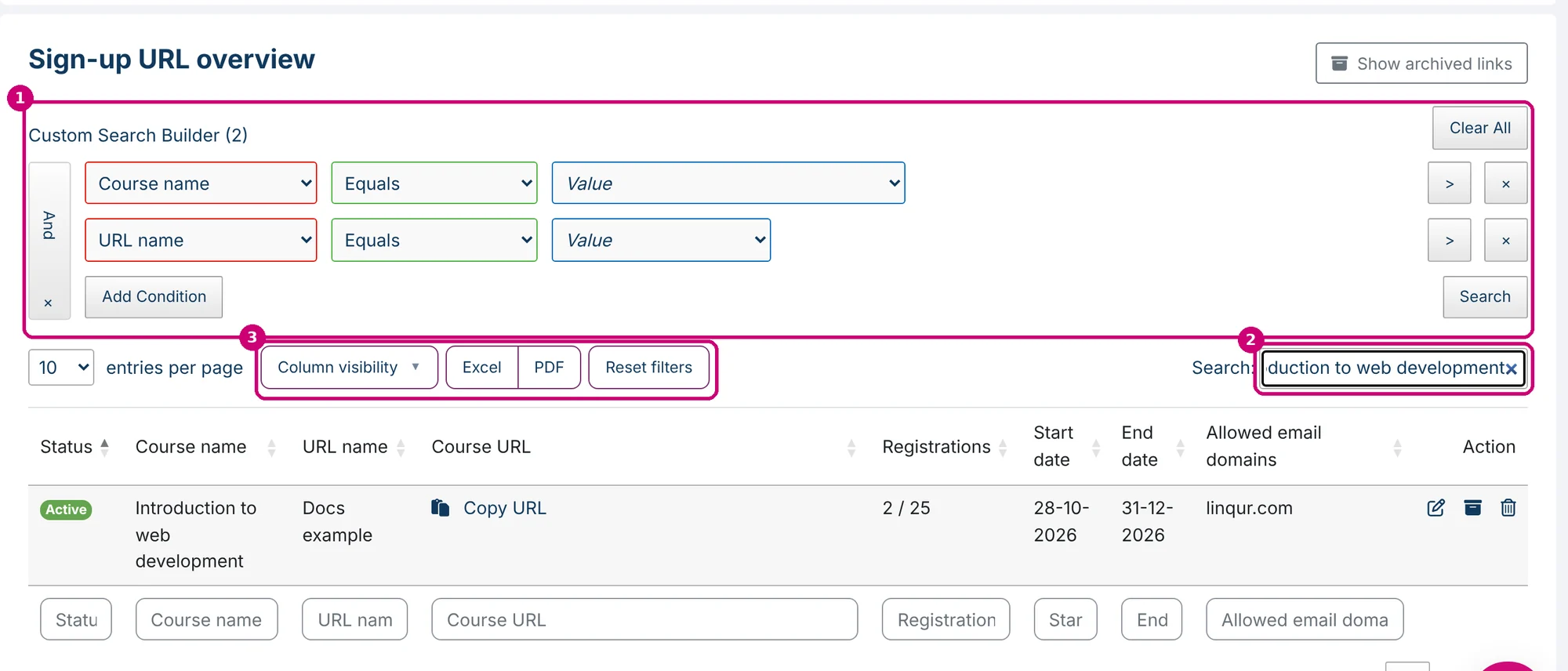
All sign-up URLs are on the Sign-up URL’s tab, in the Sign-up URL overview below the block for creating a new URL. For each URL you see the status, the course, the URL name, the link, the number of registrations, the date range and the allowed email domains. The Action column has three icons: edit (pencil), archive (box) and delete (bin).
Find and export sign-up URLs
- Custom Search Builder (1): filter on course name and URL name. Pick a value and click Search. Add Condition adds another condition, for example on status.
- Search field (2): searches all columns at once.
- Column visibility, Excel and PDF (3): show or hide columns and export the overview.
Edit a sign-up URL
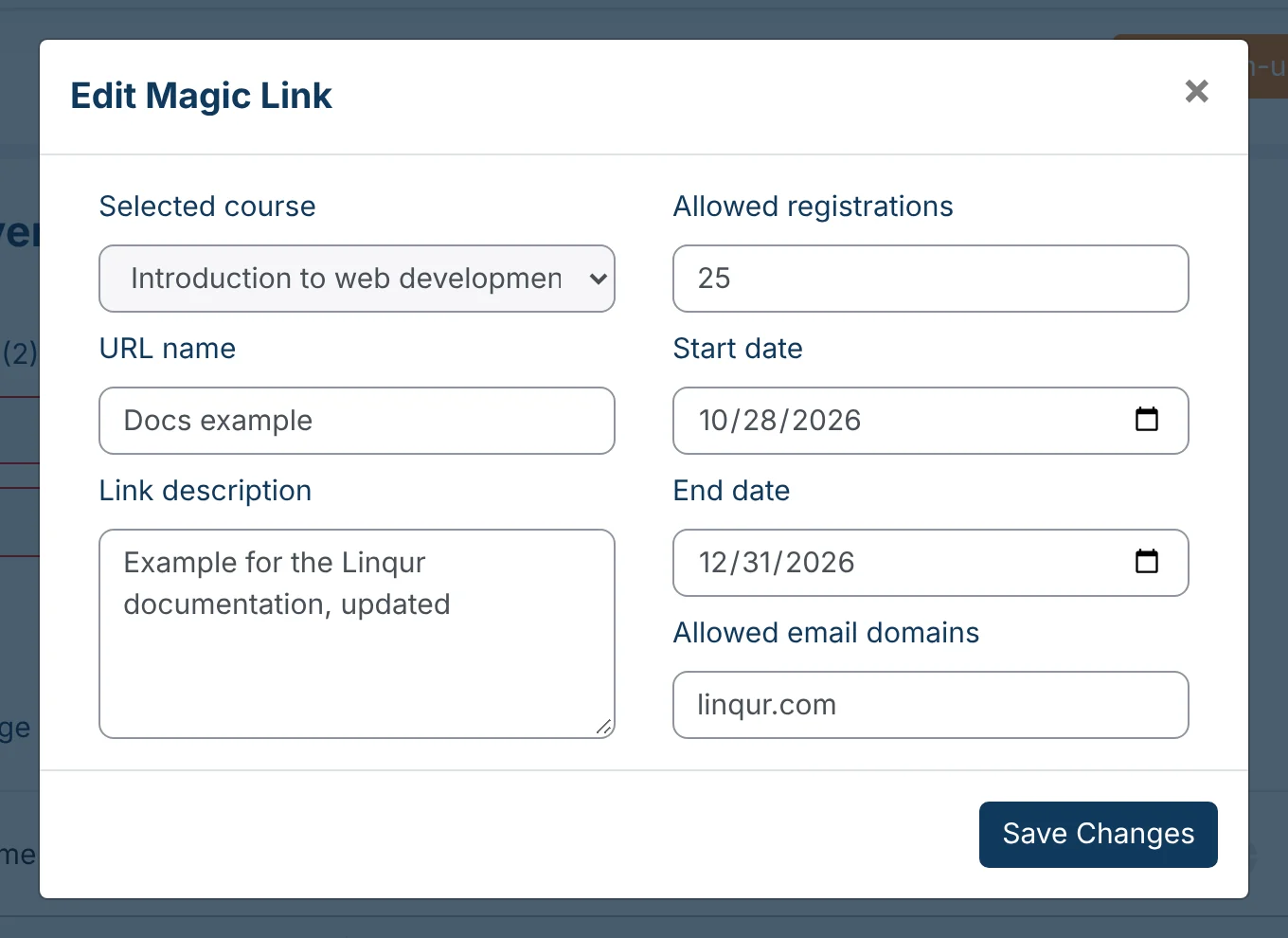
Click the pencil in the Action column. You can change the URL name, the link description, the allowed registrations, the start and end date and the allowed email domains. Then click Save Changes.
You can’t change the course. If the link needs to point to another course, create a new sign-up URL.
Archive and reactivate
Archive a sign-up URL when nobody should sign up for a while, for example after a campaign ends. An archived URL gets the status Not active and stops accepting registrations. Anyone who opens the link lands on the login screen with a message that the link has been archived. You can reactivate the URL later.
Click the box in the Action column and confirm that you want to archive the link.

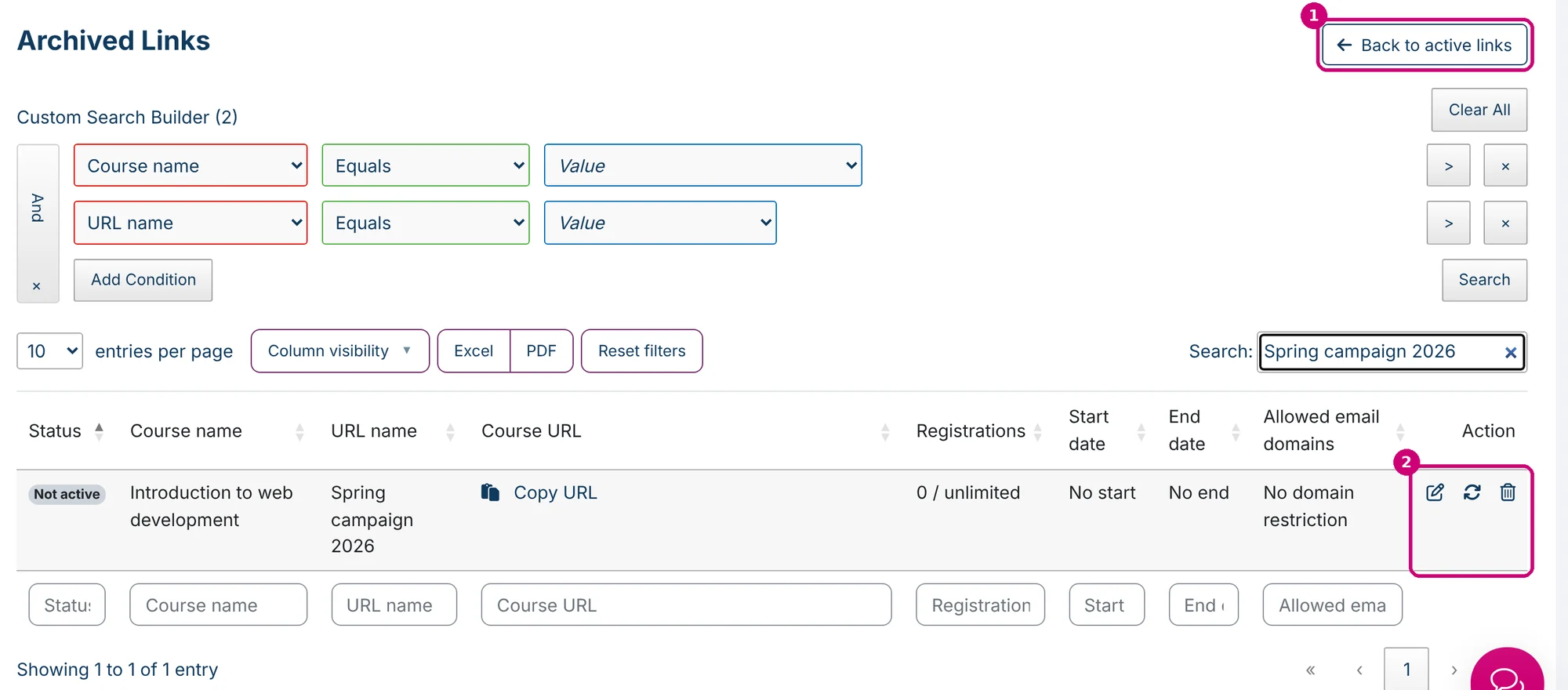
To see archived URLs, click Show archived links at the top right of the overview. Click the icon with the two arrows next to the URL (2) and confirm to make it active again. Back to active links (1) takes you back to the regular overview.
Delete a sign-up URL
Click the bin in the Action column and confirm. A deleted sign-up URL no longer works, and you can’t undo this. If in doubt, archive the URL instead.
| Archive | Delete | |
|---|---|---|
| New sign-ups | Not possible | Not possible |
| What the learner sees | The login screen, with a message that the link has been archived | The link no longer works |
| Undo | Yes, by reactivating | No |