Re-share an LTI 1.1 tool as an LTI Advantage 1.3 tool
Re-share a learning object that another platform offers over LTI 1.0 or 1.1 as an LTI 1.3 (Advantage) tool from Linqur.
A learning object that lives on another platform and is shared over LTI 1.0 or 1.1 can go through Linqur to a platform that only accepts LTI 1.3. You add the legacy tool as a consumer tool in a Linqur course, place it in the course as an activity and publish that activity as an LTI 1.3 tool. The connection then runs from the consumer platform through Linqur (LTI 1.3) to the host platform (LTI 1.0 or 1.1). With grade synchronisation on, the grade comes back to the Gradebook in Linqur. In this example the host and the consumer are both Moodle, but any LMS that supports LTI works.
Step by step
1. Create a Legacy LTI tool on the host platform
If you already have a legacy tool with a Launch URL and a Secret, go to step 2.
Create a course on the host platform and add the learning object. If the object has grading or completion, set them up in the activity settings.

Publish the learning object as an LTI tool. Share the learning object, not the whole course. If your LMS doesn’t show the option to publish as LTI, enable LTI authentication and enrolment in its settings first.

Set at least:
- the LTI version: Legacy LTI (1.1/2.0)
- a name for the tool
- the learning object as the tool to be published
Save the tool. The host platform now shows the Launch URL and the Secret of the tool.

2. Add the legacy tool to Linqur as a consumer tool
Create a course in Linqur (how to add a new course). Click Manage content, open the Consumer tools tab and click Add tool.

Fill in the tool settings:

| Field | What to enter |
|---|---|
| Tool name | A name for your own overview. |
| Tool URL | The Launch URL from the host platform. |
| LTI version | LTI 1.0/1.1 |
| Consumer key | Any value, for example abc123. |
| Shared secret | The Secret from the host platform. |
| Default launch container | Where the object opens, for example Embed. |
Click Save changes. In the table of consumer tools, switch on Available in course.

3. Add the tool to the course as an activity
Open the Content tab and click Add an LTI consumer tool. Choose the tool and give the activity a name. If the learning object has completion and grades, set them up in this activity as well, for example a maximum grade of 100, a grade to pass of 60 and the completion condition Receive a passing grade.

Click Save and return to course.
4. Publish the activity as an LTI 1.3 tool
Click LTI tools at the top right of the course page and click Add LTI tool, as described in publish a SCORM package as an LTI tool. Choose LTI 1.3 (Advantage), give the tool a name and choose the activity of the consumer tool as the learning object.

Save the tool. In the list on the LTI tools page, click the new tool. The tool details show the Launch URL and the id under Custom Properties. The consumer platform needs both. See share the launch details of an LTI tool.

5. Register the consumer platform
Register the consumer platform in Linqur: register an LTI 1.3 platform. For Moodle as consumer, see Moodle 4.x via LTI Advantage (1.3).
6. Add the tool on the consumer platform
Create a course on the consumer platform and add an External tool activity. In Moodle you set:
- a name for the activity
- the Launch URL from Linqur as the (secure) tool URL
- the launch container
- the id from Linqur as a custom parameter
Save the activity. The screenshot shows the Dutch interface of Moodle.

7. Test the connection
Enrol a student on the consumer platform and log in as that student. Start the activity: the learning object of the host platform loads through Linqur.
With grading set up and grade synchronisation on, the grade appears in the Gradebook of the course in Linqur. Click Manage content and open the Gradebook tab. The grade sync task can take a few minutes. How to read the Gradebook is explained in view grades in the Gradebook.
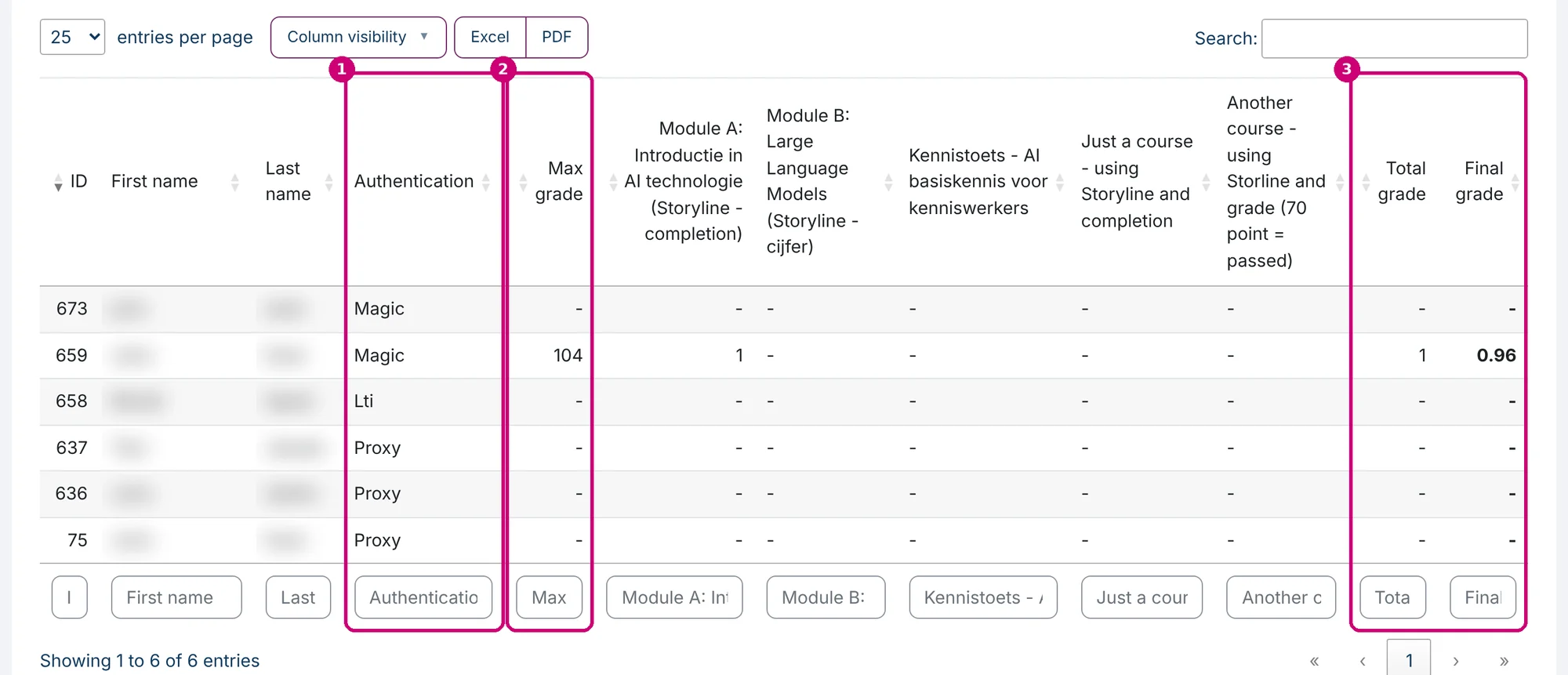
On the tool details page of the LTI 1.3 tool, the Registered users tab shows the student with the grade.

Next step
- If the launch fails, check the list of LTI errors and their solutions or look the error up with the Debug assistant.
- The settings of the LTI 1.3 tool, including grade synchronisation: LTI tool settings explained.