Restrict access to sections and activities
Keep an activity or a section closed until a learner meets a condition.
With Restrict access you set conditions for an activity or a whole section. A common example: chapter 2 only opens once the learner has completed a page in chapter 1, or the certificate only becomes available after the last activity.
Restrict access is not the same as hiding. Availability under Common module settings (Show on course page or Hide on course page) shows or hides an activity for all learners. Restrict access applies conditions per learner.
Restrict access to an activity
1. Open Restrict access
Open the settings of the activity (the pencil icon), or add a new one. Open Restrict access and click Add restriction….

2. Choose the type of condition
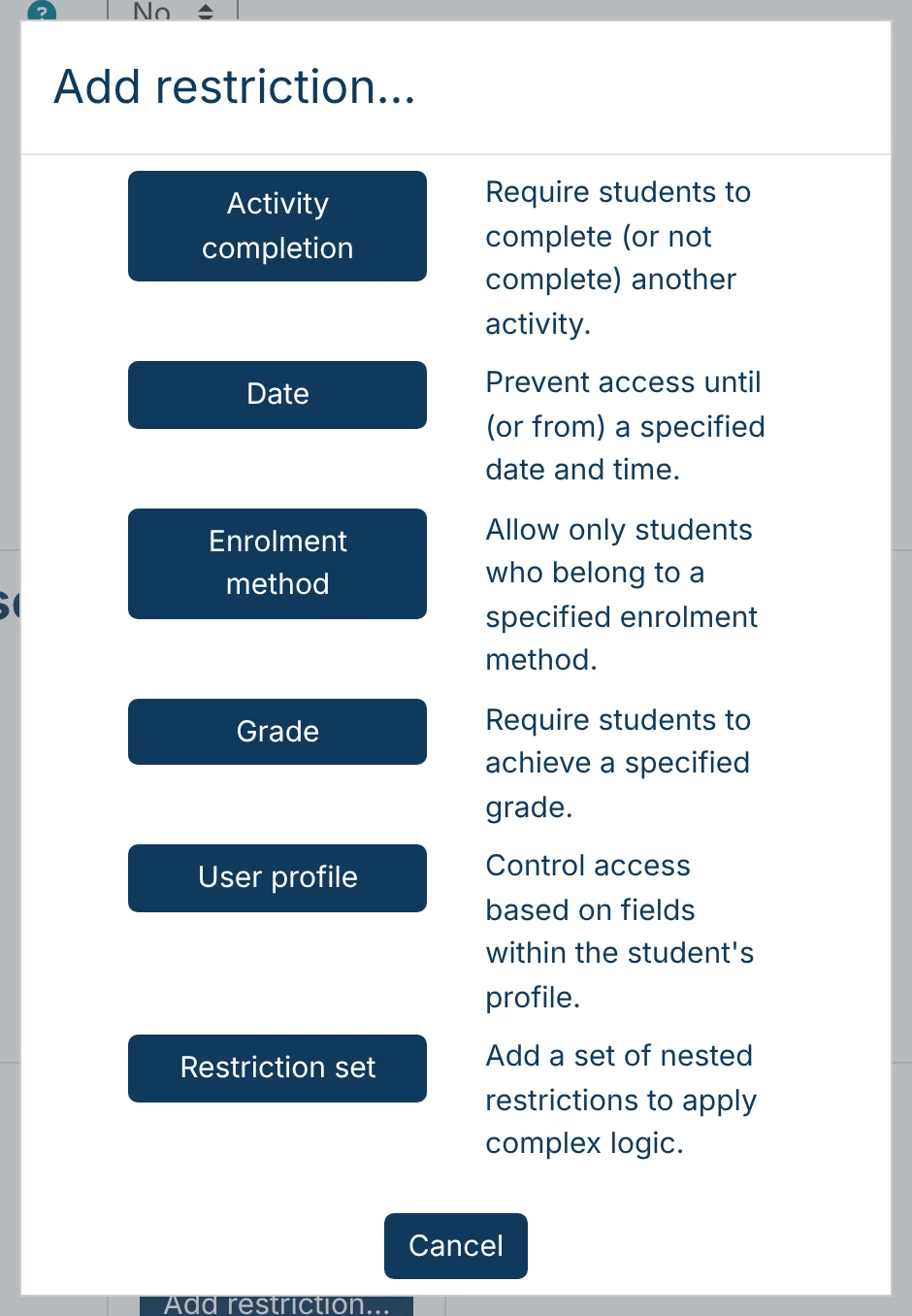
| Type | The activity is available when |
|---|---|
| Activity completion | the learner has completed (or not completed) another activity. |
| Date | a set date and time has passed, or until that moment. |
| Enrolment method | the learner was enrolled through a specific enrolment method. |
| Grade | the learner has a specified grade. |
| User profile | a field in the learner’s profile meets a value. |
| Restriction set | Combines several conditions into a nested set, for more complex rules. |
3. Set the condition
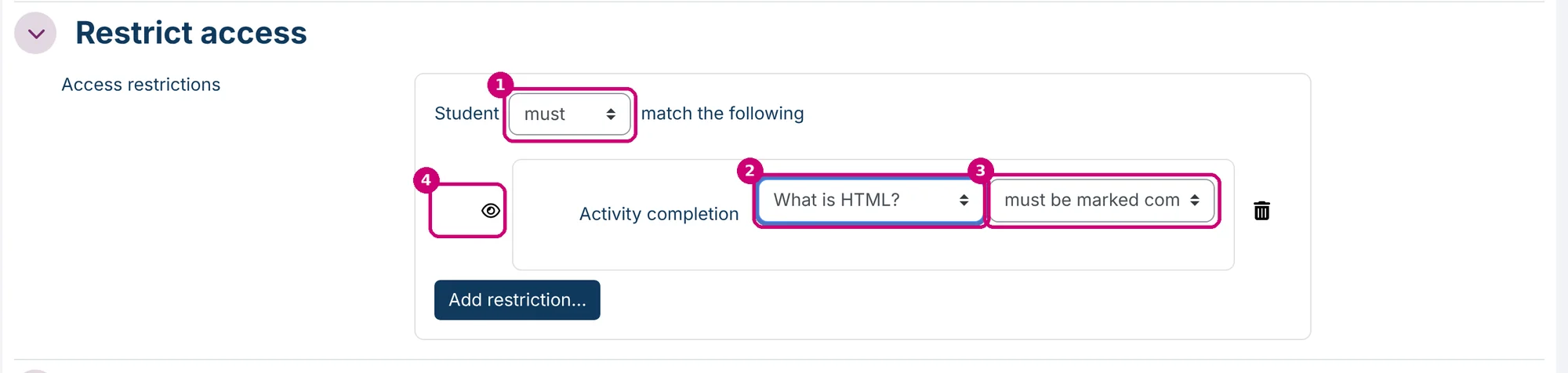
For Activity completion:
- must or must not (1): whether the learner must or must not meet the condition.
- The activity (2): the activity the learner has to complete.
- The status (3): must be marked complete, must not be marked complete, must be complete with pass grade or must be complete with fail grade.
- The eye icon (4): with the eye open, learners who don’t meet the condition still see the activity, with the condition. Click the eye to hide the activity entirely from them.
With more than one condition, choose whether the learner must meet all or any of them.
4. Save
Click Save and return to course.
Restrict access to a section
1. Open the settings of the section
Click the three dots next to the section name and then Edit settings.

2. Add a condition
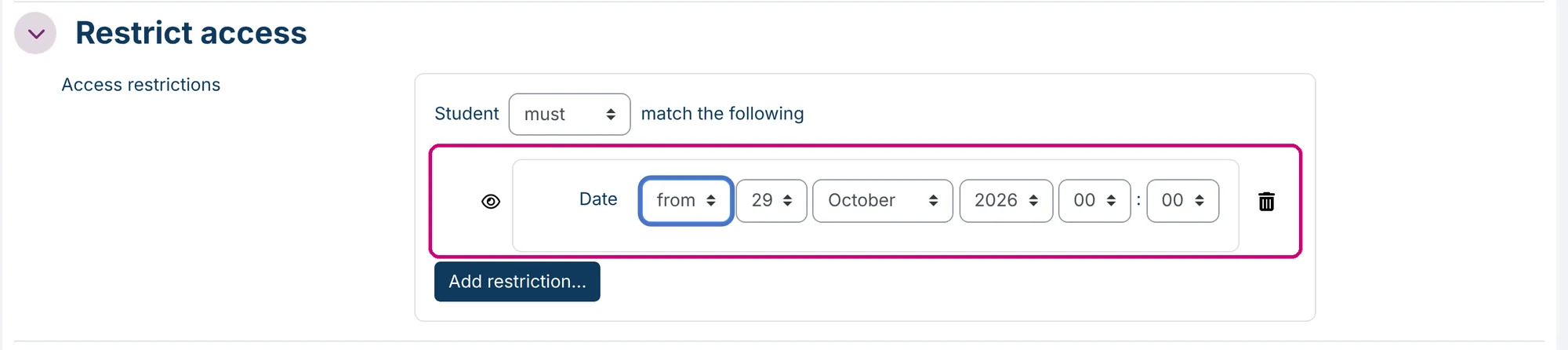
Open Restrict access and click Add restriction…. The types are the same as for an activity. A Date condition (1), for example, opens the section from a set date.
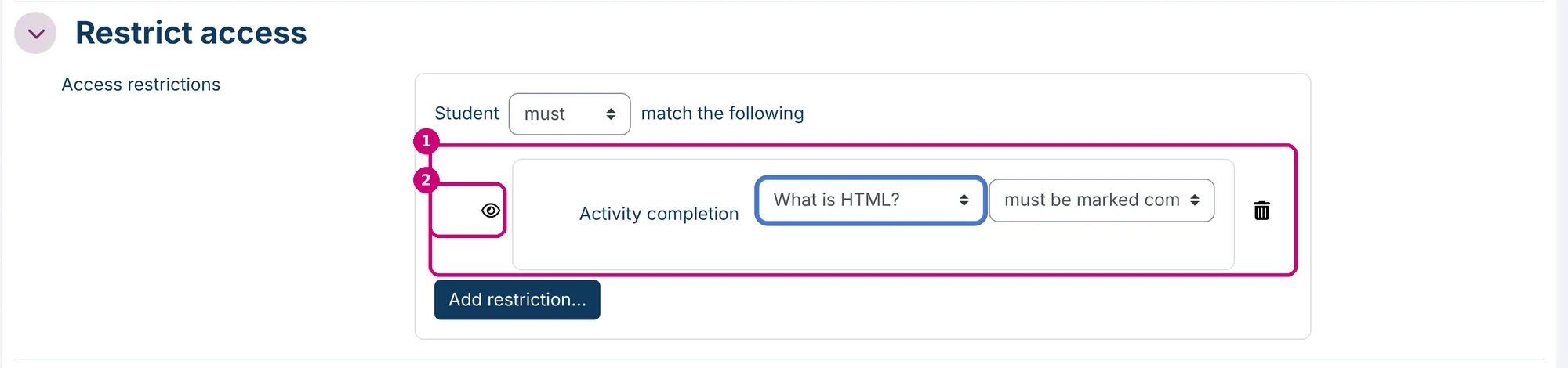
In this example chapter 2 opens once “What is HTML?” is marked complete (1). The eye icon (2) works as described above.
3. Save
Click Save changes.
How it looks in the course
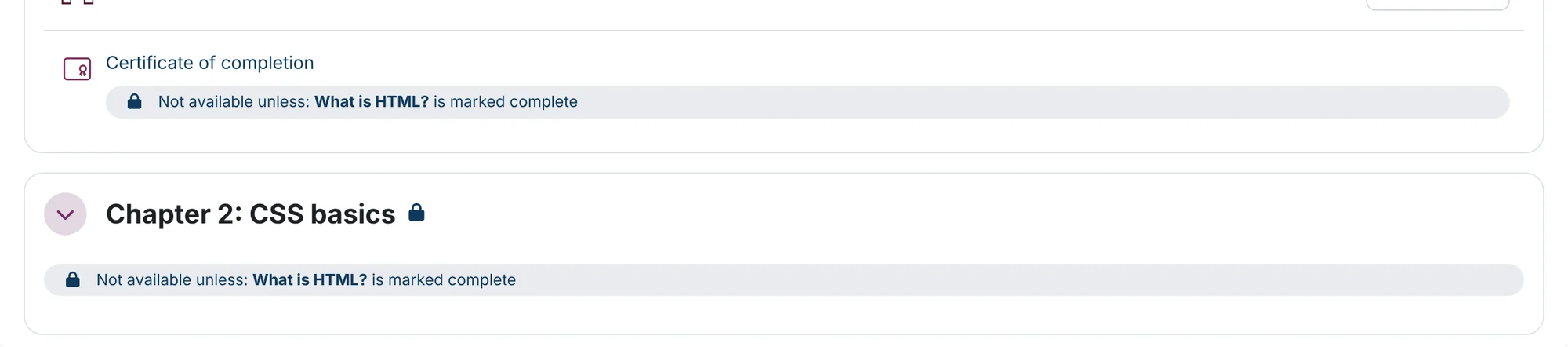
On the course page, a restricted activity or section shows a lock and the condition, for example “Not available unless: What is HTML? is marked complete”. In edit mode you can change the conditions there with Edit restrictions.
Next step
- Set the completion conditions your restrictions depend on: how to set up course and activity completion.
- Unlock a certificate with a condition: add a certificate.
- More about sections: how to manage sections in a course.