Sample SCORM packages for testing
Download a test package that sends a completed, an incomplete, a passed, a failed status or a grade when you click a button, and check in Linqur and in your client’s LMS whether it arrives.
Setting up a connection usually takes a few rounds of trying. With real course material you first have to work through the content before you see a result. These packages put the result behind a button, so you can check in a minute whether the tool launches and whether the status and the grade arrive. There are seven packages: two made in Articulate Storyline and five made in Articulate Rise, in SCORM 1.2 and SCORM 2004.
Which package do you need
| Package | Made in | SCORM version | What it sends | Download |
|---|---|---|---|---|
| Linqur LTI test | Storyline | 1.2 | Completed/passed, incomplete/failed, or a grade (passed or failed, passing score 80%) | Download1.4 MB |
| Linqur LTI test | Storyline | 2004 | Same as above | Download1.4 MB |
| SCORM for testing: complete/incomplete | Rise | 1.2 | Completion status: completed or incomplete | Download4.4 MB |
| SCORM for testing: complete/incomplete | Rise | 2004 4th Edition | Completion status: completed or incomplete | Download4.4 MB |
| SCORM for testing: passed/failed | Rise | 1.2 | Success status: passed or failed (same quiz, other reporting setting) | Download4.3 MB |
| SCORM for testing: grading | Rise | 1.2 | A score of 0%, 33%, 67% or 100% with passed or failed (passing score 60%) | Download4.4 MB |
| SCORM for testing: grading | Rise | 2004 4th Edition | Same as above | Download4.4 MB |
A few pointers:
- Use the SCORM version your own content uses. Linqur plays SCORM 1.2 and SCORM 2004, so both work; testing with the same version as your real packages tells you the most.
- The Storyline package covers everything on one screen. Take this one if you want one file that tests status and grade.
- The Rise packages each test one thing. They are useful when you want to see the difference between a completion status (completed or incomplete) and a success status (passed or failed), or when you need a specific score.
- Upload the zip as it is in Linqur. Don’t unpack it.
What you see in the packages
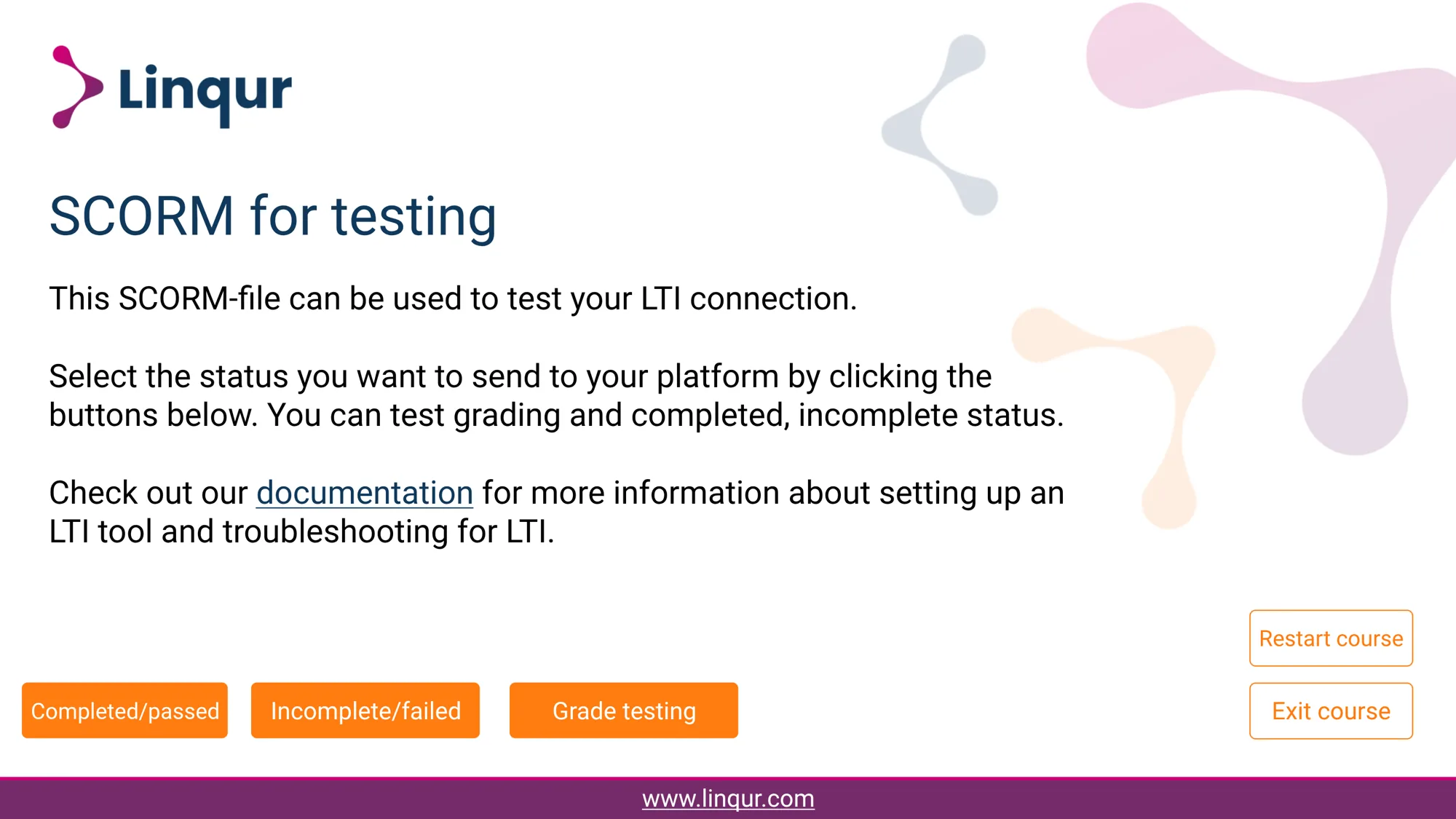
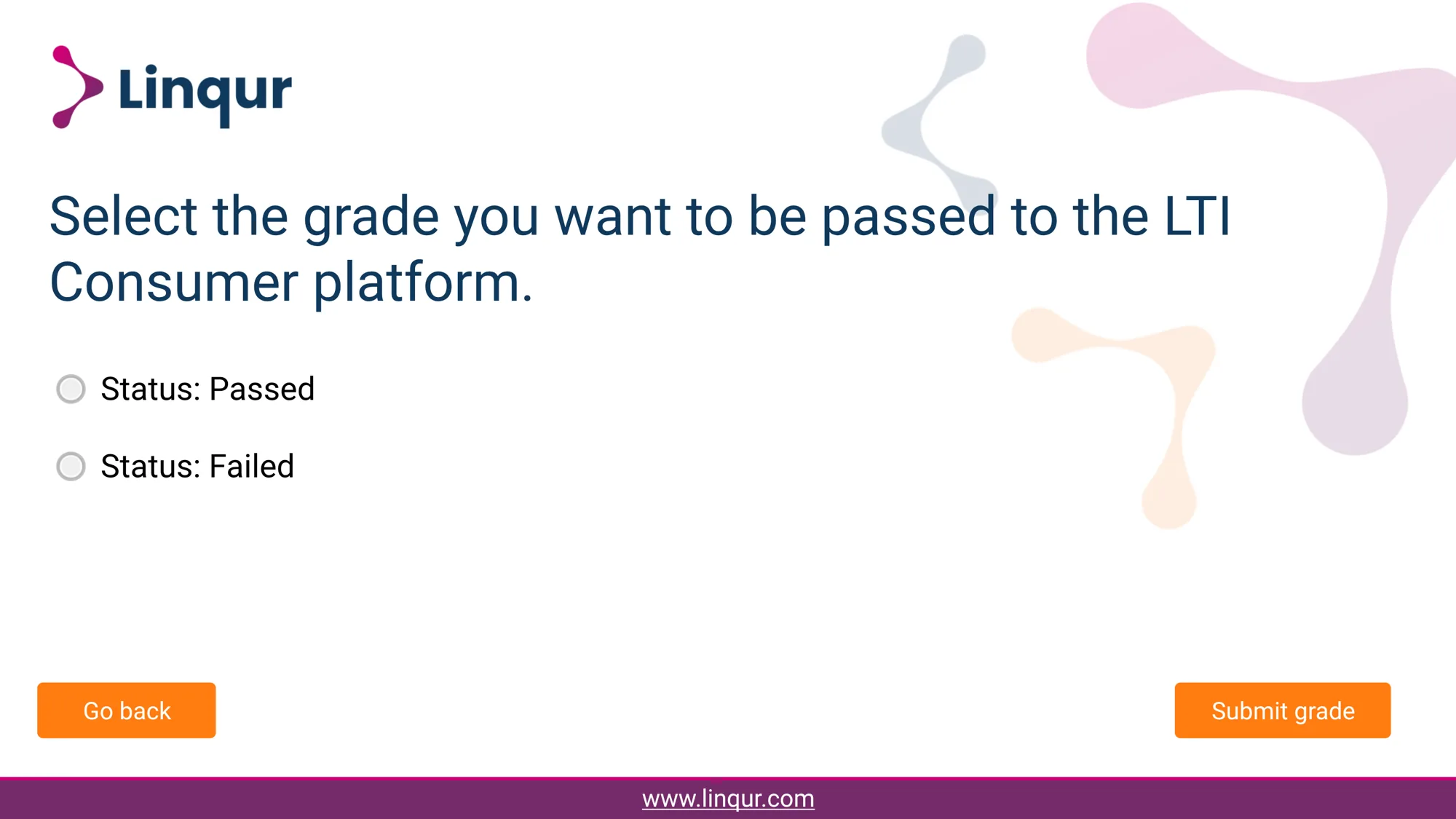
The Storyline package opens with four buttons. Completed/passed and Incomplete/failed send that status right away. Grade testing opens a question where you choose between a passed and a failed grade. Exit course closes the package; Restart course starts over.
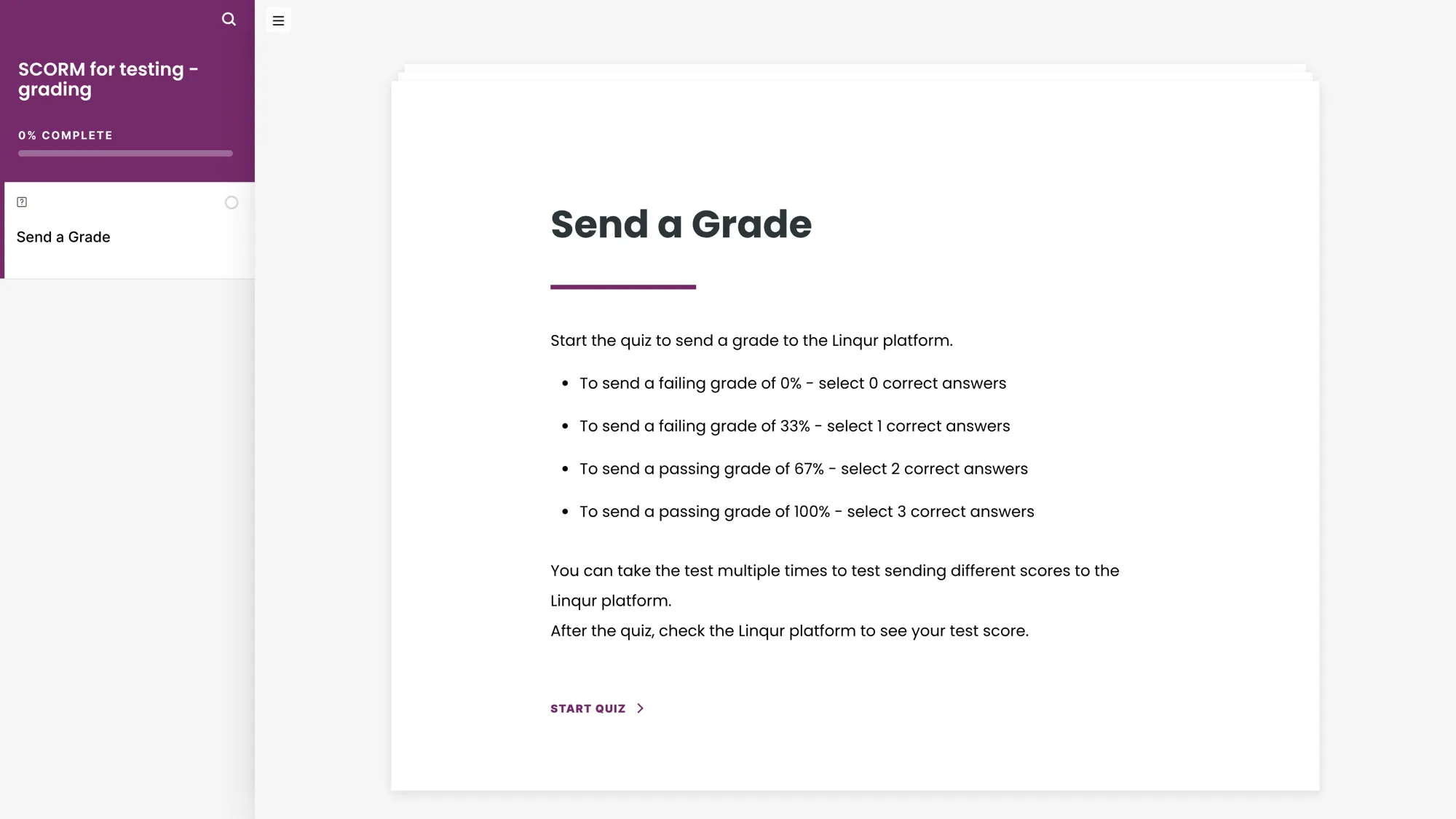
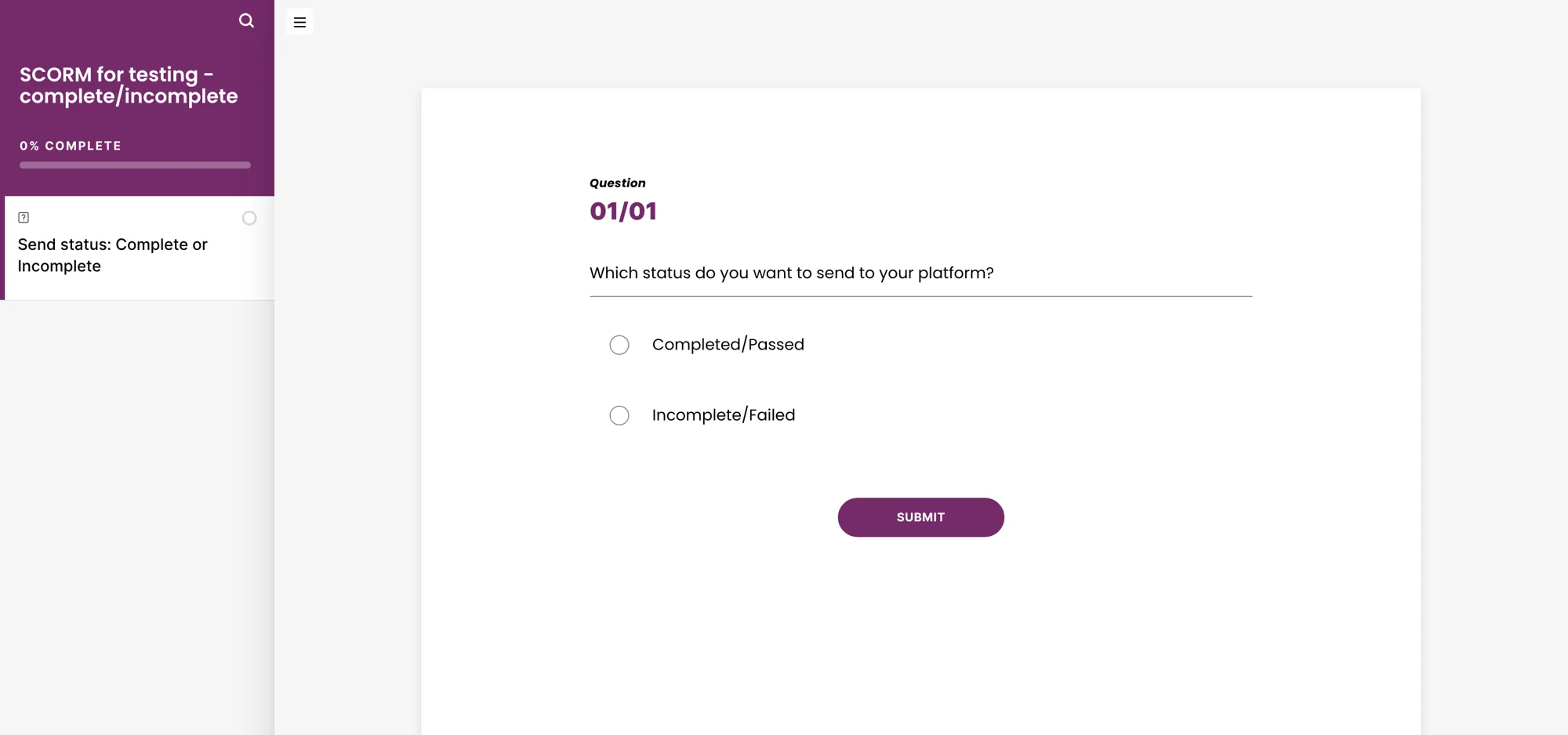
The Rise packages have one lesson with a short quiz. In the complete/incomplete and passed/failed packages, the quiz has one question: which status do you want to send. In the grading package, the quiz has three questions; the number of correct answers decides the score: 0, 33, 67 or 100 percent. The passing score is 60 percent, so 67 and 100 count as passed. You can take the quiz as often as you like to send different scores.
Test with a package
- Add the package to a course in Linqur: add a SCORM package. A separate test course keeps it apart from your real content.
- Share the course the way you share your real content: as an LTI tool (publish a SCORM package as an LTI tool), as a SCORM wrapper or with a sign-up URL.
- Launch the package from the other side: from your client’s LMS, from a test account in that LMS, with Saltire for a Legacy LTI tool, or by signing up yourself through the sign-up URL.
- Click a button in the package, or answer the quiz.
- Check the result. In Linqur you see the learner, the status and the grade on the details page of the tool, under Registered users and SCORM results, see share the launch details of an LTI tool. For a SCORM wrapper, look in SCORM Analytics. In the LMS of your client you see whether the grade arrived, if grade synchronisation is on.
How to set up a test like this, and what to check before you roll out to a client, is in test a course before you roll it out.
Something doesn’t work
- An error message during the launch? Look it up in LTI errors and their solutions, or find the message in the Debug assistant.
- The status arrives in Linqur but not in the LMS? Check the grade synchronisation settings of the tool, see LTI tool settings explained.
- Still stuck? Send support the name of the package, the error message, the Launch URL and the name and version of the LMS.