SCORM wrapper shows a login page instead of the course
The LMS launches the wrapper, but the learner sees a Linqur login page. The browser blocks third-party cookies. Allow them for the Linqur platform, or ask the IT department to do so.
What the learner sees
The SCORM wrapper runs inside the LMS of your client. The wrapper opens the course from the Linqur platform in a frame. When the browser blocks third-party cookies, Linqur cannot recognise the learner and shows its login page instead of the course. The learner does not have an account there, so logging in is not the solution.
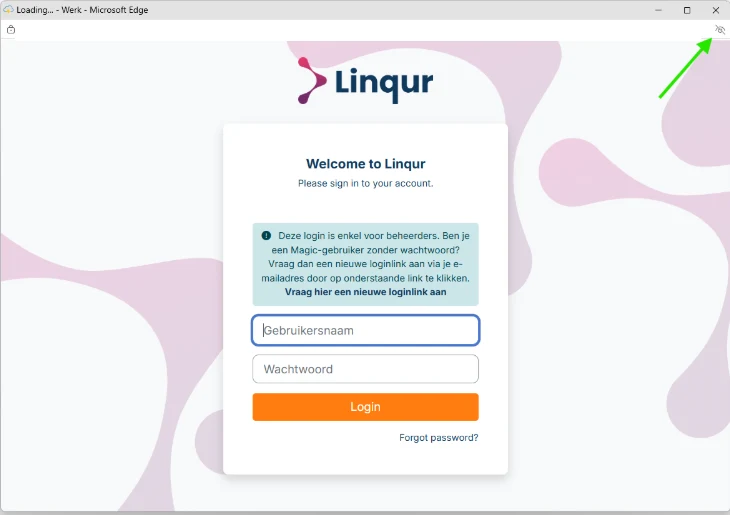
Typical signs:
- The course works in one browser (Firefox, say) but not in another (Edge, say) for the same learner.
- The course works for you, but not at the client. The client often has a company policy that blocks third-party cookies for everyone.
- The address bar shows an icon for blocked cookies, in Edge an eye with a line through it (1).
Why this happens
A SCORM wrapper is a small SCORM package that your client uploads in their LMS. It does not contain the course itself. It opens the course from the Linqur platform, on a different domain than the LMS. The browser then treats the Linqur session cookie as a third-party cookie. Without that cookie, Linqur cannot tell which learner started the course and cannot send the results back to the LMS.
This is browser behaviour, not a setting in Linqur or in the LMS. Any browser can block third-party cookies. Edge, Chrome, Firefox and Safari offer it as a setting or a tracking-protection level, and an IT department can enforce it through a company policy.
Solution 1: the learner allows cookies for this site
Every browser has its own place for this setting. Pick your browser below. The links go to the help pages of the browser makers, which follow the latest version.
Microsoft Edge
- Open the course in the LMS so the login page is in view.
- Click the blocked-cookies icon in the address bar, the eye with a line through it.
- Turn on Third-party cookies for this site (1).
- Reload the page or start the course again.
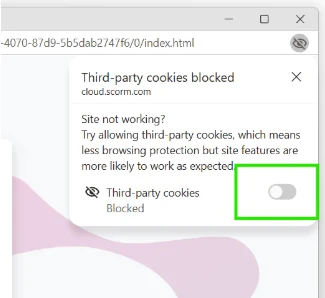
Or in the settings: Settings > Cookies and site permissions > Manage and delete cookies and site data > Allow > Add, and enter the address of the Linqur platform. Microsoft describes it in Manage cookies in Microsoft Edge.
Google Chrome
- Open the course in the LMS.
- Click the eye icon in the address bar and turn on Third-party cookies for this site.
- Reload the page.
Or in the settings: Settings > Privacy and security > Third-party cookies > Sites allowed to use third-party cookies > Add, and enter the address of the Linqur platform. Google describes it in Manage cookies in Chrome.
Mozilla Firefox
- Open the course in the LMS.
- Click the shield icon at the left of the address bar.
- Turn off Enhanced Tracking Protection for this site. The page reloads.
Firefox then remembers the exception for the LMS address. Mozilla describes it in Third-party cookies and Firefox tracking protection.
Safari on a Mac
Safari calls it website tracking and has no exception for a single site.
- Open Safari > Settings > Privacy.
- Turn off Prevent cross-site tracking (1).
- Reload the course.
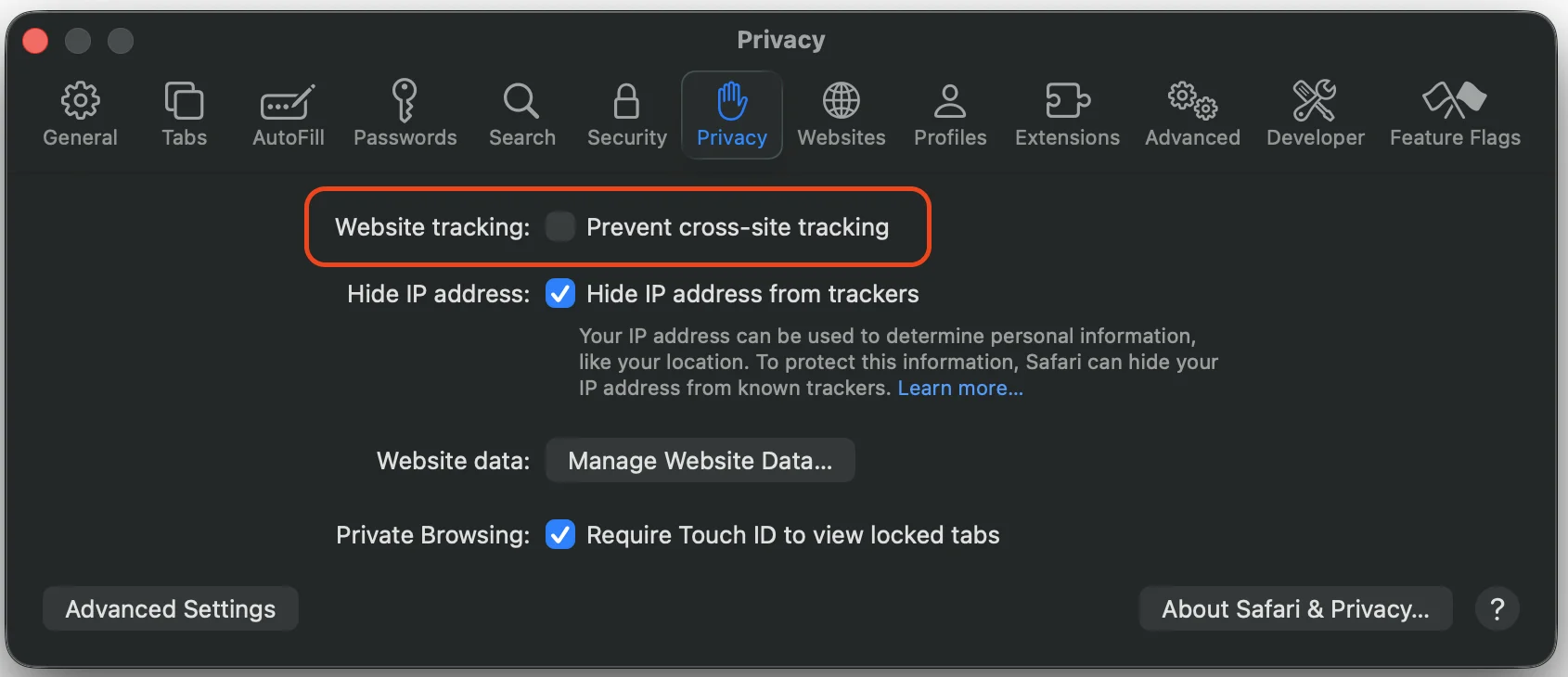
The setting applies to all websites while it is off; turn it on again afterwards if you want. On an iPhone or iPad the same option is under Settings > Apps > Safari > Prevent Cross-Site Tracking. Apple describes it in Prevent cross-site tracking in Safari.
Solution 2: the IT department of the client allows the Linqur platform
Ask the IT department of your client to allow third-party cookies for the Linqur platform in the browser policy. They need two things:
- The address of the Linqur platform, for example
https://<yourplatform>.linqur.com(the address where you log in as a manager). Use the exact domain of your platform. - The policy that sets the exception. In Edge and Chrome that is the cookie allowlist for third-party cookies (in Edge
CookiesAllowedForUrlsandBlockThirdPartyCookies; in Chrome the same names). The IT department can look up the exact wording for their version in the browser’s policy documentation.
Allowing one domain keeps the rest of the policy as it is. The IT department does not need to switch off cookie blocking for the whole company.
Check that it works
After the change, the learner starts the course again from the LMS. The course should open directly, without a login page. The result still arrives in the LMS as before. If the login page remains, check in the LMS that the wrapper is launched in the same browser where the exception was set, and that no extension or security product blocks cookies on its own.
When to contact support
Contact support@linqur.com if the login page keeps appearing after cookies are allowed, or if the issue occurs in every browser. Send the name of the wrapper, the LMS of your client, the browser and its version, and a screenshot with the address bar in view. Issues inside the LMS of your client or in their company policy fall outside direct support; we tell you up front if anything is billable.