Set up multi-factor authentication
Add an extra check to your login with an authenticator app or a security key.
Multi-factor authentication is an optional feature that not every customer has. For access, contact sales@linqur.com.
With multi-factor authentication, Linqur checks one more thing after your password when you log in. You set it up for your own account.
Step by step
1. Open the setting
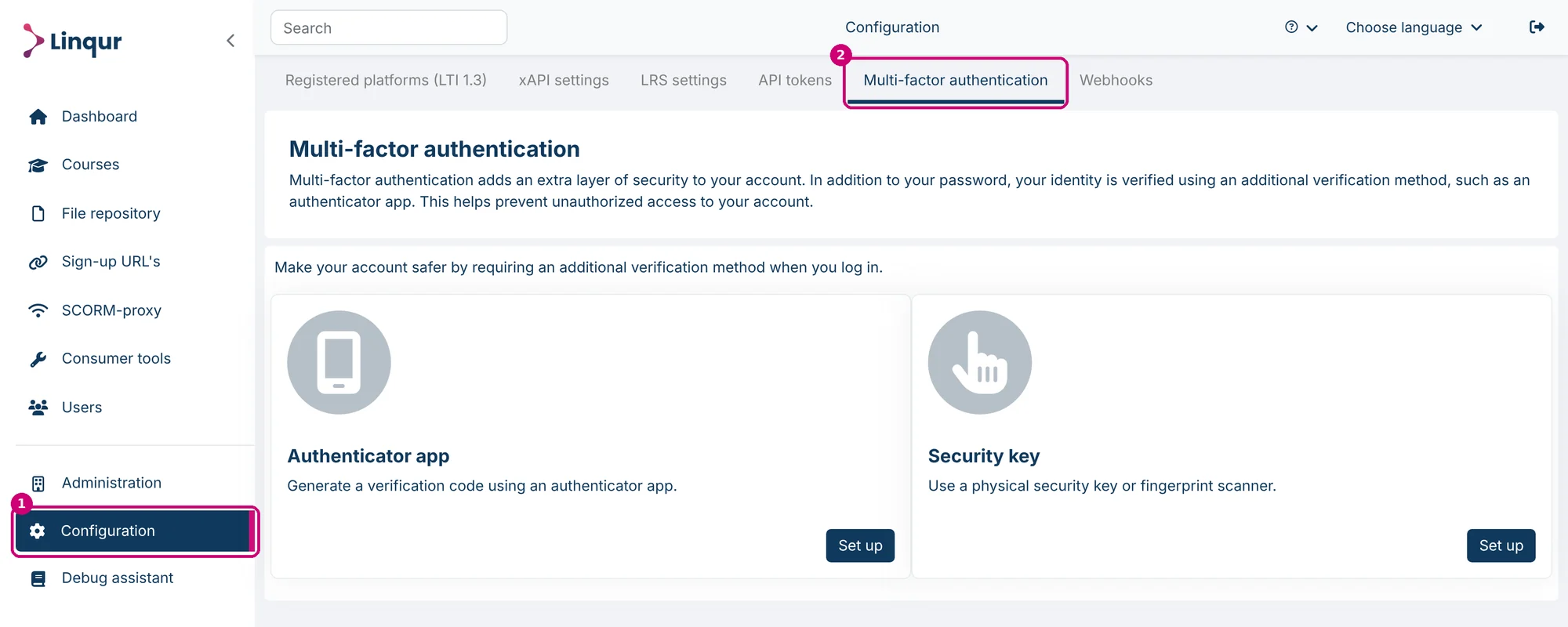
Click Configuration in the menu on the left (1), then the Multi-factor authentication tab (2). You see two methods, each with a Set up button.
2. Choose a method
| Method | What you use |
|---|---|
| Authenticator app | An app on your phone that generates a verification code. |
| Security key | A physical security key or a fingerprint scanner. |
3. Set it up
Click Set up on the method you want and follow the steps on screen.
From then on, Linqur asks for the extra verification after your password when you log in.
Lost your phone or security key and can’t log in? Contact support.
Last updated on