Set up sign-up policies
Have learners accept your terms before they sign up.
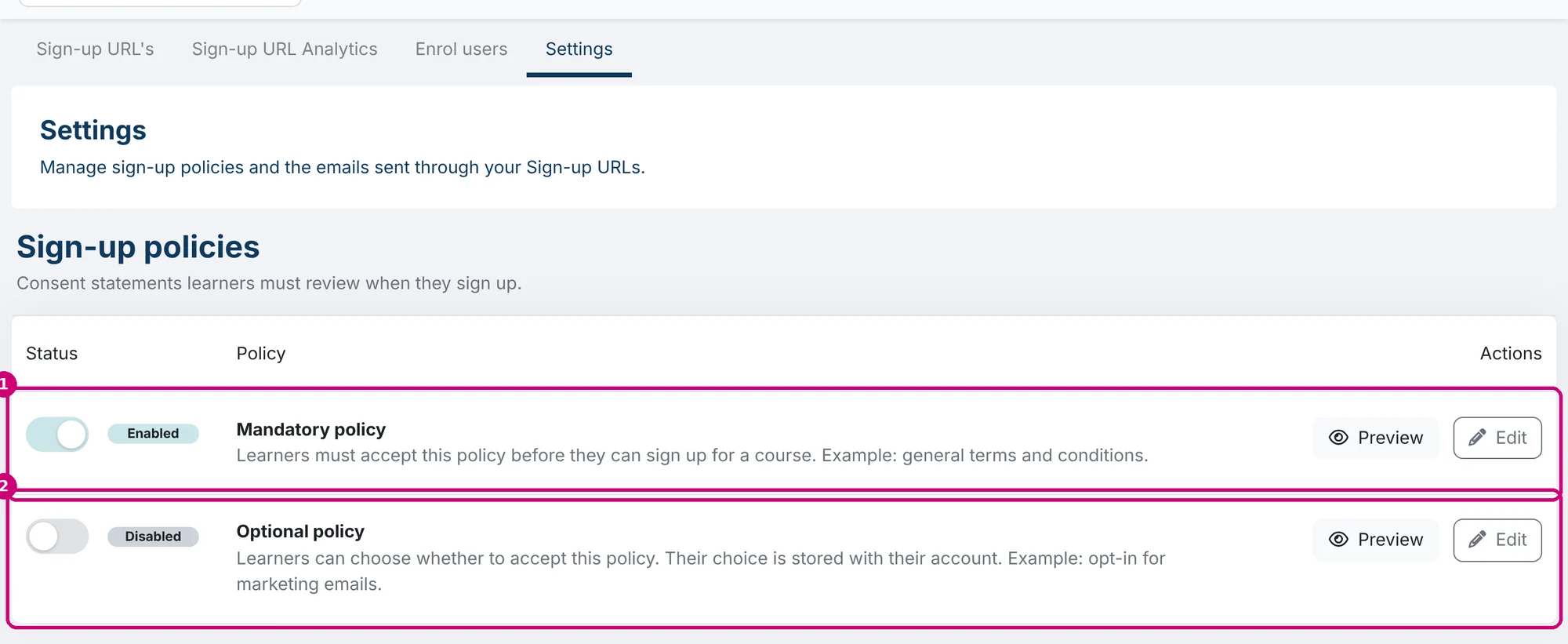
When learners create an account through a sign-up URL, they see a checkbox with your terms. You set the text, and whether the checkbox is required, on the Settings tab under Sign-up policies. It applies to all sign-up URLs on your platform.
Two kinds of policy
| Policy | What it does | Example |
|---|---|---|
| Mandatory policy (1) | The learner has to accept it, or they can’t sign up. | General terms and conditions, privacy statement |
| Optional policy (2) | The learner decides. Their choice is stored with their account. | Opt-in for marketing emails |
Use the switch in the Status column to turn a policy on or off.
Step by step
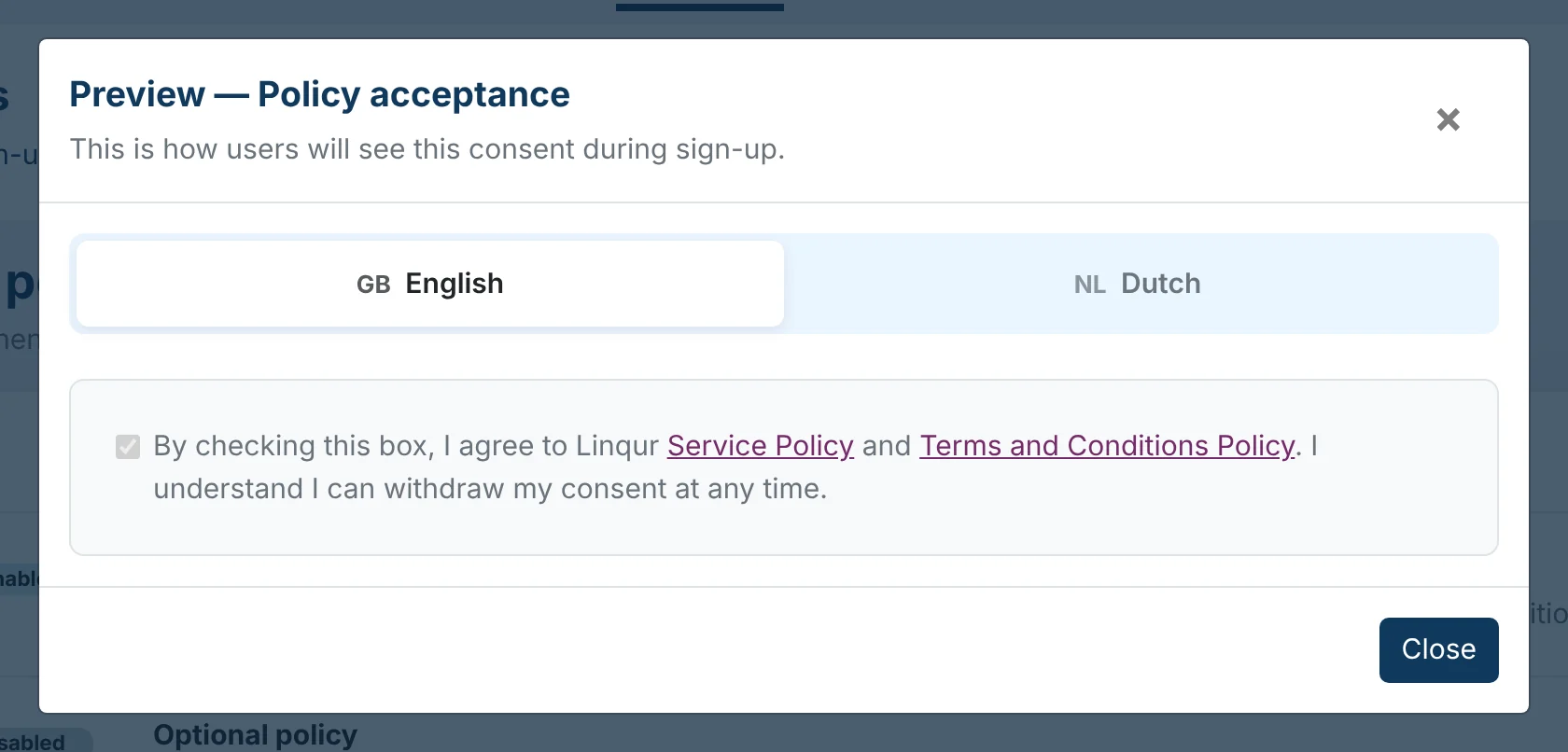
1. Check the preview
Click Preview next to the policy. You see the checkbox the way learners see it, in English and in Dutch.
2. Change the text
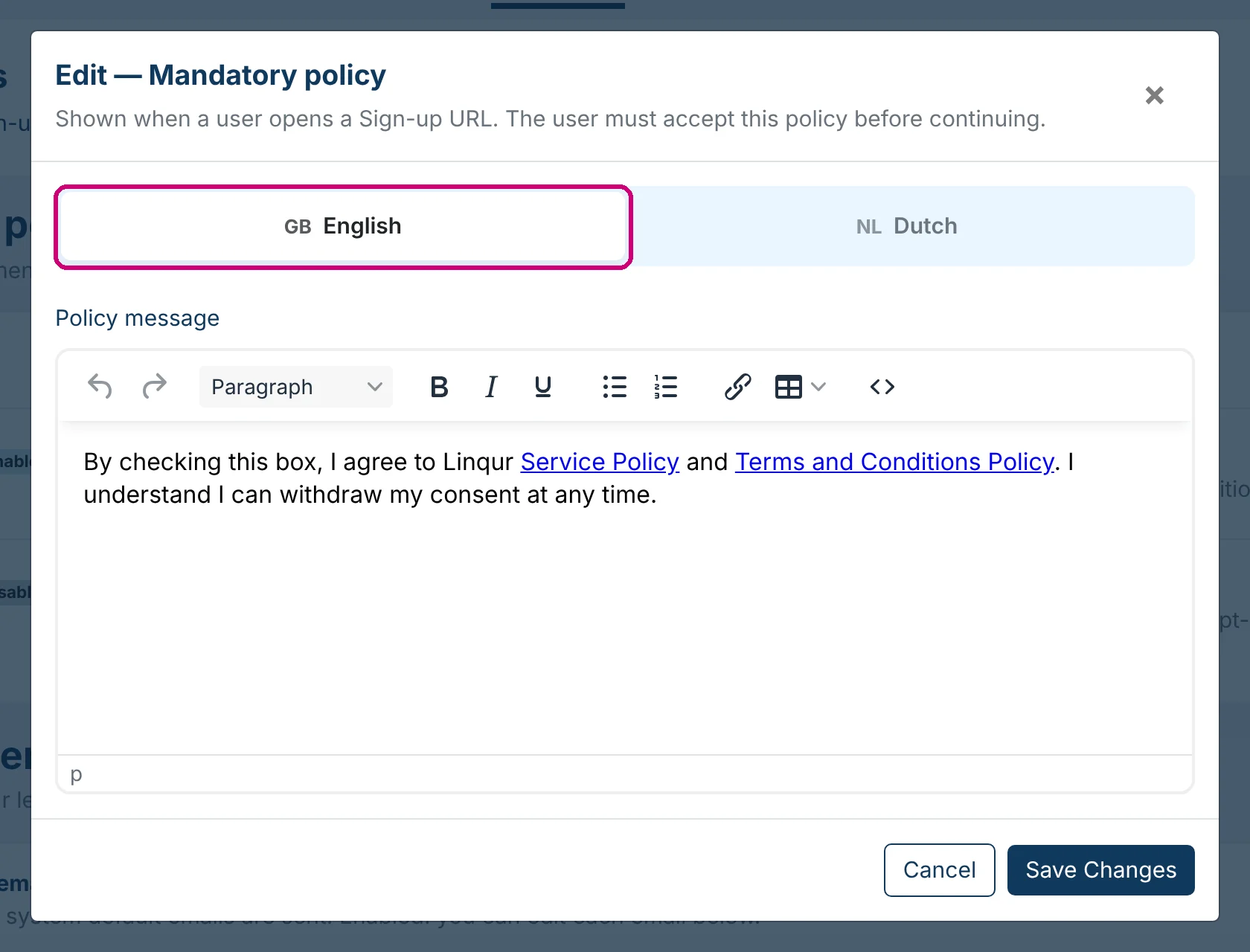
Click Edit. Switch between English and Dutch at the top. Fill in both versions, because learners see the text in the language of the sign-up page. Use the link button in the editor to point to your own terms or privacy statement on your website.
Click Save Changes.
Where does the learner see it?
On the Create account step, after entering their email address. With the mandatory policy, they can only continue once the box is ticked. That step is shown in getting started with sign-up URLs.
See also
- Customise learner emails
- Create a sign-up URL
- Set up webhooks: with the Marketing Webhook you send opt-ins to your mailing tool (optional feature)