Set up webhooks
Have Linqur send a message to your own system as soon as something happens on your platform.
A webhook is a message that Linqur sends to a URL of your own when an event happens, for example when a user enrols in a course or completes it. Your own system, or a tool such as Make or n8n, can use that message to start an automation.
Before you start
You need a URL that receives the messages. Make and n8n give you one when you add a webhook trigger. How that works on their side is explained in our blogs Build Smart E-Learning Automations with Linqur & Make and Automating E-Learning with Linqur and n8n.
The Webhooks screen
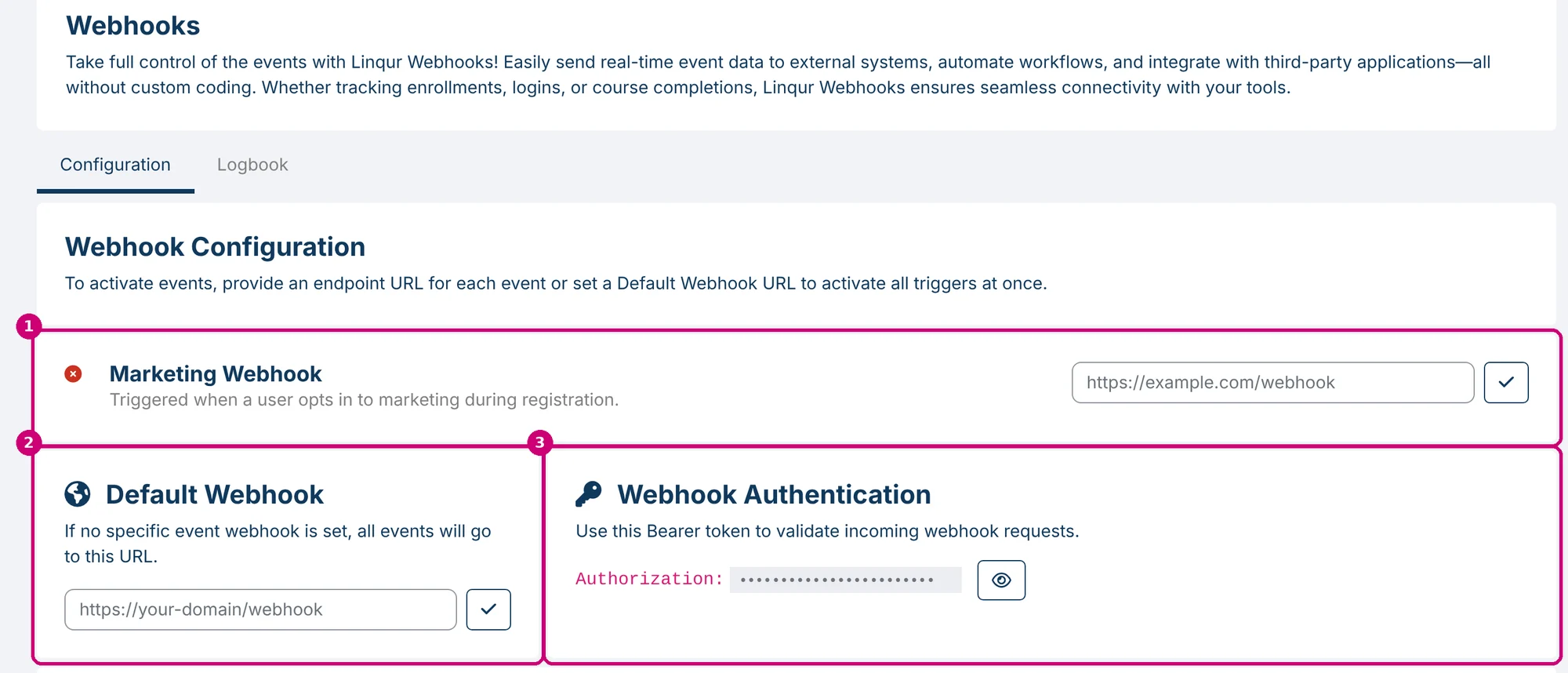
Click Configuration in the side menu and then the Webhooks tab. The Configuration tab starts with three blocks:
- Marketing Webhook (1): for learners who opt in to marketing when they register.
- Default Webhook (2): one URL for all events.
- Webhook Authentication (3): the Bearer token for your receiving system.
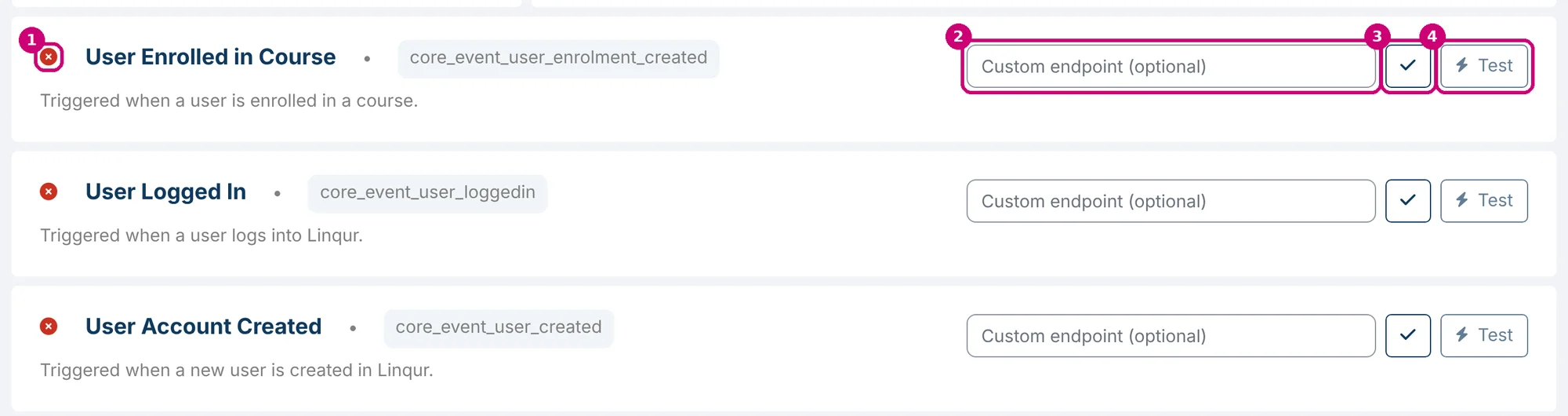
Below these blocks you find the events. Each event has a status icon (1), a Custom endpoint (optional) field (2), a check mark to save (3) and a Test button (4).
One URL for everything, or one per event
| You want | Do this |
|---|---|
| All events on one URL | Fill in the Default Webhook. |
| A separate URL for one event | Fill in Custom endpoint (optional) next to that event. |
An event without a URL of its own goes to the Default Webhook. If an event has no URL of its own and there is no Default Webhook either, the event stays off.
Step by step
1. Paste the URL
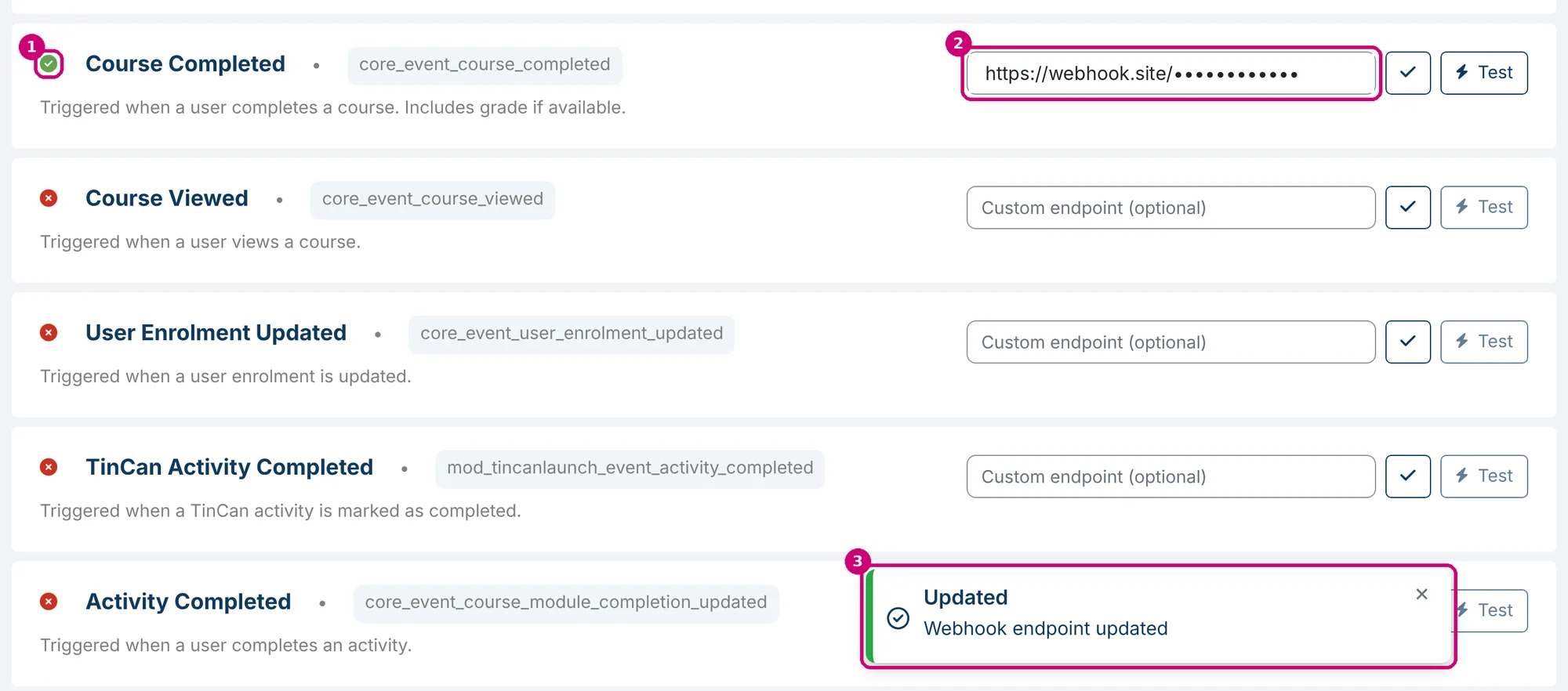
Paste the URL of your receiving system in Custom endpoint (optional) next to the event, in this example Course Completed. For all events at once, paste it under Default Webhook.

2. Save with the check mark
Click the check mark next to the field. There is no general save button: every field has its own check mark. Linqur shows Webhook endpoint updated (3) and the status icon turns green (1).
3. Send a test
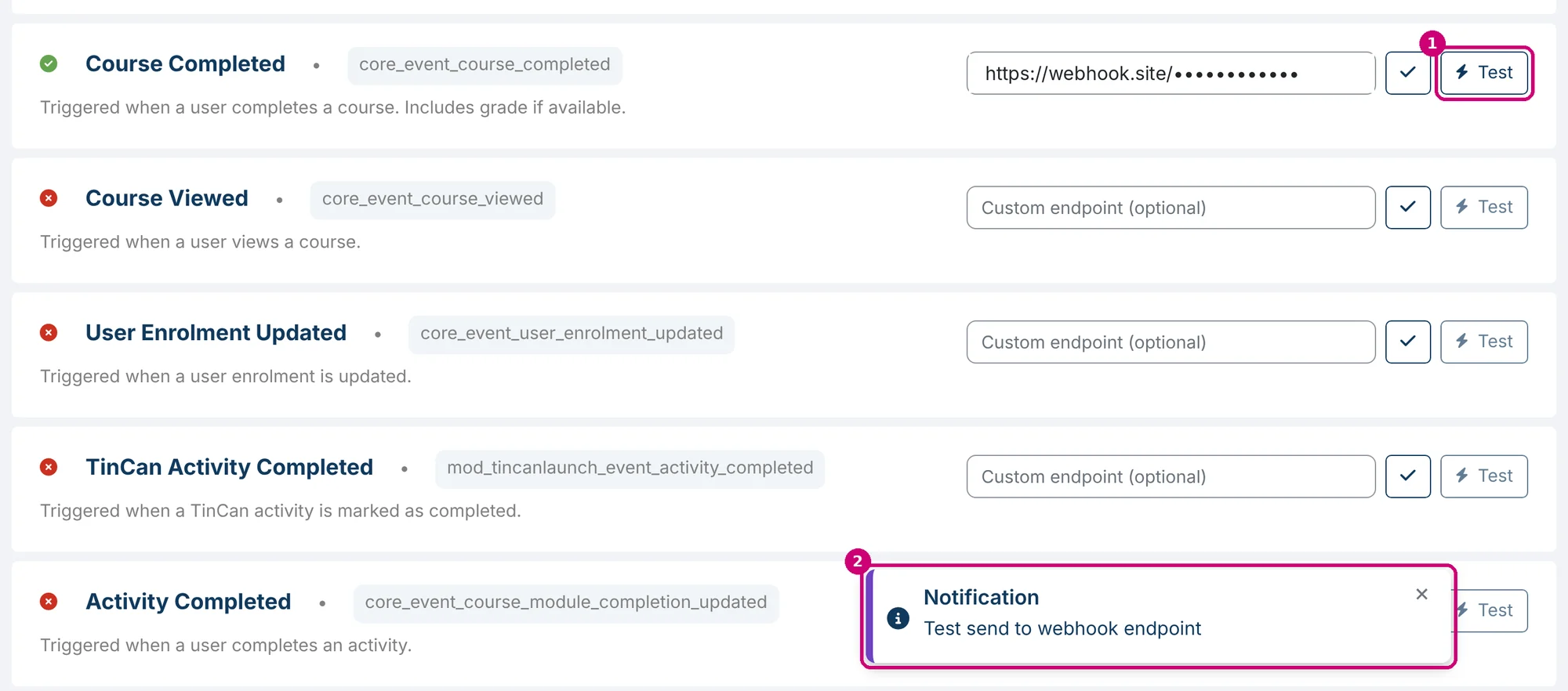
Click Test (1) in the same row. Linqur sends a test message to the URL and shows a notification (2). The Test button only works once a URL is saved for that event.
The test message is a POST request with a JSON body. It contains sample data, not the data of a real learner. This is what our receiving URL got after a test of Course Completed:
{
  "event": "core_event_course_completed",
  "data": {
    "test": true,
    "timestamp": 1793304056
  }
}
Which fields a real event sends depends on the event. You can see them in the Logbook with Show data (see below).
4. Check the Logbook
Click the Logbook tab (1). The table shows webhook activity with the columns Timestamp, Event Name, User ID and Data. Click Show data (4) to see the data of a call. Filter with the Custom Search Builder (2) or the search field, and export the list with Excel or PDF (3).
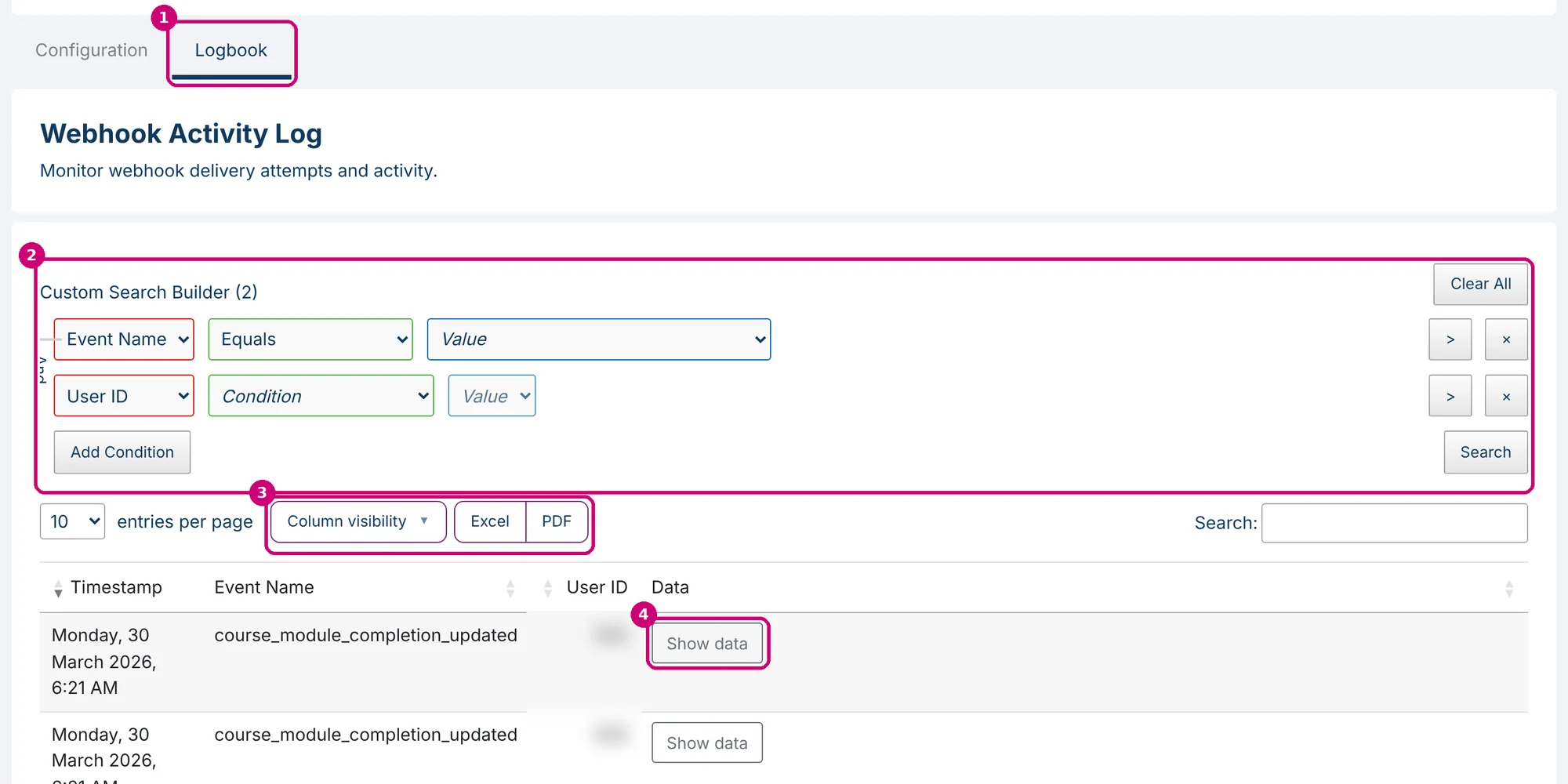
A test with the Test button does not appear in the Logbook.
The events
| Event | Technical name | When |
|---|---|---|
| Marketing Webhook | A user opts in to marketing when registering. This block has no Test button. | |
| User Enrolled in Course | core_event_user_enrolment_created | A user is enrolled in a course. |
| User Logged In | core_event_user_loggedin | A user logs in to Linqur. |
| User Account Created | core_event_user_created | A new user is created in Linqur. |
| Course Completed | core_event_course_completed | A user completes a course. Includes the grade if there is one. |
| Course Viewed | core_event_course_viewed | A user views a course. |
| User Enrolment Updated | core_event_user_enrolment_updated | An enrolment of a user is updated. |
| TinCan Activity Completed | mod_tincanlaunch_event_activity_completed | An xAPI (TinCan) activity is marked as completed. |
| Activity Completed | core_event_course_module_completion_updated | A user completes an activity. |
The opt-in for marketing comes from the optional policy that learners see when they sign up. How to set it up is explained in set up sign-up policies. More about xAPI activities: add an xAPI activity.
Check requests with the Bearer token
Under Webhook Authentication you find a Bearer token. Your receiving system uses it to check that a request really comes from your Linqur platform. Click the eye to show the token.
Good to know
- User Logged In and Course Viewed can trigger a lot of calls. Only turn them on if you need them.
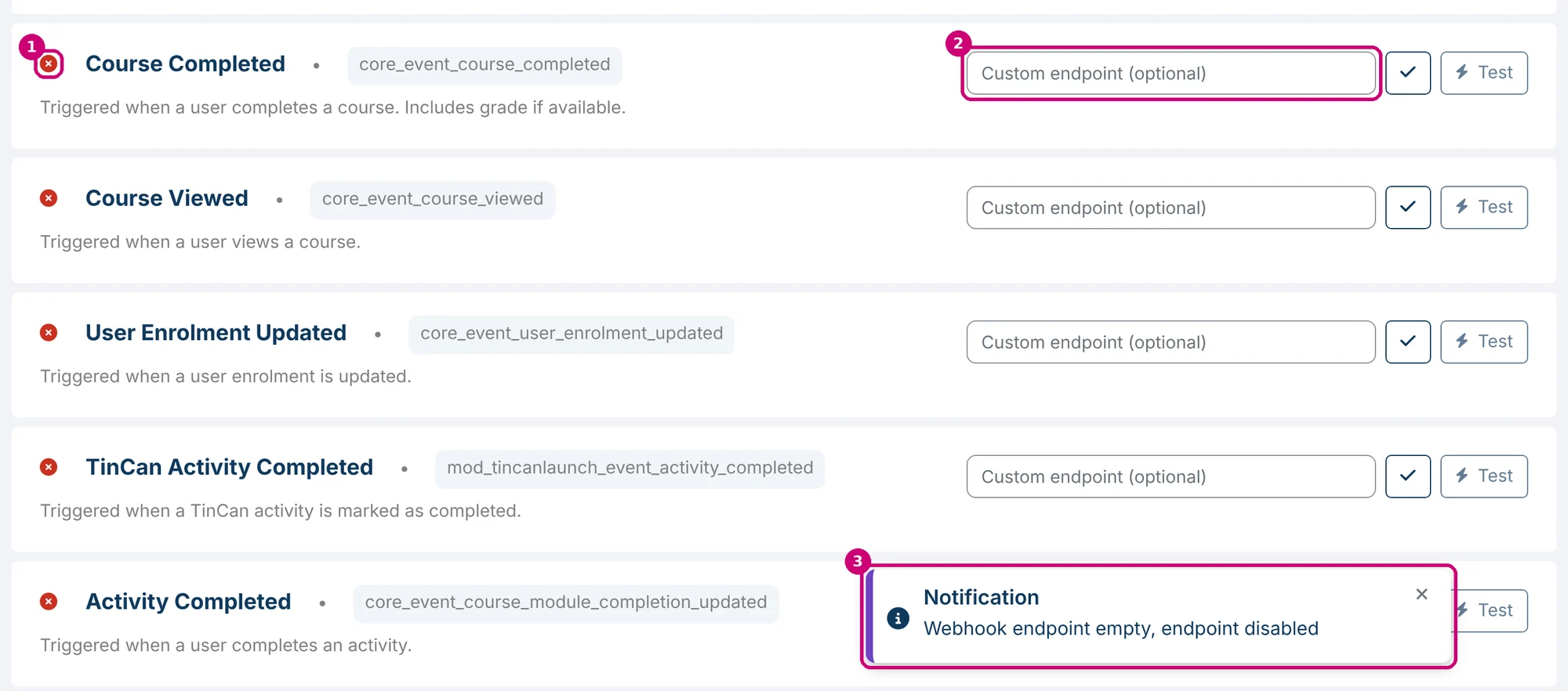
- To stop a webhook, clear the field and click the check mark. Linqur shows Webhook endpoint empty, endpoint disabled (3) and the status icon turns red (1).
Next step
- Build the automation on the other side: Linqur & Make or Linqur and n8n.
- Want your own system to request data from Linqur instead? Use the API: API documentation and practical applications of the API.
- Do you work with a learning record store? Read send platform events to an LRS.