Share the launch details of an LTI tool
Open the details of an LTI tool, copy the Launch URL and Secret, and send them to your client.
Every LTI tool has its own details page. It shows the launch details your client needs, the number of registrations, and reports on the learners who used the tool.
Step by step
1. Open the tool
Click Courses in the menu, then Manage content for the course that holds the tool. Click the LTI tools tab and click the tool in the list. The tool details open.
At the top you see the ID, the name, the LTI version and the learning object. Below that are the registrations per month and four tabs.
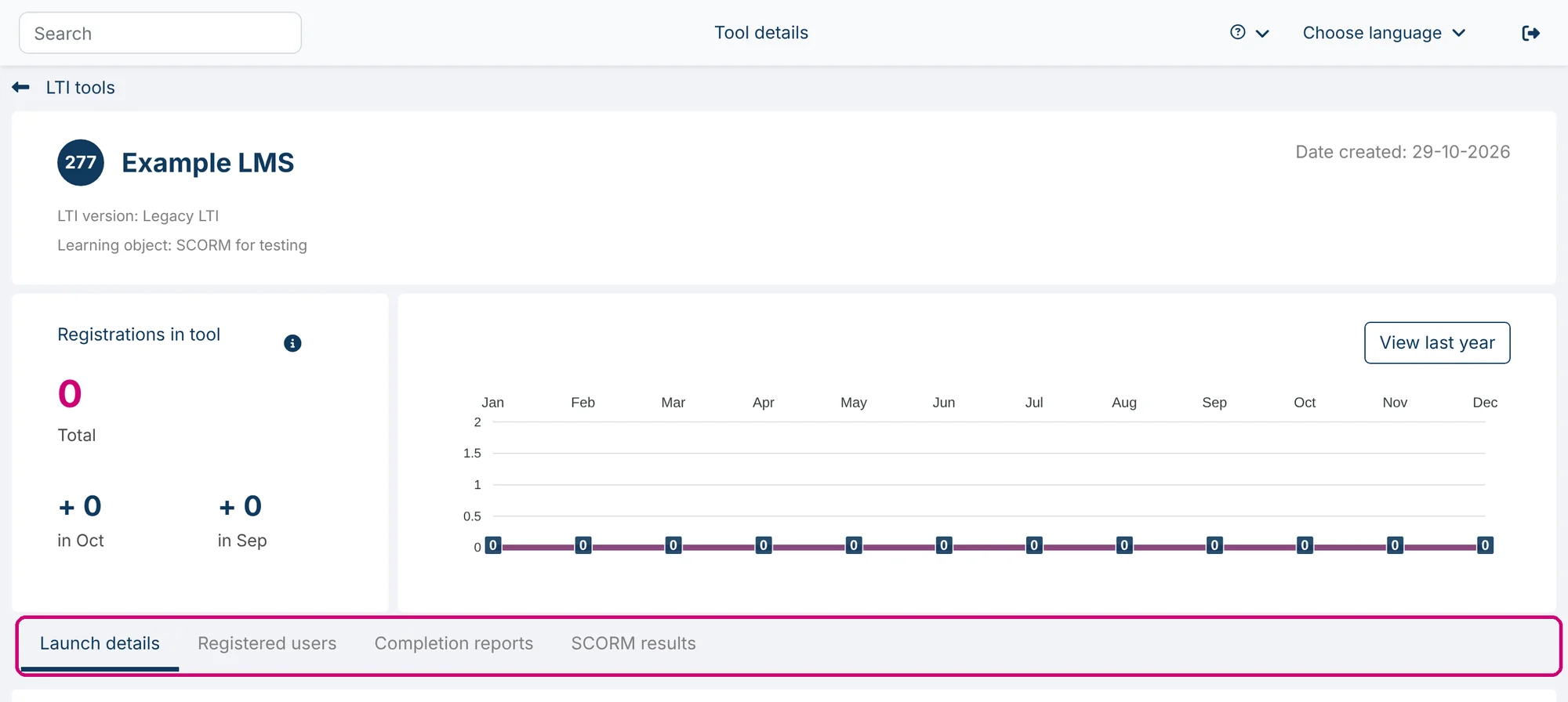
2. Copy the launch details
The Launch details tab shows what your client enters in their LMS.
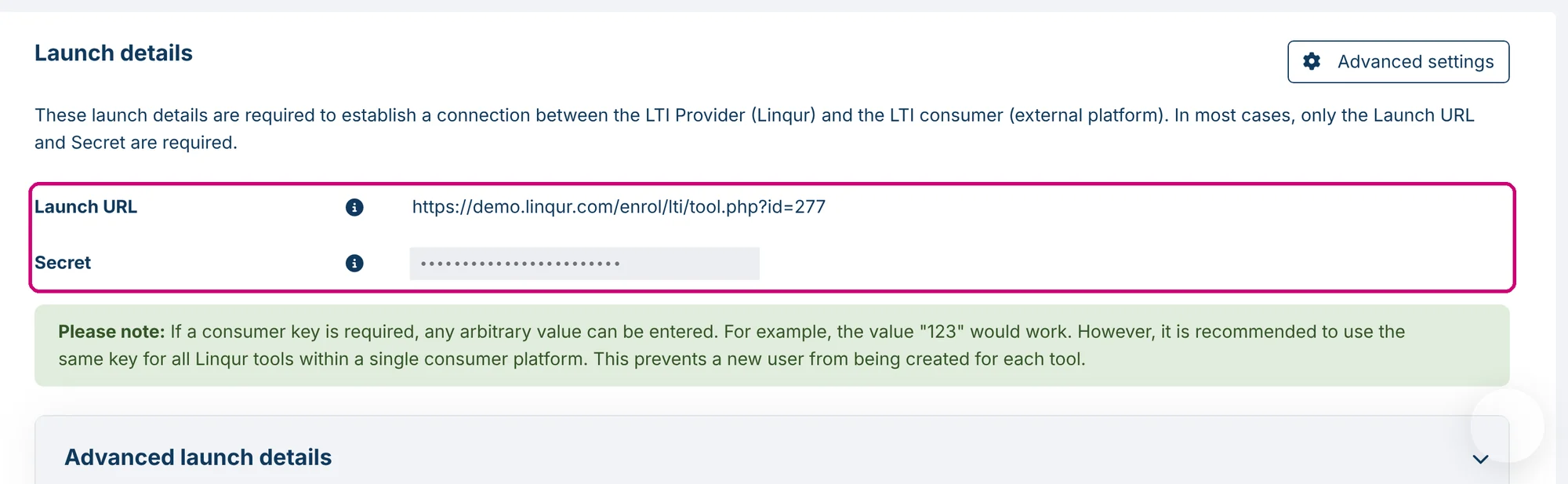
For an LTI 1.1 (Legacy) tool:
| Detail | What it is |
|---|---|
| Launch URL | The address the LMS opens. |
| Secret | The key that authorises the LMS. Treat it like a password. |
| Consumer key | Not shown, because any value works, for example 123. Advise your client to use the same key for all Linqur tools in one LMS. Otherwise the LMS creates a new user for every tool. |
Some LMS platforms register a tool with a registration URL or a cartridge file instead. You find both under Advanced launch details.

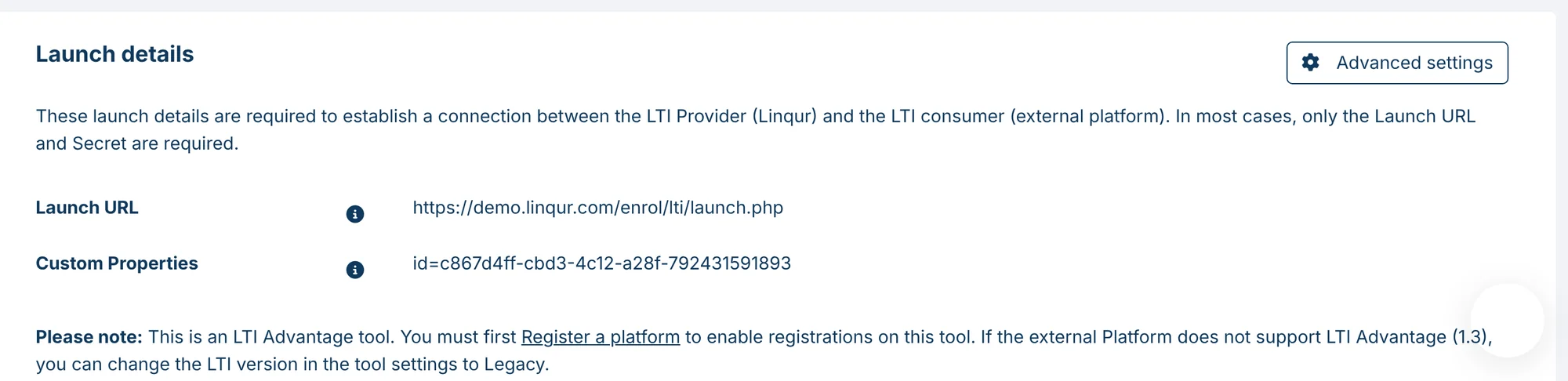
For an LTI 1.3 (Advantage) tool the tab shows a Launch URL and Custom Properties. There is no secret: LTI 1.3 uses the platform registration instead. Your client’s LMS has to be registered as a platform in Linqur before learners can launch the tool. See register an LTI 1.3 platform.
3. Send the details to your client
Click Send to e-mail to send the launch details from Linqur. You can also copy them and send them yourself.

See who used the tool
The other tabs show what happened after you shared the tool.
- Registered users: every learner who opened the tool, with their grade and last access. A learner registers the first time they open the tool from the LMS. Which details the LMS shares, such as the name and e-mail address, depends on the LMS.
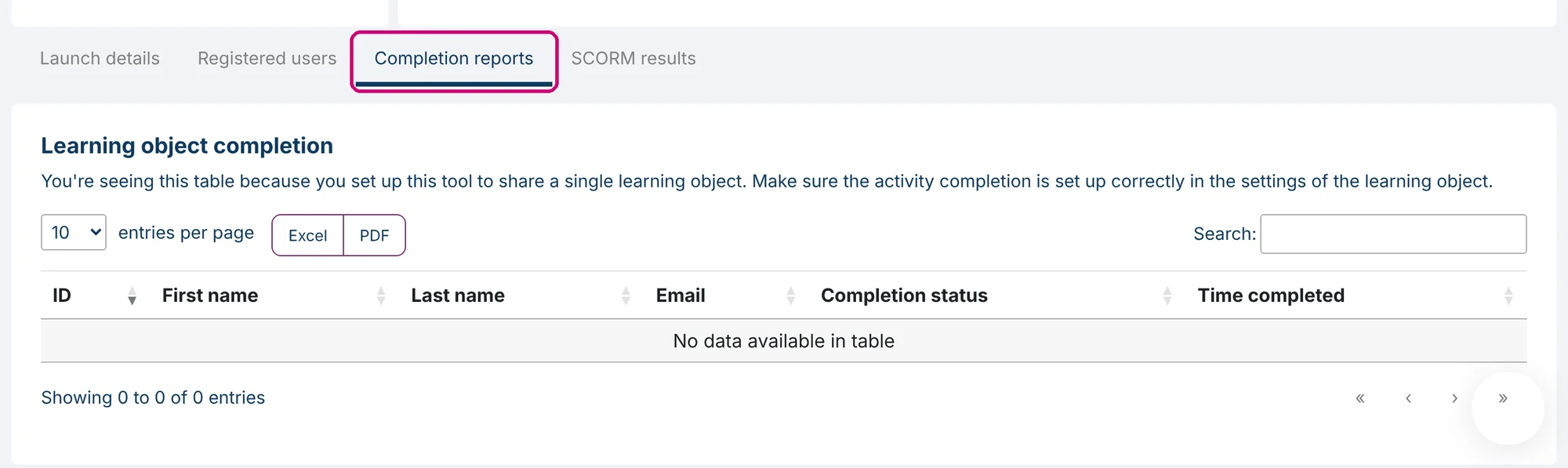
- Completion reports: the completion status per learner. For a tool that publishes a complete course you also see the course completion.
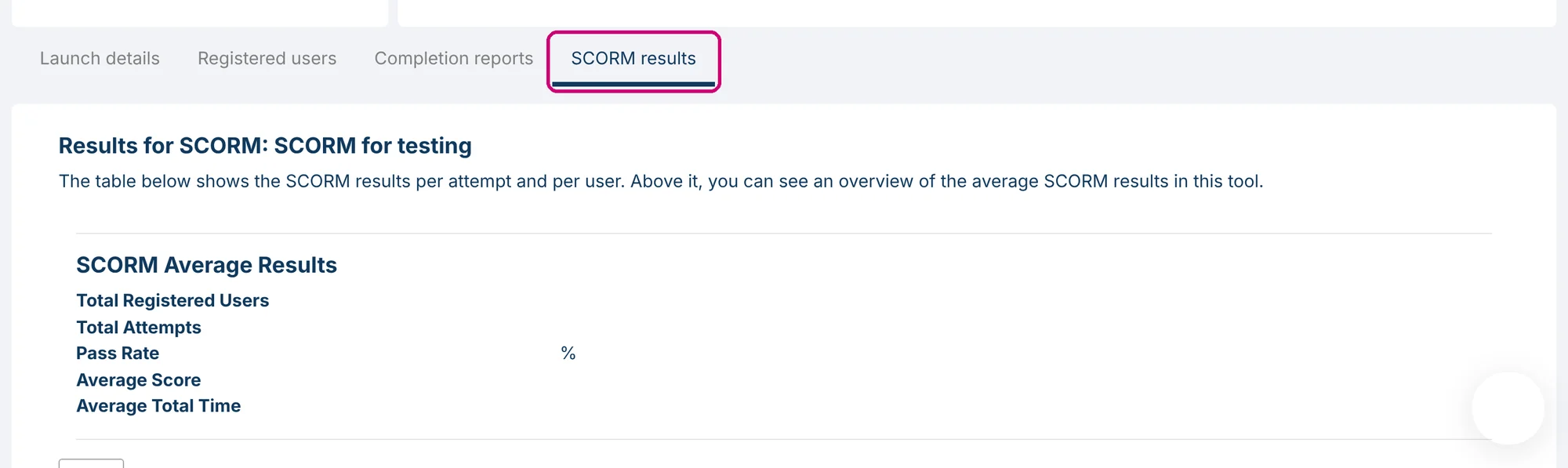
- SCORM results: the SCORM results per attempt and per learner, with the averages for this tool at the top.
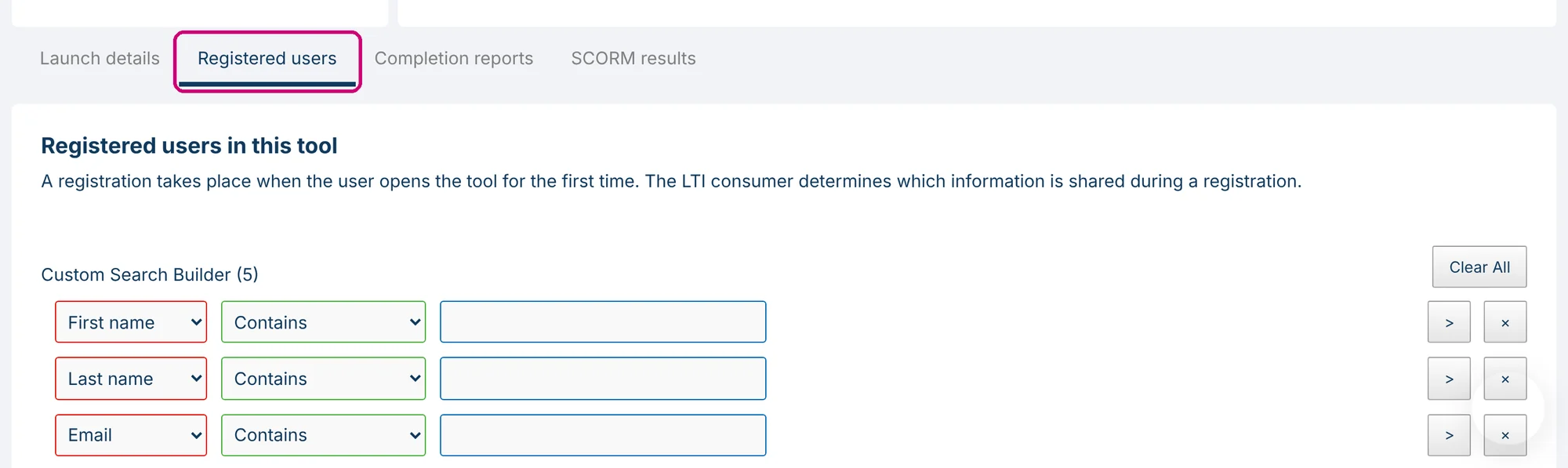
To look up one learner, see how to find a registered user in a specific tool.
Next step
- The settings behind the Advanced settings button are explained in LTI tool settings explained, and changing them is covered in edit the settings of an LTI tool.
- Adding the tool on the LMS side: LTI consumer tool in Moodle (Legacy) or LTI Advantage consumer in Moodle.
- If the launch fails, check the list of LTI errors and their solutions.