Update a SCORM package in a multilingual course
Replace the zip file of one language in a multilingual SCORM course. The other languages stay as they are.
In a course with the format Multilingual SCORM, each language has its own SCORM package. When a new version of one language is ready, you replace the file inside that package. You update one language at a time; the name, the settings and the other languages do not change. The steps are the same as for any SCORM package. You only start from a different page: Edit languages and content, which opens when you click Manage content on the course in the course overview.
Before you update
- The old file is gone once you save. Linqur does not keep a previous version, so keep your own copy of the old zip in case you need it back.
- Progress of learners stays intact as long as the new version has the same tracking ID (the identifier your authoring tool writes into the package) and the structure of the content has not changed much. A new ID or a very different structure can reset progress or results. Not sure? Ask support before you save.
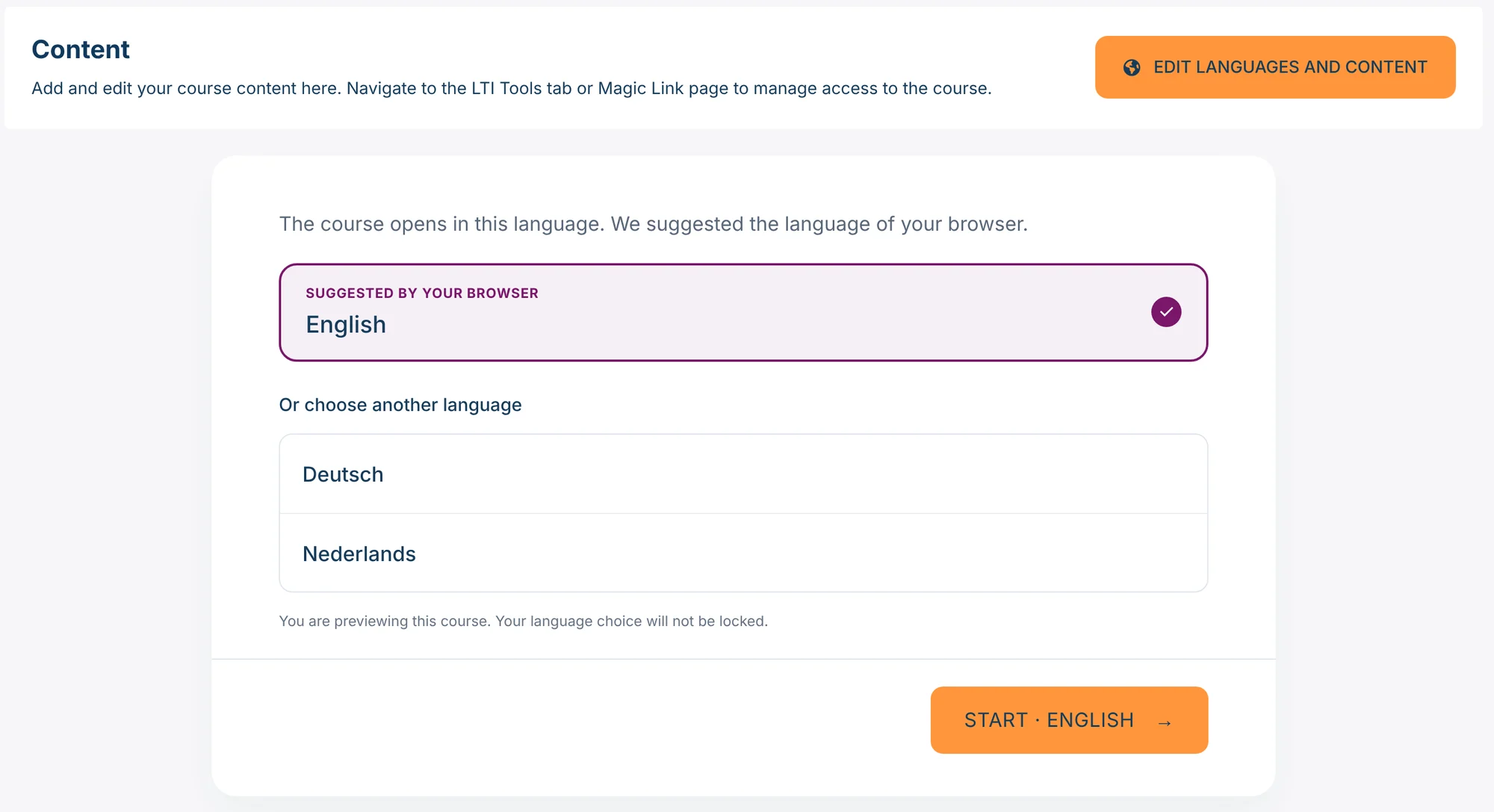
- Test the new version with Preview course before learners see it: the chooser shows which languages are offered, and you can open the language you updated.
- Do you use the same package in several courses? Put it in the file repository and link the packages to it. One new version in the repository then updates all of them. A linked file has a small arrow on its icon under Package file.
Step by step
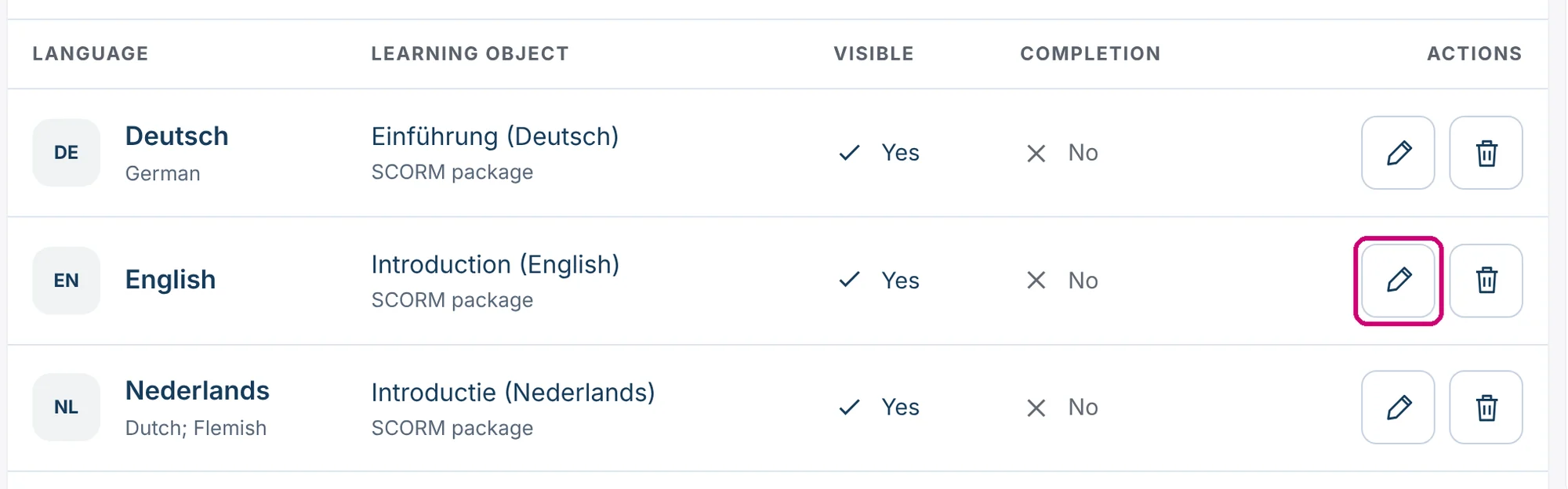
1. Open the package with the pencil
In the row of the language, click the pencil under Actions.
2. Click the current file
The form of the package opens. Under Package, click the file under Package file.

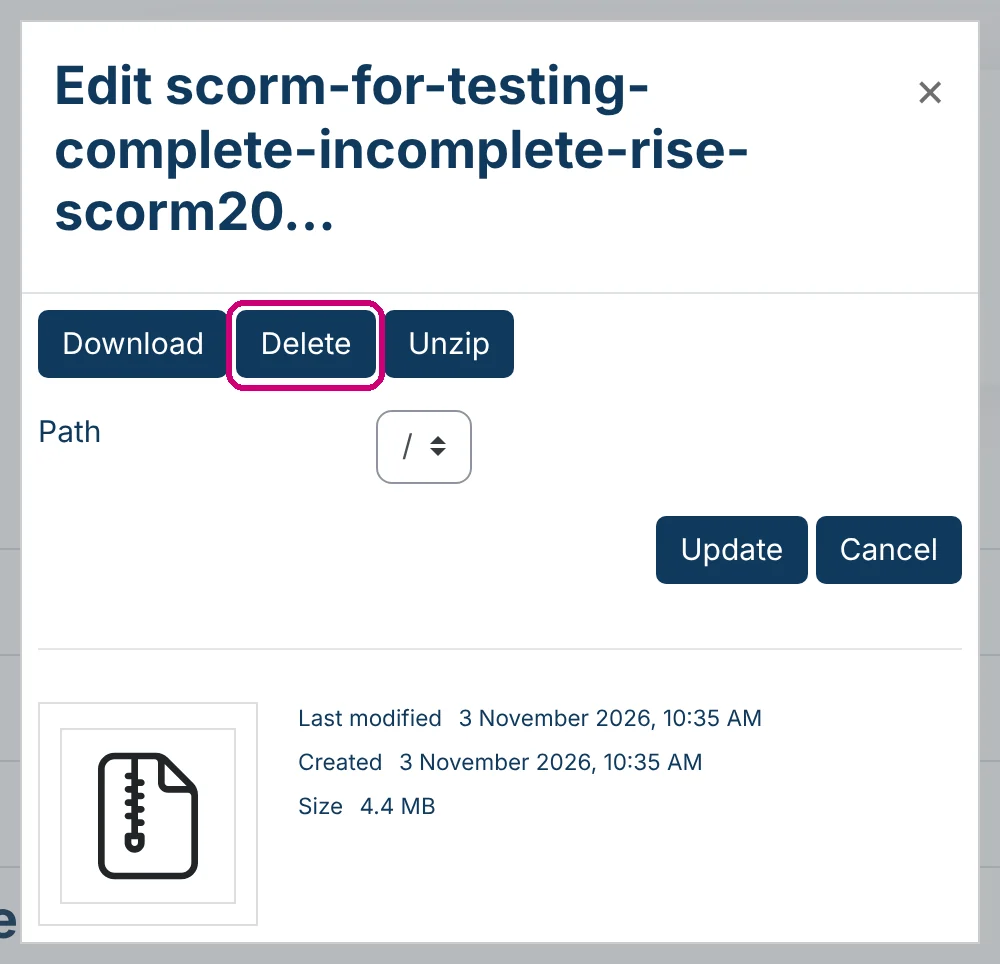
3. Click Delete and confirm
A window with the details of the file opens. Click Delete.
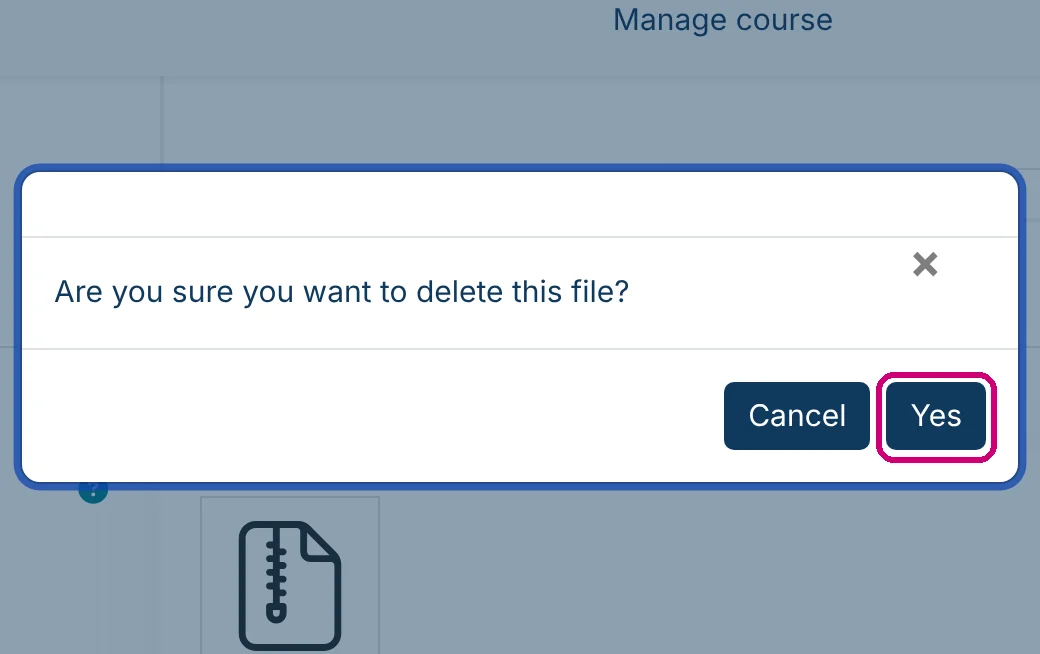
Linqur asks “Are you sure you want to delete this file?”. Click Yes.
The box under Package file is empty again. Nothing is saved yet: the old file stays in the course until you save the form.

4. Upload the new file
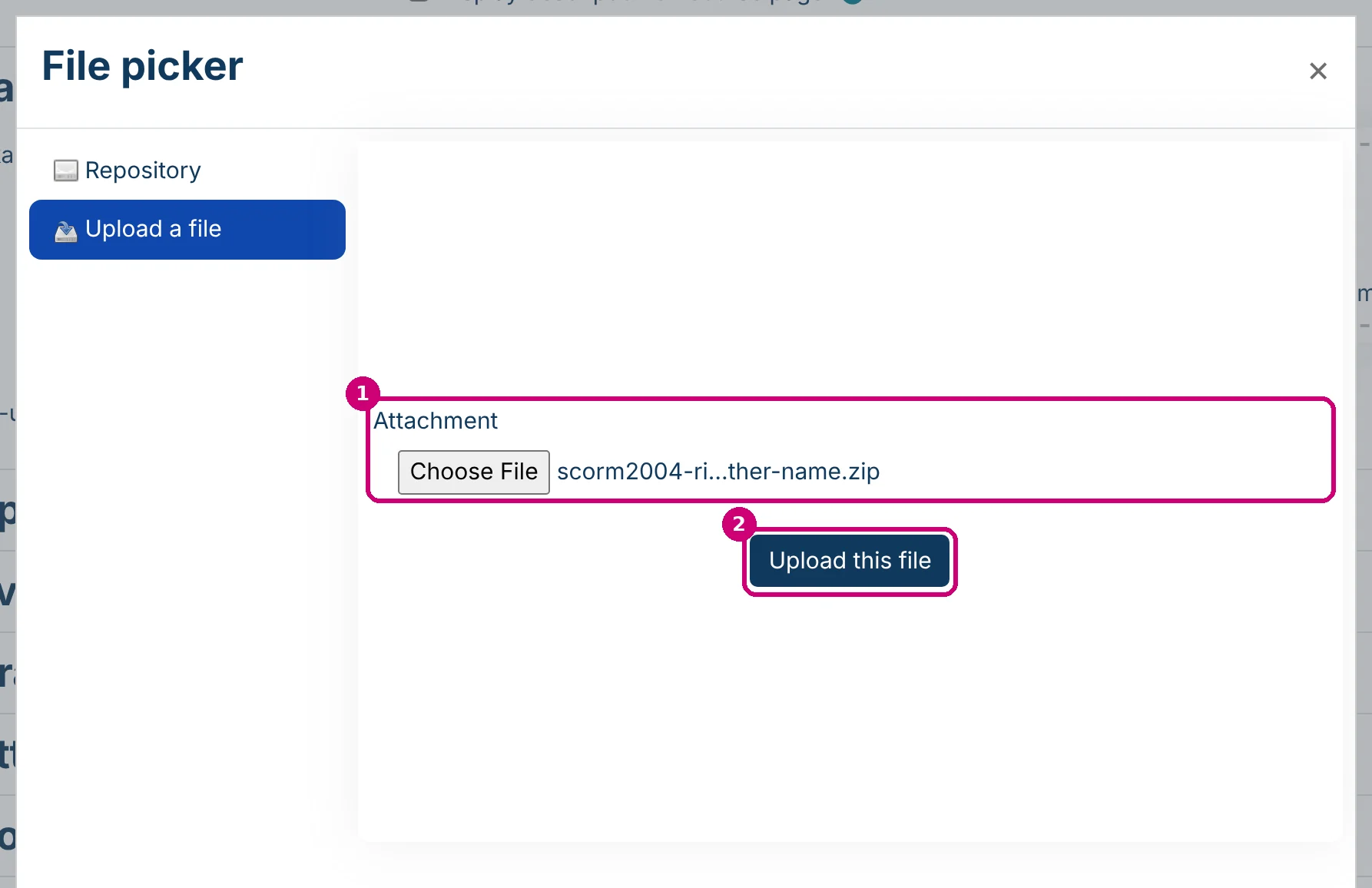
Drag the new zip file onto the box, or click the arrow in the box to open the file picker. Choose the file under Attachment (1) and click Upload this file (2).
The new file is now under Package file.

5. Save and return to course
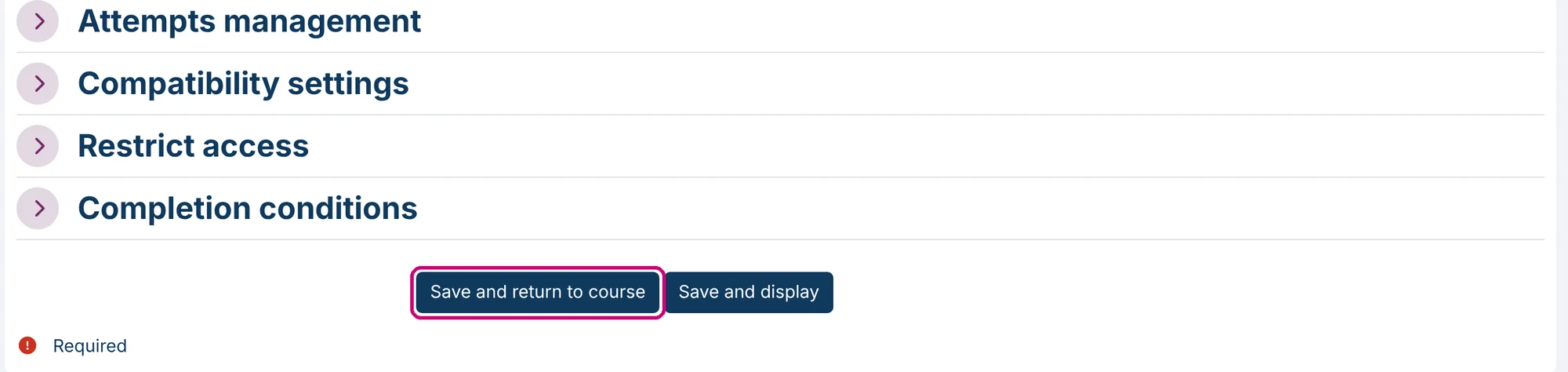
Scroll down and click Save and return to course.
6. Check the table and the preview
You are back in the table. The row shows the same name and type as before (1); only the file inside the package has changed. Open the package with the pencil once more and you see the new file name under Package file.
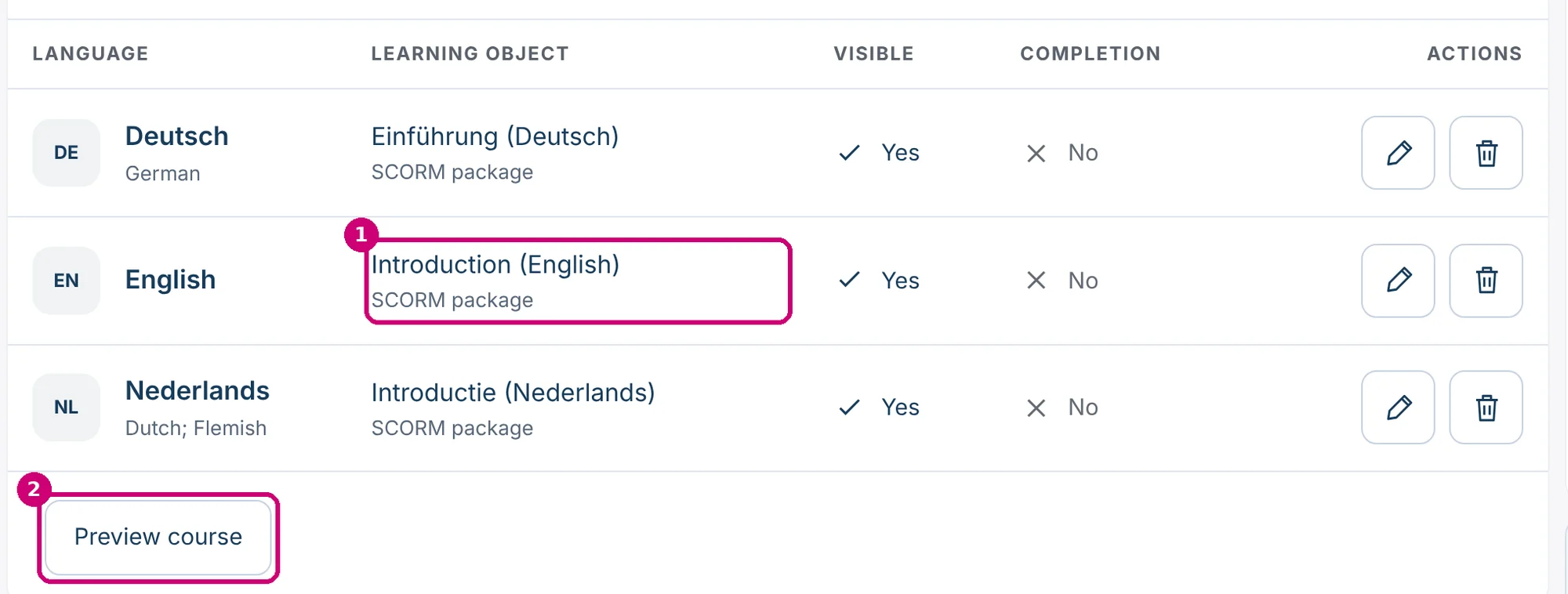

Click Preview course (2) under the table to check the course as a learner sees it. Choose the language you updated and click Start.
Next step
- The columns Visible and Completion, what learners see and common problems: manage languages in a multilingual course.
- Add a language or remove one: add or remove a language in a multilingual course.
- A package in a regular course: update a SCORM package.