View grades in the Gradebook
See the grades of every learner in a course, and add a grade item for content that has no grade of its own.
Every course in Linqur has a Gradebook tab with one row per learner. You see how the learner came in, the grade per activity and the totals. Whether a grade also goes back to the LMS is a setting of the LTI tool: Grade Sync, explained in LTI tool settings explained.
Open the Gradebook
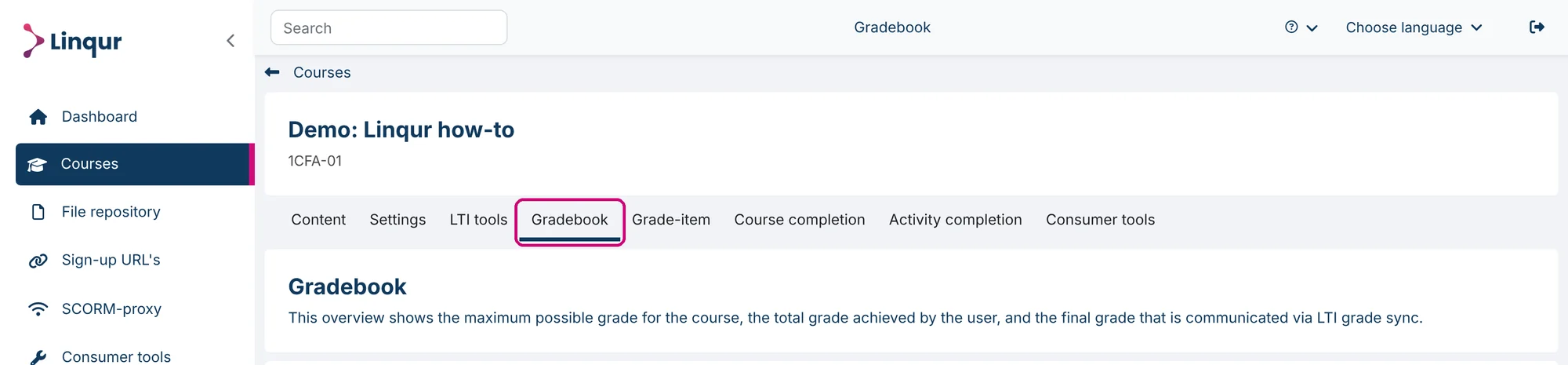
Click Courses in the menu, then Manage content for the course. Click the Gradebook tab.
The columns
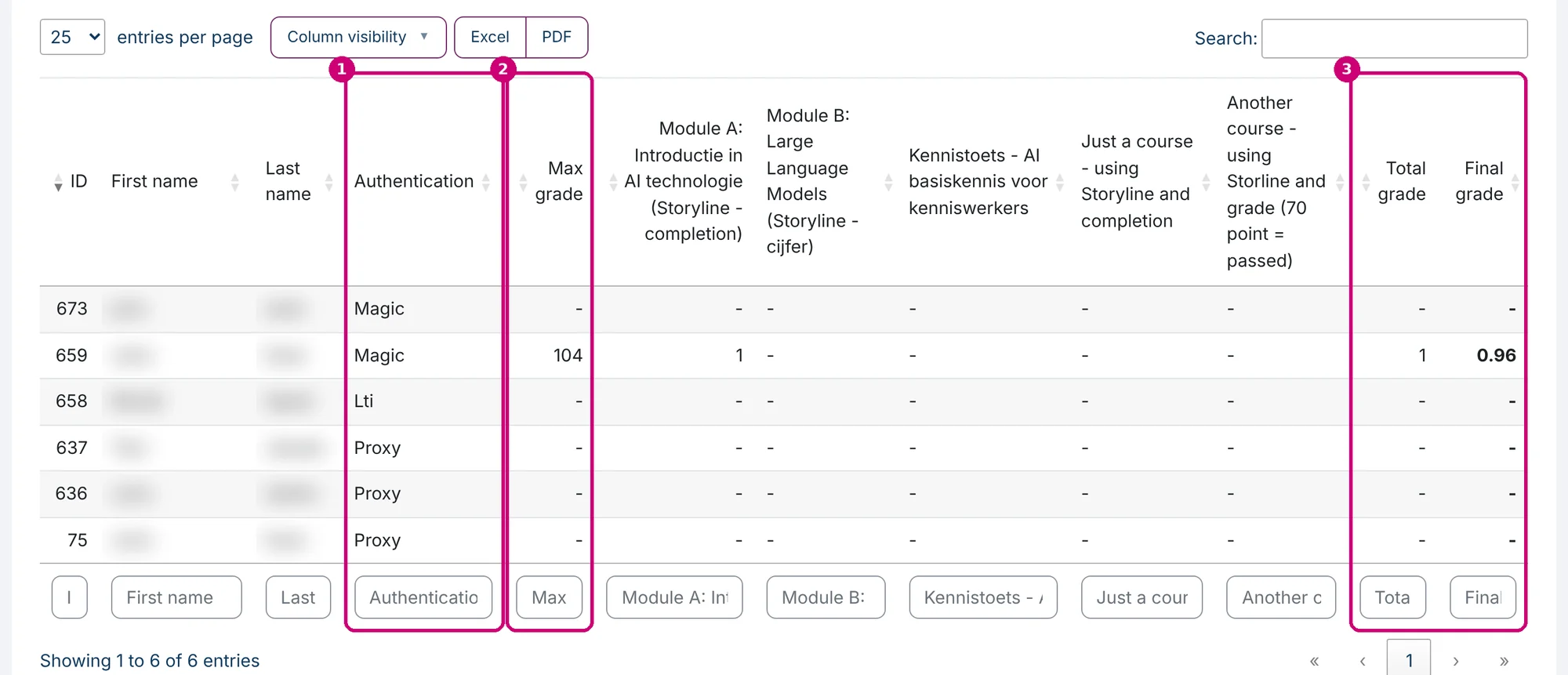
Each row is a learner. A dash (-) means there is no grade (yet). The Gradebook only shows grades: there are no fields to change them.
| Column | What it shows |
|---|---|
| ID | The id of the learner in Linqur. |
| First name and Last name | The name of the learner. |
| Authentication (1) | How the learner came in: Lti through an LTI tool, Magic through a sign-up URL, Proxy through the SCORM proxy. |
| Max grade (2) | The maximum possible grade of the course. Learners without a grade show a dash. |
| One column per graded activity | The grade of the learner for that activity, for example a SCORM package. The column has the name of the activity. |
| Total grade (3) | The total grade the learner achieved. |
| Final grade (3) | The final grade, shown in bold. |
Find learners
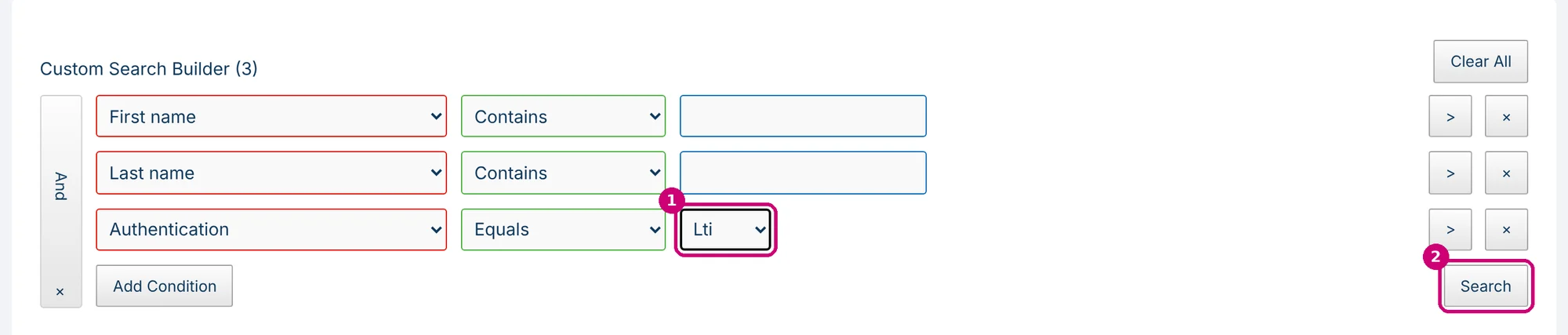
Use the Custom Search Builder above the table. It starts with three conditions: First name contains, Last name contains and Authentication equals. Fill in or choose a value and click Search. With Add Condition you add a condition, and Clear All removes all conditions.
For example, to show only learners who came in through an LTI tool, choose Lti in the value list of the Authentication condition (1) and click Search (2).
The table now only shows those learners. Under the table you see how many entries the filter shows out of the total.
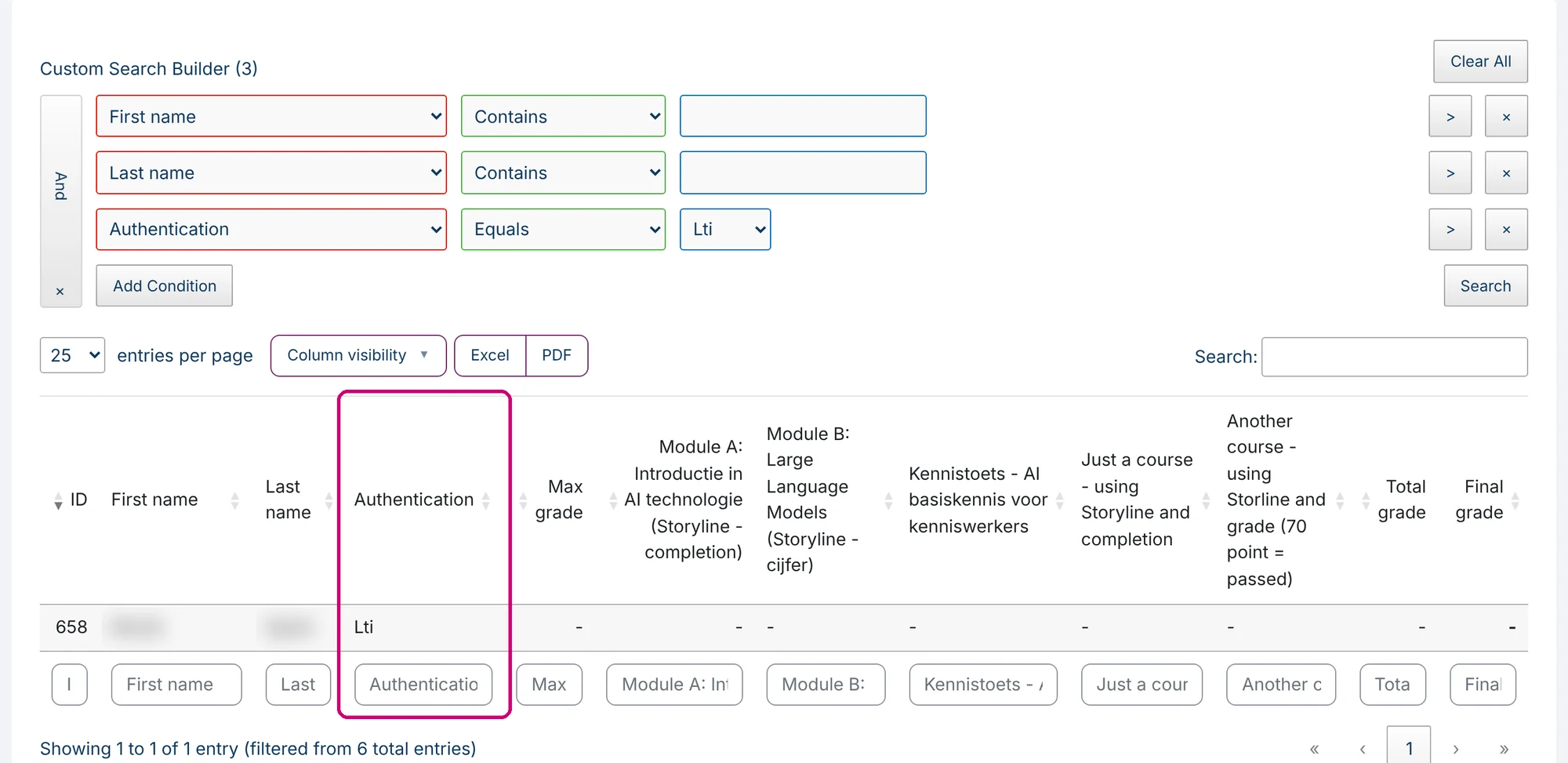
The filter stays when you open the Gradebook again in the same browser. Click Clear All to see all learners again. You can also type in the Search field to the right of the table, or in the filter field under each column.
Show columns and export
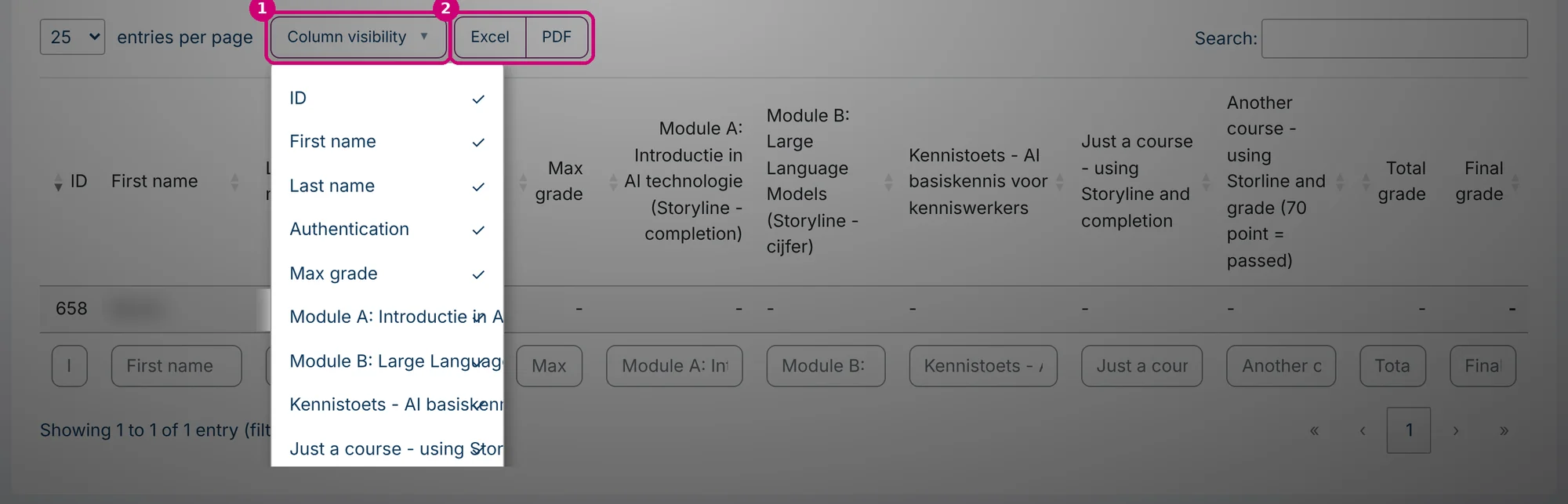
Column visibility (1) opens a list of all columns. Click a column to show or hide it. Excel and PDF (2) export the table.
Grade-item for content without a grade
Some content has no grade of its own, such as a Page or an xAPI activity. For a course with only that kind of content, turn on Grade-item. It adds an extra learning object to the Gradebook, which gets the value 100 when the course is marked as completed. Set up course completion first, as described in how to set up course and activity completion.
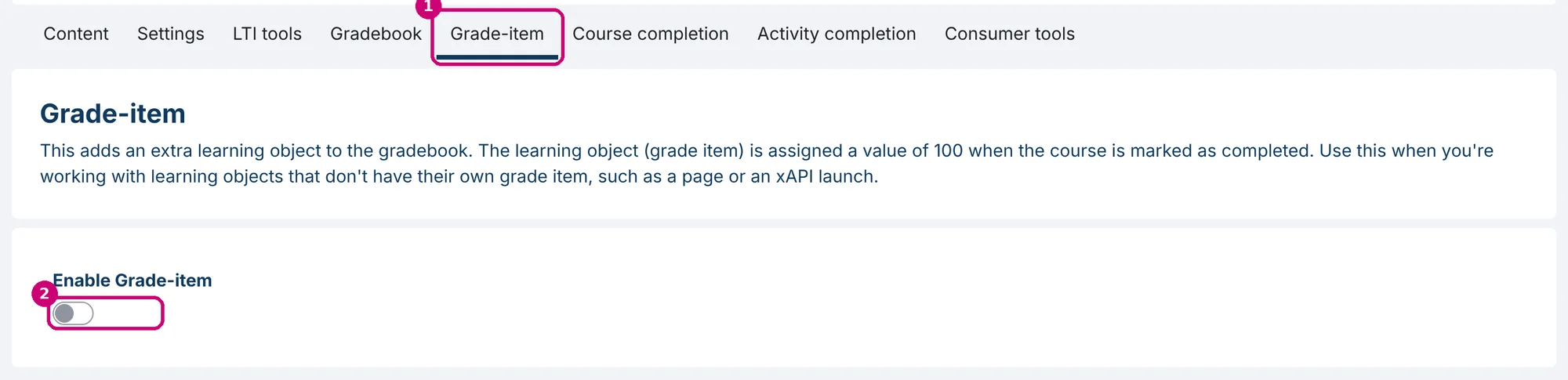
- Open the course and click the Grade-item tab (1).
- Turn on Enable Grade-item (2). The change is saved right away. There is no save button.
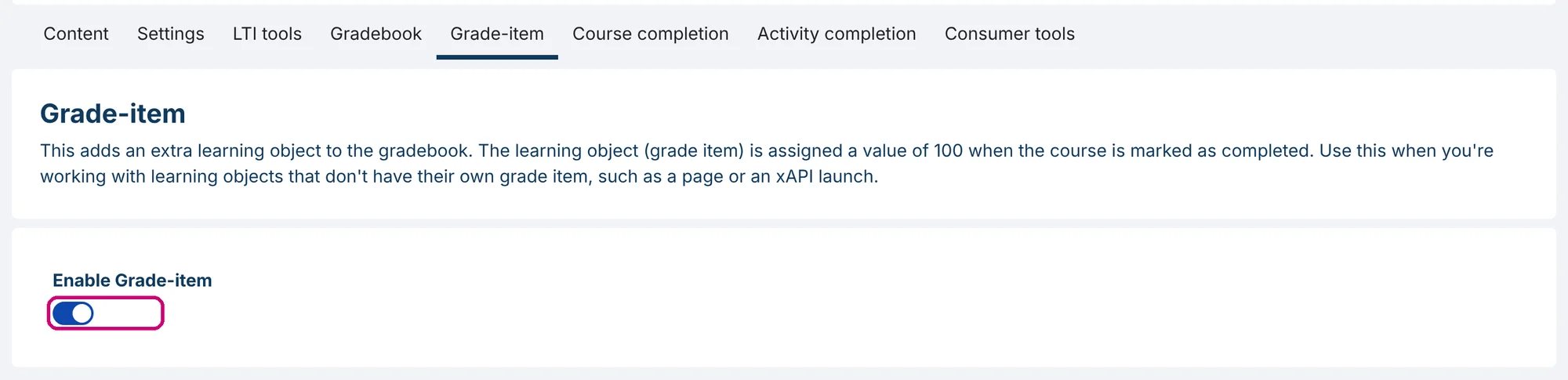
The Gradebook of the course now has an extra column, LTI grade. If you turn the switch off again, the column disappears from the Gradebook.

If the course already has grade items, for example a SCORM package, you can’t turn on Grade-item. The tab then shows the message “Course already has grade items in the gradebook. Enabling Grade-item disabled.”
Next step
- Decide whether grades go back to the LMS: Grade Sync and Require Full Completion in LTI tool settings explained.
- Publish the course or an activity: publish a SCORM package as an LTI tool.
- See the learners and grades of one LTI tool on its Registered users tab: share the launch details of an LTI tool.
- Check whether a grade reaches the LMS: LTI tool testing with Saltire.