View results with Sign-up URL Analytics
See how far each learner is in the course they joined through a sign-up URL.
Sign-up URL Analytics lists everyone who joined a course through a sign-up URL: learners who signed up themselves and learners you enrolled with enrol users. Open it through Sign-up URL’s in the menu, tab Sign-up URL Analytics.
The tiles
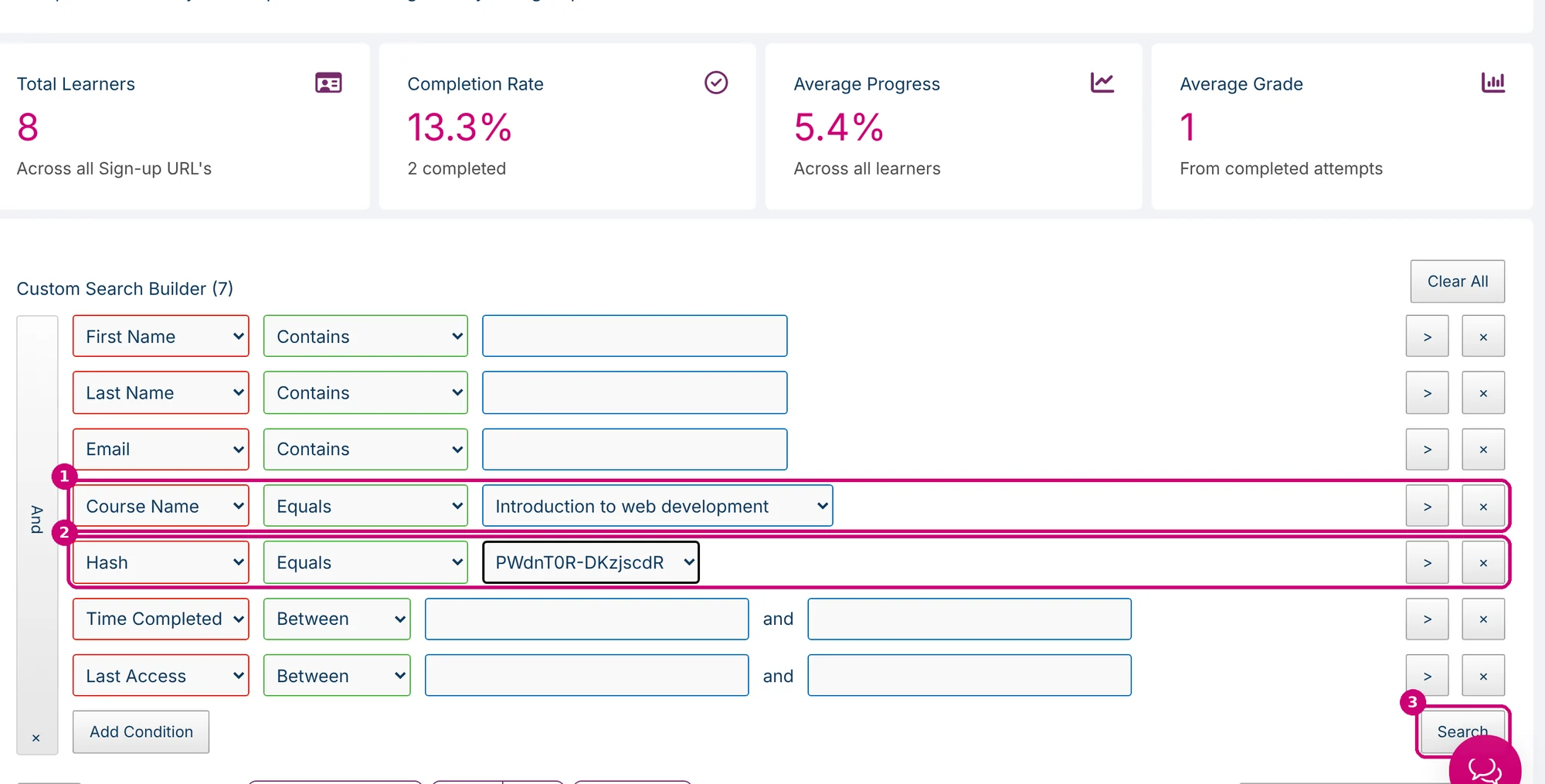
At the top are four tiles: Total Learners, Completion Rate (with the number of learners who completed), Average Progress and Average Grade (based on completed attempts). The tiles cover all sign-up URLs together. A filter only changes the table below.

Filter by course or sign-up URL
The Custom Search Builder already has conditions for first name, last name, email, course name, hash, time completed and last access.
- To see all sign-up URLs of one course, pick the course under Course Name (1).
- To see one sign-up URL, pick its code under Hash (2). That’s the part of the link after
/magic/. - Click Search (3).
The Label column shows the URL name of the sign-up URL the learner most recently signed up or was enrolled through. If a learner uses several sign-up URLs, filter on hash instead.
The results
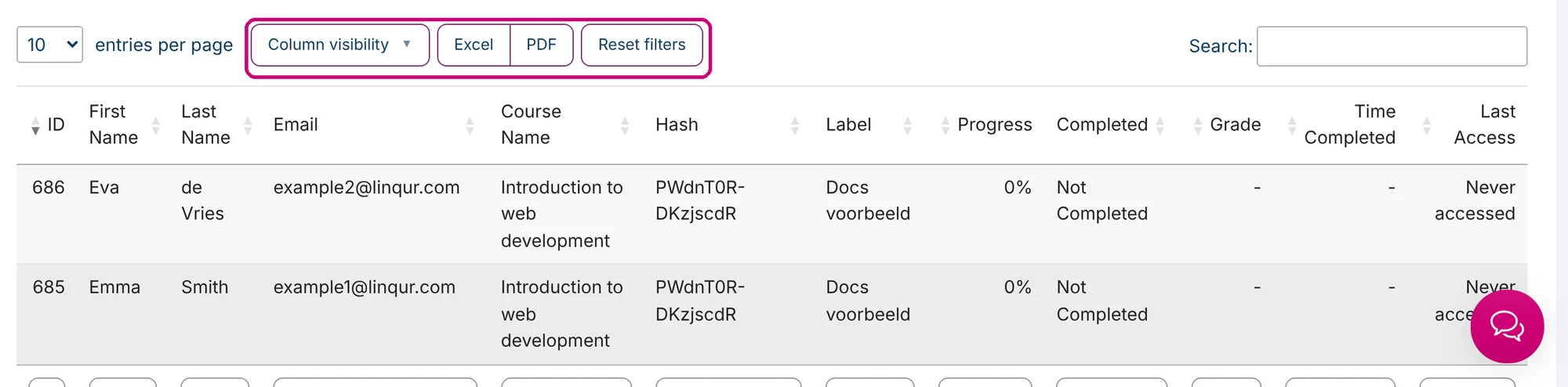
For each learner you see name, email, course, hash, label, Progress (as a percentage), Completed, Grade, Time Completed and Last Access. If someone hasn’t opened the course yet, it says “Never accessed”. Use Column visibility to choose the columns you see, and Excel or PDF to export the table.