Single activity: one learning object, no sections
A Single activity course is one learning object, usually a SCORM package, without sections or a course page.
A Single activity course consists of one learning object. There are no sections and no course page: opening the course opens the learning object itself. You choose the type of learning object when you create the course, and Linqur asks for that object right after you save.
When to choose it
Choose Single activity only when the course is one SCORM package that you offer through a sign-up URL. For SCORM Proxy and LTI tools, and for every course with more than one activity, choose Standard course. Not sure? Contact Linqur Support.
Step by step
1. Fill in the course details and choose Single activity
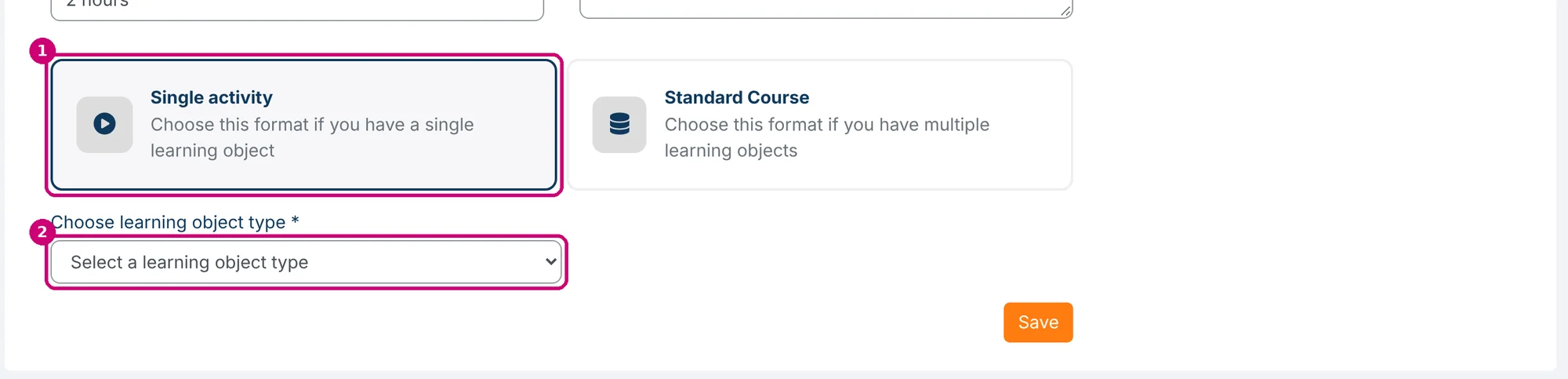
Click Courses in the menu and then Add course. Fill in the course details as in add a new course. Then click the card Single activity (1). The field Choose learning object type (2) appears below the cards.
2. Choose the learning object type and save
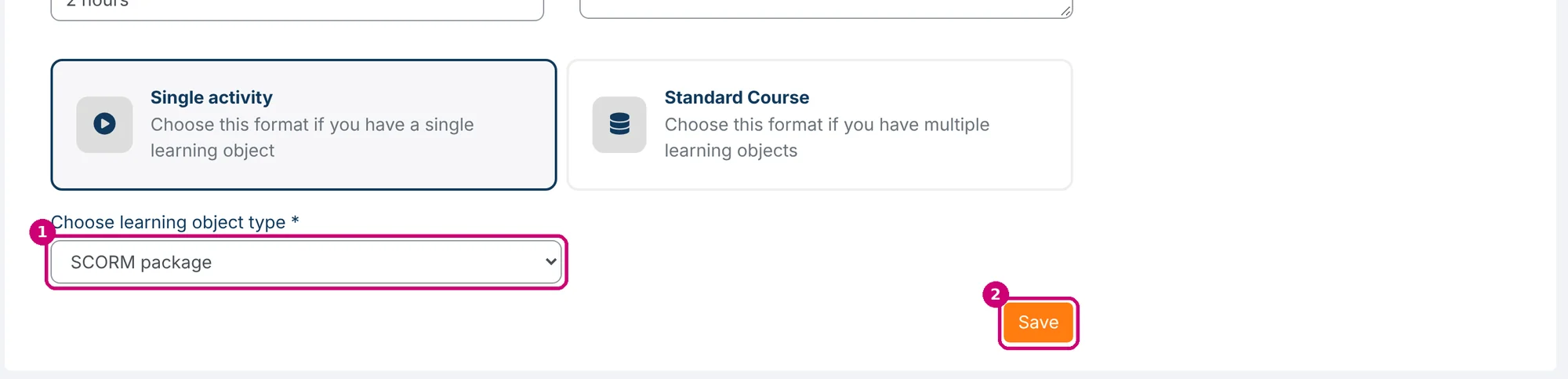
Choose the type in Choose learning object type (1), here SCORM package, and click Save (2). The list also offers BIG Registration, External tool, Page, Quiz, File and xAPI Launch Link.
3. Fill in the form of the learning object
Linqur creates the course (1) and lands straight on the Content tab with the form of the learning object, here the form for a SCORM package. Enter a Name (2).
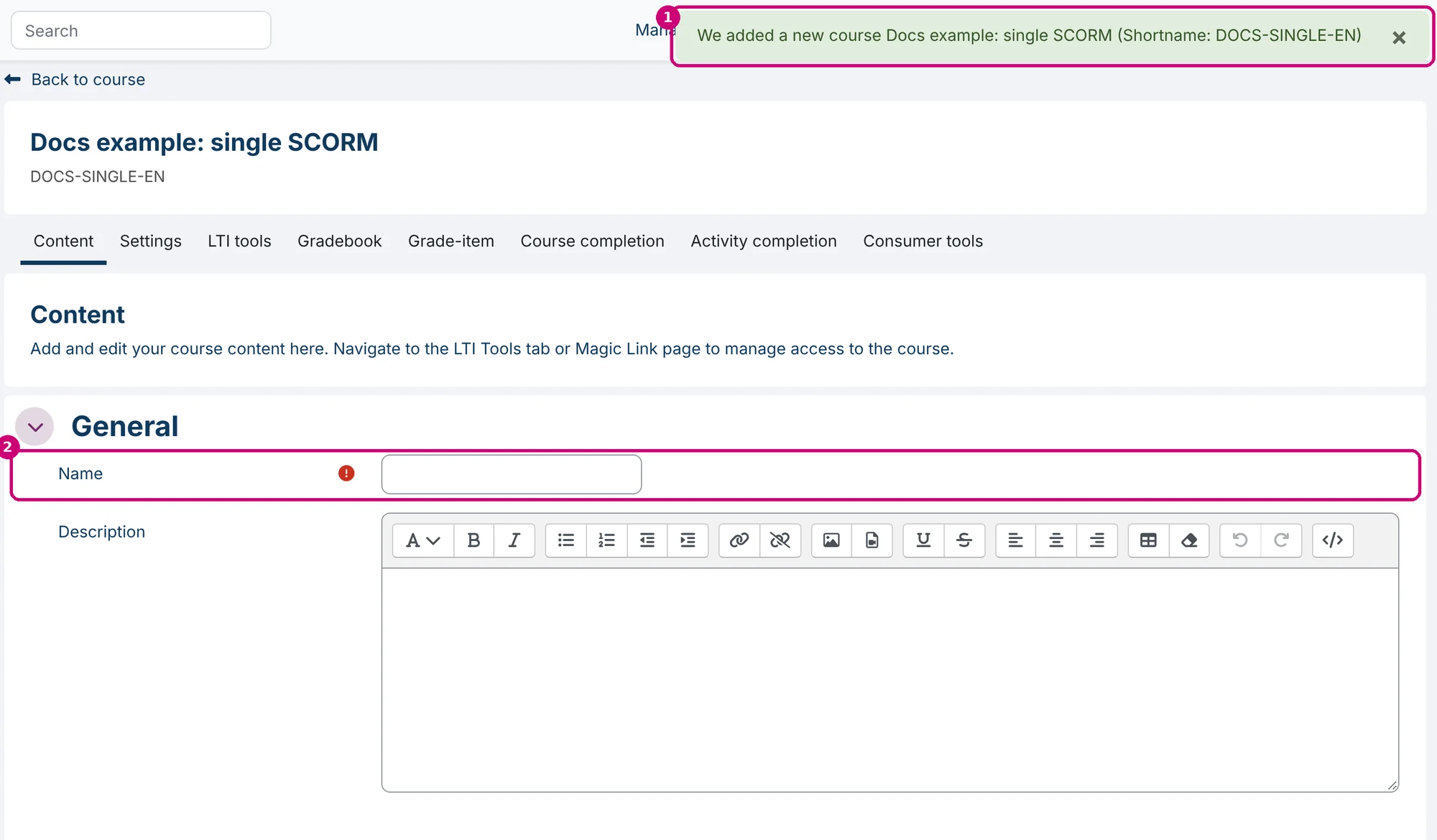
Under Package, drag the zip file into the Package file box.

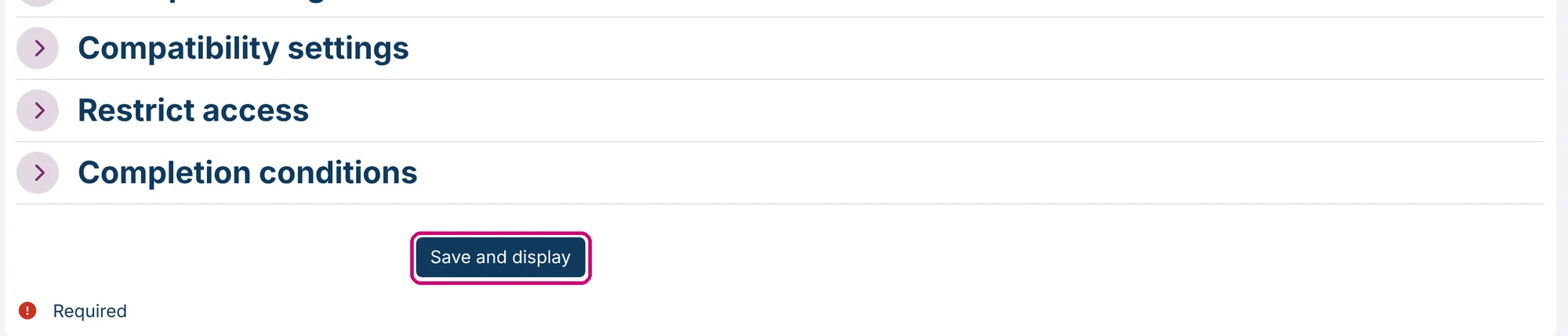
4. Click Save and display
This form has one save button: Save and display. There is no Save and return to course, because there is no course page to return to.
5. Check the course
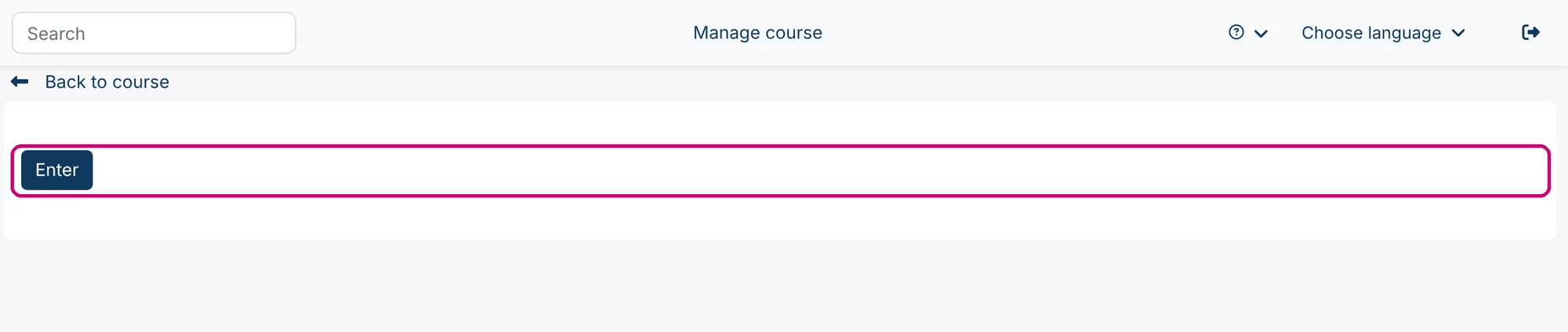
After saving you see the learning object: the Enter button of the SCORM package, with Back to course above it. Opening the course from the course overview shows the same page.
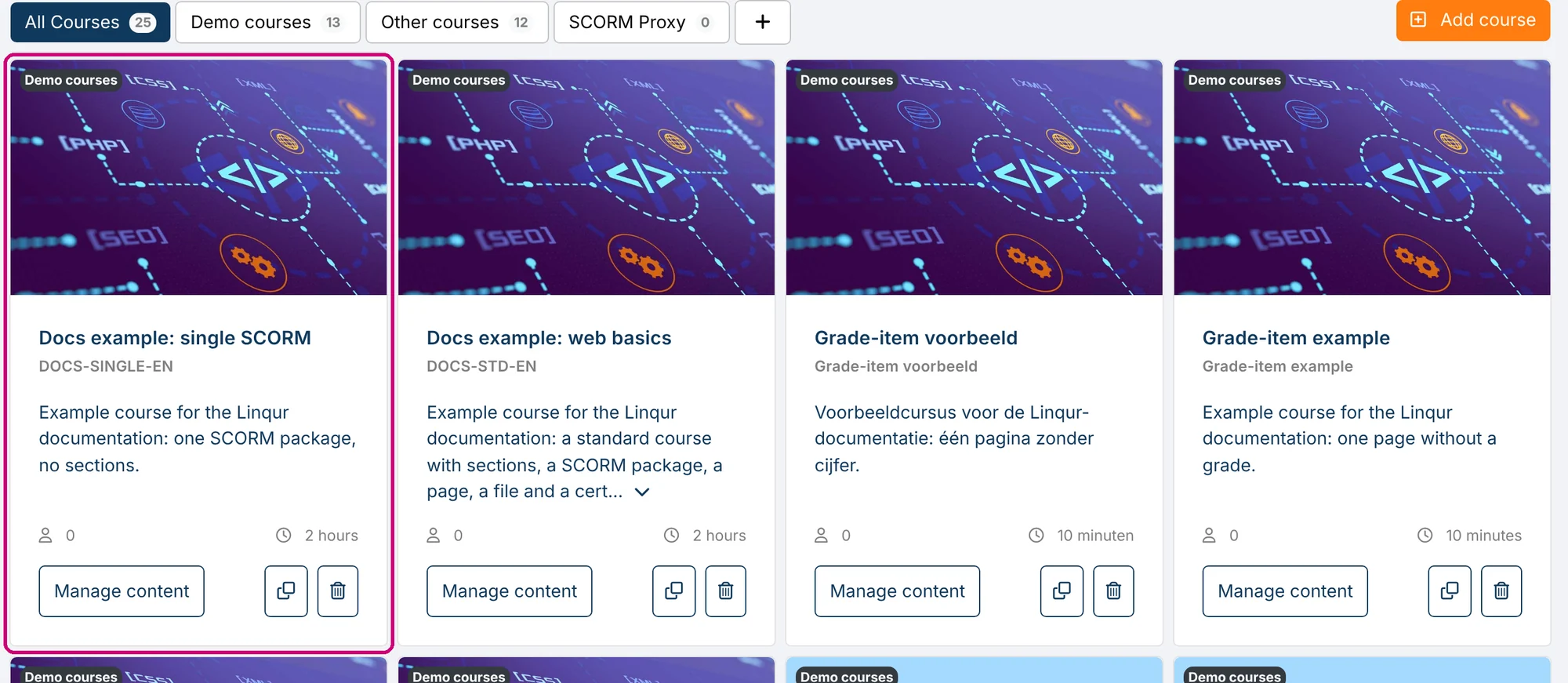
In the course overview, the course has a card like any other course, with Manage content.
What you cannot do
- There are no sections and no Add section button.
- There is no row of buttons to add a second activity. The course is the one learning object.
- Until you save the learning object, opening the course opens the empty form again.
Need any of this later? Create a Standard course and add the package there.
Update the package
The course card has a Manage content button, like any other course. Replacing the zip file works as described in how to update a SCORM package: keep the same tracking ID if learners already started the package.