LTI deep linking explained: what it is and how it improves the learner experience
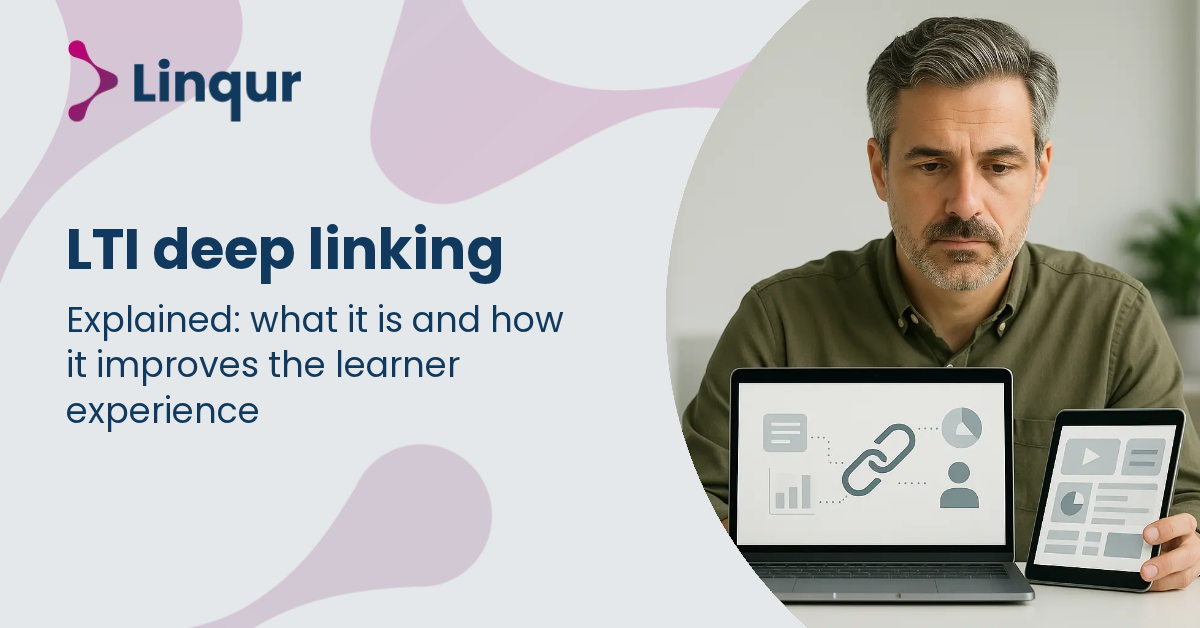
With LTI deep linking, an instructor inside a client’s learning management system (LMS) picks the exact course, activity or assessment they want from a selection screen you provide, instead of being handed one fixed link to configure by hand. Their choice and its settings save straight into the course, ready to launch. This is how deep linking works in practice for a training provider serving several client LMS platforms, and what it changes compared with sharing a single static LTI link per activity.
How deep linking fits into adding a tool to a course
Without deep linking, adding an external tool to an LMS course is a two-step process: an instructor first adds a link, then configures it separately, often following written instructions from the content provider. Deep linking collapses that into one step. When the instructor adds your tool, they immediately see a selection screen hosted by you, choose the exact content or activity, and the link saves fully configured. For you as the content provider, that means fewer support tickets caused by a wrong or incomplete manual configuration, and content that is presented consistently every time it is added. It also means a better learner experience: the course opens correctly from the first click, instead of failing on a broken link left by a manual setup mistake.
What deep linking lets you set on your side
- Content selection. You decide exactly which learning objects or activities appear on the selection screen, so instructors only see what you want them to find.
- Configuration options. You control the settings and parameters offered during setup, so content behaves as intended without changes on the LMS side.
- Access and reporting per activity. Each deep-linked activity can carry its own access controls and reporting, so usage and progress are trackable per client or course.
- Version compatibility. Deep linking works with both LTI 1.1 and LTI 1.3 Advantage, so you can support a range of client LMS platforms without losing functionality.
A practical example: a client choosing activities inside Moodle
An instructor at a client using Moodle adds your external tool to a course. Instead of a bare link, they see a catalog you provide and pick the specific quiz or activity they want, directly inside Moodle’s own add-tool flow. Once saved, that activity is fully configured, without a separate step to fill in identifiers or settings by hand. From your side, the catalog and its settings stay under your control, so every client sees the same consistent set of options regardless of which LMS they use.
Does deep linking work with every LMS?
Most LMS platforms that support LTI 1.3 Advantage include deep linking, though the depth of support varies. Moodle and Canvas are known to support it well; always confirm a specific client’s LMS before relying on deep linking as the only setup path.
What happens without deep linking?
Instructors add and configure a tool link manually, following written setup instructions. That is more error-prone and slower, and inconsistent configurations tend to generate more support requests over time.
Does deep linking still work for a client on LTI 1.1?
Deep linking as described here is part of LTI 1.3 Advantage. For a client whose LMS only speaks LTI 1.1, combining deep linking with the LTI Converter, which converts a tool between LTI 1.1 and LTI 1.3 Advantage in both directions, is one way to bridge that gap.
When deep linking is the right setup, and when it is not
Deep linking is the better choice once you manage multiple clients or a content library large enough that consistent, correct configuration matters more than a one-off manual setup. Where a client’s LMS only supports LTI 1.1, or has limited deep linking support, manual setup or LTI version conversion through the LTI Converter remains the practical route. For LMS platforms without deep linking support at all, SCORM Proxy or the LTI Tool Dispatch still give you central control and reporting, just without the in-LMS selection step.
This approach is part of a broader shift toward simpler e-learning delivery, covered in our comparison of content distribution with LTI, SCORM or the API. For the underlying standard, see the knowledgebank entries on LTI 1.3 Advantage and Learning Tools Interoperability.
Let clients pick their own activities
Offer your content through LTI Deep Linking so instructors configure it themselves, in one step, inside their own LMS. Book a 30 minute LTI walkthrough with one of our engineers.
Related articles

How to set up an LTI integration in Canvas (step-by-step)
Setting up an LTI integration in Canvas means registering your tool through Canvas's Developer Keys or External Apps settings, configuring the launch parameters, and adding the tool to the courses or modules where learners will use it.


5 reasons large training companies choose LTI over SCORM for distribution
Large training companies increasingly move from SCORM to Learning Tools Interoperability (LTI) once they distribute the same course to many client learning management systems (LMSs).
SCORM Proxy vs SCORM Cloud Dispatch: what is the difference?
When training providers distribute SCORM content to multiple clients, managing separate SCORM packages for each LMS quickly becomes overwhelming. Every update means sending out new files, tracking versions, and hoping clients upload the latest release correctly.
About the author
Joris founded Linqur and has worked in e-learning for fifteen years. He is responsible for the product, its technical direction and client contracts.